
 Tutorials


 Ahura
Ahura Plugins

 Blog
BlogElementor Atomic Elements: A Complete Guide
- Tutorials
- Updated on
Elementor’s new feature has been around for a little while now, but we hadn’t talked about it yet. After putting it through its paces, I discovered what it brings to the table and decided to walk through how it differs from the earlier versions — and why Elementor chose to introduce these changes as a brand-new element rather than just upgrading the existing ones.
Has it ever happened to you that a site you poured hours into — one that came out genuinely sleek design-wise — loads slowly on a user’s phone, or even freezes up? Or that Google PageSpeed keeps nagging you that your page has too many elements? A lot of the time, the root of this problem is somewhere you’d never think to suspect: behind the scenes of those very simple elements you build with [Elementor].
Elementor recently added a feature called Atomic Elements, built to solve exactly this problem. In this article, I want to tell you precisely what it is, how it differs from the usual elements, and — most importantly — what to keep an eye on if you decide to use it, so that your site improves instead of breaking.
Table of Contents
Elementor’s New Feature: Atomic Elements
Elementor’s new feature has been around for a little while now, but we hadn’t talked about it yet. After testing it out, I discovered what it brings to the table, and I decided to walk you through how it differs from the earlier versions — and why Elementor chose to introduce these changes as a brand-new element rather than just upgrading the old ones.

Has it ever happened to you that a site you poured tons of time into — one that turned out genuinely sleek design-wise — loads slowly or even freezes on a user’s phone? Or that [Google PageSpeed] keeps nagging you that your page has too many elements? A lot of the time, the root of this problem lies somewhere you’d never suspect: behind the scenes of those very simple elements you build with [Elementor].
Elementor recently added a feature called Atomic Elements, built to solve exactly this problem. In this article, I want to tell you precisely what it is, how it differs from the usual elements, and — most importantly — what to watch out for if you decide to use it, so that instead of improving your site, you don’t end up breaking it.
What Are Atomic Elements?
Atomic Elements are essentially a new generation of Elementor elements, built with one clear goal in mind: making sites lighter and improving performance.
If you’ve worked with Elementor, you know that every element (a simple heading, say) builds a fairly heavy structure behind the scenes. Atomic Elements came along to make that very structure much simpler and cleaner. The result is a page that loads faster and takes fewer resources from the user’s system.
Let me say one thing right up front so you don’t get confused later: Atomic Elements don’t yet cover every element the way you might expect. For now, most of the commonly used elements — like headings, images, and tabs — have been made atomic. The atomic Form element is also available in the Pro version, while in the free version you’ll mostly be working with the basic atomic elements. So don’t expect everything to have gone atomic overnight; this is a road Elementor is paving gradually.
How Do You Enable It?
Turning it on isn’t hard — it’s just a few steps:
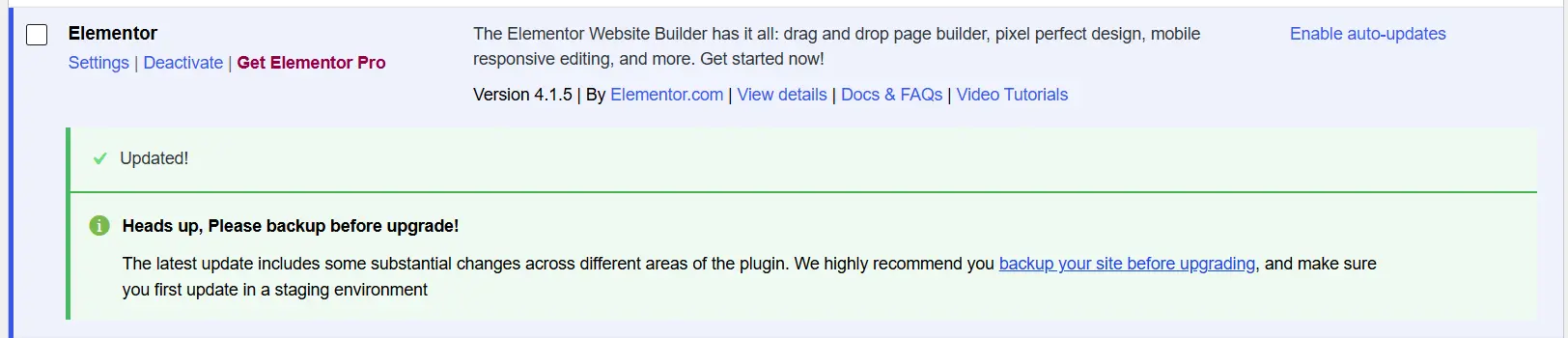
1. Make sure your Elementor is version 4 or later. This feature isn’t available on older versions. For instance, if you’re using a WordPress theme like Ahura — which has Elementor as one of its requirements — then Elementor is usually already installed on your site, and all you need to do is check its version.
2. Update Elementor to the latest version. Head into your WordPress dashboard, go to the “Updates” section, and if there’s an update available for Elementor, run it. Features like this one usually get more polished in newer releases, so it’s best to be on the latest version. Alternatively, you can update Elementor from the Plugins section.
3. Open one of your pages with Elementor. Once you’re in the editing environment, you’ll see a new option called “Atomic Elements” asking you to enable it.
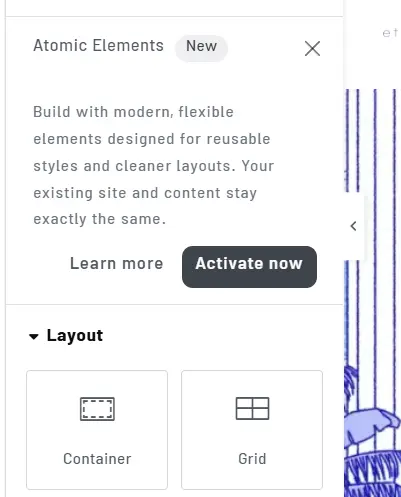
4. Click “Activate Now.” That’s it. From here on, Atomic Elements sit right alongside your usual tools, and you can use both together.
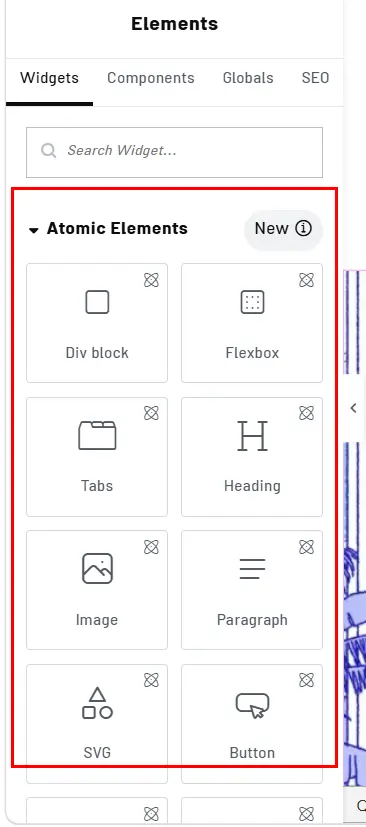
What Makes Atomic Elements Different from the Old Ones?
This is the heart of the matter, and let me show you with a hands-on example, because everything becomes clear with one simple test.
Imagine you create two headings — one with an atomic element and one with the old, basic element. From the outside, the two look identical; you won’t spot any difference. But let’s go take a look behind the scenes.
If you right-click on the page and hit the browser’s Inspect option, you can see the HTML code for each one. And this is where the difference reveals itself:
The old heading: To build a simple heading, it wraps a heading tag inside a div, that div inside another div, and that one inside yet another div. In other words, for a single heading, it creates four or five nested elements.

The atomic heading: It just places a heading tag inside a single, simple div. That’s all.

So the first and most important difference is that Atomic Elements make the HTML structure far simpler and shallower.
Why Simpler Matters
You might say, “So what if a heading sits inside four divs or just one — what difference does it make?” Let me unpack that for you, because this is exactly where performance enters the picture.
If you’ve ever tested your site with Google PageSpeed, you may have run into an error saying your page has too many nested HTML elements. That error isn’t there for nothing.
Here’s the deal: when a user opens a page on your site, their browser has to load this entire HTML structure and tie up a chunk of their system’s RAM to do it. The more nested and heavy that structure is, the more RAM gets used up and the slower the page loads.
Want to see it for yourself? In Chrome, hover your mouse over a page’s tab title; it’ll show you how much memory that tab is using. The lower that number, the lighter your page is and the smoother the experience for the user.
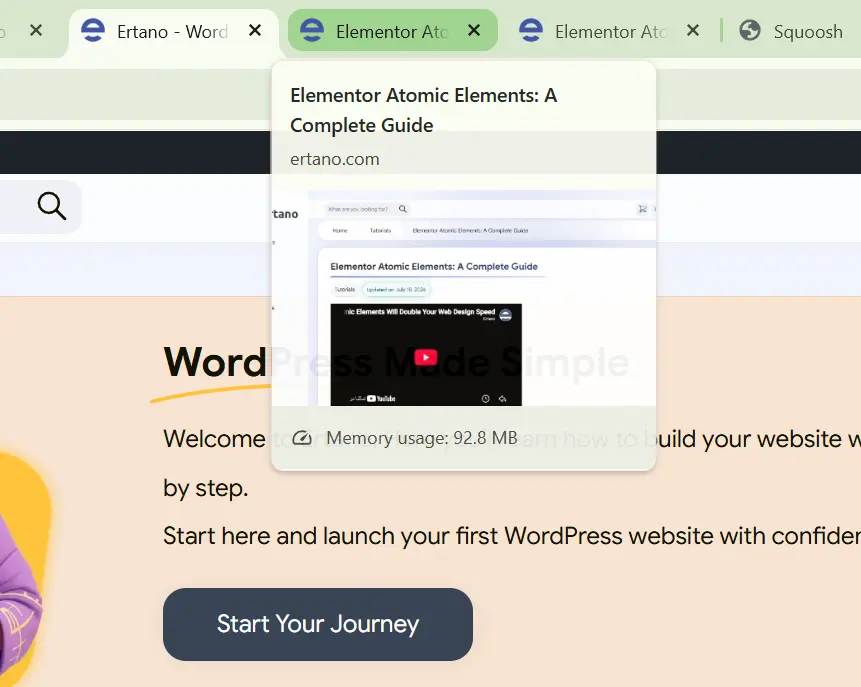
Let me give you a real-world example. Some sites are truly slick and eye-catching design-wise — full of shadows, glassy effects, and gorgeous mega-menus. But those same delicate touches cause a ton of extra elements and CSS to pile up and eat up a lot of the user’s browser RAM. The result? A user who comes in on an average machine or a phone that’s a few years old might find the page freezing or lagging, and they’ll ultimately leave your site unhappy.
This is exactly where Atomic Elements help you: by reducing the depth and number of elements, less of the user’s system RAM gets used, and your site works better even on weaker devices.
One important note:
When I talk about “element depth,” I mean the number of nested HTML tags — not the DOM. The thing you see in Google PageSpeed called the DOM stands for Document Object Model, and that’s a separate topic. Don’t mix the two up.
Other Benefits of Atomic Elements
Beyond the performance angle, there are a few other nice touches that make working with them more enjoyable:
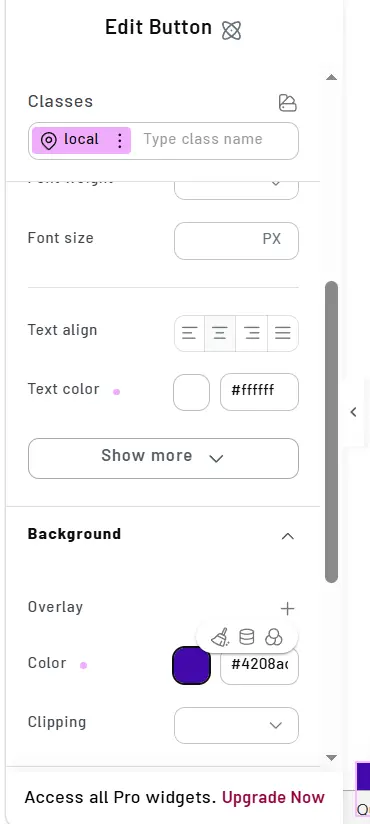
Better responsive controls. The settings are cleaner and more organized. For example, you can define a text color one way on desktop, another way on tablet, and pick a completely separate color on mobile. That separate control for each device really comes in handy.
Easier management. Each element’s settings are laid out more neatly, and finding the option you’re looking for is simpler.
Smoother editing. Because the structure is lighter, the Elementor editing environment itself runs lighter and smoother while you work. That means it’s easier for you during design, and better for the end user visiting the site.
So, Should We Use It or Not?
Here we get to the main question. The answer isn’t a flat “yes” or “no” — it depends on a few things.
First of all, know that this change isn’t automatic. Elementor deliberately doesn’t convert your site’s old elements to atomic ones on its own. Why? Because if it did that automatically, sites that had been running on the old structure for years could break. So it left the responsibility for this migration up to you.
What does that mean? It means if performance matters to you, you have to go in and manually remove the old elements and put atomic ones in their place.
So keep these points in mind:
- If you’re building a new site, go with Atomic Elements from the very start. There’s practically no reason not to.
- If your site is old and high-traffic, proceed with caution. Don’t suddenly swap out all your elements. Try it first on a test page or a staging copy, make sure nothing breaks, and then move forward gradually.
- If performance and speed aren’t a concern for you at all and your site works fine, there’s no need to rush. You can get to it whenever you like.
Honestly, this kind of approach is very common in the development world. Usually, when a widely used plugin or tool introduces something new, it keeps the old version alongside it and leaves the choice up to the user, so that anyone used to the old way isn’t disrupted. That’s respect for the existing user, not a weakness.
Frequently Asked Questions
Are Atomic Elements free?
A large portion of the commonly used atomic elements are available in the free version. Some items, like the atomic Form element, are enabled in the Pro version.
Do they conflict with the old elements?
No, you can have both types side by side on your site. Elementor doesn’t change anything automatically, so there’s no need to worry about things breaking.
Will using it break my site?
If you proceed carefully, no. The only recommendation is that on older, important sites, you test the changes first and then apply them.
Does it really affect speed?
Yes. Because it makes the HTML structure lighter and shallower, less of the user’s browser RAM gets used, and the page loads faster and more smoothly — especially on weaker devices.
Wrapping Up
If I had to sum up the whole thing in two lines:
Elementor’s Atomic Elements give you two main wins: first, reducing the depth and number of HTML elements, which directly affects speed and RAM usage; and second, better management and control, especially in responsive modes.
My final recommendation? If your site’s performance matters to you (and it should), definitely go for it. Use it without hesitation on new sites, and for older sites, migrate step by step with a bit of caution and testing. A lighter site means a happier user, and a happier user is exactly what we’re all after.

Ahura WordPress Theme
The Power to Change EverythingElementor Page Builder
The most powerful WordPress page builder with 100+ exclusive custom elements.
Incredible Performance
With Ahura’s smart modular loading technology, files load only when they are truly needed.
SEO Optimized for Google
Every line of code is carefully aligned with Google’s algorithms and best practices.
To post a comment, please register or log in first.