
 Tutorials


 Ahura
Ahura Plugins

 Blog
BlogHosting a Webinar in WordPress with 8 Plugins Along with a Tutorial
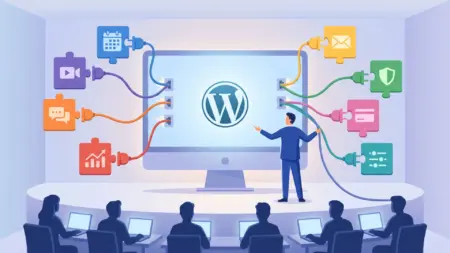
Imagine being able to host webinars and online classes right on your own website—without sending users anywhere else. WordPress is one of the best tools for building a website, but there’s one catch: by default, it doesn’t offer any built-in capability for live streaming or hosting webinars. The good news is that this limitation can easily be solved with plugins. All you need to do is install a suitable plugin to turn your simple site into a full-fledged webinar hosting platform.
In this article, we’re going to review 8 of the best webinar plugins for WordPress, discuss the strengths and weaknesses of each, and finally teach you how to install and set one up step by step. So stay with us until the end.
Table of Contents
What Is a Plugin?
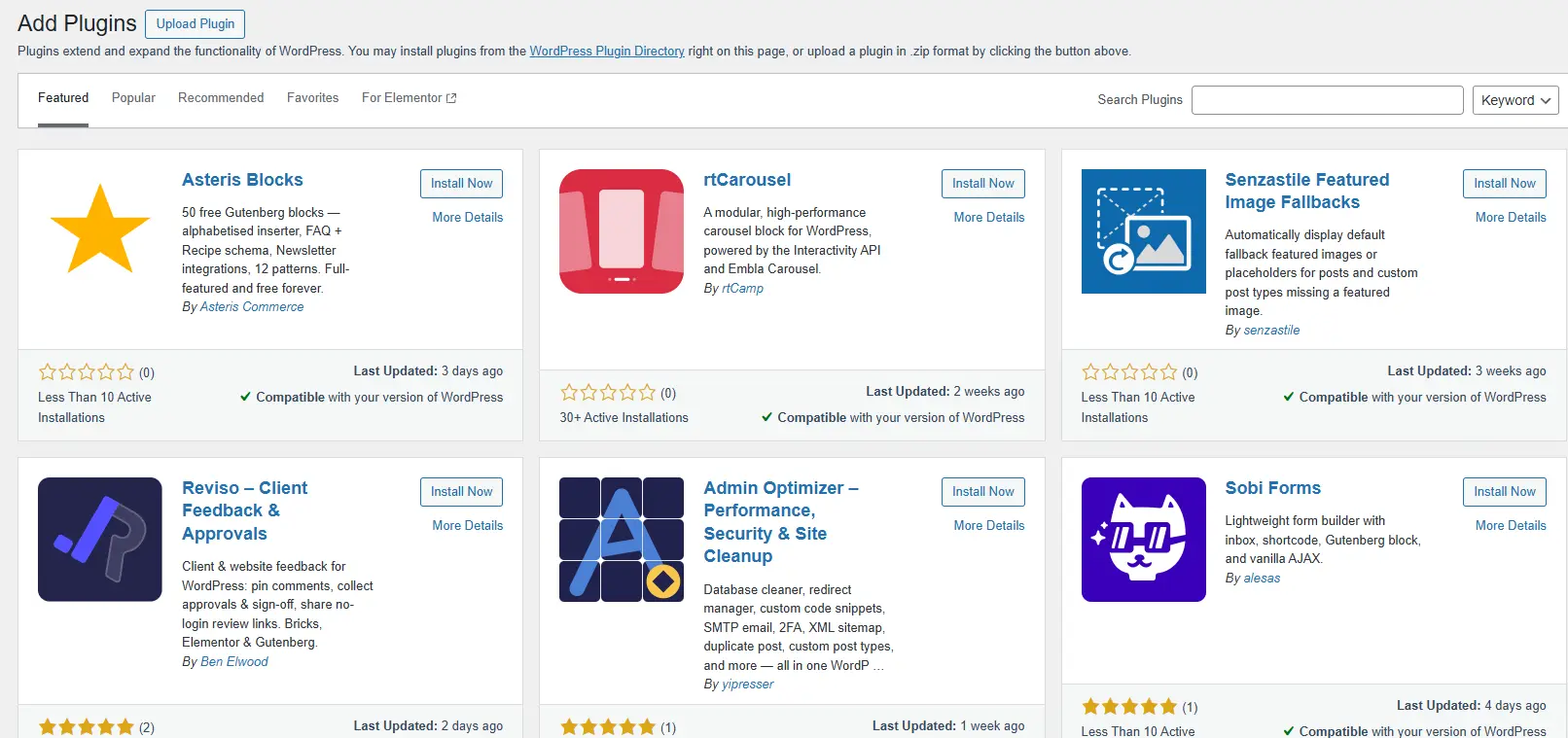
Plugins (or add-ons) are small programs that are installed on WordPress and add new features to it. Like the example we mentioned: WordPress by itself cannot host a webinar, but by installing a free or paid plugin, you can add this capability to it.
This isn’t limited to webinars either. For example, suppose you don’t like the default WooCommerce user dashboard; you can simply look for a custom user panel plugin and install it.
What Is a Webinar and How Can We Host a Webinar in WordPress?
A webinar is essentially an online class, seminar, or course that is held over the web. Simply put, a webinar is an interactive, two-way event that takes place at a specific time between the host and participants via the internet. But why has it become so popular? Let’s look at some of its most important advantages:
- No physical presence required: Participants can join the webinar from home, the workplace, or anywhere else, using just a laptop, tablet, or even a smartphone.
- Saves both time and money: When no one needs to travel, there are no transportation costs. On the other hand, the host doesn’t need to pay for renting a hall or venue. The result is significant savings in both time and expenses for both parties.
- Recording and permanent access: Most webinar hosts record the session live so participants can watch it again later.
- Opportunity for promotion and income generation: With a live session, you can showcase your expertise and skills, introduce yourself to others, and ultimately generate income from it.
Best Webinar Plugins for WordPress
Now that we’re familiar with webinars themselves and their benefits, let’s get to the main topic—the 8 plugins we promised.
Video Conferencing with Zoom Plugin
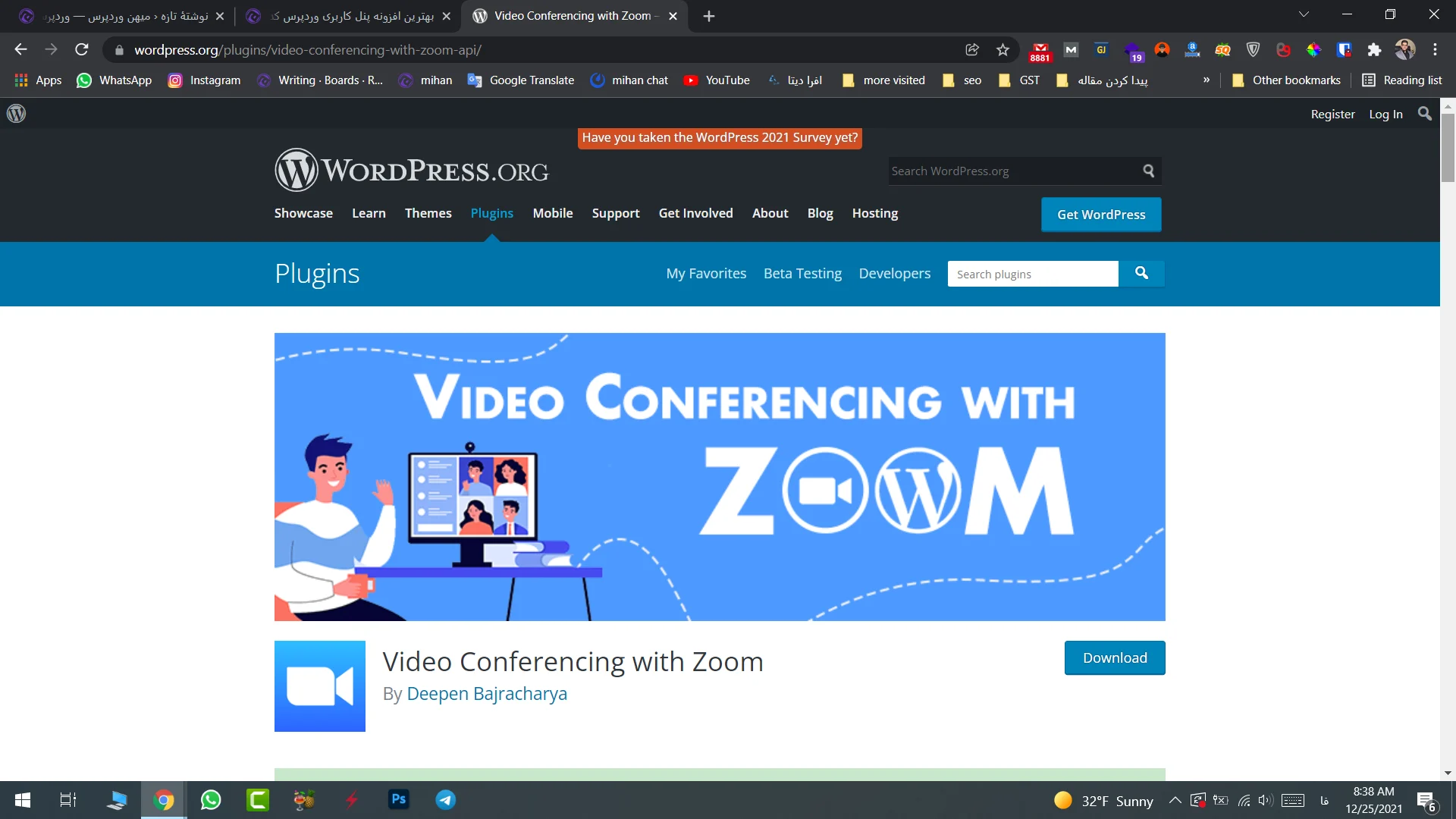
This plugin is an API for the well-known Zoom service—the same platform that became extremely popular during the COVID era for conferences and webinars. One of its most attractive strengths is its seamless integration with WooCommerce. This means if you want to sell your webinar, once the customer completes the payment, the plugin automatically grants them access to the webinar.
Some of its other features include:
- Support for Gutenberg and Elementor
- Ability to create recurring sessions and webinars
- Countdown timer
- Compatibility with LearnPress and LearnDash
- Access to features such as WooCommerce forms
- Daily account reports
Free plan status: Yes, available. The free version of Zoom supports up to 40 minutes per session for 100 participants. Additionally, Zoom has introduced a tool called Zoom AI Companion, which can automatically generate text summaries of your meetings and extract key points (this feature requires a paid plan).
WebinarPress Plugin
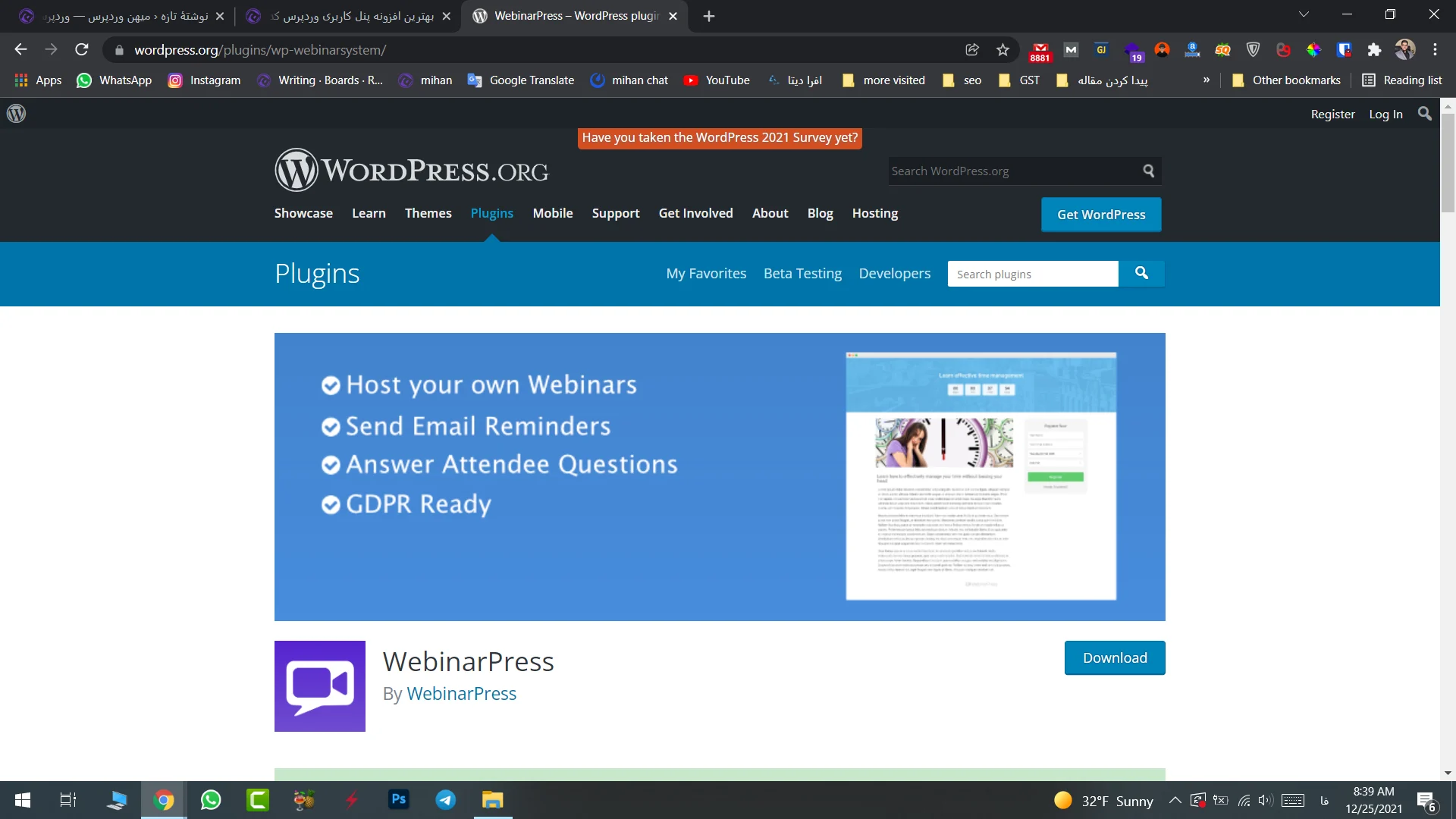
If you’re looking for a plugin that can run a professional webinar without putting pressure on your server resources, WebinarPress is a great option. It works by pulling the video from major platforms like YouTube (YouTube Live), Vimeo, or other livestream services and displaying it in a fully dedicated, right-to-left optimized environment within your own website. In short, you have complete control over your webinar page.
Some of its other features include:
- Creating and displaying online courses
- Responsive user interface
- Automated scheduled reminder emails
- Registration confirmation page
- Ability to customize the online class page appearance
- Countdown timer
- Chat and private conversation options
- “Ask” section for user questions
- Displaying the participant list as text or file
- Smart comment filtering tool to remove spam messages
Free plan status: Yes. The basic version is free in the WordPress repository, but advanced features and chat are paid.
ClickMeeting Plugin
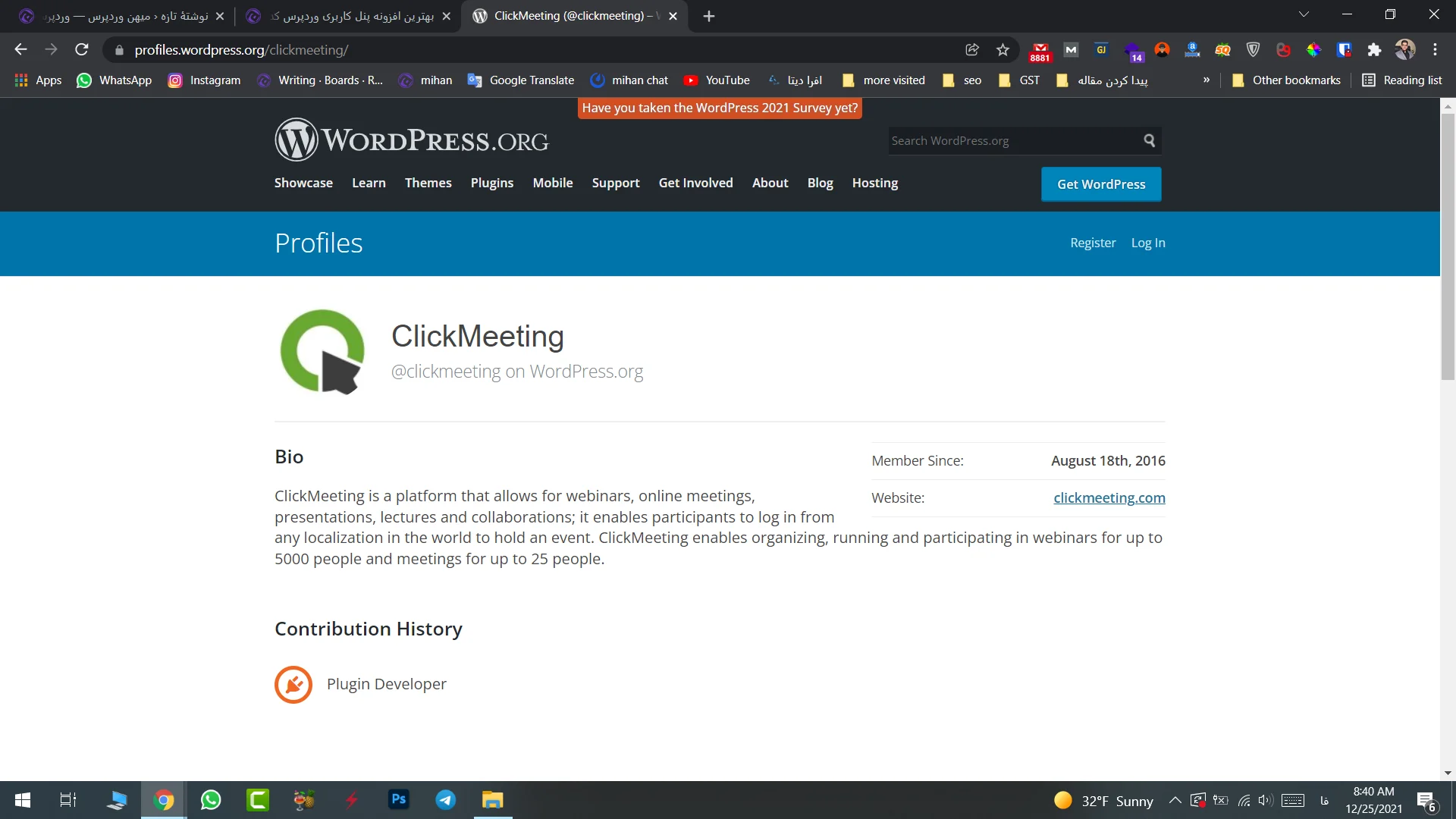
ClickMeeting is one of the giants in the cloud webinar world, and this plugin connects your WordPress site to your ClickMeeting account. If your focus is on interactive educational classes that require tools like a whiteboard and polls, this one is truly useful. All video processing is handled on their own cloud servers, so there is no pressure on your hosting.
Other features include:
- Whiteboard
- Video conference room
- User polling capability
- Streaming video on Facebook or YouTube
- AI-powered live chat translation tool
- Automatic system for converting the instructor’s speech into live subtitles
Free plan status: No. It only offers a 30-day free trial, and after that, the plans are fully paid and priced in dollars.
WebinarJam Website
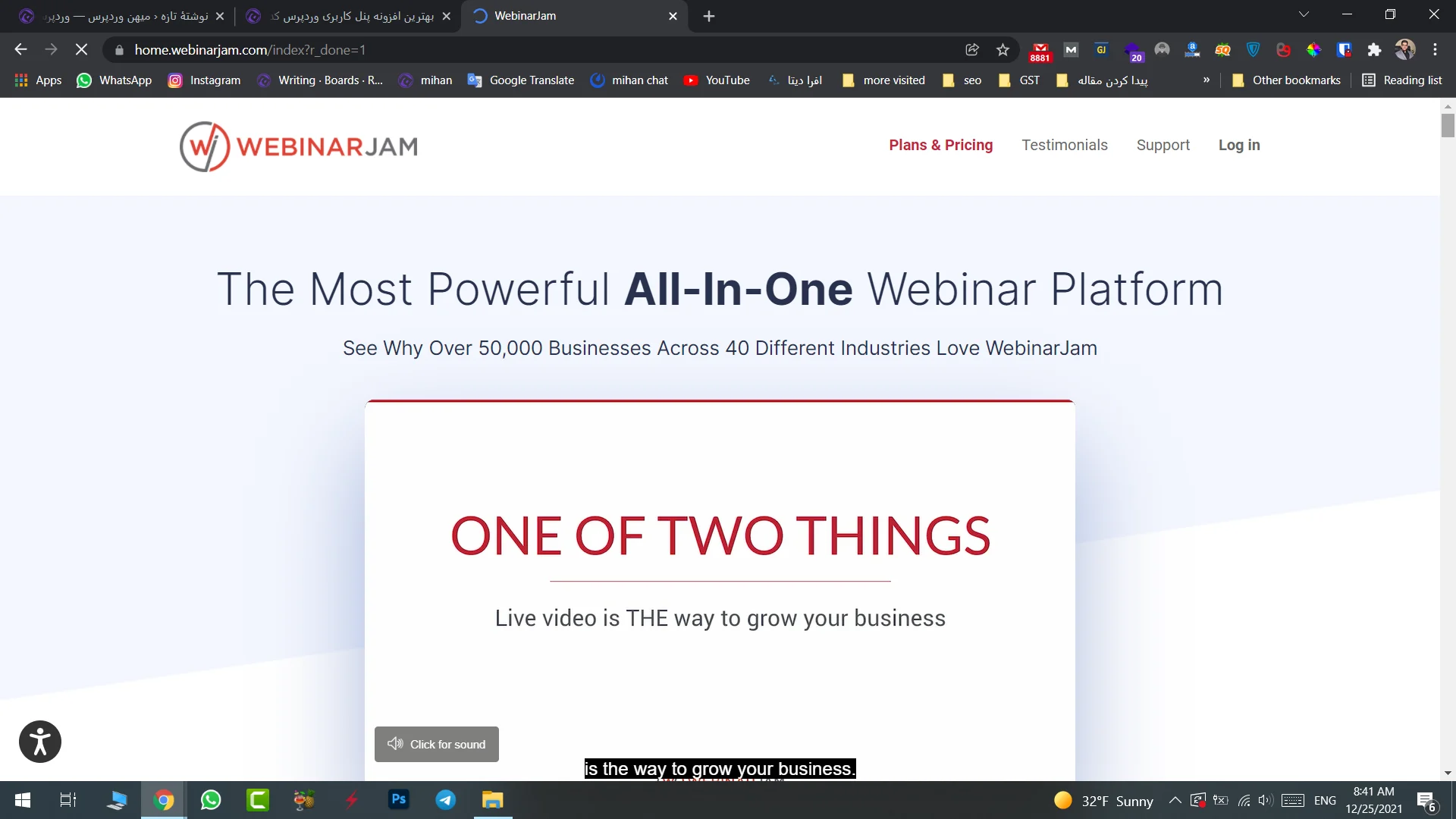
WebinarJam isn’t exactly a traditional WordPress plugin; rather, it’s a highly advanced cloud-based platform that connects to your website via shortcodes or scripts. It’s best known for delivering stunning 4K video quality and near zero-latency signal transmission technology. If you run marketing and sales webinars, this tool truly shines.
Features:
- Compatible with all devices (laptops, mobile phones, etc.)
- Compatible with all operating systems (Windows, Linux, etc.)
- Very easy to use
- Ability to import PDF, PowerPoint, or Keynote files into webinars
- Drawing and on-screen annotation tools to highlight key points
- Smart purchase button optimization system
Free plan status: Not available. It’s a fully premium and commercial platform with plans billed annually.
EasyWebinar Plugin
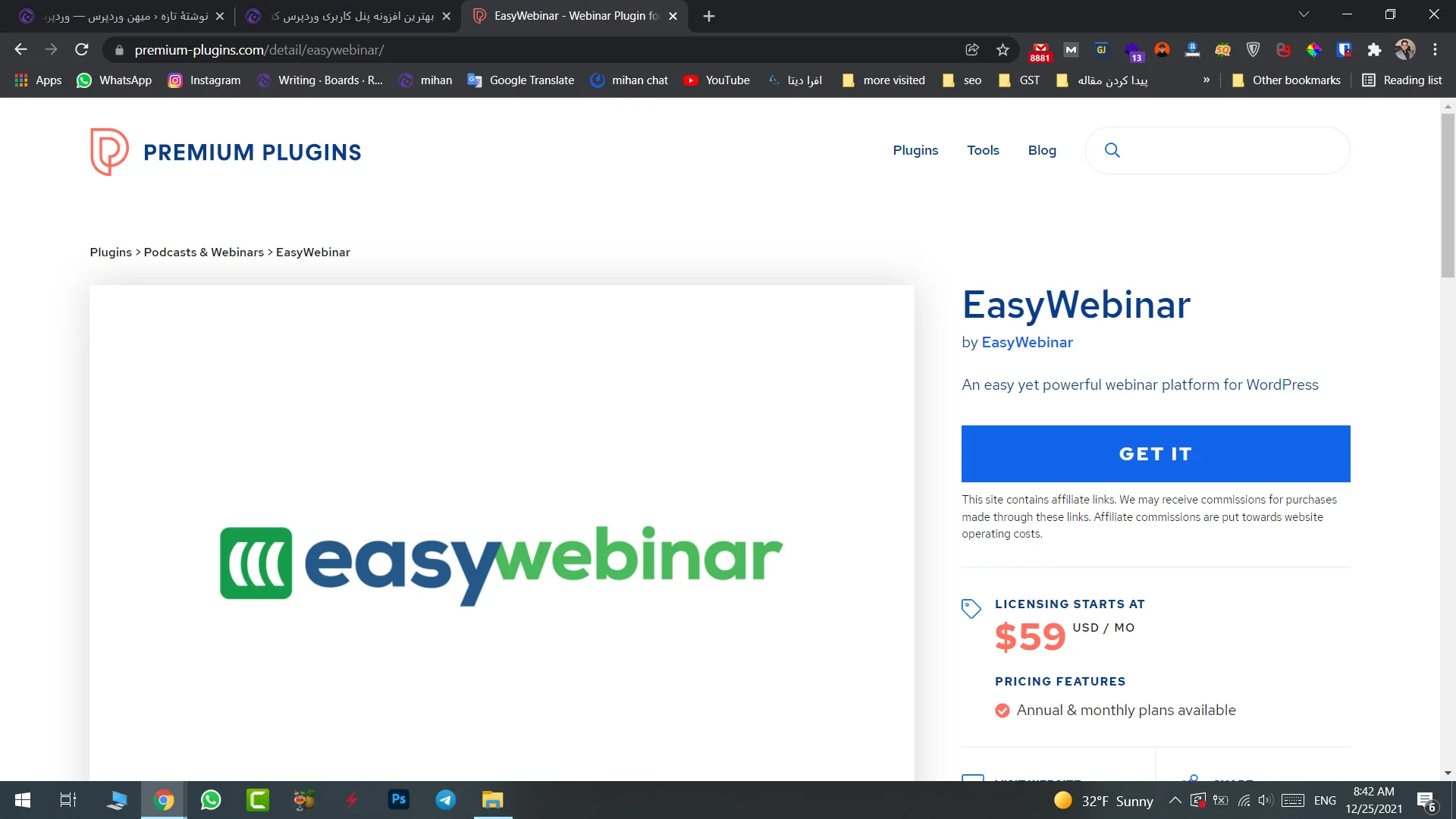
EasyWebinar can be considered the king of automated or so-called “evergreen” webinars. This plugin allows you to record an event once and then schedule it to be broadcast every day or every week at a specific time as a “simulated live” event for users. This feature is excellent for sales funnels and passive income strategies. Even more interesting, it includes smart bots that respond to questions in the chat of recorded webinars in a way that makes users feel like they’re talking to a live operator.
Other features:
- Uses advanced audio technology with realistic sound quality
- Ability to host multiple presenters simultaneously
- File and screen sharing for participants
- Very high streaming quality
- Various interactive tools
- Simultaneous live streaming on multiple social networks
- Email notification system
- Live offer presentations to participants
- Detailed reporting
Free plan status: Not available. It’s a commercial plugin and requires purchasing a license to use.
WebinarIgnition Plugin
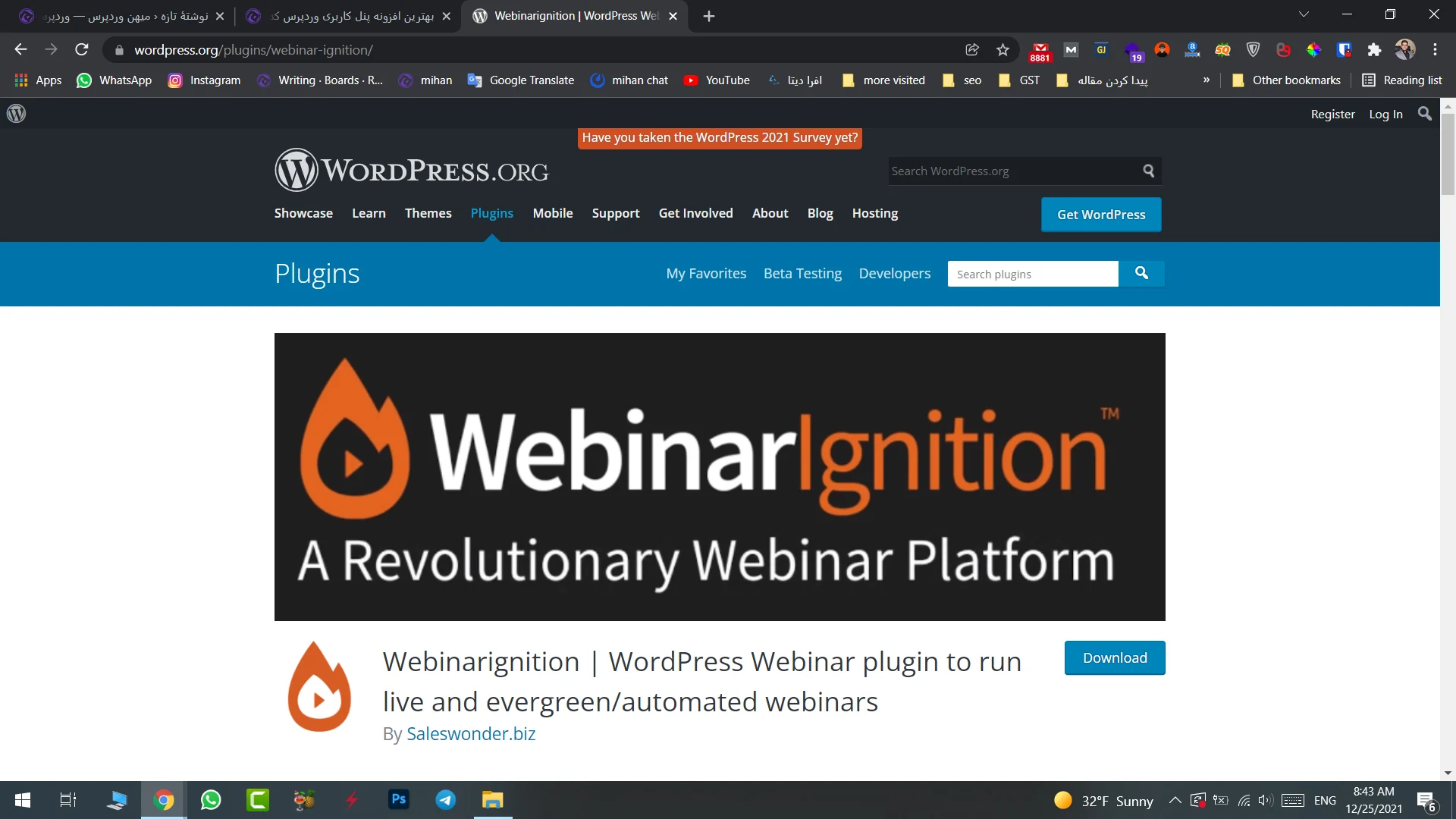
This plugin focuses on marketing, user acquisition, and building landing pages for webinars. If your website theme is not attractive enough for events, WebinarIgnition completely transforms the look of the registration section and webinar room with its ready-made, modern templates to significantly increase registration rates. It is also easily compatible with YouTube Live.
Other features include:
- Chat functionality
- Powerful dashboard and control panel
- User behavior and interaction management and reporting
- Email and SMS reminders
- Registration via Facebook login
- Social media sharing options for viewers
- Monetization through multiple payment gateways
- Countdown timer
- Outlook synchronization
Free plan status: Not available. It is only offered commercially and requires purchasing a license.
Skyroom WordPress Plugin
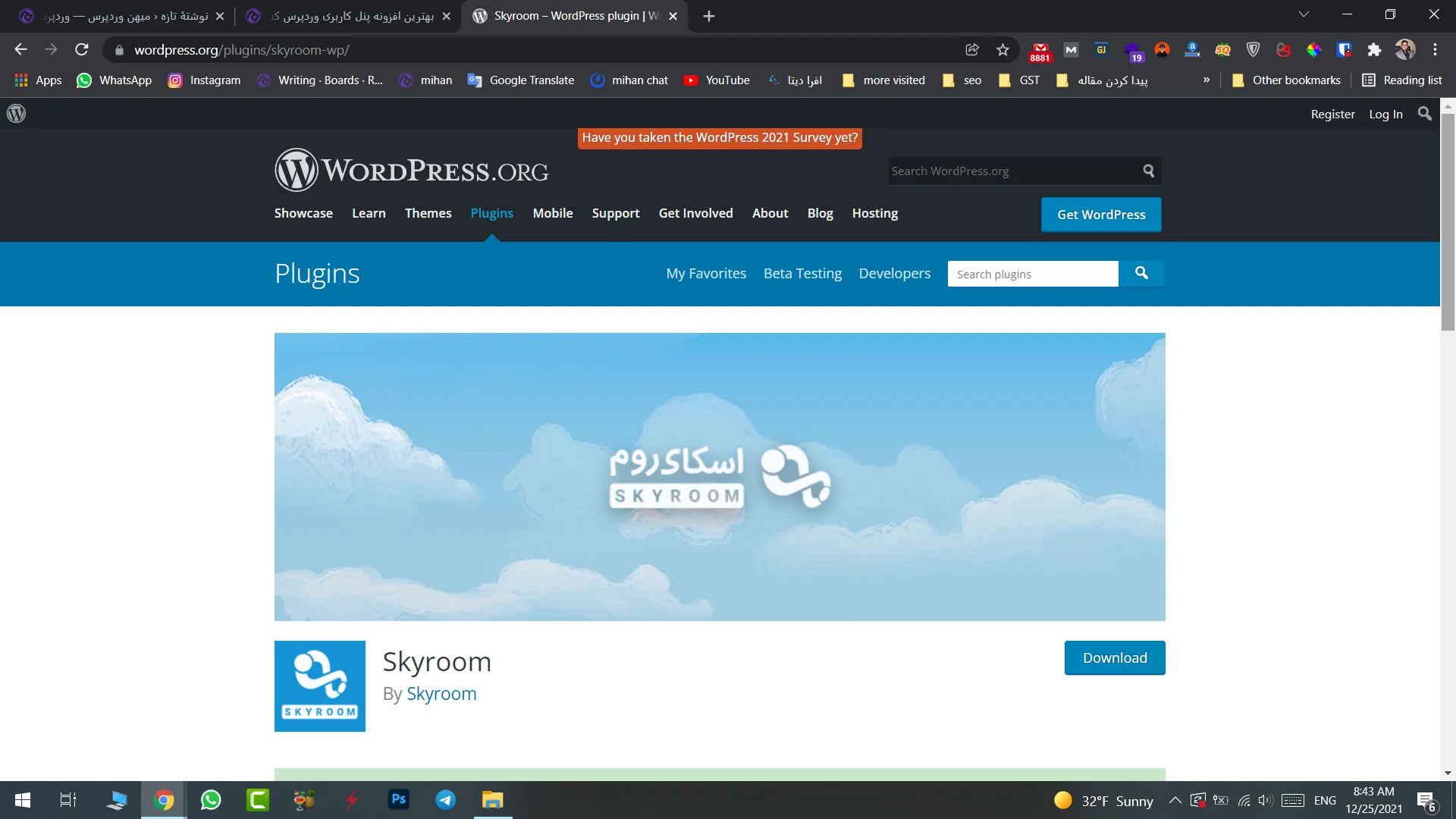
Skyroom is the most popular and powerful native Iranian platform for hosting webinars, online classes, and virtual meetings. This plugin essentially connects your WordPress website to Skyroom rooms via API. In its recent updates, it has also been working on AI-based tools such as automatic attendance through facial recognition and intelligent voice processing.
Features include:
- Audio and video communication
- Two-way interaction between users and the host
- Screen sharing
- Whiteboard
- Audio and video file playback
Free plan status: Available. Skyroom offers limited-capacity free trial plans.
WpStream Plugin
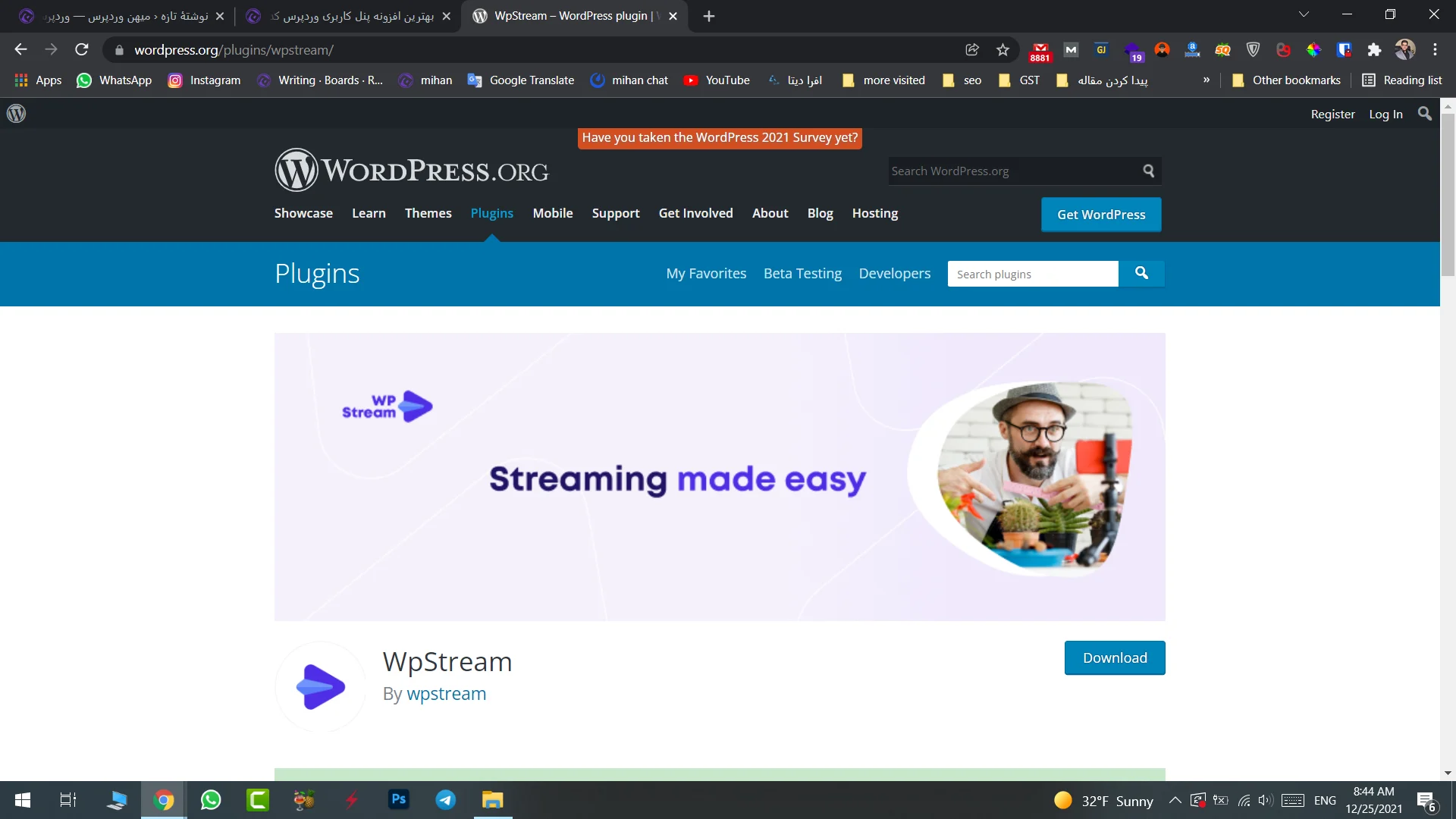
WpStream can be considered a unique tool in WordPress. Its main difference from others is that it directly turns your website into a “live streaming server”! This means you don’t need any intermediary website or platform for video streaming—everything is processed, recorded, and broadcast directly on your own hosting. By the way, the video tutorial at the end of this article is also based on this plugin.
Features:
- Fast and simple user interface
- Create live streams directly through the browser
- Optimized for mobile and tablet
- Compatible with all browsers and operating systems
- Webinar recording capability
- Compatible with Elementor and WPBakery
- Smart video compression system
Free plan status: Yes, available. It provides a certain amount of free traffic for testing at first, but for longer live streams you need to purchase a traffic-based plan.
So far, we’ve introduced some of the best plugins. Now let’s move on to installing and activating WpStream.
Step-by-Step Guide to Installing the WpStream Plugin
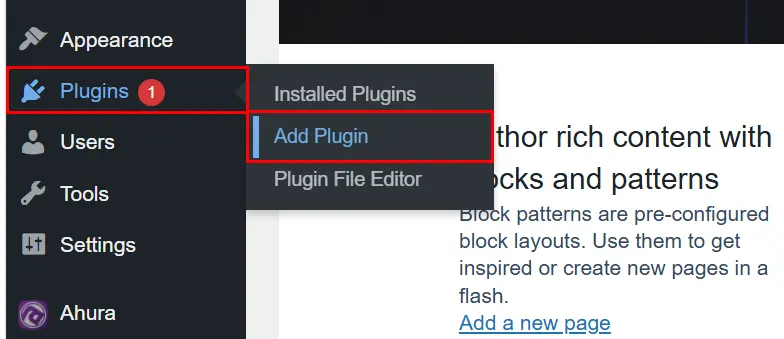
First, log in to your WordPress site dashboard. Then, go to the Plugins section and click on Add New.
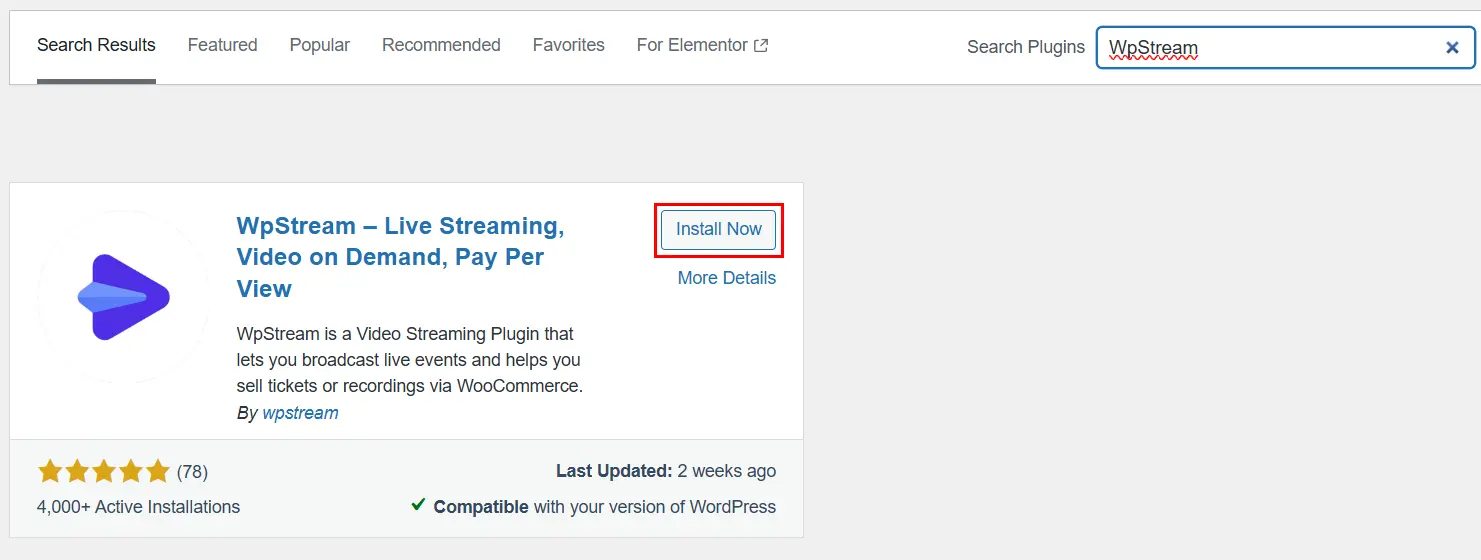
Next, type WpStream into the search box. As soon as the plugin appears, click on Install. Once the installation is complete, click the Activate button to enable the plugin.
An important step – Mandatory authentication: Immediately after activation, a pop-up will appear asking you to connect your website to the WpStream platform. To do this, you need to enter your personal or work email address and click the Sign Up button. As soon as you enter your email and the connection is established, a window will open asking how you would like to get started. Here, you have two options:
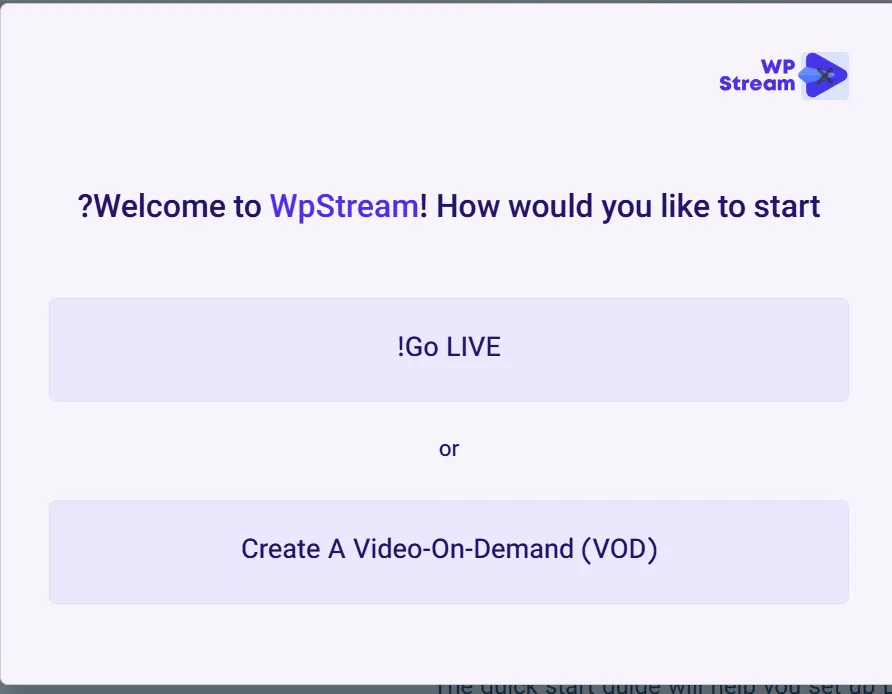
- !Go LIVE option: If you want to host a live webinar or online class right now, click this option.
- Create A Video-On-Demand (VOD) option: If you want to upload a pre-recorded video so users can watch it whenever they want or purchase it, this option is suitable for you.
Since our goal is to host a webinar, click on !Go LIVE.
After selecting the live mode, a new window titled “Let’s create your first FTV live channel” will open. Here, the plugin asks you to choose a name for your free live streaming channel.
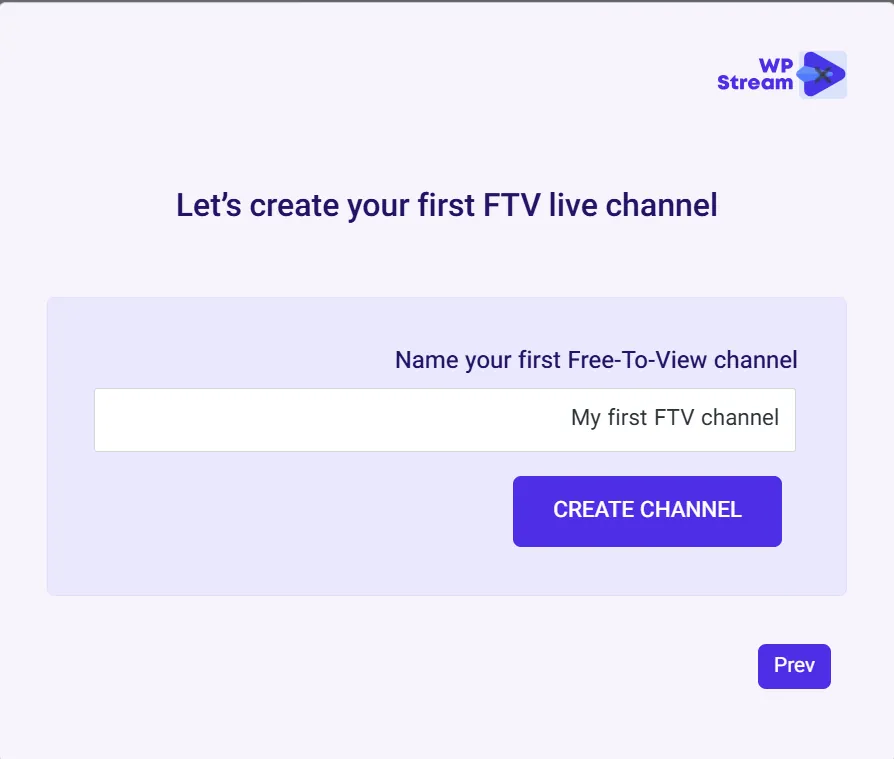
After creating the channel, you’ll be directed to the main channel management page. Here, you just need to follow these three steps one by one:
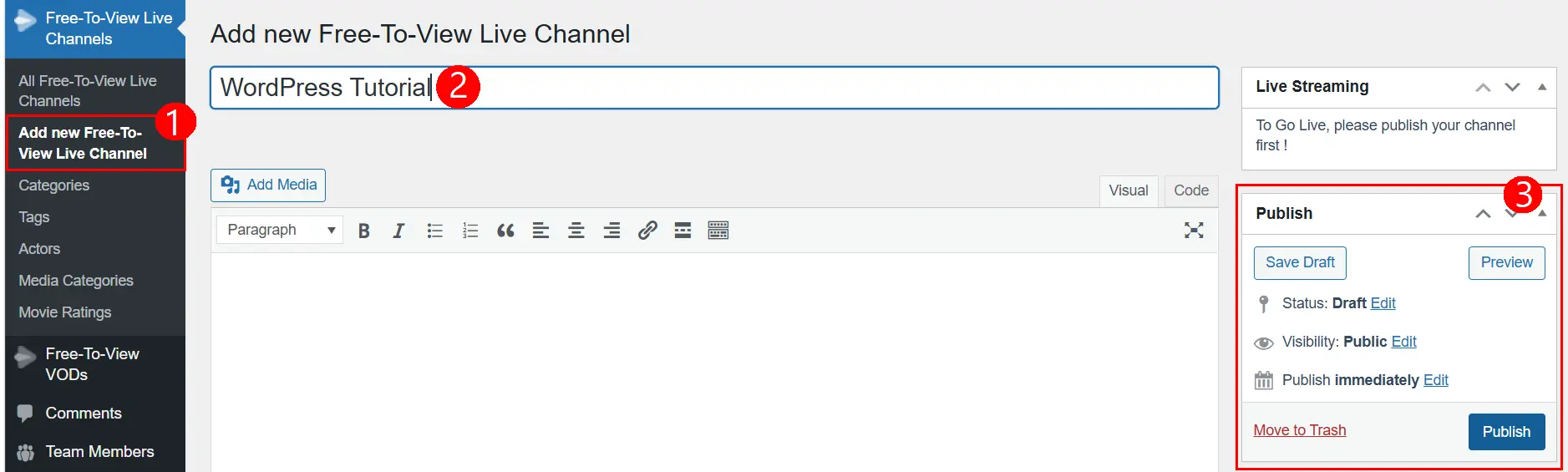
- Plugin Custom Menu: In the WordPress dashboard, a new option called WpStream has been added. To create a new webinar, click on the Add New Free-To-View Live Channel submenu.
- Webinar Name and Details: In the box at the top of the page, enter the title or subject of your class (for example: WordPress Training). In the text box below, you can write a description of the webinar for users. After entering the title, make sure to click the blue Update or Publish button on the left side.
- Enabling the Live Server: After publishing the page, the Live Streaming settings box on the left will become active. By default, the status is set to Channel is OFF. To start, simply click the green TURN ON button to prepare the server to receive the video signal.
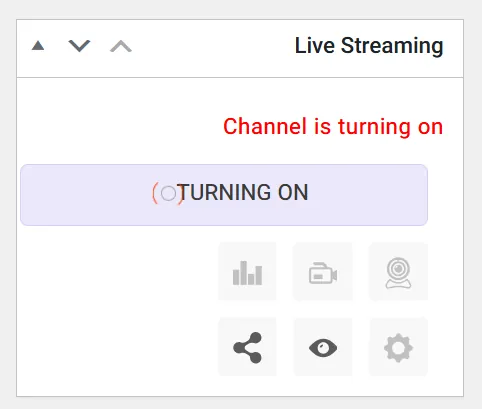
After a few moments, that green button turns into GO LIVE FROM BROWSER.
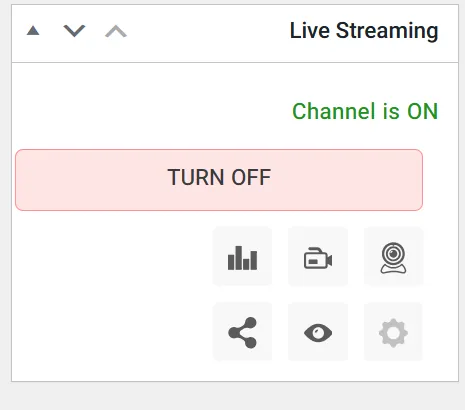
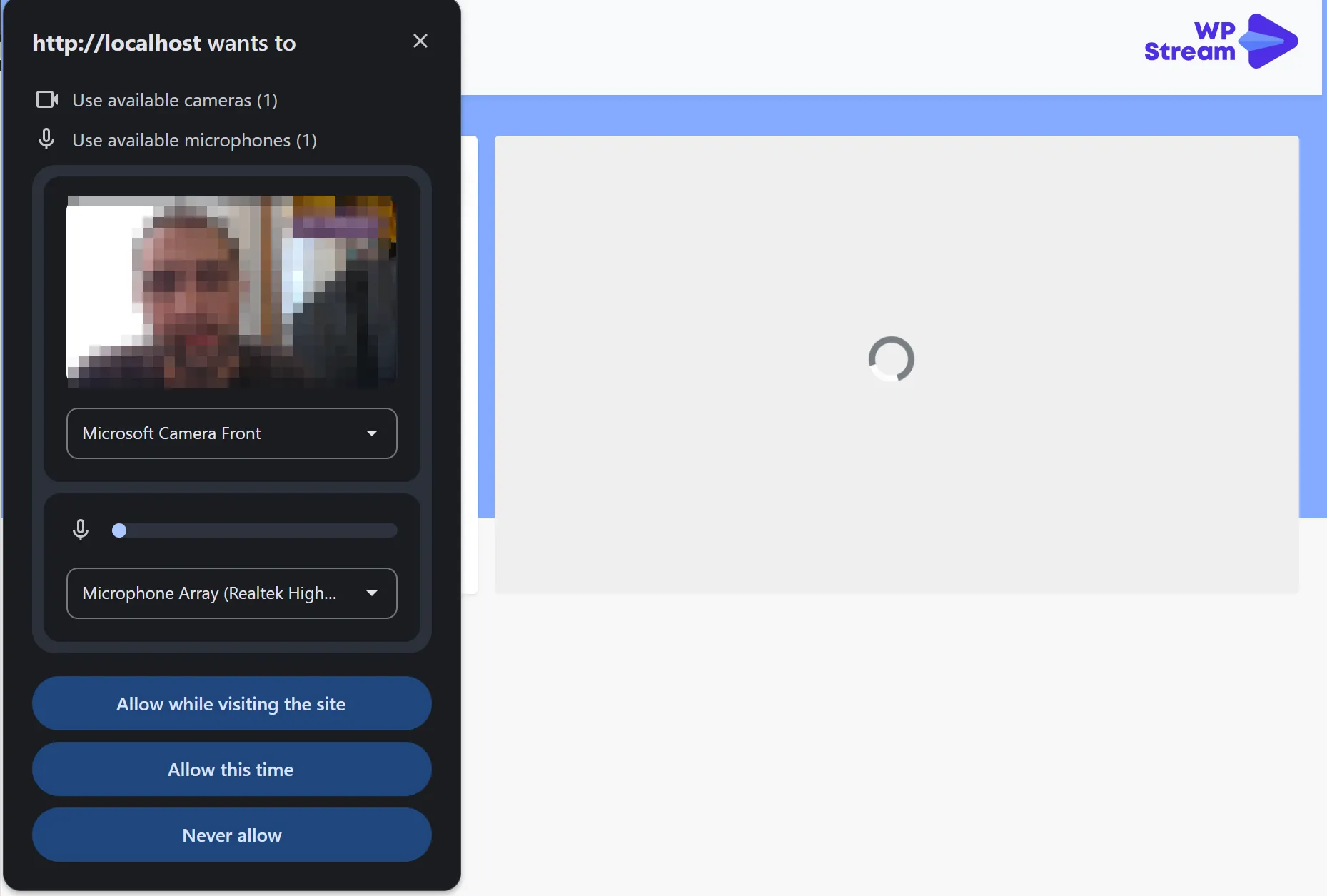
When you click the camera or webcam button and grant the browser access to your camera and microphone, your webinar officially starts on your WordPress website, and users can watch it live!
A Few Behind-the-Scenes Tips
For a successful webinar, technical quality and audience interaction are key. A standard lapel microphone gives you clear audio, a ring light improves your lighting setup, and having a backup internet connection prevents sudden live stream interruptions. During the session, try to keep your audience engaged by using tools like live polls and dedicating the last 15 minutes to a Q&A session. You can even offer a discount code in the final moments to maximize audience retention.
But here’s a hard truth: even the most engaging webinars are useless without marketing. So before the event, attract registrations by placing smart pop-ups on your website’s high-traffic articles and sharing short teaser videos on social media. Finally, set up a solid reminder funnel: send reminders via email and SMS at three different times (one week before, 24 hours before, and exactly 1 hour before the start time, including the access link). This simple step can increase your actual attendance rate by up to three times.
Conclusion
Hosting webinars and online classes in WordPress is one of the best ways to build audience trust, turn them into customers, and earn direct income from your expertise. To help you choose more easily between these plugins:
If full website independence is important to you: Do you want your videos to be streamed and recorded directly on your own hosting without relying on any third-party platform? The WpStream plugin (the one we provided a tutorial for) is your top choice.
Now it’s your turn! Start setting up your online classes. If you have any questions during installation or while working with these tools, write in the comments section so we can help you.
I hope you found this article helpful. Wishing you success and happiness. 🙂

Ahura WordPress Theme
The Power to Change EverythingElementor Page Builder
The most powerful WordPress page builder with 100+ exclusive custom elements.
Incredible Performance
With Ahura’s smart modular loading technology, files load only when they are truly needed.
SEO Optimized for Google
Every line of code is carefully aligned with Google’s algorithms and best practices.
To post a comment, please register or log in first.