
 Tutorials


 Ahura
Ahura Plugins

 Blog
BlogGet Notified of Website Downtime and Hosting Uptime Even in Your Sleep!
- Tutorials
- Updated on
We’ve talked with you before in various videos and articles about DDoS attacks — the kind of attacks that usually hit at just the wrong moment, on the important days, from competitors, and keep your site from coming back up. We’ve also covered ways to fight off these attacks before, so if you need them, you can go check those out.
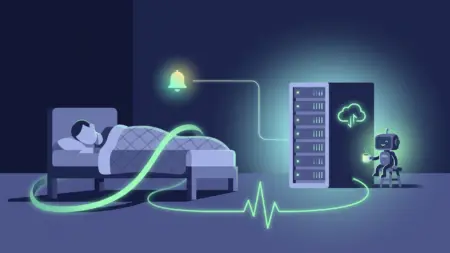
But this time we want to solve something else. Imagine your site goes down in the middle of the night, or when you’re not at your computer at all. How are you supposed to find out? In this article, we want to introduce you to a tool that lets you know the moment your site goes offline — right when it happens. All you need is to be connected to the internet, and that’s it.
Table of Contents
Why Does Knowing About Site Downtime Matter So Much?
Let me be blunt: site downtime is one of those things a site manager absolutely, without exception, needs to know about. Before we got our hands on this tool, whenever the site went down, the site manager would usually find out that something was off through a call from a friend or a colleague. In other words, instead of our own system warning us, we were waiting for someone to notice and let us know.
The problem is that site downtime directly affects your SEO and your sales. Every minute your site isn’t up, you lose users, and Google sees these outages too. And more importantly, DDoS attacks usually come after your site at exactly the moments when you’re in a sensitive window — say, in the middle of a discount campaign. That’s why finding out quickly that something has happened is so critical.
What Is UptimeRobot?
The service we want to introduce is called UptimeRobot, and you can access it at Uptimerobot.com. What this service does is: you register your site, and from then on it keeps an eye on it for you.
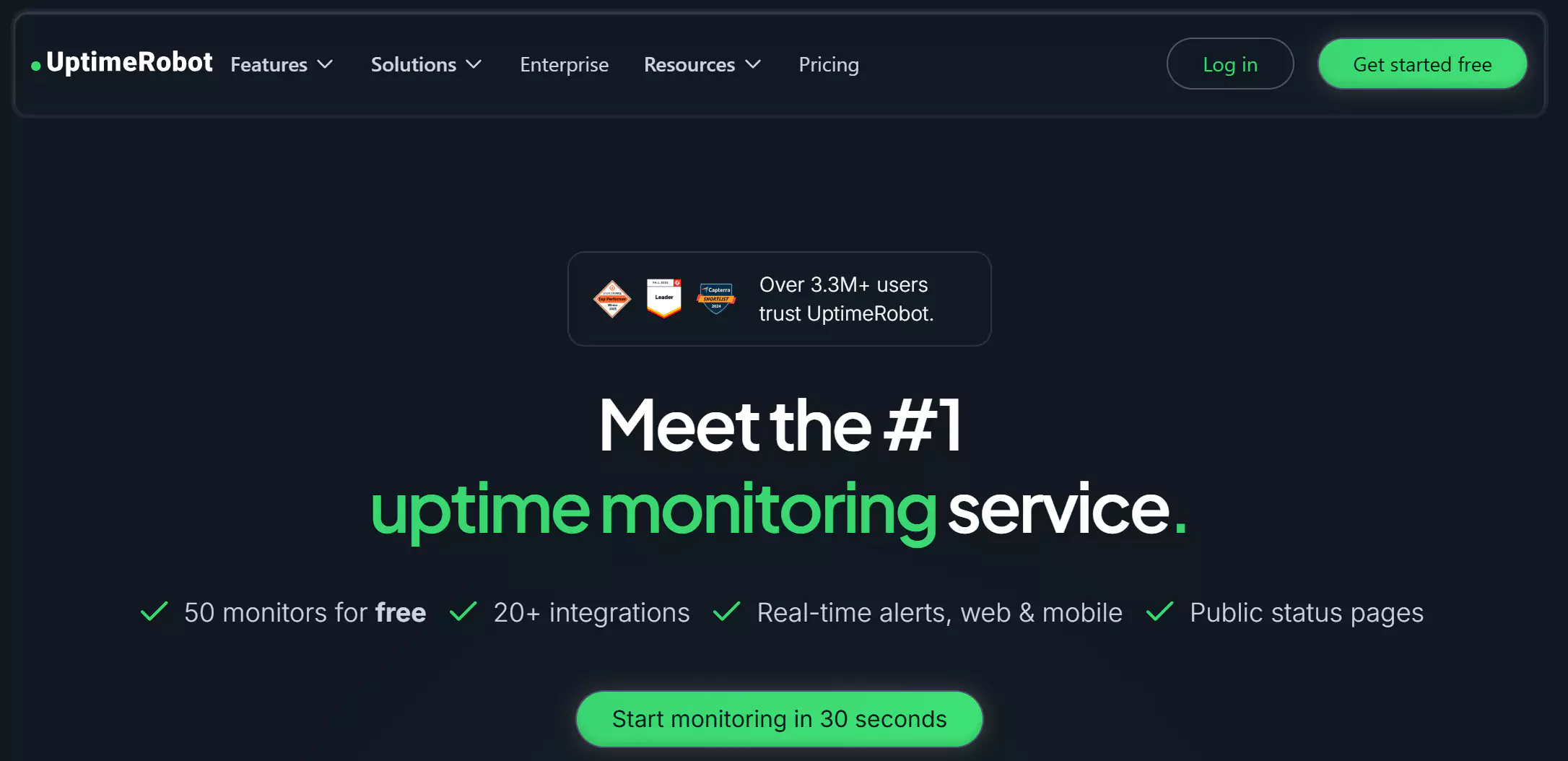
One really nice thing about it is that it doesn’t ask you for any special access. You don’t have to give it your hosting details or any passwords; you just enter your site’s address and you’re done. UptimeRobot goes and checks your site once every five minutes, and if it sees the site is down, it immediately lets you know through various channels.
How to Register Your Site in UptimeRobot
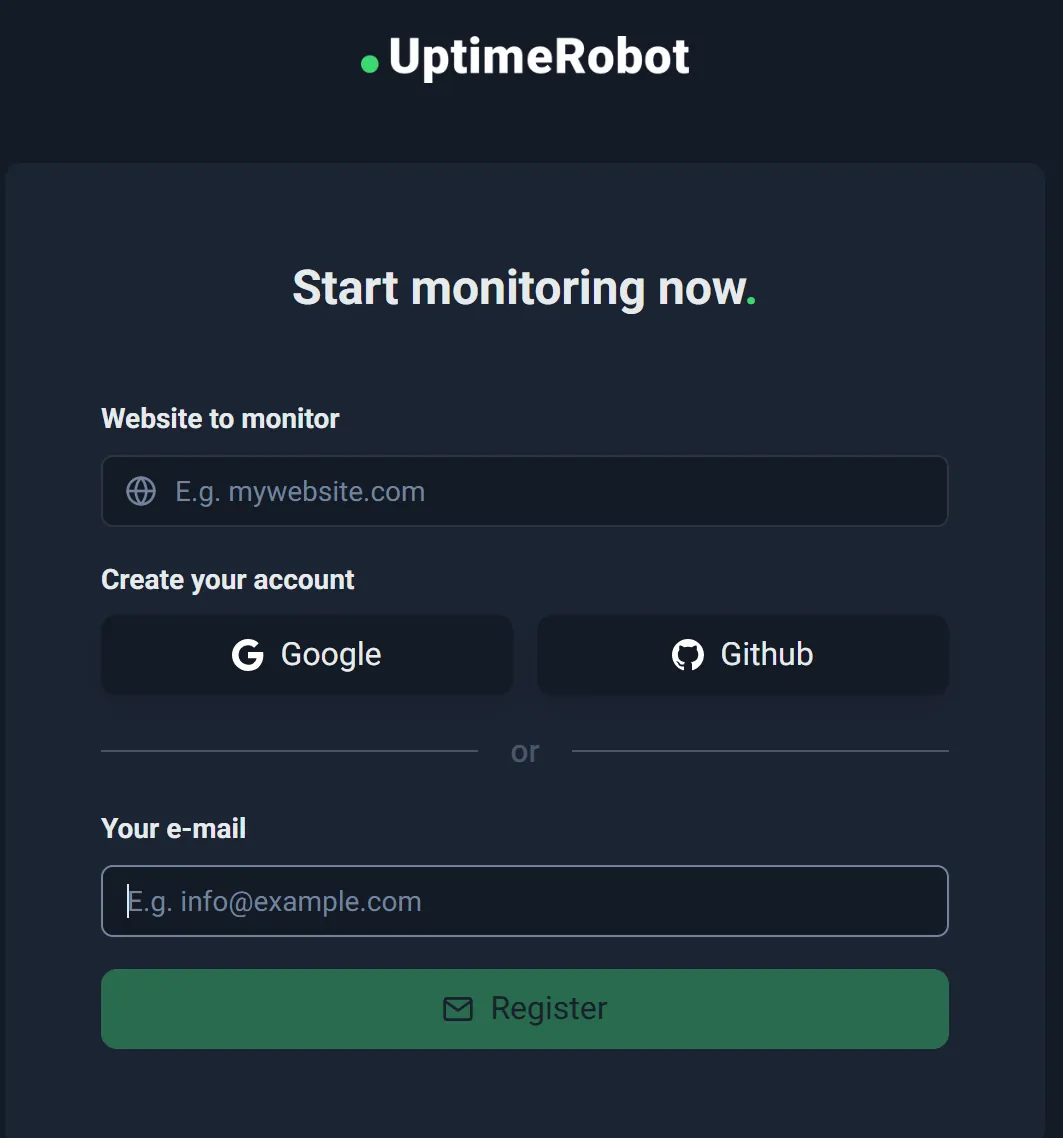
Working with it is really simple. Just head to Uptimerobot.com, click the “Start monitoring in 30 seconds” button (that’s the sign-up), and fill out the form. It might also send you an email to verify your account.
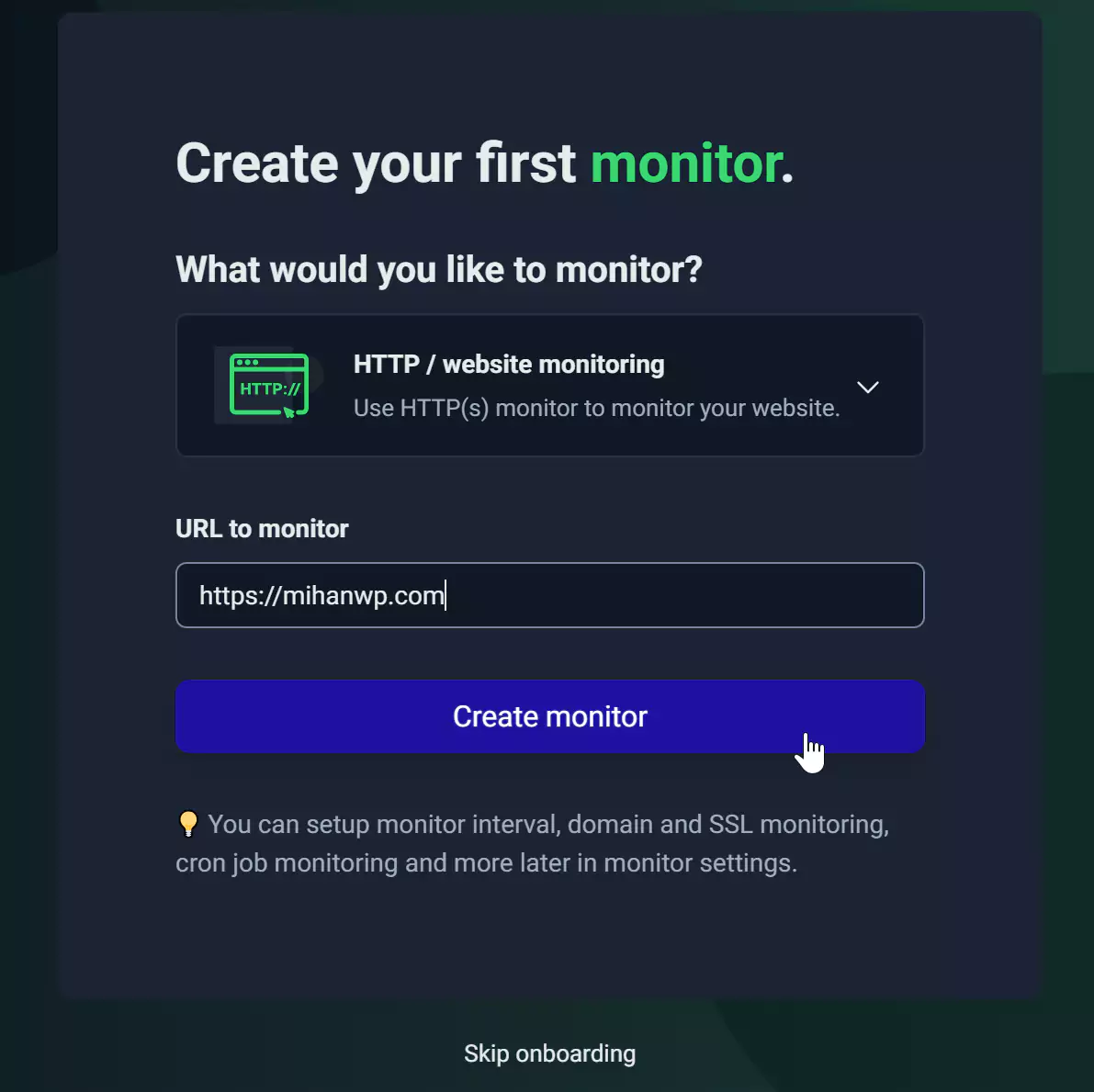
Once sign-up is finished, you’ll be shown a user panel.
And in this panel, things aren’t limited to just websites. You can add and monitor any other service that works over the HTTP or HTTPS protocol here too.
How Does UptimeRobot Let You Know?
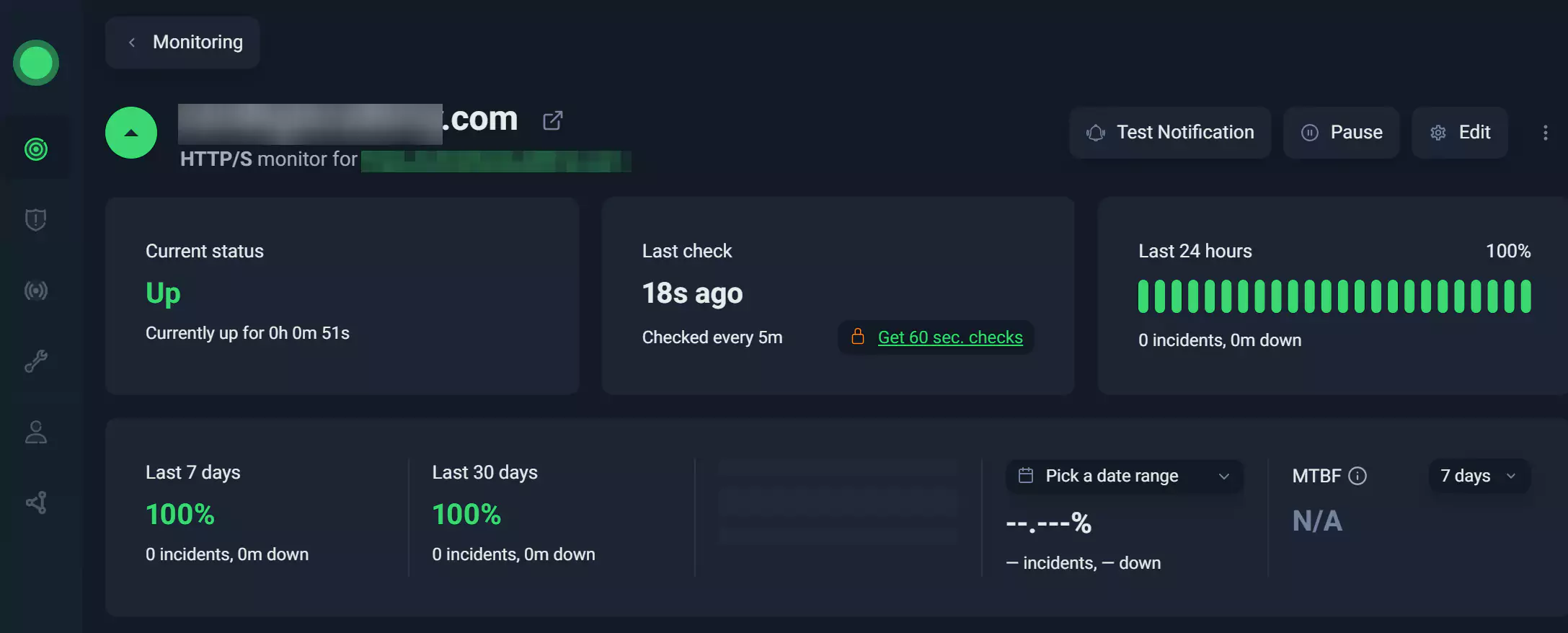
The moment this service loses access to your site, it lets you know right away. It has a few different methods for this notification, so let’s go through them.
Email Notifications
The simplest way is email. Just go into the settings, give UptimeRobot your email, and tell it to send you an email whenever the site goes down. The neat part is that it reports both downtime and uptime — meaning it tells you the moment the site goes down, and also lets you know when it comes back online and is up and running again.
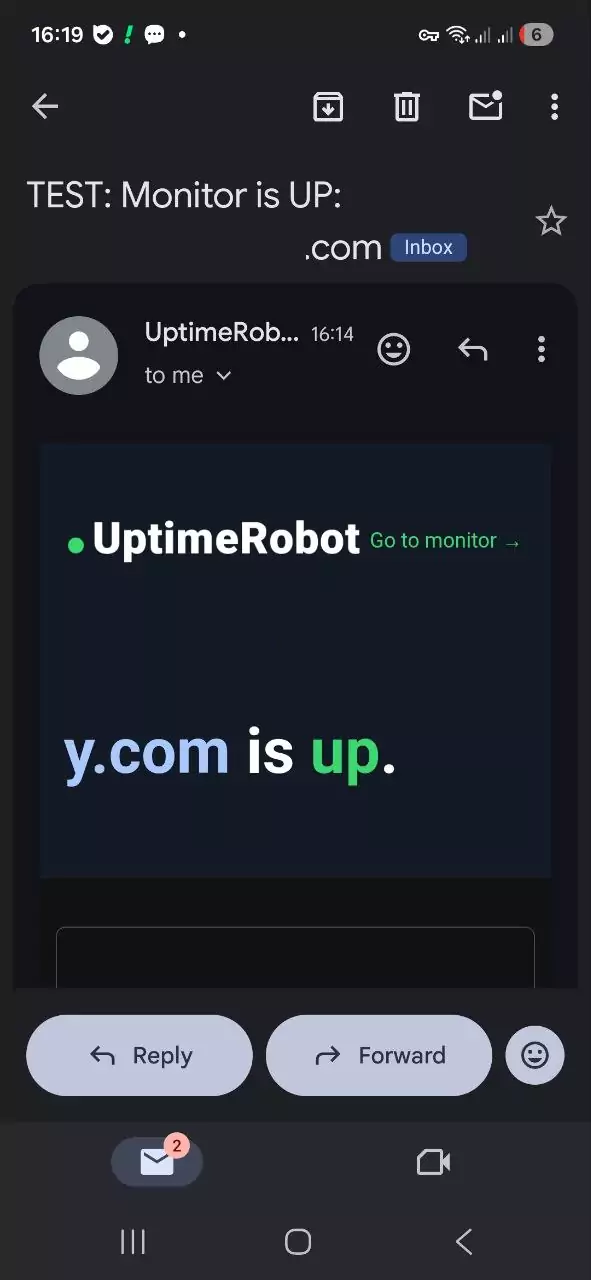
So whenever the connection to your server, your host, or your website itself drops and nobody can open it, you’ll get an email about it.
Text Message and Phone Call
One of its interesting features is the use of text messages and calls. In this mode, to notify you of downtime, it either calls you or sends you a text. If you top up your account balance, the text and call feature gets enabled, which is genuinely handy — though it does come at an extra cost, so it’s not for everyone.
Getting Free Push Notifications
But here’s the good news: you don’t have to pay anything at all. There’s another method that, as long as you’re connected to the internet, sends push notifications straight to your phone. That is, a warning pops up on your mobile telling you your site is down. For this, we need to head to the UptimeRobot mobile app.
How to Use the UptimeRobot Mobile App
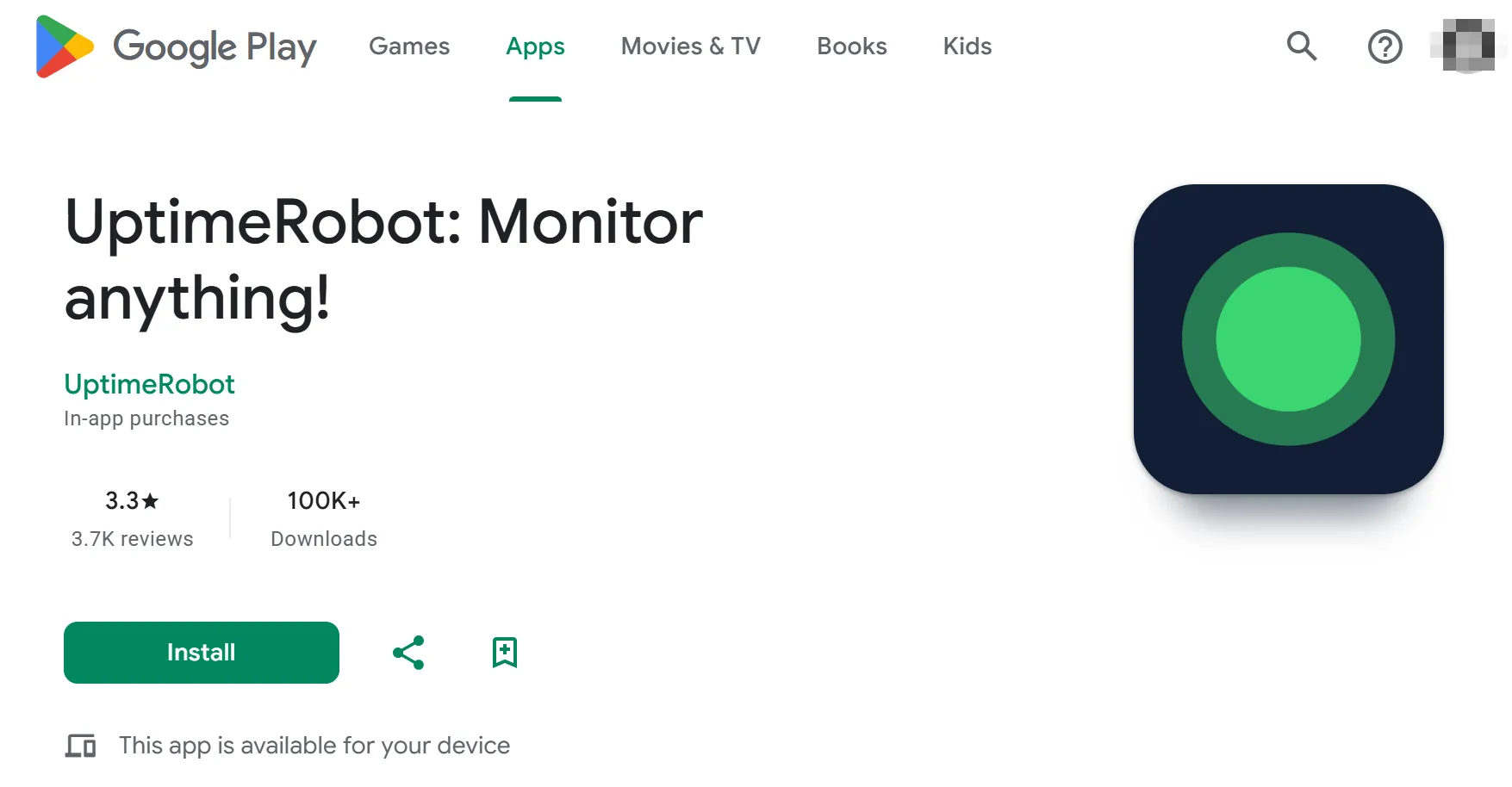
First, go to the App Store or Google Play and search for UptimeRobot. There’s a free app for both Android and iOS. Install it and open it. If you haven’t signed up before, you’ll need to sign up right at the start; and if you already have an account, just hit Log In.
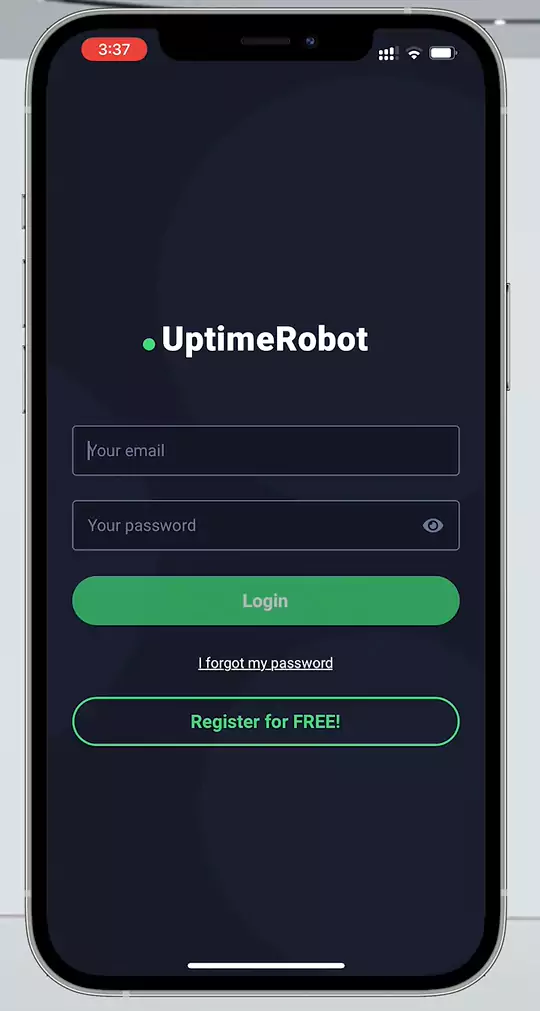
There’s an important point here: be sure to give the app permission to send push notifications. Because if you don’t grant this permission, it won’t be able to notify you when the app is closed. So tap Allow and move on to the next step.
After logging in, you’ll see the list of sites you’d previously added in the panel, and from now on you’ll receive notifications for those.
Adding a New Site
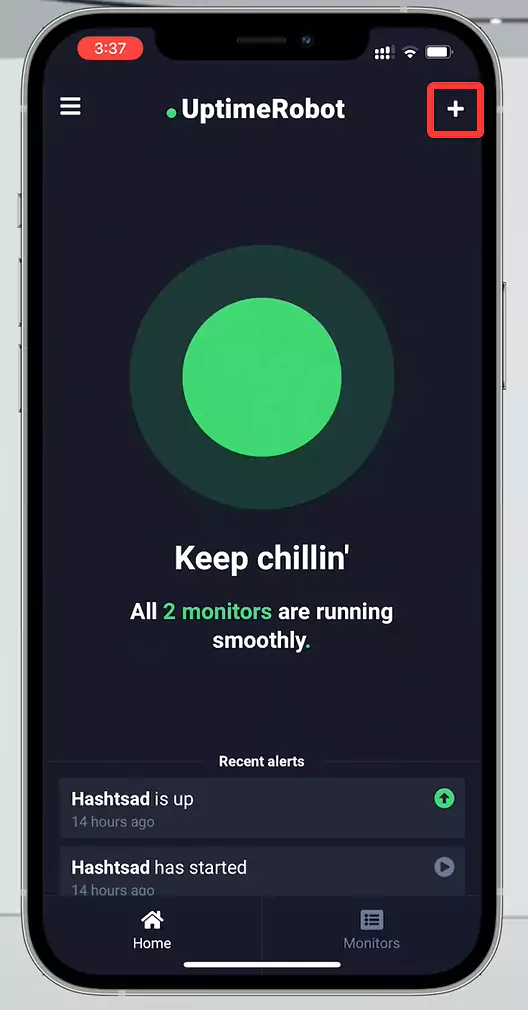
To add a new site, tap the + sign at the top right. First enter the site’s address and give it a name.
Then it asks you what the Check Interval should be — that is, how often the site gets checked. Five minutes is a good, sensible choice.
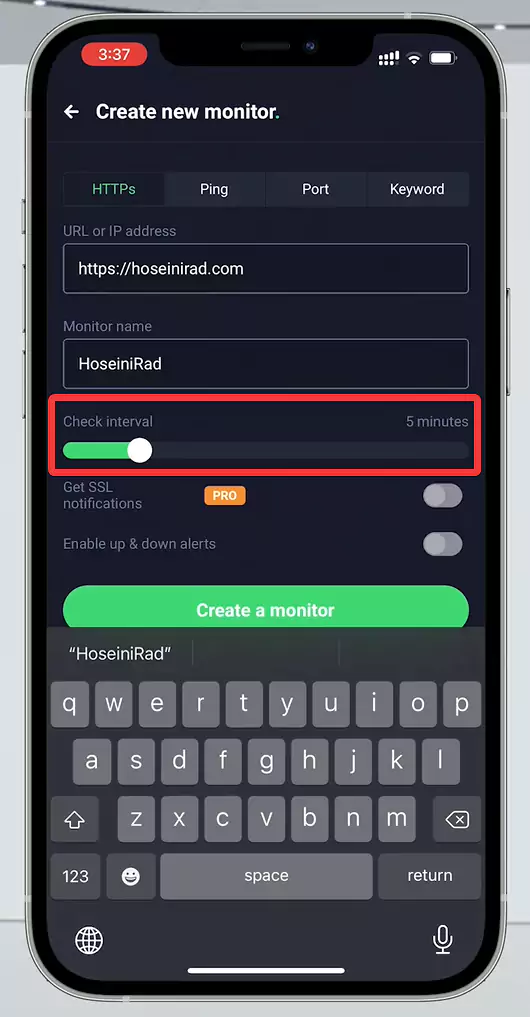
Finally, tap Create Monitor and you’re done.
Checking Your Site’s Stats and Reports
Now your site shows up in the list. If you click on it, you’ll see a percentage — that’s your site’s uptime over a specific time window. For example, a site’s uptime over the past seven days might have been 97.8% — meaning the site was available to users pretty much without any issues during that period.
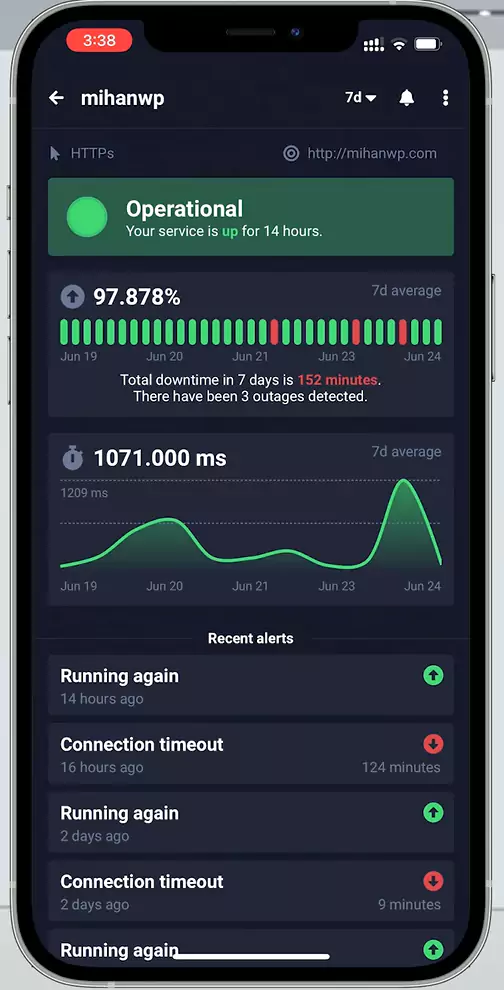
With the bar that’s there, you can also see exactly what the percentage was on each day. For instance, yesterday’s uptime might show 82%. On top of that, the app gives you the timeouts too. For example, it might tell you that 16 hours ago, the site was unavailable for 124 minutes. This data really helps you figure out which times you were having problems.
Enabling Sound Notifications
There’s one more interesting thing left. If you enable that bell at the top right and hit “Enable Notifications,” you’ll be taken to your phone’s settings. Make sure “Allow Notifications” is turned on here so the app can notify you.
Then go back to the main screen and head to the “Alerts & Contacts” section.
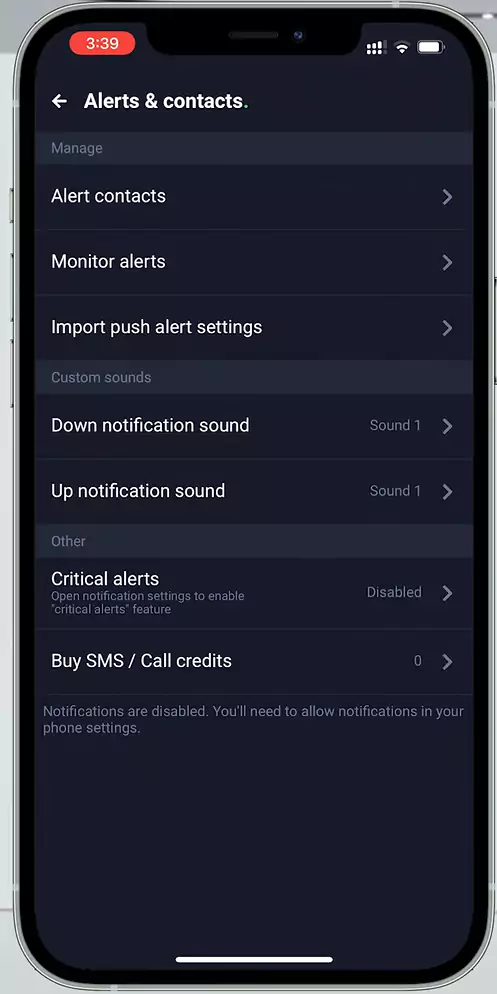
Here you can choose the alert sound that plays when your site goes down. My suggestion is to pick a loud, long sound so you notice no matter what situation you’re in — especially for when you’re asleep.
Once you’ve set all this up correctly, you’ll definitely get a push notification whenever your site goes down. Even in the middle of your sleep or when you’re away from your computer, your phone will ring and you’ll know something’s happened.
Wrapping Up
Honestly, if we hadn’t used this service, our site would probably have stayed down for hours many times without anyone finding out. Because usually none of the team members check the site in the middle of the night. The only ones who visit the site at that hour are the users themselves — the very people who shouldn’t run into a downed site.
And as I said, these outages directly affect your SEO and your sales. Remember that DDoS attacks also usually come right when you’re in a sensitive window, like during discounts. That’s why I’m serious when I say you should set this service up; it makes your life easier and gives you peace of mind about your site.
I hope this article has been useful to you and that you can make your site and business better and more advanced day by day. Take care. 🙂

Ahura WordPress Theme
The Power to Change EverythingElementor Page Builder
The most powerful WordPress page builder with 100+ exclusive custom elements.
Incredible Performance
With Ahura’s smart modular loading technology, files load only when they are truly needed.
SEO Optimized for Google
Every line of code is carefully aligned with Google’s algorithms and best practices.
To post a comment, please register or log in first.