
 Tutorials


 Ahura
Ahura Plugins

 Blog
BlogIf SSL is installed on your website, take Google Chrome’s warning seriously!
- WordPress Security SEO Tutorials
- Updated on

Has it ever happened that after installing SSL and enabling HTTPS on your site, you excitedly open your website only to see a strange warning instead of the security lock next to the site address?
Or maybe you installed SSL and everything seems fine, but the browser still doesn’t consider your site “fully secure” and sometimes even displays a “Not Secure” message. In such situations, many website owners assume that the SSL certificate has not been installed correctly, while in most cases the problem is something called Mixed Content.
The Mixed Content error is one of the most common issues WordPress websites face after enabling SSL. This error occurs when some site files, such as images, CSS files, or scripts, are still loaded via HTTP while the site itself runs on HTTPS. The result? The browser shows a warning to users, the SSL lock is not displayed, and visitors’ trust is negatively affected.
The good news is that fixing this issue is usually not difficult; you just need to know exactly where it originates and how to find it. In this article, we will learn exactly what the Mixed Content error is, why it occurs, how to identify the problematic file, and how to fix it step by step in WordPress so that your site’s security lock can once again be safely displayed in the browser.
Table of Contents
What Is the Mixed Content Error?
Imagine you have installed an SSL certificate for your website, changed the site address from HTTP to HTTPS, and expect everything to work completely securely and without issues. But suddenly you notice that the browser’s security lock is not displayed, or the browser warns users that the page is not fully secure. In most cases, the main culprit is the Mixed Content error.
The Mixed Content error occurs when your webpage is loaded via HTTPS, but some of the content within that page is still requested via HTTP. This content could be a simple image, a CSS file, a JavaScript file, a font, a video, or even an iframe. From the browser’s perspective, when part of a page is loaded through an insecure connection, it can no longer guarantee the full security of that page. That is why browsers display security warnings to protect users or even completely block some insecure files.
In simple terms, Mixed Content means your website is stuck between two worlds: secure and insecure. Part of the information is transmitted through the encrypted HTTPS path, while another part still uses the old and insecure HTTP route. This causes the browser to lose full trust in the page’s security.
Why Is the Mixed Content Error Important?
Some website administrators, when they see this error, assume it is just a visual warning and does not have any real impact on the site’s performance. However, the reality is that Mixed Content can negatively affect user trust, sales, user experience, and even your website’s SEO results. For this reason, it is better to fix it as soon as possible.
Reduced User Trust
The first thing users notice when entering a website is its appearance and sense of security. Nowadays, even people without technical knowledge consider the security lock icon next to a website’s address as a sign of credibility. Now imagine a user entering your site and, instead of seeing a green or gray lock, encountering a “Not Secure” or “This site is not fully secure” warning.
In such situations, many users will feel unsafe without even reading the site’s content. This issue becomes even more critical for corporate, e-commerce, and service websites, as users are expected to provide personal information, phone numbers, addresses, or even payment details. If you cannot create a sense of security within the first few seconds, the risk of losing part of your audience is very real.
Reduced Conversion Rate and Sales
The Mixed Content error is not just a technical problem; it can directly affect your website’s revenue.
Imagine a user who, after spending several minutes reviewing products, decides to finalize a purchase. At that very moment, they notice a browser security warning. Naturally, many users will abandon the purchase process in such conditions. Even if your site has not actually been hacked and has no serious security issues, this simple warning can cause users to lose trust.
This issue is not limited to online stores. Contact forms, registration forms, consultation requests, service bookings, and any action where users need to enter information are affected by these warnings. Therefore, fixing Mixed Content is essentially an investment in increasing your website’s conversion rate.
Indirect Impact on SEO
One of the most frequently asked questions is whether the Mixed Content error causes a site to be penalized by Google.
The short answer is that Google has not defined a specific penalty for Mixed Content; however, this error can indirectly affect your site’s SEO. When the browser blocks certain CSS or JavaScript files, parts of the website may not load properly. This can negatively impact user experience, page display speed, and overall site performance. On the other hand, if users leave the site more quickly due to security warnings, the bounce rate increases and user engagement decreases.
As a result, although Mixed Content is not directly a ranking factor, it can create a series of issues that negatively affect your website’s SEO performance over time. For this reason, it is recommended to treat this error as a serious warning and resolve it at the earliest opportunity.
Types of Mixed Content
Not all Mixed Content errors are equally dangerous. Browsers divide insecure content within HTTPS pages into two main categories: Passive Mixed Content and Active Mixed Content.
Understanding the difference between these two types of errors helps you better assess how serious your website’s issue is and which parts you should prioritize when fixing it.
Passive Mixed Content
Passive Mixed Content refers to files that do not directly affect the functionality of a website and are usually used only for displaying content. For example, the following are considered Passive Mixed Content:
- Images
- Audio files
- Videos
- Some multimedia files
Imagine your website page loads over HTTPS, but the site logo is still loaded from this address:
http://example.com/logo.jpg
In this case, the browser detects that the image is being loaded from an insecure source and may display a Mixed Content warning. This type of error usually does not break the website, but it negatively affects user trust and may prevent the security lock icon from appearing in the browser.
For example, imagine you have an online store and all pages run correctly over HTTPS, but a few product images are still loaded via HTTP. Users may still be able to complete their purchases, but the browser will no longer consider the site fully secure.
Active Mixed Content
Active Mixed Content is considered the most dangerous type of Mixed Content. In this case, files are loaded over HTTP that directly affect the functionality and behavior of the page. For example:
- JavaScript files
- CSS files
- iframes
- Ajax requests
- Fonts loaded from external services
Suppose a JavaScript file is called in your site like this:
<script src=”http://example.com/script.js”></script>
In such situations, the browser does not just display a warning; in many cases, it completely blocks the file. Why?
Because if an attacker gains access to that file, they can inject malicious code into your site, steal user information, or even change the entire behavior of the page. For this reason, modern browsers like Chrome and Firefox are very strict about Active Mixed Content and usually prevent these files from loading.
If after enabling SSL your site’s layout suddenly breaks, some styles fail to load, or certain features stop working, there is a high chance that you are dealing with Active Mixed Content.
The Difference Between Mixed Content and SSL Errors
One common mistake is that users consider all browser security errors to be the same. However, Mixed Content is only one of the issues related to HTTPS and is different from SSL errors.
To better understand this, assume that SSL is fully installed and valid on your website. Even so, some files within the site may still be loaded via HTTP. In this case, the SSL certificate itself is not the problem, but the browser displays a warning due to the presence of Mixed Content. On the other hand, if the SSL certificate itself has an issue, you will encounter different types of errors. The table below illustrates the differences between these errors more clearly:
| Error Type | Root Cause |
|---|---|
| Mixed Content | Loading part of the content via HTTP on an HTTPS page |
| SSL Error | Incorrect installation of the SSL certificate |
| Certificate Expired | Expiration of the SSL certificate |
| Not Secure | Not using HTTPS or presence of security issues |
| NET::ERR_CERT_COMMON_NAME_INVALID | Domain mismatch with the SSL certificate |
| NET::ERR_CERT_AUTHORITY_INVALID | SSL issued by an invalid certificate authority |
In simple terms, when you encounter a Mixed Content error, your site’s SSL is usually active, but some page files are still being loaded from an insecure path. However, in SSL errors, the issue lies with the certificate itself, the server configuration, or the validity of the SSL.
For this reason, before taking any action, you must ensure exactly which error you are facing. The method for fixing Mixed Content is completely different from resolving SSL errors, and each has its own specific troubleshooting process.
Why Does the Mixed Content Error Occur in WordPress?
Now that we are familiar with the Mixed Content error and its effects, you might be wondering why this issue happens in WordPress in the first place.
The truth is that in most cases, SSL or WordPress itself is not to blame. Usually, part of the website’s settings, theme, plugins, or old files cause some resources to continue loading via HTTP. The good news is that once you identify the cause of the error, fixing it is usually not complicated. Below, we will review the most common causes of the Mixed Content error in WordPress.
Migrating from HTTP to HTTPS
This is undoubtedly the most common cause of the Mixed Content error in WordPress. Many website owners initially launch their site without SSL and later decide to enable HTTPS. In this case, although the site address changes, many old links remain stored in the WordPress database. For example, hundreds or even thousands of images in posts and pages may have been saved with an address like this:
http://example.com/wp-content/uploads/image.jpg
After activating SSL, the page loads with HTTPS, but the images are still called via HTTP, and the browser displays a Mixed Content error. That’s why simply changing the site address after installing SSL is not enough—you must ensure that all old links in the database are also converted to HTTPS.
Incorrect WordPress Settings
Sometimes the issue lies in WordPress settings. In the Settings → General section, there are two important fields:
- WordPress Address
- Site Address
If even one of these addresses is still set to HTTP, some site files and links may load via HTTP.
Correct example:
https://example.comIncorrect example:
http://example.com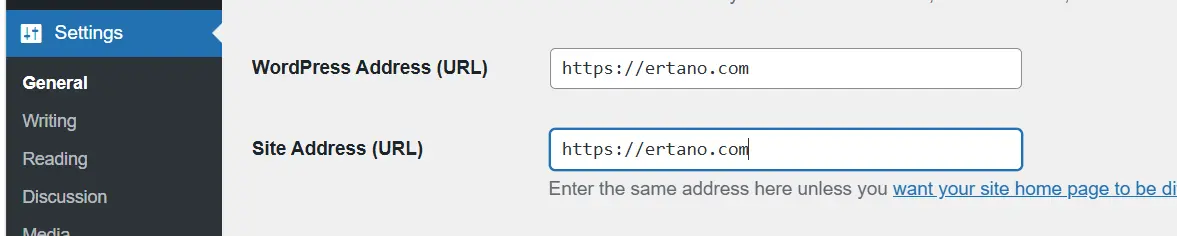
This may seem simple, but it is one of the first things you should check during troubleshooting.
Outdated Themes
Some old themes or themes developed in a non-standard way manually insert file URLs directly into the code. For example, a developer may have written something like this in the theme years ago:
http://example.com/wp-content/themes/theme/style.css
In such cases, even if SSL is active, the browser will still fetch the file via HTTP and trigger a Mixed Content error. If after installing SSL you notice that your site layout is broken or certain styles are not loading, it’s a good idea to review your theme code—especially if you are using an old or custom theme.
Incompatible Plugins
Plugins can also cause Mixed Content issues. Some older plugins still use HTTP addresses to load CSS files, JavaScript, or images. Others connect to external services and retrieve required resources from insecure links.
For example, a contact form or slider plugin might load its files from an HTTP address. In this case, even if the rest of your site is properly configured, the Mixed Content error will still appear. If you encounter this error after installing or updating a plugin, it’s best to temporarily deactivate it and check the site again.
Third-Party Services
Sometimes the issue is not related to WordPress or your hosting at all. Many websites use third-party services such as:
- Live chat
- Analytics systems
- Advertising tools
- Online maps
- Embedded videos
- External iframes
If any of these services load their files via HTTP, the browser will mark the entire page as having Mixed Content.
For example, imagine you have installed a live chat tool on your website. If the service’s JavaScript file is loaded from an HTTP address, the browser will identify it as insecure content. Therefore, when investigating the error, don’t limit yourself to your own site files—check third-party services as well.
CDN and Cache
Another relatively common cause of Mixed Content is incorrect CDN or caching configuration. Suppose you have enabled SSL and fixed all site links, but your CDN is still storing older versions of files. In that case, the browser may continue receiving files via HTTP.
This issue is more common with services such as:
- Cloudflare
- ArvanCloud
- CDN77
- Asiatech Cloud
In addition to CDNs, WordPress caching can also cause problems. Plugins such as LiteSpeed Cache, WP Rocket, or W3 Total Cache may store older versions of pages and cause the Mixed Content warning to appear even after the issue has been resolved. Therefore, after making any changes, it’s best to:
- Clear the WordPress cache.
- Clear the CDN cache.
- Refresh the browser with Ctrl + F5.
- Check the site in Incognito mode.
In many cases, the error you think still exists is actually just being loaded from cache memory.
As you’ve seen, the Mixed Content error can originate from various parts of your website—from the WordPress database to themes, plugins, third-party services, and even CDN settings. That’s why before attempting to fix the issue, you must first identify the main source of the error. In the next section, you will learn how to accurately detect the exact file or resource causing the Mixed Content issue.
How to Identify the Mixed Content Error?
Before attempting to fix the Mixed Content error, you need to know exactly where the problem originates. One common mistake is that users immediately install various plugins without first identifying the main source of the error.
Fortunately, there are browsers and tools that can show you which file or section of your website is still being loaded via HTTP. The more accurately you identify the source of the issue, the faster and easier it will be to fix. Below, we’ll explore several practical methods for detecting the Mixed Content error.
Using the Browser’s Developer Tools
One of the most accurate and fastest ways to detect a Mixed Content error is by using the browser’s Developer Tools. To do this, open a page on your website where the security warning appears, then press the F12 key. After the Developer Tools window opens, navigate to the Console tab.

If a Mixed Content error exists on a page, you will usually see a message similar to the example below:
Mixed Content: The page at ‘https://example.com’
was loaded over HTTPS,
but requested an insecure image
‘http://example.com/uploads/banner.jpg’
At first glance, this message may seem a bit complicated, but it actually provides very valuable information.
This error usually has three important parts:
- The address of the page where the error occurred.
- The type of problematic file (image, CSS, JavaScript, etc.).
- The exact address of the insecure file.
In the example above, the browser tells us that the following file was loaded via HTTP:
http://example.com/uploads/banner.jpg
Now we know exactly which file we need to focus on.
How to Identify the Source of the Error
Sometimes just seeing the file address is not enough, and we need to know which part of the site is causing the issue. In general:
- If the file is inside the uploads folder, the issue is usually related to the WordPress database or post content.
- If the file is inside the themes folder, the site theme has likely hardcoded the HTTP address manually.
- If the file is inside the plugins folder, you should check the plugin settings or code.
- If the file’s domain is different from your site’s domain, the issue is likely caused by a third-party service or external tool.
For this reason, the Console tab is usually the first place you should check when troubleshooting.
Checking the Browser Security Tab
The Chrome browser has a dedicated section for reviewing a site’s security status, which many users are unaware of. To access this section:
- Open your website.
- Press the F12 key.
- Go to the Security tab.
In this section, the browser examines the SSL certificate status and the security of the connection. If the site is fully secure, you will usually see a message similar to:
Connection is secure
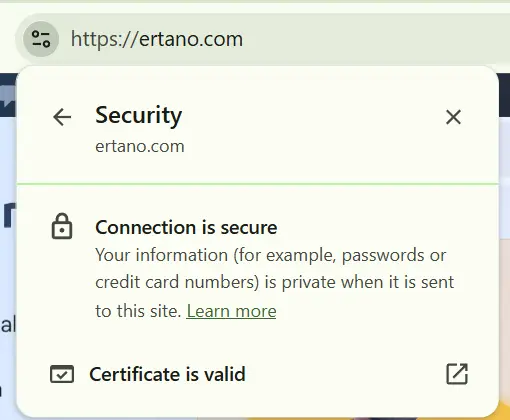
However, if Mixed Content exists, Chrome will typically display warnings about insecure resources or files loaded via HTTP.
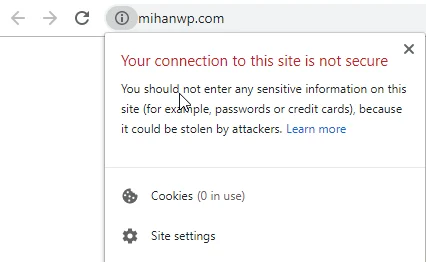
The advantage of this section is that, in addition to Mixed Content, you can also identify other SSL and HTTPS-related issues. This tool is especially useful when you are not sure whether the problem is caused by the SSL certificate or by insecure files within the page.
View Page Source
Sometimes the Mixed Content error is so simple that it can be found even without advanced tools. To view the page source:
- On Windows, press Ctrl + U
- On Mac, press Command + Option + U
After the page source opens, press Ctrl + F and search for the following phrase:
http://
If you see links with HTTP in the search results, one of them may be causing the Mixed Content error. For example, you might find something like this:
<img src=”http://example.com/uploads/logo.jpg”>
Or:
<link rel=”stylesheet” href=”http://example.com/style.css”>
In this case, you can easily locate the source of the problem and change it to HTTPS. Of course, this method does not always work, because some files are loaded dynamically via JavaScript and are not visible in the initial page source. However, it can be very useful for initial checks.
Checking the WordPress Database
If you have recently enabled SSL and the site previously ran on HTTP, there is a very high chance that the root of the problem lies within the WordPress database. In fact, one of the most common causes of the Mixed Content error is that old site URLs are still stored in the database. For example, thousands of images or links may be stored in the database with this address:
http://example.com
While the site is now running on HTTPS. The best way to check this is by using plugins such as:
- Better Search Replace
- Search Regex
Using these tools, you can search the entire database to see whether HTTP addresses still exist on the site. For example, you can search for:
http://example.com
If you see many results, a large portion of the Mixed Content error is likely originating from here. On many WordPress sites, correcting these addresses completely resolves the issue.
Which Method Is Better?
If we want to rank the methods in terms of speed and accuracy:
| Method | Accuracy | Suitable For |
|---|---|---|
| Developer Tools (Console) | Very high | Finding the exact problematic file |
| Security Tab | High | General security and SSL overview |
| Viewing page source | Medium | Quick check of HTTP links |
| Database check | Very high | Finding old stored links in WordPress |
Usually, the best approach is to start with the browser Console. If the source of the error is not identified, then move on to checking the database and other methods. In most cases, with just these few steps, you can identify the main source of the Mixed Content error and take action to fix it.
Tutorial on Fixing the Mixed Content Error in WordPress
Now that you have identified the source of the error, it’s time to fix the problem. The good news is that in most cases, the Mixed Content error can be resolved with a few simple steps, and you don’t need programming knowledge or complex server-side changes. However, I recommend taking a backup of your site before making any changes so that if something goes wrong, you can restore it to its previous state.
It’s better to follow the steps below in order. In many cases, the issue is resolved in the early stages, and you won’t need to apply all the solutions.
Step One – Check WordPress Settings
The first place you should check is the main WordPress settings. Log in to your WordPress dashboard and go to:
Settings → General
Review the following two options:
- WordPress Address
- Site Address
Both addresses must start with HTTPS.
Correct example:
https://yourdomain.comIncorrect example:
http://yourdomain.comSometimes, this simple setting alone causes parts of the site to continue loading over HTTP. After making changes, save the settings and check your site again.
Step Two – Make Sure SSL Is Installed Correctly
Before attempting to fix Mixed Content, you need to make sure SSL is actually active and functioning properly on your site. Sometimes site administrators think SSL is installed, but in reality:
- The certificate has expired
- SSL is not enabled on all domains
- The www and non-www versions are not configured properly
- The certificate is not active on subdomains
The easiest way to check this is to open your website address in a browser and click the padlock icon next to the site address. If the browser displays messages such as:
- Connection is Secure
- Secure Connection
then SSL is usually enabled correctly. You can also use online SSL checking tools to ensure your certificate has no issues. If the SSL itself has a problem, fixing Mixed Content will not restore the security padlock display.
Step Three – Fix Database Links
On many WordPress sites, the main cause of Mixed Content is old HTTP links remaining in the database. Imagine that years ago you published hundreds of articles, and in all of them images were saved with addresses like this:
http://yourdomain.com/wp-content/uploads/image.jpg
Now SSL is enabled, but these addresses still exist in the database. The result? The browser loads images over HTTP and displays a Mixed Content error. Therefore, you need to find and correct the old addresses.
Using the Better Search Replace Plugin
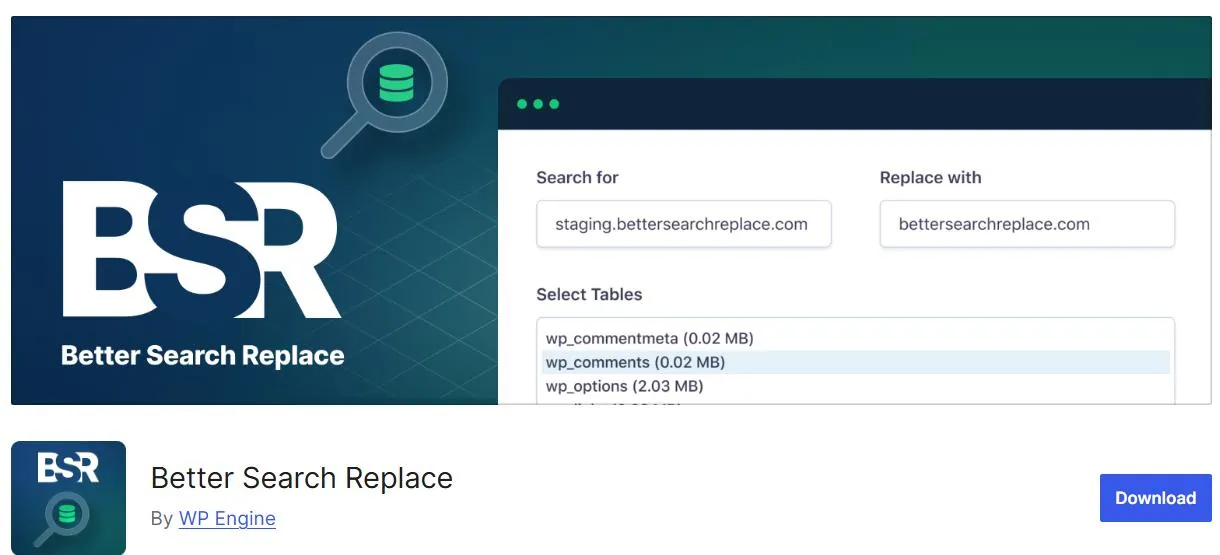
One of the best tools for this task is the Better Search Replace plugin.
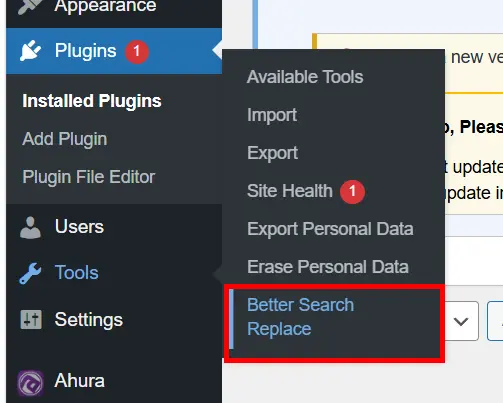
This plugin helps you find all HTTP addresses in the database and replace them with HTTPS. After installing the plugin:
Go to Tools → Better Search Replace.
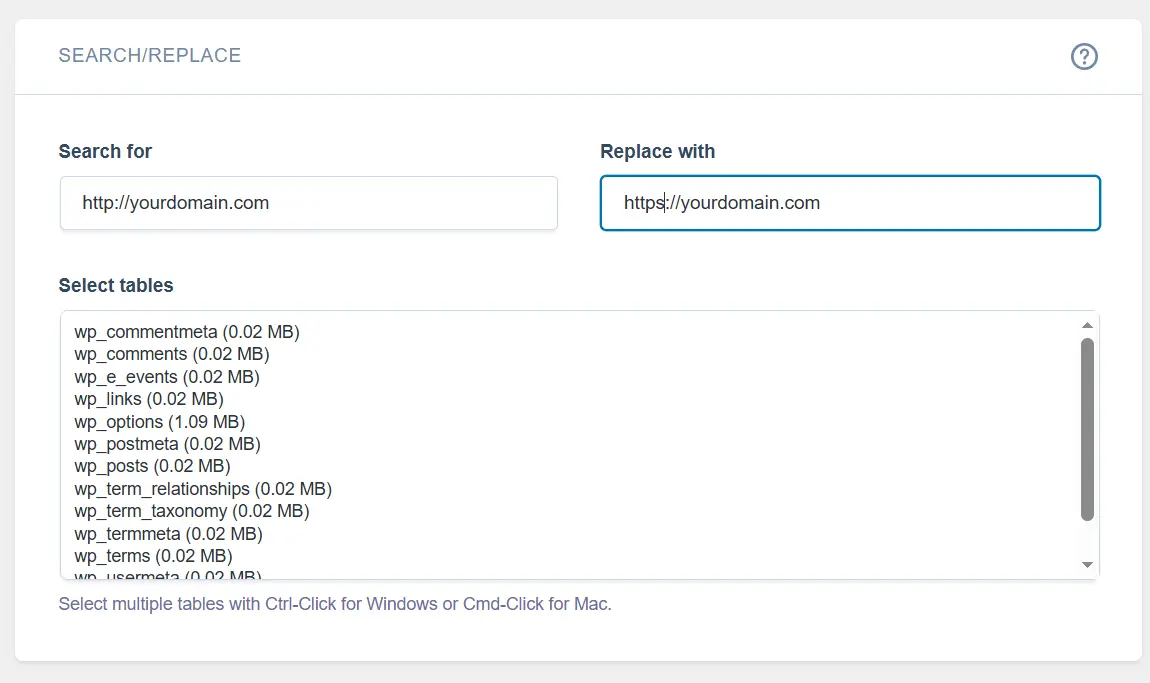
In the Search For field, enter the old site address:
http://yourdomain.comIn the Replace With field, enter the new address:
Select all database tables.
Enable the Run as Dry Run option and run the search operation.
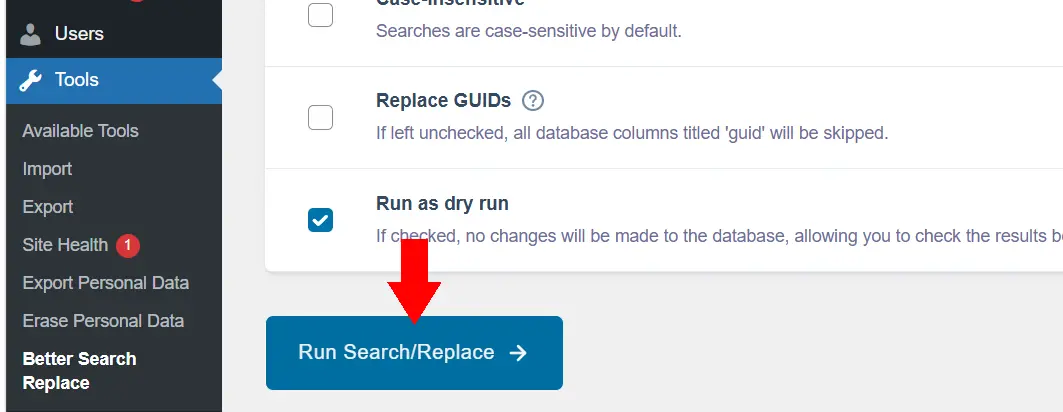
Dry Run does not make any changes to the site; it only shows how many records need to be updated. If the results look correct, disable the Dry Run option and perform the replacement. This method usually resolves a large portion of Mixed Content errors completely.
Suggestion: Be sure to back up the database before performing the Replace operation.
Step Four – Using the Really Simple SSL Plugin
If you don’t want to manually review various settings, the Really Simple SSL plugin can make the process much easier. After activation, this plugin:
- Detects SSL
- Corrects site URLs
- Fixes many common HTTPS errors
- Converts some HTTP resources to HTTPS
After installing the plugin:
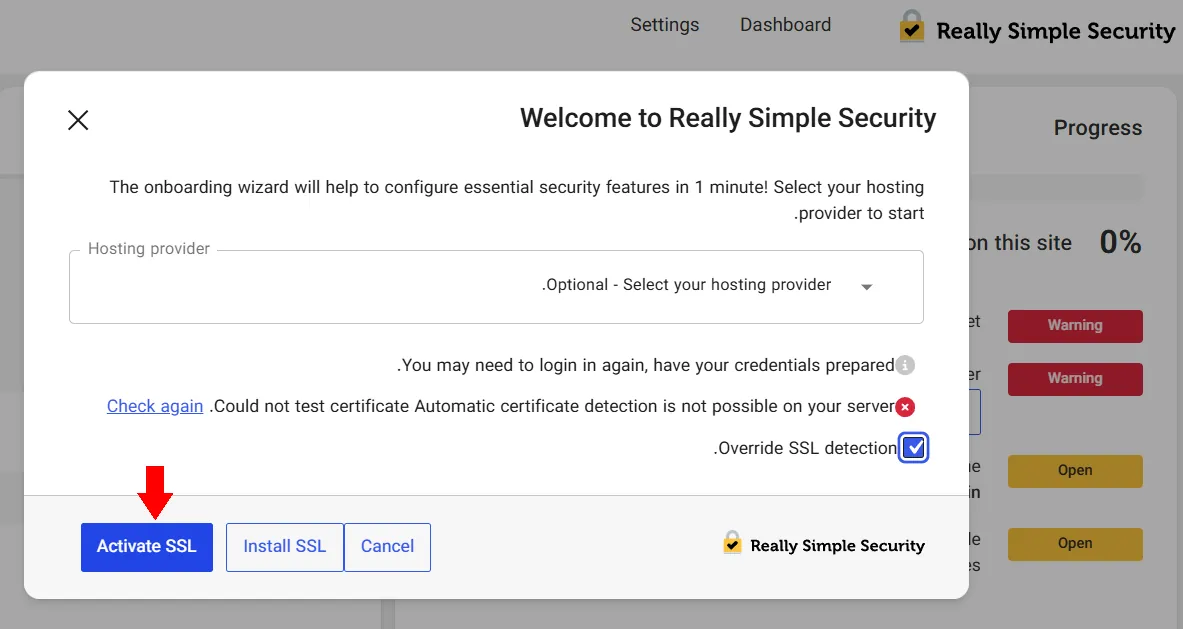
Activate the plugin and click the Activate SSL button.
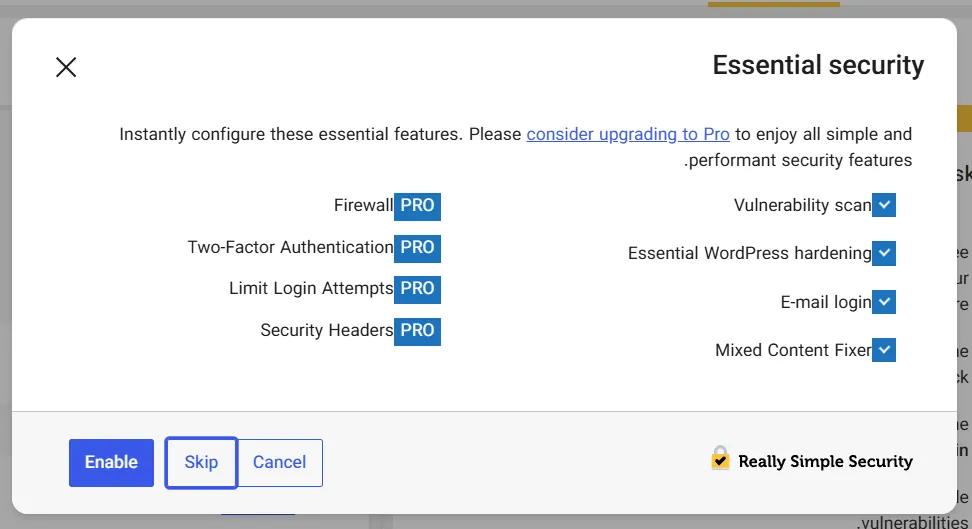
Apply the plugin’s recommended settings and clear your website cache.
Keep in mind that this plugin does not always solve every issue. If there are many HTTP links in the database or theme files, you may still need to make manual corrections. For this reason, it’s better to consider Really Simple SSL as a supporting tool rather than the only available solution.
Step Five: Enabling 301 Redirect
Even if you have corrected all the website links, you still need to ensure that users and search engines are always redirected to the HTTPS version. To do this, we use a 301 redirect. A 301 redirect informs browsers and Google that the HTTPS version is the primary address of your site. In simple terms:
If someone opens the following address:
http://yourdomain.comThey will automatically be redirected to:
https://yourdomain.comIf you are using the Apache web server, you can place the following code inside the .htaccess file:
RewriteEngine On
RewriteCond %{HTTPS} off
RewriteRule ^(.*)$ https://%{HTTP_HOST}%{REQUEST_URI} [L,R=301]
After applying these changes, be sure to test your website’s functionality to ensure that a redirect loop has not been created.
Fixing Mixed Content in Cloudflare
If your website uses Cloudflare, the root of the problem may be related to this service’s SSL settings. One of the most common mistakes is using the Flexible SSL mode. In this mode, the connection between the visitor and Cloudflare is encrypted, but the connection between Cloudflare and your server may still use HTTP. This can sometimes cause various HTTPS and Mixed Content errors. To review the settings:
- Log in to your Cloudflare account.
- Go to the SSL/TLS section.
- Open the Overview tab.
It is better to set the SSL mode to one of the following options:
- Full
- Full (Strict)
Full (Strict) is considered the most secure option and, as long as a valid SSL certificate is installed on your server, it will be the best choice. After applying the changes:
- Clear the Cloudflare cache.
- Check the website in your browser’s incognito mode.
- Review the browser Console again.
Clearing the Server Cache
Some hosting companies use server-side caching. In these cases, even after the issue is fully resolved, an older version of your pages may still be displayed. If you’ve tried all the solutions and the error still persists, contact your hosting support team and request a server cache purge.
On most WordPress websites, the Mixed Content error is resolved by reviewing WordPress settings, correcting database links, and clearing the cache. If you’re still facing the issue after completing these steps, check your browser’s Console again—because almost always, the file or resource causing the error will show up in the browser errors.
For the Mihan WordPress tone, the current text still feels a bit formal and bookish. It would be better if it conveyed the feeling of “I’m sitting next to you and helping you out.” This version is smoother, friendlier, and closer to the common tone used in Mihan WordPress articles:
Complete Checklist for Fixing Mixed Content Errors
If you don’t want to spend hours searching for the cause of the error again, review this checklist before closing this article. Very often, the issue persists just because one small item was overlooked, and you may think the problem lies elsewhere. So it’s best to go through all the items below one by one.
Mixed Content Fix Checklist in WordPress
✅ An SSL certificate is activated on the domain.
✅ The HTTPS version of the site loads without errors.
✅ The “WordPress Address” is set to HTTPS.
✅ The “Site Address” is set to HTTPS.
✅ A 301 redirect from HTTP to HTTPS is enabled.
✅ No HTTP links remain in posts and pages.
✅ Old links inside the database have been converted to HTTPS.
✅ The site theme loads CSS and JavaScript files via HTTPS.
✅ Installed plugins are not using HTTP resources.
✅ External tools such as live chat, analytics, or ads have been checked.
✅ SSL settings in Cloudflare or the CDN are properly configured.
✅ The WordPress cache has been cleared.
✅ The CDN cache has been cleared.
✅ The browser cache has been cleared, or the site has been checked in Incognito mode.
✅ The browser Console tab no longer displays Mixed Content errors.
If you’ve checked all these items, your website issue is most likely fully resolved, and the security lock should appear without any warnings.
A Real Example of Fixing the Issue
Let’s review a real example together. Suppose you recently installed SSL for your online store. You expect the security lock to appear next to your website address, but every time you open the site, the browser warns that the page is not fully secure. Naturally, your first thought might be that the SSL was not installed correctly—but the issue is not always with the SSL itself. In such situations, you enter the site, press the F12 key, and go to the Console tab.
There, you encounter an error like this:
Mixed Content:
The page at ‘https://example.com’
was loaded over HTTPS,
but requested an insecure image
‘http://example.com/uploads/banner.jpg’
This error clearly tells you that one of the site’s images is still being loaded via HTTP. Now you know the problem isn’t with the SSL. The issue is an old image within the site.
After a bit of investigation, you realize this image was uploaded several years ago on one of the site’s pages, and its address is still stored in the database with HTTP. To fix the problem:
- Install the Better Search Replace plugin.
- Convert all HTTP addresses to HTTPS.
- Clear the site cache.
- Clear the browser cache.
- Reload the page.
The result? The browser security lock returns, warnings disappear, and the site loads without issues. Interestingly, a large portion of Mixed Content errors are created exactly this way—an old file or image remains on the site and causes the entire page to have problems.
Frequently Asked Questions
Is the Mixed Content error a security risk?
Yes, especially if it is Active Mixed Content. In this case, files such as JavaScript or CSS are loaded via HTTP and may be vulnerable to tampering. For this reason, browsers are highly sensitive to this type of error and may even block the file completely.
Does Mixed Content affect a site’s Google ranking?
Google has not imposed a direct penalty for this error, but Mixed Content can negatively impact user experience. When users see security warnings or parts of a site fail to load properly, they are more likely to leave. Over time, this can also affect SEO performance.
Why isn’t the security lock displayed even after installing SSL?
This usually happens because some files are still being loaded via HTTP. These files may include images, CSS files, JavaScript files, fonts, or even third-party tools such as live chat.
Does the Really Simple SSL plugin fix all problems?
Not always. This plugin resolves many common HTTPS issues, but if there are numerous HTTP links inside the database, theme, or plugins, you will likely need to fix part of the issue manually.
Can I remove the Really Simple SSL plugin after fixing the issue?
If all site links and settings have been properly corrected, you usually don’t need to rely on this plugin permanently. Just make sure to thoroughly check the site before removing it to ensure no new issues arise.
Why do only some pages show the error?
Because only those specific pages may contain images, files, or code loaded via HTTP. That’s why sometimes the homepage appears completely fine, while certain posts or pages display a Mixed Content warning.
Is Mixed Content more dangerous in WooCommerce?
Absolutely. When users reach the checkout or payment page, they pay more attention to security than at any other time. If a security warning appears on these pages, the likelihood of cart abandonment increases significantly.
Do HTTP images also cause problems?
Yes. Although images are usually classified as Passive Mixed Content and pose a lower security risk, they can still prevent the SSL lock from being displayed and trigger browser security warnings.
Why do I still see the error after fixing it?
In many cases, the reason is caching. Before revisiting your site settings, check the following:
WordPress plugin cache
CDN cache
Browser cache
Server cache
Often the issue has been fully resolved, but the browser or CDN is still showing an older cached version of the page.
Conclusion
The Mixed Content error is one of the most common issues you may encounter after enabling SSL in WordPress. This error occurs when some site files are still loaded via HTTP while the main page is displayed over HTTPS.
At first glance, it may seem like just a simple browser warning, but in practice it can negatively affect user trust, sales, conversion rates, and even your site’s SEO performance. Fortunately, in most cases, fixing this error is not difficult. You simply need to identify the source of the problem, review your WordPress settings, update old database links, check the status of SSL and CDN, and finally clear your site cache.
If I were to summarize the most important point of this article in one sentence, it would be this: First, check your browser console—because almost always the file or element causing the Mixed Content error reveals itself there.
After resolving the issue, don’t forget to test your site across multiple pages, different browsers, and even on mobile devices to ensure everything works properly and the SSL security lock appears without any warnings or errors. Best of luck and success to you. 🙂

Ahura WordPress Theme
The Power to Change EverythingElementor Page Builder
The most powerful WordPress page builder with 100+ exclusive custom elements.
Incredible Performance
With Ahura’s smart modular loading technology, files load only when they are truly needed.
SEO Optimized for Google
Every line of code is carefully aligned with Google’s algorithms and best practices.

To post a comment, please register or log in first.