
 Tutorials


 Ahura
Ahura Plugins

 Blog
BlogFix the error “The plugin could not be activated due to a serious problem”
- Tutorials
- Updated on

Hey there! We’ve talked in detail before about the reasons a WordPress plugin won’t install, but there’s one particular error that just about everyone who has worked with WordPress has run into at least once: the “The plugin could not be activated because it triggered a fatal error” message.
And it usually shows up at the exact moment you’re installing a plugin and expecting everything to go smoothly. Suddenly WordPress slams on the brakes and smacks you with this message. Fixing it, honestly, isn’t always as straightforward as you might think.
In this article, we’re going to tackle it step by step and try out its various solutions together so you can finally get rid of it for good.
Table of Contents
What Is This Error?
Look, let me say one thing first to put your mind at ease: this error is actually protecting you. I’m serious.
WordPress has an error-detection system that, when it sees that a plugin you’re activating has a serious problem, stops it from being activated. Well, what would happen if this system didn’t exist? That broken plugin would get activated, your whole site would blow up with a 500 error, and you wouldn’t even have access to your dashboard anymore.
So instead of getting worked up, take a deep breath. WordPress is saying, “Folks, this plugin has a flaw — let’s fix it and then activate it.” Now let’s go find out where that flaw is coming from.
To be honest, this error doesn’t have one fixed cause, and you can’t write a single prescription for it. But don’t worry — its main causes are limited, and we’ll go through all of them one by one.
Step-by-Step Troubleshooting Guide
Alright, now we’ve reached the fix for “The plugin could not be activated because it triggered a fatal error.” Let’s get to it and sort it out:
Plugin Incompatibility with Your PHP Version
Experience tells me that most WordPress errors, at the bottom of it all, have something to do with the PHP version. So the first thing you’ll do is go check your hosting’s PHP version.
From within cPanel or your hosting panel, you can change the PHP version. Here’s what I recommend: test a few different versions and see which one the plugin activates with. Generally, the relatively more up-to-date versions are compatible with most themes and plugins.
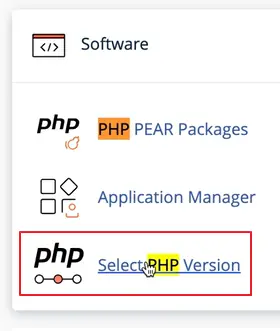
There’s also a general rule: keep PHP updated to its latest stable version as much as you can. But rest assured, in newer versions of WordPress, if your PHP is outdated, WordPress itself will warn you and won’t leave you stranded.
Conflict with Other Plugins (or Maybe the Theme)
This one is very common. If you ran into a “deprecated” message during activation, it likely means that one of this plugin’s functions was already used by another plugin, and now the two of them are fighting over the same thing.
The solution takes some patience but isn’t hard: go deactivate your plugins one by one — each time turn one off and try the problematic plugin again. This way, the plugin that’s causing the conflict eventually gets exposed. Don’t forget that the site’s theme can be the culprit too, so if you don’t get results from the plugins, try a default WordPress theme as well.
Honestly, half the time, the root of this error is exactly this: a simple conflict.
WordPress Not Being Updated
Sometimes the WordPress core itself has something off about it, and that’s what causes this hassle. What you should do is simple: update WordPress once.
Even if you think you’re on the latest version, I still recommend updating it manually once. This acts like a full refresh and swaps out potentially corrupted core files with a healthy version. A lot of the time, this one simple move solves the problem.
Enabling WordPress Debugging (The Most Important One)
Alright, we’ve reached the point where, if none of the above worked, this one definitely will. Because this is no longer guesswork; here WordPress tells you exactly where the problem is.
What it does is log the errors for you, and in that report you see exactly which file and which line of code is causing the problem. In other words, instead of searching blindly for the culprit, you get its exact address.
Since this part takes a bit of work itself and needs to be done properly, we’ve explained it step by step in a separate guide on enabling WordPress debugging. Be sure to check it out and get it set up; it’s worth it.
Frequently Asked Questions
Does this error harm my site?
No, quite the opposite. This error actually prevents harm and keeps a broken plugin from being activated and taking your site offline.
What’s the best PHP version for WordPress?
A general rule: use the latest stable version of PHP as much as possible. But if you run into problems, test a few versions and see which one your plugins and theme get along with best.
I deactivated the plugins one by one but didn’t find anything. Now what?
The problem is probably with your theme or with the very plugin you’re installing. Activate a default WordPress theme and try again; if it still doesn’t work, go to WordPress debugging to see its exact root.
What’s the difference between this error and a 500 error?
A 500 error means your site has gone completely offline. But this error stops the problematic plugin before it comes to that, so you still have access to your site and your dashboard.
Wrapping Up
See? This error isn’t as scary as it seemed at first. The summary of the whole thing is that you check four things in order: the PHP version, plugin and theme conflicts, whether WordPress is up to date, and finally, enabling debugging to find the exact root of the problem. Usually one of these unravels the knot. If you’re still stuck, drop a comment below and we’ll sort it out together.

Ahura WordPress Theme
The Power to Change EverythingElementor Page Builder
The most powerful WordPress page builder with 100+ exclusive custom elements.
Incredible Performance
With Ahura’s smart modular loading technology, files load only when they are truly needed.
SEO Optimized for Google
Every line of code is carefully aligned with Google’s algorithms and best practices.
To post a comment, please register or log in first.