
 Tutorials


 Ahura
Ahura Plugins

 Blog
BlogWhat Is Domain Parking? Connecting Two Domains to a Single Website
- Tutorials
- Updated on

Imagine we have two [domains], and for whatever reason we want any of these addresses we type in to land on one specific site. In other words, we want to connect both domains to a single host. Note carefully: I don’t mean hosting two separate sites on one host — no. We have one host with one site on it, and we want that whenever we enter either of these two domains, we arrive at that same single site. Or, to put it better, we redirect the second domain onto the first.
Let me give you an example to make this completely clear. If I type in my site’s main domain, I naturally land on that site. Now I also have another domain that’s very old and no longer really in use; when I type that one in too, I still arrive at the same main site. That is, I’ve connected both domains to a single site.
Here’s a concrete example: suppose my main domain is example.com, and I’ve put a lot of work into [SEO] for it. Now I’ve also registered a second domain, example.net, and I want both domains to point to that same main site of mine.
Table of Contents
How Do We Do It?
Logging Into the Hosting Control Panel
First, we head into the control panel and the hosting management section. Suppose we have a site here and we want to configure one of our domains so that if someone enters it, our main site opens for them. We click “Manage” and enter the hosting control panel.
Now, our hosting control panel might be cPanel or DirectAdmin — it doesn’t matter. The only difference between them is in their menus, which vary a little. In cPanel, we need to go to the domains section; there we have an option called Domains where we can manage our domains.
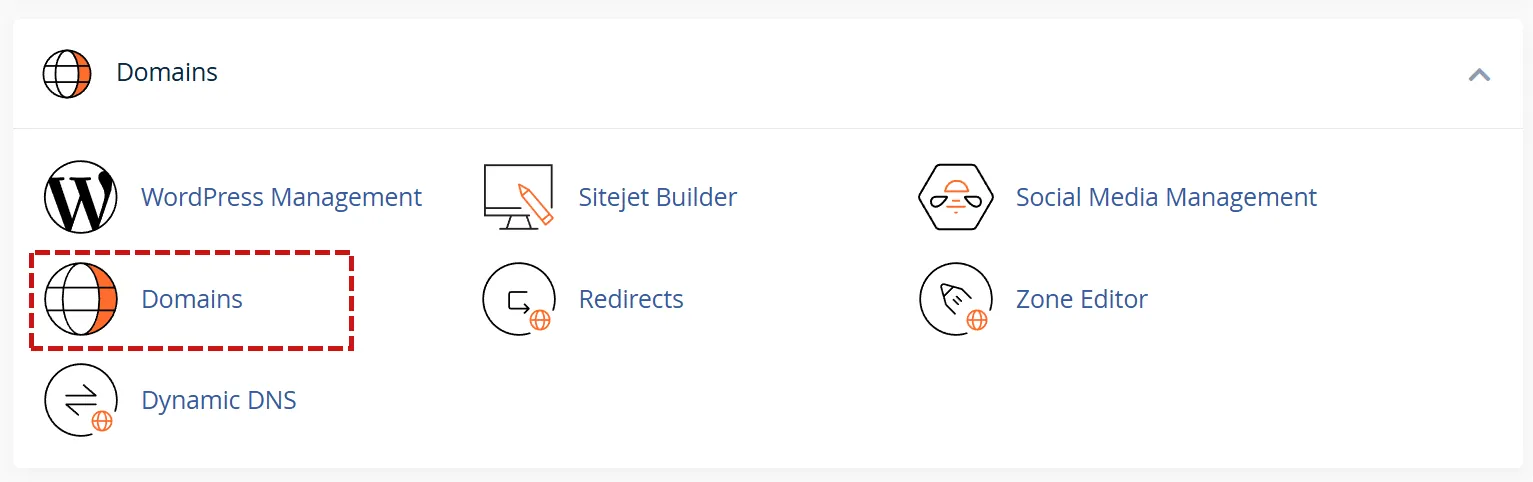
In DirectAdmin, we go through either the Domain section, or Domain Alias, or Site Pointers. There are actually a few different paths to reach it, but overall you need to head to the domain management section.
Registering a new domain
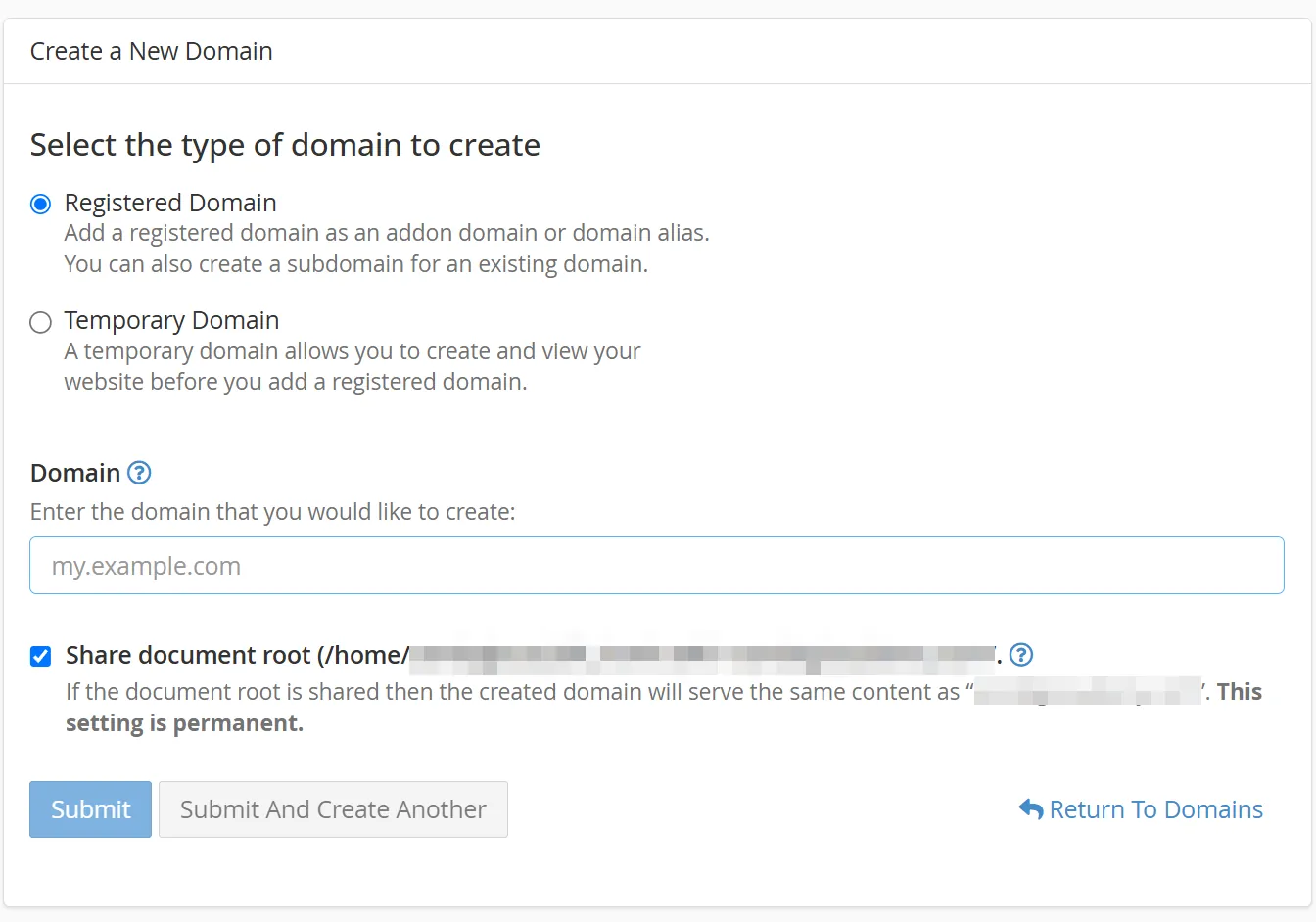
Alright, we register a new domain. We enter the domain, specify the Document Root, and hit Submit to register the domain.
Setting Up DNS and Nameservers
So what’s next? We need to go into the domain management control panel, select this same domain, and configure its DNS. That is, we go to the DNS and nameserver management section, define NS1 and NS2, and save the changes.

After we do this, the DNS request is sent off. As you know, these settings take a little time to be verified and applied. For a domain, it usually takes anywhere from one or two hours up to around six hours.
Here’s the thing to note: right after setting up DNS, if you enter the second domain, it won’t redirect to the main site just yet. Why? Because the job isn’t finished — there’s one more step left.
Setting Up the Redirect (Method One)
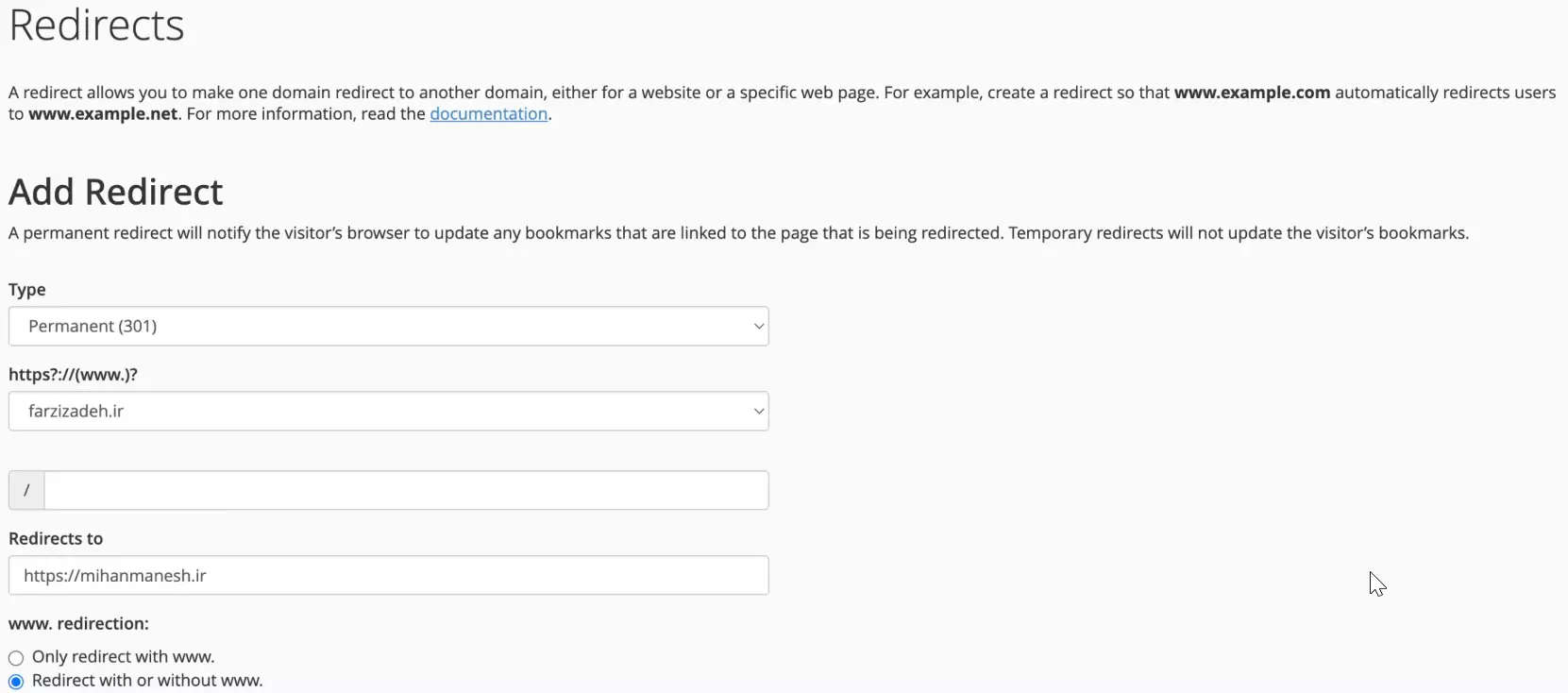
We need to go back, select that same domain, and configure its redirect. We go to the Redirect section, select the management for our new domain, and create a redirect of the Permanent type — that is, the well-known 301 redirect.
We redirect the second domain to the main site’s address; whether with www or without www doesn’t matter. Then we hit Add. With that, the second domain gets redirected to the main site.
Now we wait a few hours for the settings to fully take effect and the site to come up; after that, whenever you enter that domain, you’ll land directly on the main site.
That was method one — redirecting from within the control panel.
Possible Hosting Limitations
Now an important note: with different hosting providers, you might run into certain limitations. For example, the host I have allowed me to add another domain. But some hosts, when selling their service, tell you they won’t let you add a new domain and that you can only manage a single domain.
Method Two: Alias in cPanel and Domain Pointer in DirectAdmin
So what do we do in cases like this? These hosts have a feature meant for exactly this purpose; just keep in mind that its name differs from one control panel to the next:
In cPanel, you won’t see a distinct section or label called Alias anymore. In very old versions this feature lived under Parked Domains, then it became Aliases, but in newer versions (the Jupiter theme) that menu has been removed entirely and folded into the Domains section. Here’s what you do: go to the Domains section, click Create A New Domain, enter the domain, and keep the Share document root option checked. This alone makes that domain open up the same main site. In other words, cPanel won’t show you the word “Alias” anywhere; you can tell this domain is acting like an alias from the Share Document Root checkbox and the fact that the document root path is the same.
In DirectAdmin, it’s called Domain Pointer. From that same section, you can attach the second domain as a pointer to the main domain.
The advantage of both is that they point the domain automatically, so there’s no longer any need to set up a redirect manually. Honestly, this is the more standard approach anyway.
Wrapping Up
So, to sum up: if your host allows adding a new domain, use the first method I described. If it doesn’t, go for Alias in cPanel and Domain Pointer in DirectAdmin.
And one last note: if you can’t find which section you’re supposed to do this from, open a support ticket with your host. Depending on the control panel and the various versions of cPanel or DirectAdmin, this can be a little different from case to case.
I hope this tutorial has been helpful. This is something you’ll genuinely find yourself needing in certain situations — especially for advertising, like with Google Ads. Take care! 🙂

Ahura WordPress Theme
The Power to Change EverythingElementor Page Builder
The most powerful WordPress page builder with 100+ exclusive custom elements.
Incredible Performance
With Ahura’s smart modular loading technology, files load only when they are truly needed.
SEO Optimized for Google
Every line of code is carefully aligned with Google’s algorithms and best practices.

To post a comment, please register or log in first.