
 Tutorials


 Ahura
Ahura Plugins
 Blog
BlogHow to Clean Up a Virus-Infected WordPress Website
- WordPress Security Tutorials
- Updated on
If you have worked with WordPress, you have likely heard the term “infected site” at least once. Some believe this problem only happens to large, high-traffic websites, while others only realize how serious the situation is when they encounter strange redirects, unknown files, or hosting warnings.
The reality is that a WordPress site getting infected is not a far-fetched scenario, especially when themes and plugins are used without sufficient knowledge. In many cases, the problem lies neither with WordPress itself nor the hosting provider, but rather with uninformed choices that compromise the site’s security over time.
In this article, we aren’t just going to talk about “viruses” or try to scare users. The goal is to provide a practical and actionable guide; a guide that helps you diagnose whether your site is infected, how to clean it properly if it is, and most importantly, how to ensure you never face the same problem again.
If your site is currently healthy, this post will give you a preventative perspective. If you are currently struggling with an infection, it provides a step-by-step solution so you can restore your WordPress site to a safe and stable state without any guesswork.
Table of Contents
How to Clean Up an Infected WordPress Site? (A Complete and Practical Guide)
A WordPress site infection usually reveals itself when the user least expects it; one day you face your site redirecting to an unknown domain, another day the hosting provider warns you about unusual resource consumption, or you see files in your hosting that have unfamiliar names and content. This is exactly the point where many site managers realize that site security is not something that can be left to chance.
This experience is familiar to many who have just started their journey with WordPress. When you install various themes and plugins without enough knowledge, you assume that if the site loads, everything is secure. But after a while, when you enter the File Manager and encounter strange, incomprehensible PHP files, it becomes clear that the problem isn’t just a simple error or bug—malicious code is involved.
What is Meant by a “Virus” in WordPress?
When we talk about a “virus” on a WordPress site, we don’t mean the exact same concept we know from Windows systems. In the web world, these viruses are usually in the form of “shells” or malicious codes that execute on the site without your knowledge. These codes can perform actions beyond your control, ranging from sending promotional emails and showing pop-ups to redirecting users, displaying unwanted banners, and even exploiting the system resources of your visitors.
For this reason, a site infection is not just a cosmetic issue that can be solved by deleting a file or deactivating a plugin. If this matter is not properly investigated and resolved, it can cause serious damage to the site’s reputation, user experience, and even your SEO.
How Does This Article Help You?
The goal of this article is not to create fear or exaggerate the problem. In this guide, we have tried—based on real experiences and practical methods—to show you how to diagnose if your WordPress site is infected, how to clean it properly if it is, and most importantly, what actions to take to prevent it from happening again.
Whether your site is currently healthy and you want to be prepared for the future, or you are currently dealing with suspicious files and behaviors, this guide is written in a way that allows you to move forward step-by-step and reclaim your WordPress site’s security without guesswork.
What Exactly Does a Virus Mean in WordPress?
When talking about a virus on a WordPress site, users’ minds usually drift toward the same concept they’ve known for years in computer systems: files that slow down the system or cause programs to crash. However, in the web world, and specifically in WordPress, the concept of a virus is slightly different, and if this difference isn’t understood correctly, wrong solutions might be chosen to fix the problem.
The Difference Between a Computer Virus and a Site Virus
In personal systems like Windows, viruses are usually built to directly destroy the system, delete files, or disrupt software performance. However, on WordPress sites, the main goal of malicious code is often exploitation, not immediate destruction. These codes are designed to run on the site without attracting attention, using the site’s resources, reputation, or visitors. This is why your site might be infected for a long time without you noticing any visible problems.
What are Shells and Malicious Codes?
What is known as a virus in WordPress usually takes the form of a shell or malicious code. A shell is essentially a file or a set of codes that allows an attacker to remotely access your site and execute various commands. These commands can be simple or highly complex, and this is exactly what makes identifying them difficult.
Malicious codes are often placed in files with incomprehensible and random names or even injected into core WordPress files, themes, or plugins. Therefore, simply seeing a PHP file in your hosting is not necessarily a sign of infection, but the presence of files with unusual structures and content can be a serious red flag.
What Can Malicious Codes Do to Your Site?
When a malicious code runs on a site, it essentially hands over control of part of your site to someone else. These codes can redirect users to other sites, send mass promotional emails without your knowledge, or display unwanted banners and pop-ups to visitors. In some cases, they even use the processing power of the users’ browsers to mine digital currencies—an issue that damages both your site’s reputation and severely ruins the user experience.
The important point is that many of these activities are initially completely hidden. The site may appear to function correctly, but in the background, codes are running that will sooner or later cause serious problems; from the host being suspended to a sharp drop in SEO and the loss of user trust. Therefore, accurately understanding the concept of a virus in WordPress is the first step toward dealing with the problem correctly and choosing the right solution for cleanup and prevention.
What Signs Indicate Your Site is Infected?
Quite often, the site owner doesn’t realize exactly when the problem started. The site loads, content is in place, and maybe sales are even being made, but behind the scenes, things are happening that, if not diagnosed early, can cause serious damage to the domain reputation, site SEO, and even user security. In this section, we review the signs not theoretically, but from a project-oriented perspective of a real WordPress site audit.
Site Redirecting to Unknown Addresses
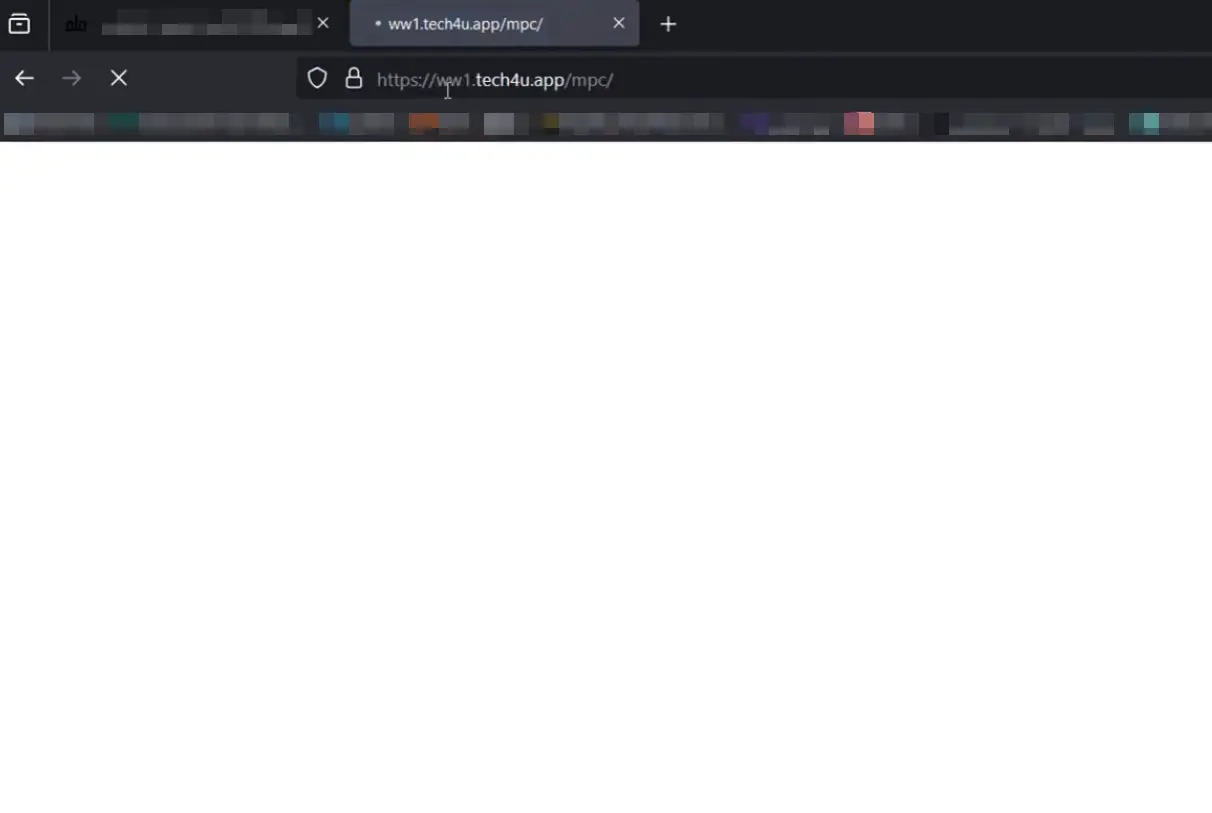
One of the most obvious signs is when a user, or even you, clicks on the site and is moved to a strange domain, a betting page, inappropriate content, or foreign advertisements. The important thing is that these redirects don’t always happen for all users. Sometimes they are only active on mobile, sometimes only for specific IPs, or only when entering the site via Google. This makes initial diagnosis difficult, leading the site owner to assume the problem is with the browser or the internet.
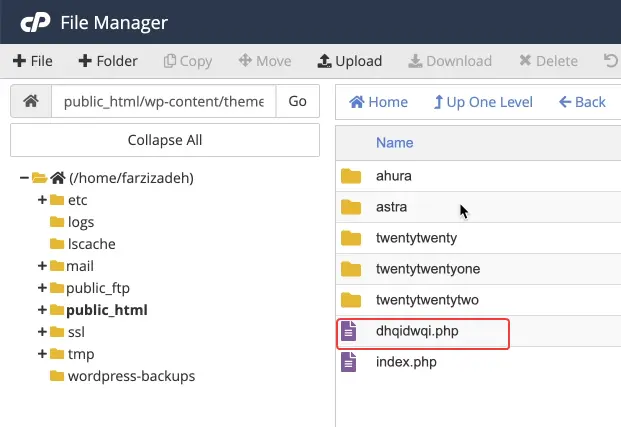
PHP Files with Incomprehensible and Suspicious Names
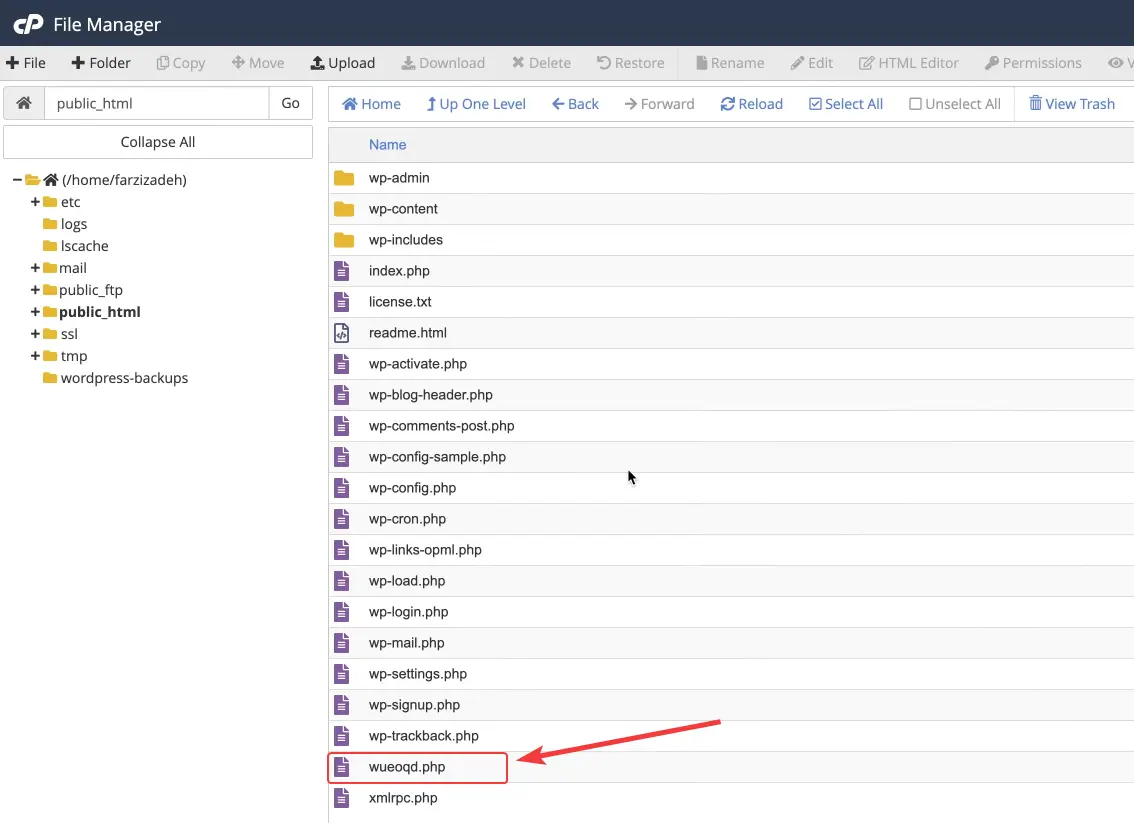
While checking the host files, if you encounter files with random, short, or similar names whose content is full of encrypted codes or unknown functions, you should be concerned. These files are usually placed in folders that are checked less often, such as wp-includes, uploads, or even inside the theme folder. Many of these files are designed to look like normal WordPress files at first glance.
Sending Spam Emails Without Your Knowledge
If you receive an email from the hosting company or users saying your site is sending promotional or spam emails, this is a serious warning. In many projects, it is seen that the site manager never had an active email system, yet the domain has suddenly been blacklisted. This usually happens due to malicious scripts exploiting your site’s resources to send emails.

Unusual Hosting Resource Consumption
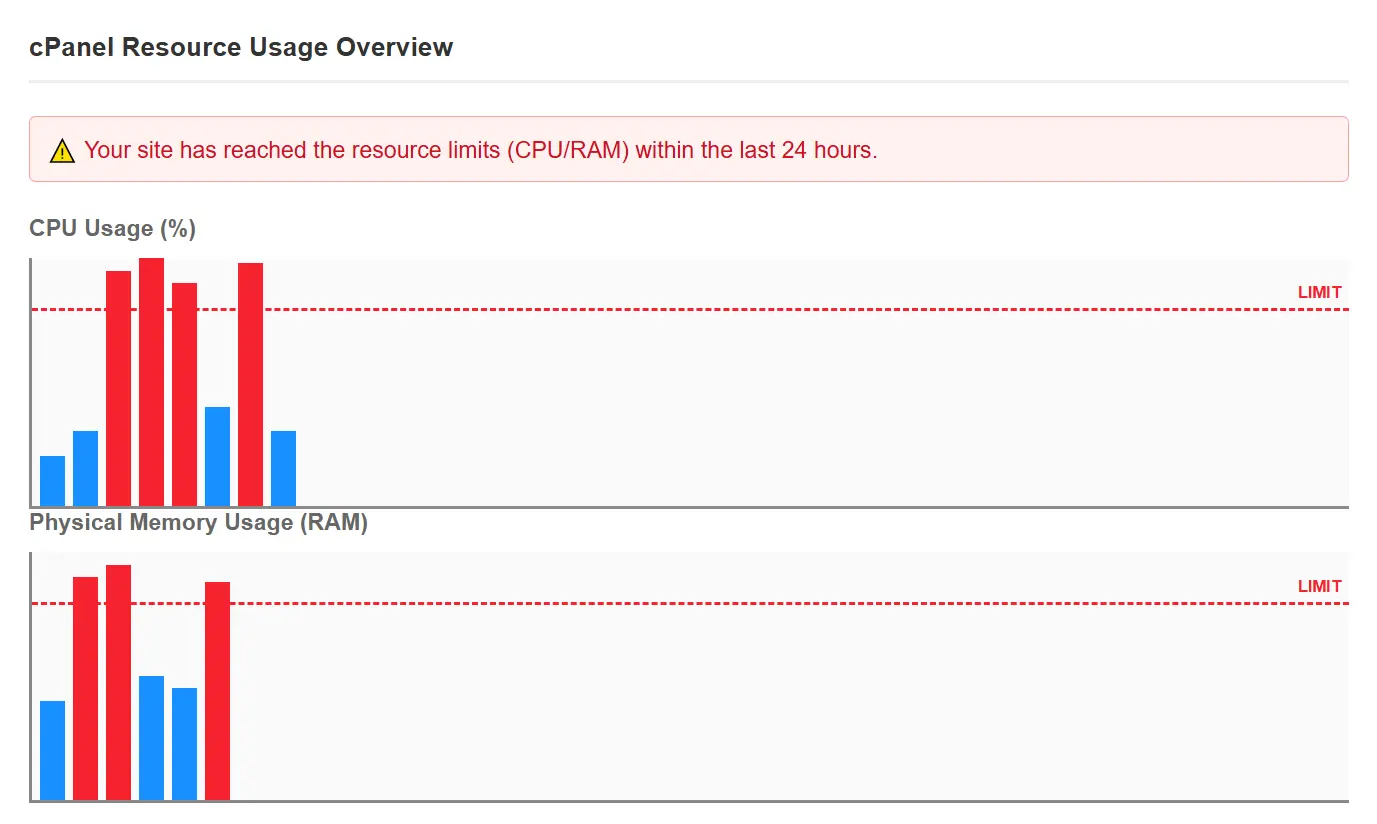
A sudden increase in CPU, RAM, or bandwidth consumption without a specific change in site content or traffic volume is another important sign of infection. Malicious codes can perform background activities like mining, running automated scripts, or communicating with foreign servers. The result of these activities is usually a slow site, 500 errors, or even service suspension by the host.
Warnings from Hosting or Google
Sometimes, before you notice it yourself, monitoring systems sound the alarm. Messages containing “malware detected,” “suspicious activity,” or “security threat” from the hosting provider or tools like Google Search Console indicate that your site is no longer considered safe by external services. Ignoring these warnings can lead to the site being removed from search results or total access blockage for users.
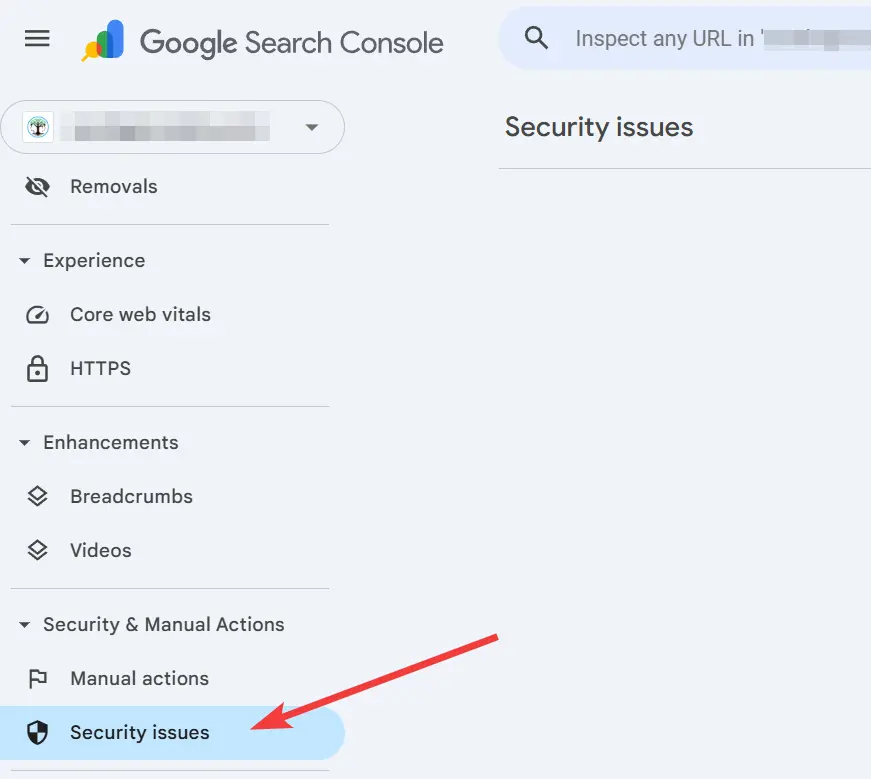
In practice, a WordPress site infection usually doesn’t start with a single sign; it is a combination of these symptoms that together build a clearer picture. If you have observed even one of these cases in your current project, it is better to assume an infection and enter the audit and cleanup phase; a topic we will cover step-by-step and practically in the following sections.
Why Is Manually Deleting Infected Files Almost Impossible?
When a site manager realizes their WordPress is infected, the first reaction is usually to enter the File Manager and start searching for suspicious files to delete. This seems logical on the surface, but in practice, it is one of the most incorrect methods for solving this problem. The reason lies in the structure of WordPress and the way malicious codes function.
WordPress Structure and the Complexity of Distinguishing Healthy Files from Infected Ones
WordPress consists of several main parts; folders like wp-admin, wp-includes, and wp-content, each containing hundreds of files and subfolders. Many of these files have technical and similar names, and for someone unfamiliar with the internal structure of WordPress, distinguishing which file is original and which is malicious is not a simple task. Even for professionals, manually checking all these files is time-consuming and risky.
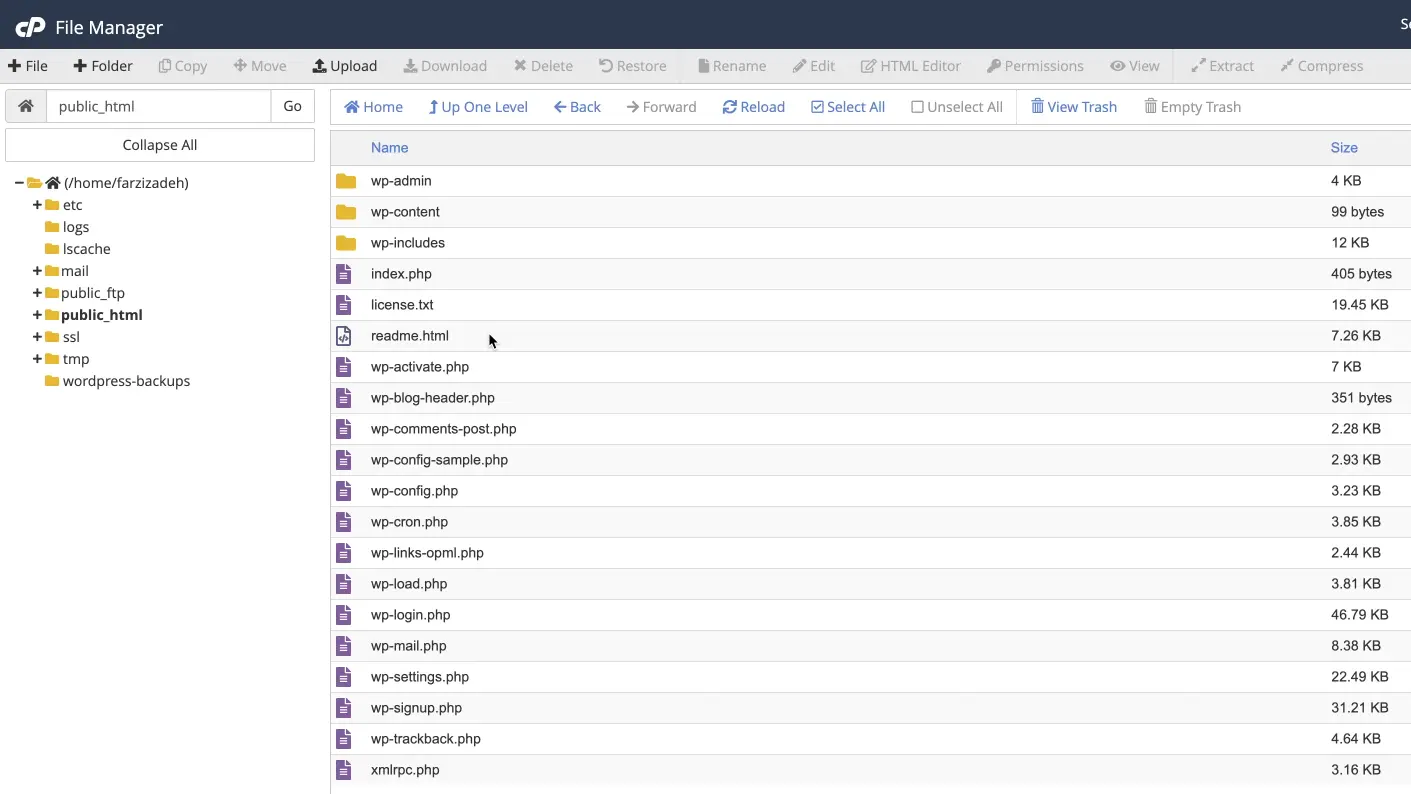
The “Capillary” Spread of Malicious Codes in the Site
One dangerous characteristic of malicious codes is that they usually don’t stay limited to one file or folder. When a shell or infected script enters a site, it quickly spreads itself across different sections. Part of the code might be inside a file in wp-includes, another part in the uploads folder, and even a section within the theme files or the database. For this reason, even if you delete a few suspicious files, it’s still likely that the primary code remains active elsewhere.
The Risk of Deleting Core WordPress Files
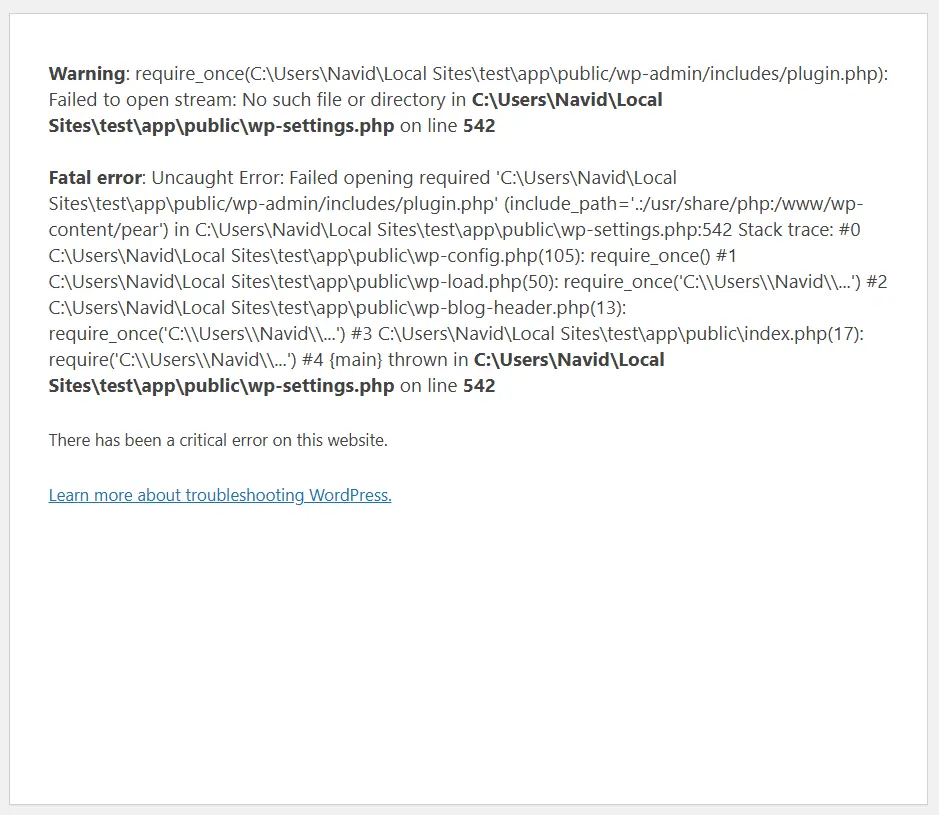
Another problem that makes manual cleanup dangerous is the risk of accidentally deleting core WordPress files. Some WordPress system files are very similar in name or structure to malicious files, and if deleted without certainty, the site might stop working altogether or face serious errors. In real projects, it has been seen many times that attempts at manual cleanup caused more damage to the site and even made site recovery more difficult.
Why We Should Replace with Clean WordPress Instead of Localized Repair?
Considering all these factors, the most logical solution is not to look for every single infected file and delete it. The correct approach is to completely and cleanly replace the core WordPress files, keeping only the sections that truly relate to our content, such as uploads and database settings. This is faster, less risky, and minimizes the chance of malicious codes remaining.
In fact, instead of trying to patch up an infected system, it is better to replace the healthy WordPress core and then bring the site back up on a secure foundation by installing verified themes and plugins. In the next section, we will review exactly this method step-by-step and practically so you can clean your WordPress site fundamentally without confusion.
Complete Tutorial for Cleaning an Infected WordPress Site (Step-by-Step)
This section is the most important and practical part of this article. If you have followed along and concluded that your site is likely infected, in this stage, we will practically enter the cleanup process. The goal of this tutorial is not just to fix the site’s appearance, but to ensure no malicious code remains in the WordPress core and that the site comes back up on a healthy foundation.
All the steps you are about to read are written based on real experience with infected sites and are designed so that even if you are not a security expert, you can execute them with care and patience.
Step 1 – Preparation Before Cleanup
Before entering the main cleanup process, you must prepare the conditions for a safe and risk-free job. The first step is full access to the host. It doesn’t matter if you use cPanel or DirectAdmin; what matters is having access to the File Manager and, if necessary, phpMyAdmin. If these accesses are not available, fundamental cleanup is practically impossible.
Next, if the site is still up or you at least have access to the WordPress dashboard, write down the names of the active theme and the plugins installed on the site. Even if you know some of them were nulled or unofficial, knowing this information will help you in later stages to know what not to reinstall and which plugins were truly essential.
The next important point is taking a backup. At first glance, taking a backup of an infected site might not seem logical, but this backup is purely for assurance, not for restoration. In real projects, it has happened many times that having this backup prevented the loss of important information or unwanted mistakes.
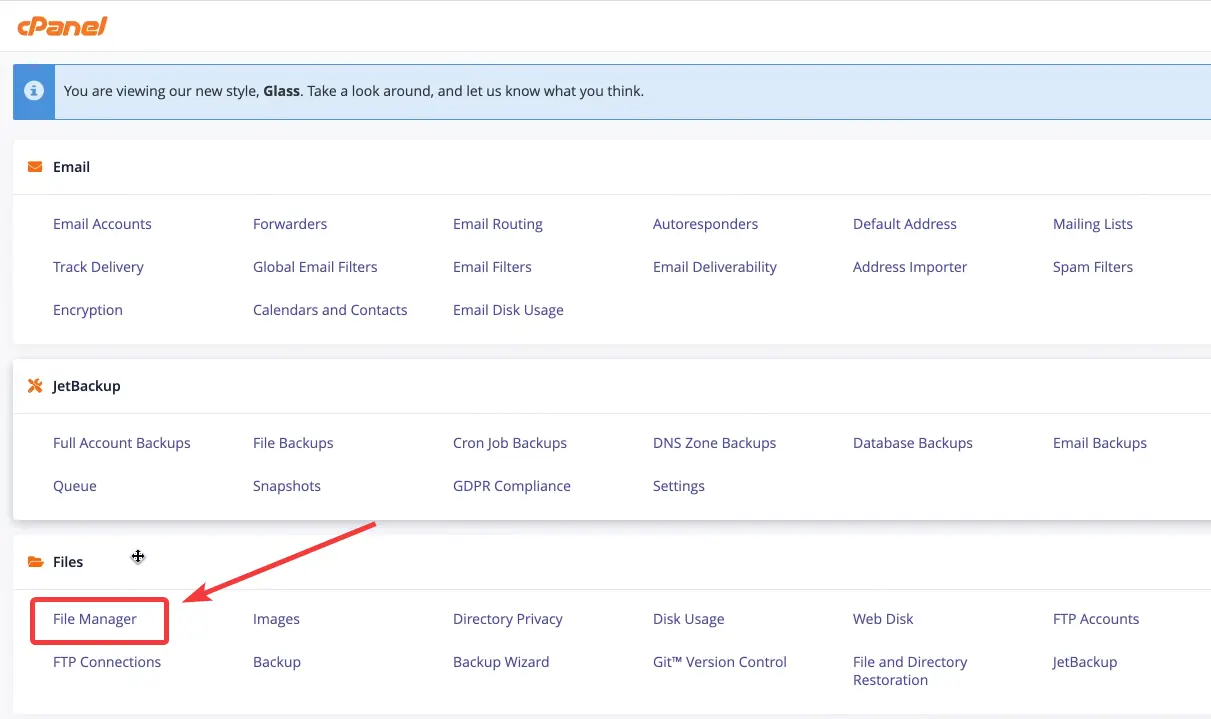
Step 2 – Deleting Infected Files from public_html
After preparation, we enter the main folder of the site, which is public_html. This stage is one of the most sensitive parts of the cleanup because we are going to completely set aside the infected WordPress core. Almost all files and folders inside public_html belong to the WordPress core and must be deleted.
However, there are three important items that must NOT be deleted: the wp-content folder (which contains your uploaded files and site-related data), the wp-config.php file (which contains the database connection information), and the .htaccess file (which usually contains important server settings). Except for these items, the rest of the files can be safely deleted.
The goal here is to ensure no part of the infected WordPress core remains and the space is completely ready for a clean installation.
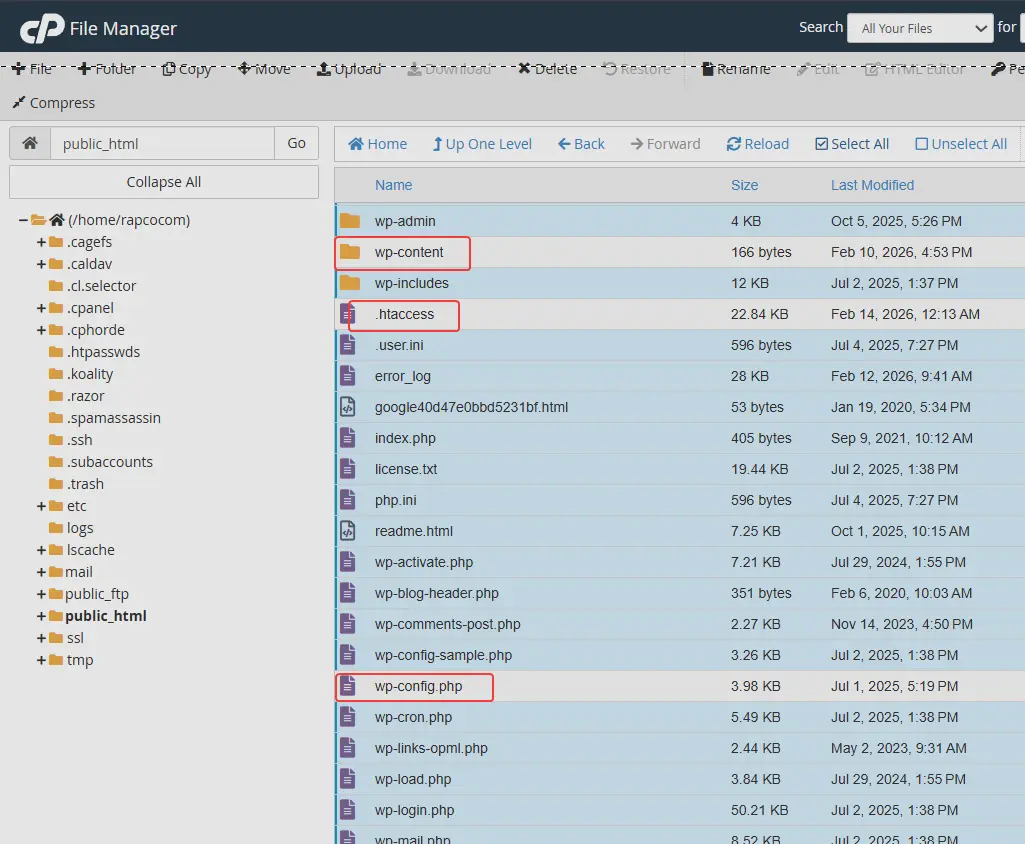
Step 3 – Cleaning the wp-content Folder
In this step, we enter the wp-content folder. This folder is one of the most important parts of WordPress and is usually where the most infections are hidden. The first thing you should do is keep the uploads folder. This folder contains images, videos, and files you have uploaded to the site and is usually considered the most valuable part of the site.
After that, completely delete the themes and plugins folders. Even if you think some plugins are healthy, it is still better to delete them all and reinstall only original and verified versions in the later stages.
Finally, enter the uploads folder and take a close look at the files inside. If you see files with strange names or extensions like .php, delete them. The presence of such files in uploads is usually not natural and has been the primary source for executing malicious codes in many projects.
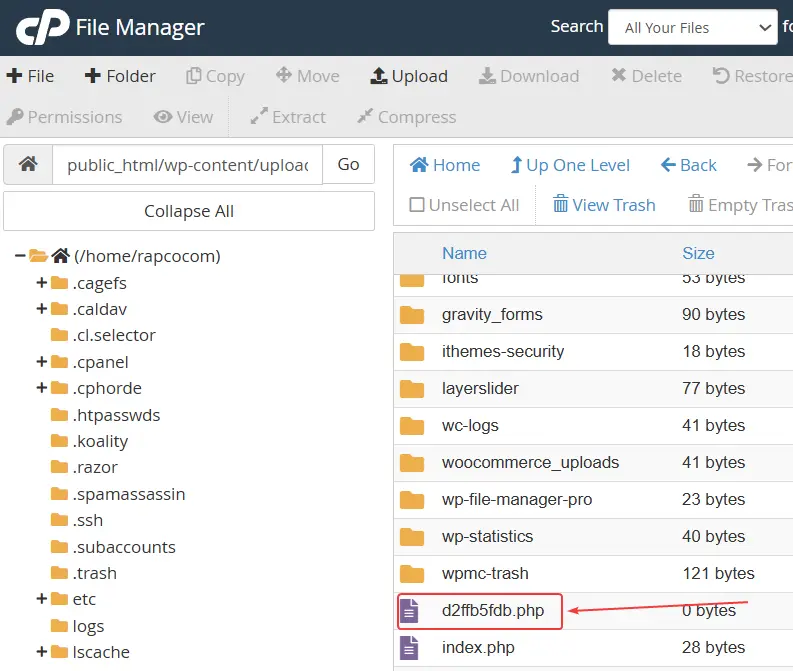
Step 4 – Checking and Cleaning wp-config.php
The wp-config.php file is the heart of WordPress’s connection to the database and, for this reason, is a popular target for malicious codes. Open this file and check its content carefully. Typically, this file includes database settings, table prefixes, and a few constant values.
If you see sections among these settings that look like long, incomprehensible strings or codes that have no relation to database settings, you are likely dealing with malicious code. In many cases, these codes are hidden as comments or between lines of the main settings to avoid being easily seen. Such sections must be carefully deleted without damaging the main settings.

Step 5 – Reinstalling Clean WordPress Without Reinstalling the Site
Now that the infected files have been removed, it is time to replace them with a clean WordPress. Download the latest version of WordPress from the official source and upload its compressed file to the public_html folder. After extracting the file, enter the wordpress folder.
Select all files and folders inside this folder and move them to the root of public_html. At this stage, the new WordPress will sit on top of the previous database, and there is no need to run the initial installation steps or create a new database. Essentially, your previous site comes back up with a healthy core.
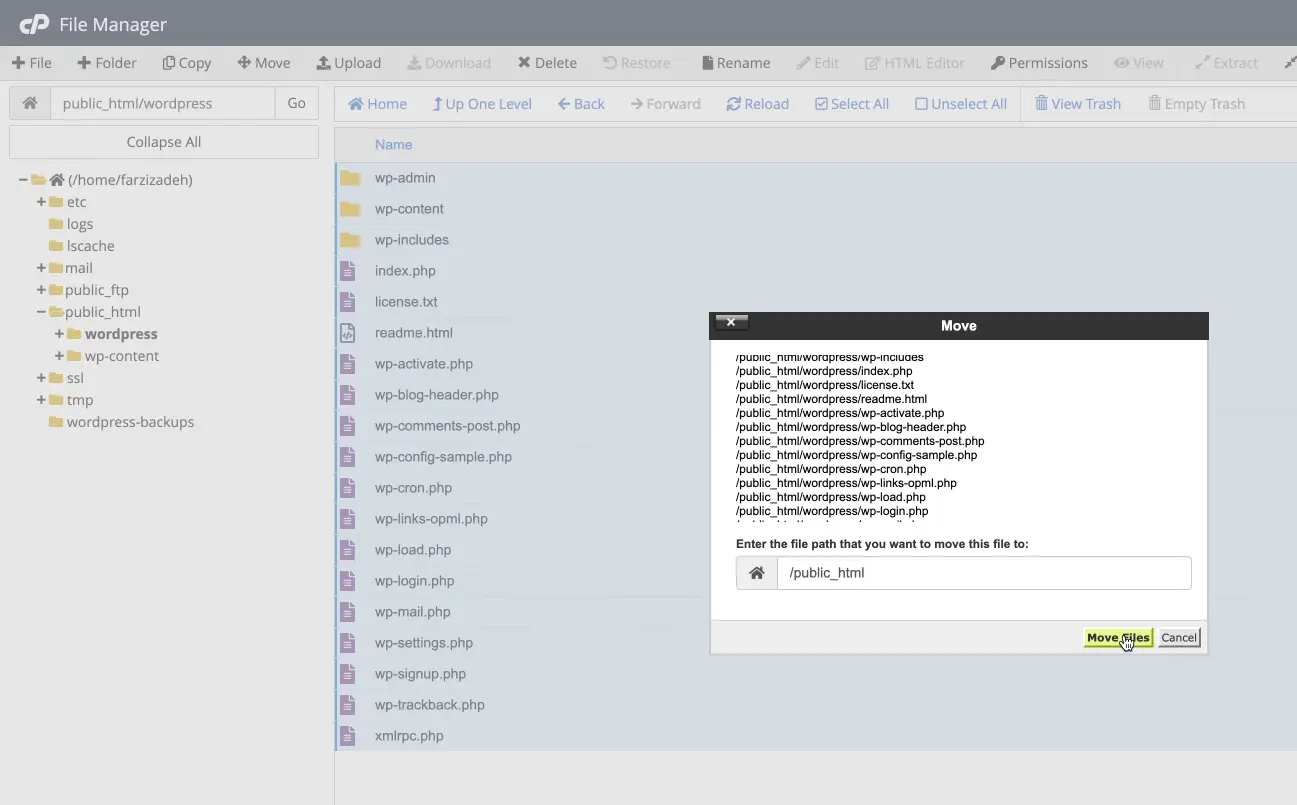
Step 6 – Logging into the Dashboard and Finalizing the Site
After moving the files, open the site address or wp-admin. In many cases, WordPress displays a message to update the database, which you should perform. This step is usually quick and hassle-free.
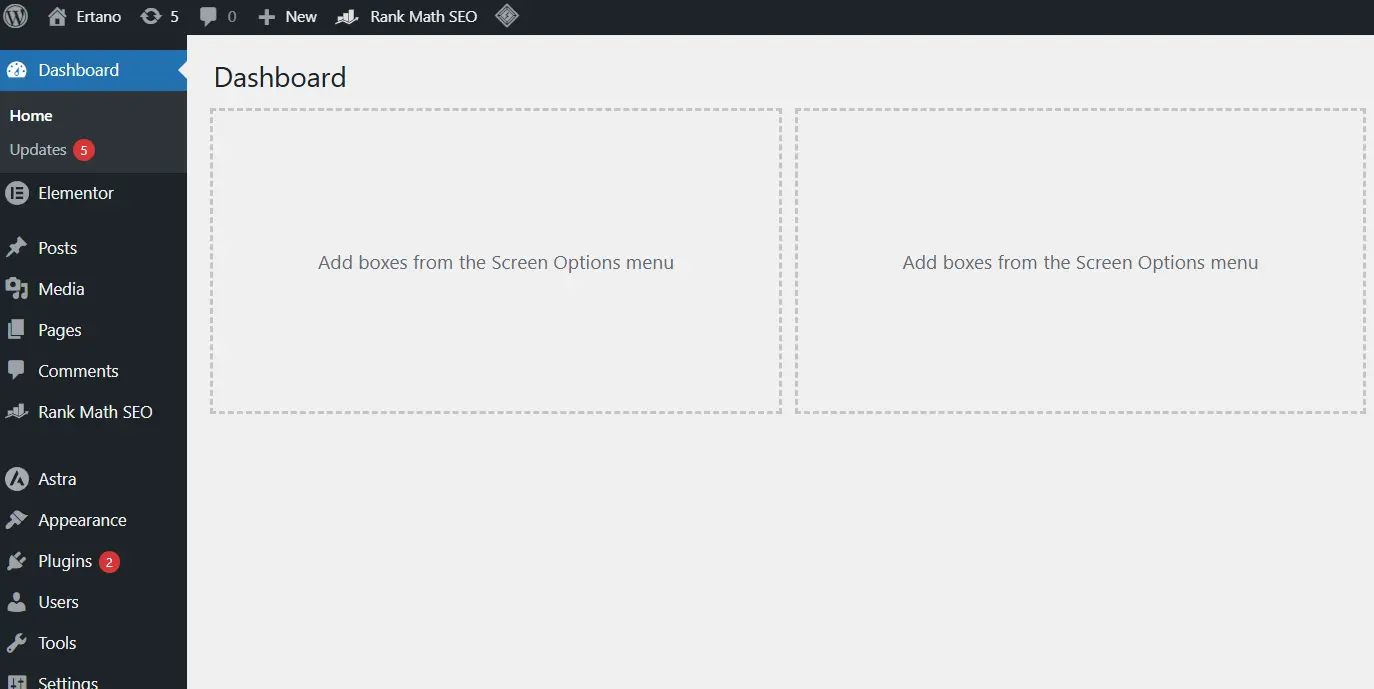
After that, log into the WordPress dashboard with the same previous username and password. At this point, your site is active without a theme or active plugins, but the database, posts, and user information remain intact. Now you can install your desired original theme and then add plugins one by one—only from official and reputable sources.
If all steps have been performed correctly, your site should run without suspicious behavior, without redirects, and with normal resource consumption. This is the end of cleanup and the start of a healthy site.
What Must We Absolutely Do After Cleanup?
A successful cleanup of a WordPress site is not the end of the work, but rather the point where true site security begins. In real projects, the highest rate of reinfection happens exactly when several vital actions are ignored after cleanup. In this section, we cover the tasks that, if left undone, can wipe out all your hard work within a few days.
Change All Access Passwords
The first and most important action after cleanup is changing all passwords. If your site was infected, you must assume that all previous access information has been compromised. The WordPress dashboard login password, hosting login information, and even the database password should all be changed.
In many projects, it is seen that the site manager only changed the WordPress password while the hosting or database passwords remained untouched, which allowed the infection to return. It is better to use strong, unique passwords and avoid saving them in unsecure files or browsers.
Audit and Remove Suspicious Users
After logging into the WordPress dashboard, be sure to check the Users section carefully. If you see a user with an administrator role or unusual roles that you did not create or that has no clear purpose, you should be wary. In some projects, hackers create hidden users with high access so they can re-enter the site even after cleanup.
Users you are not sure you need should be deleted, or at least their roles should be changed to a lower level of access. This simple task is one of the most effective methods to prevent re-intrusion.
Check Cron Jobs and Scheduled Tasks
One section that receives less attention is Cron Jobs. These scheduled tasks can be defined in the host or even inside WordPress and can execute malicious scripts at specific times without you noticing. After cleanup, enter the hosting’s Cron Jobs section and check that there are no unknown or suspicious commands.
Additionally, if you were using plugins to manage crons in WordPress, review their settings as well. In real projects, it has been seen many times that the main infection was reactivated through this very path.
Check Outgoing Site Emails
The final important step is checking the status of outgoing emails from the site. If your site was previously involved in sending spam, there might still be traces of it left. In the hosting control panel, check the email reports or “Email Track Delivery” section and ensure that outgoing emails only relate to the natural functioning of the site.
Also, if you use contact forms or email-sending plugins, review their settings again. In some projects, email settings were tampered with, causing unwanted email sending even after the files were cleaned.
Altogether, these actions complement the cleanup process, and without them, site security is not complete. If you perform these steps carefully, the likelihood of the infection returning is minimized, and you can focus on site content and development with more peace of mind.
How to Prevent Your WordPress Site from Getting Infected Again?
After cleaning up a WordPress site with great effort, it’s natural that your biggest concern is making sure it doesn’t happen again. Experience has shown that most sites that get reinfected do so not because of a weakness in WordPress, but due to not following a few simple security principles. If these principles are implemented correctly, the chance of a site getting infected decreases drastically.
Use Only Original Themes and Plugins
The most important and fundamental action to maintain site security is using original themes and plugins. Even if a nulled theme or plugin appears to work without problems, it is actually an open door for intrusion. Unofficial versions have usually been tampered with multiple times, and there is no guarantee that malicious code hasn’t been placed inside them. In contrast, using official sources and the original creator ensures you receive security updates on time and minimizes the risk of intrusion.
Regularly Update WordPress and Plugins
WordPress is constantly updated, and a large portion of these updates relate to fixing security issues. If the WordPress core, theme, or plugins are not updated for a long time, they gradually become easy targets for automated attacks. It is better to take updates seriously and perform them at regular intervals. In real projects, it has been seen that sites that were always up-to-date, even with high traffic, were less likely to become infected.
Limit Access and Manage Users
The fewer unnecessary accesses there are, the higher the site security will be. It is better to give administrative access only to those who truly need it. Users with the admin role should be limited and defined, while others operate with lower-level roles. Also, provide access to the hosting and File Manager only to trusted individuals. Many intrusions happen not from the outside, but due to excessive access within a team.
Choose Secure and Reputable Hosting
The role of hosting in WordPress site security is very prominent. A host that does not perform server updates on time or has weak security monitoring can put your entire site at risk. Choosing a reputable hosting company that has active support, a proper firewall, and constant monitoring is one of the important investments for the site’s future. Even the best WordPress security settings will not yield desirable results on an insecure host.
Mindful Use of Security Plugins
Security plugins can create an extra layer of protection for the site, but they should not be relied upon as the only solution. Installing a reputable security plugin and configuring it correctly can identify failed login attempts, file changes, or suspicious behaviors. The important thing is that a security plugin should complement the adherence to security principles, not replace them.
Ultimately, WordPress security is not a one-time action, but a continuous process. By observing these points and having a preventative outlook, you can manage your site with more peace of mind and minimize the chance of it getting infected again.
Is WordPress Secure or Not?
One of the questions asked after almost every hacking or infection experience is whether WordPress is even a secure system. After facing a security problem, many users conclude that “WordPress is inherently insecure” and perhaps they should switch to another content management system. However, this perception is based more on incomplete experiences and incorrect decisions in using WordPress than on reality.
The Misconception “WordPress is Insecure”
As the most popular content management system in the world, WordPress is naturally under the microscope more than any other platform. This very popularity makes it a target for more attacks. But being targeted more does not mean being insecure. The WordPress core is constantly audited by professional development and security teams, and its regular updates are released specifically to fix these potential weak points. In fact, many security problems occur when these updates are ignored.
The User’s Role in WordPress Site Security
A significant part of WordPress security depends on the user’s behavior and decisions. Using nulled themes and plugins, not updating the site, giving excessive access to various users, and choosing inappropriate hosting are all factors that can gradually make a completely healthy site vulnerable. In real projects, it rarely happens that a site following basic security principles gets infected easily. In other words, WordPress is a tool, and how it is used determines the level of security.
Comparing WordPress with Other CMSs
If we compare WordPress with other CMSs like Joomla, Drupal, or even custom-built systems, we see that none are absolutely secure or insecure. Every platform has its strengths and weaknesses, and ultimately, the way it is implemented and maintained determines the security level. The main difference with WordPress is that due to its widespread use, there are more educational resources, security plugins, and protective solutions available for it. This means that if managed correctly, it can act even more securely than many other systems.
Mental Summary: WordPress is Secure Provided it is Used Correctly
In the end, WordPress is neither inherently insecure nor magically completely secure. WordPress security is the result of a chain of correct choices; from choosing a host and reputable resources to managing access and regular updates. If this chain is formed correctly, WordPress can be a stable, secure, and reliable platform for your site. The correct perspective is that instead of blaming the tool, we should focus on improving the way we use it.
Final Summary
If we want to summarize everything said in this article in a few sentences, cleaning an infected WordPress site is not a temporary or rushed job, but rather has a specific and reliable process. It starts with a correct diagnosis of the infection, continues with the total removal of the infected core and replacement with a clean WordPress, and ends with an audit of access, changing passwords, and installing healthy resources. When these steps are performed completely and patiently, the result is usually a stable site without suspicious behavior.
Throughout this entire path, one point was repeated more than anything: the source of themes and plugins. Experience has shown that the most infections happen not because of WordPress’s weakness, but due to using nulled, cracked, or unofficial versions. While using these versions might seem simpler or cheaper in the short term, the cost paid later for cleanup, SEO drops, or loss of user trust is usually several times higher.
To summarize based on experience: WordPress site security is less a complex technical matter and more the result of making correct choices and sticking to simple principles. Regular updates, limiting access, using reputable sources, and having a bit more sensitivity in site management are actions that will give you peace of mind in the long run.
If you have any questions throughout the article or have an experience with a WordPress site getting infected and cleaned, I would be happy for you to write it in the comments section. Even if you have tried a different method or encountered a point that would be useful for others, sharing it can help many people make better decisions.
Ahura WordPress Theme
The Power to Change EverythingElementor Page Builder
The most powerful WordPress page builder with 100+ exclusive custom elements.
Incredible Performance
With Ahura’s smart modular loading technology, files load only when they are truly needed.
SEO Optimized for Google
Every line of code is carefully aligned with Google’s algorithms and best practices.

To post a comment, please register or log in first.