
 Tutorials


 Ahura
Ahura Plugins
 Blog
BlogHow to Add a Phone Call Button to Your Website

Many users enter sites using their smartphones; therefore, by placing a button for a phone call with you, you can make establishing communication for them very simple and much easier. In this article, we intend to explain to you how to add a phone call button to the site.
Considering that in the current era, the internet has found a special place in the lives of all individuals, we are consequently witnessing that the use of mobile phones has also become prevalent among people, and a very high percentage of individuals own smartphones and spend much of their time searching on these mobile phones.
Usually, all individuals who manage an internet site want to make work easier for their users and be able to gain people’s satisfaction due to this ease and appear professional in the eyes of other users. If you also manage an internet business and intend to develop your business and cause your business to progress, you must try to make users’ communication with you easy.
Table of Contents
Adding a Phone Call Button to the Site
The user interface in all sites, regardless of what activity is being performed in them, is very important; but this issue is doubly important regarding businesses that sell a product, because the user wants to pay a cost in these types of sites and needs to be ensured of the professionalism of these sites. So, keep in mind that if you manage an online store, provide a user interface for users so they can be in telephone contact with you using it.
If you have a WordPress site and want to place a “Phone Call” button on your site, stay with this article because we will teach you this topic step-by-step in this article.
Do Not Ignore Communication with Users!
As you know, a high percentage of people daily enter various sites with their mobile phones and are looking for different goals. These people also have expectations from these internet businesses that you must put forth your utmost effort in line with fulfilling these expectations and try to provide a communication path with the users in their reach.
If you intend to gain the satisfaction of your users, you must provide them with a very simple and comfortable communication way. Placing a call button on the site is one of the easiest and most effective actions that you can apply to your site. With placing a call button on the site, aside from the fact that the user can easily be in touch with you, they find a special peace of mind and presence regarding your site, and their sense of trust in the site will multiply several times.
It is possible that some site managers are unaware of the importance of the communication path between the user and the manager and support of the site, which is strictly recommended to this group of people that if they intend to enter new stages of business development, they should provide a communication path for users. This issue may have happened to you as well, that when you enter an internet site and intend to buy a product, if there is a comfortable communication path in it, you proceed to buy with more confidence. So, considering this issue, you should place this point among your priorities for your business as well.
Adding a Clickable Phone Number to the Site
A large number of small businesses in the WordPress world rely on their customers, and their users must be in communication with the site. Mainly, these types of sites must provide a way for customers to contact them for support or for giving pre-sale information. For this reason, we recommend for this group of sites to place a “Phone Call Button” on their site.
Nevertheless, depending on the activity you perform on your site, a user may want to immediately establish telephone contact with one of the responsible persons of your site. Considering that smartphone usage traffic is increasing in today’s world, users can therefore obtain their required information from your site more easily by using the phone call button.
The number of users who open the website browser through mobile phones is increasing every day. It is true that most internet businesses place their mobile number on the website, but these phone numbers are not clickable and the user is not easily able to establish communication with the site manager. That you place a mobile number on your site is very important, but that this mobile number be clickable and when the user enters your site with a mobile phone and has the possibility of establishing a call with the site owners only by clicking on an option will be very functional and convenient.
It Makes No Difference if You Use VoIP or a Regular Phone!
If you want to provide a communication path for your users—meaning a clickable phone number on the site—stay with this educational article; because in this article, we will tell you a solution so that in a short period of time, you are able to add this feature to your site. By adding this capability to the site, you relieve your users from the troubles of contacting the site and will provide a very simple communication for visitors which will increase the level of user satisfaction with the site.
If you have recently launched your internet business, we suggest you refer to a professional telephone service so that you can easily make phone calls, share numbers with employees, and answer your calls from anywhere else (instead of a landline) using your mobile phones.
In here we will tell you the methods of adding the “Call Us” button for you.
Method One: WordPress Phone Call Plugin
Using a plugin to add a phone call button is one of the easiest and least troublesome methods that you can use. In fact, in this method, this possibility will be given to you to easily create a button for a phone call in Gutenberg, the WordPress Classic Editor, the WordPress sidebar widget, or even a fixed call button if desired.
The plugin that will help you for adding a phone call button is the free WP Call Button plugin. After you have downloaded and installed this plugin, follow the steps below.
After activating the plugin, to be able to access its configuration, you must select the WP Call Button option from the Settings section after entering the site dashboard.
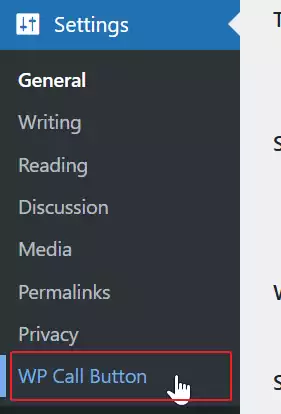
After following the mentioned process, a page similar to the image below will be displayed for you which includes various fields.
Fixed Phone Call Button
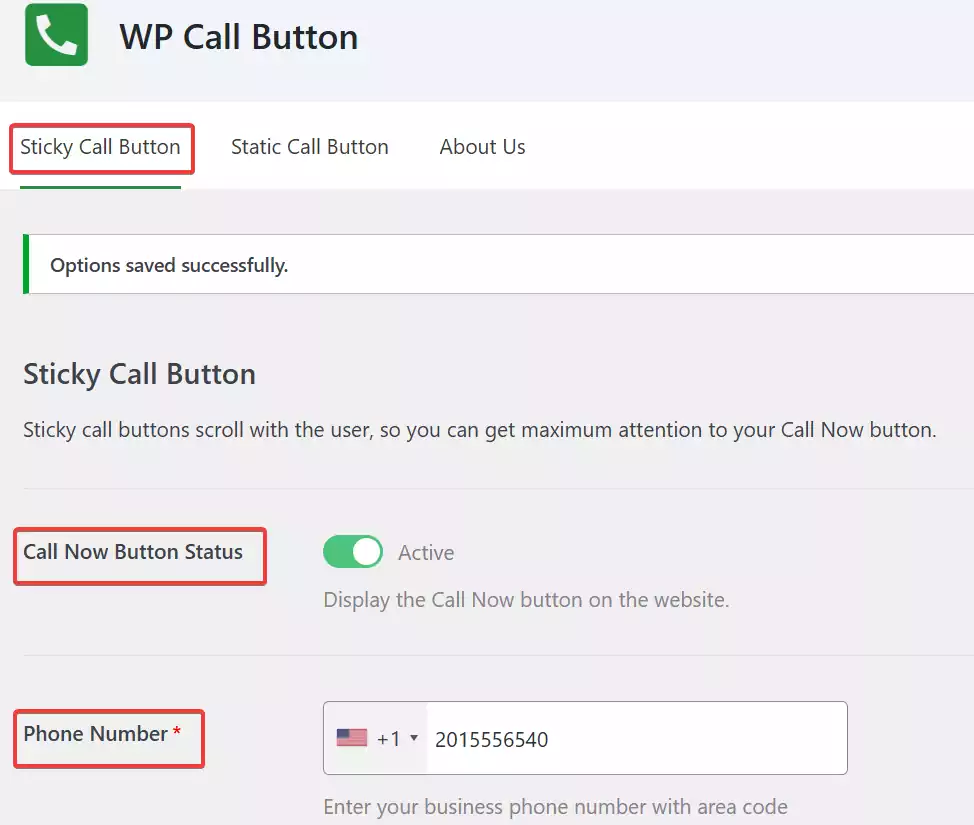
As you observe in the image above, the first part is related to the “Fixed Call Button”. This part is actually the most common request that a user will have while browsing the website. This feature is optimized and helps you to receive more calls and finalize your site deals in less time.
Activating the Phone Call Button
In the “Call Now Button Status” section, if you want the “Call Now” button to be activated and shown to users, you must turn the button to the green state for activation.
Determining the Phone Number
The next field is related to the phone number. In fact, you must enter the phone number you want users to have the possibility of accessing and calling in the “Phone Number” section. Before you enter your phone number, remember that you must select your country from that same section so that your country code is added automatically.
Adding Call Button Text
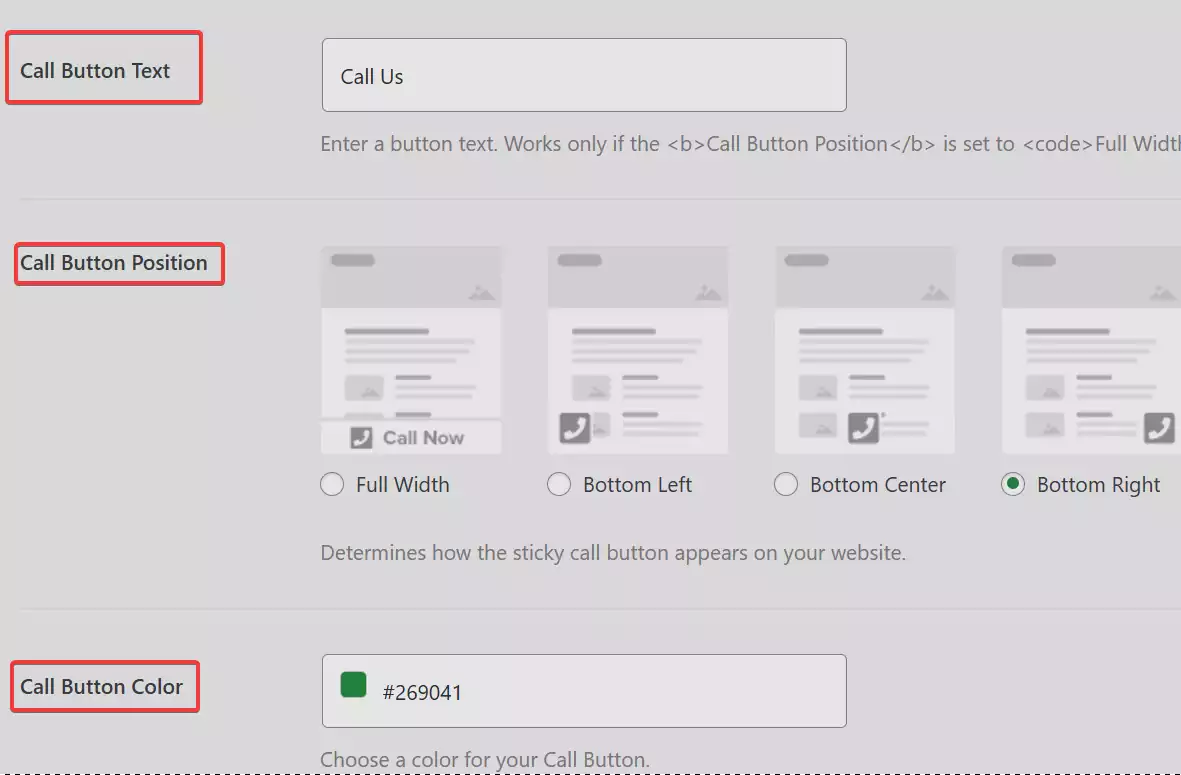
The field part is related to the text shown to the user. In fact, you can enter your desired text in the “Call Button Text” section.
Determining the Phone Call Button Location
In the image above, you can observe the “Call Button Position” option which provides you with various choices. You can specify in this section whether this button is placed on the left or right; therefore, select one of these options according to your preference.
Specifying the Call Button Color
In this plugin, you have the possibility to specify the color of the call button. For this, click on the “Call Button Color” section so you can select one from the color spectrum that appears.
Phone Call Button Display Status
As you observe in the image below, various choices are provided for you in the “Call Button Visibility” section. You can determine from this section that the phone call button be displayed for the user in all pages or that it appears in a series of specific pages.
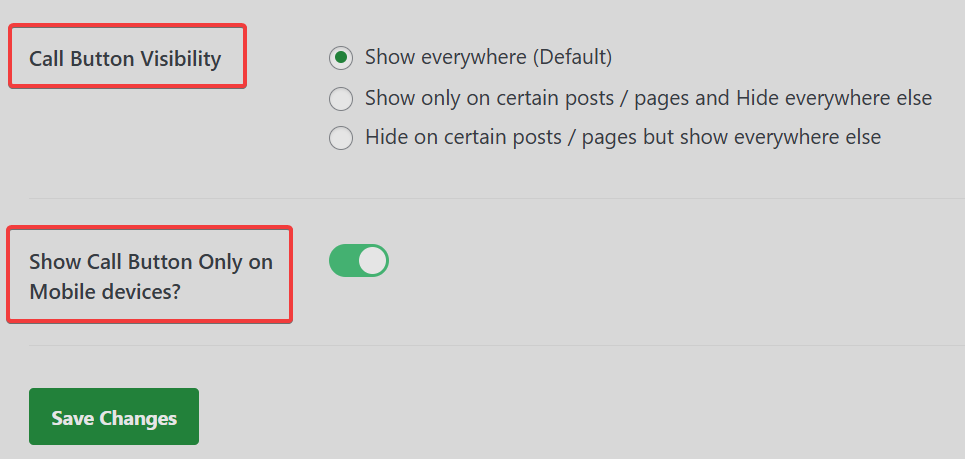
By activating the Show Call Button Only on Mobile devices? section, you actually allow the plugin to display the call button only for smartphones.
Note: Remember that you must definitely select Save Changes after applying changes so that your changes are saved. After you have followed all the steps above, go to your site and observe the call button.
Adding the Call Button to WordPress Pages
To add the call button to the contact page, about page, or any other page, you have two ways which we will tell you here.
Adding the Call Button to WordPress Pages in Gutenberg
If you are using the new WordPress editor, open a new page or edit one of the previous pages, and in the next step, click on the (+) icon which is marked for you on the right side of the image below and add the WP Call Button plugin block.
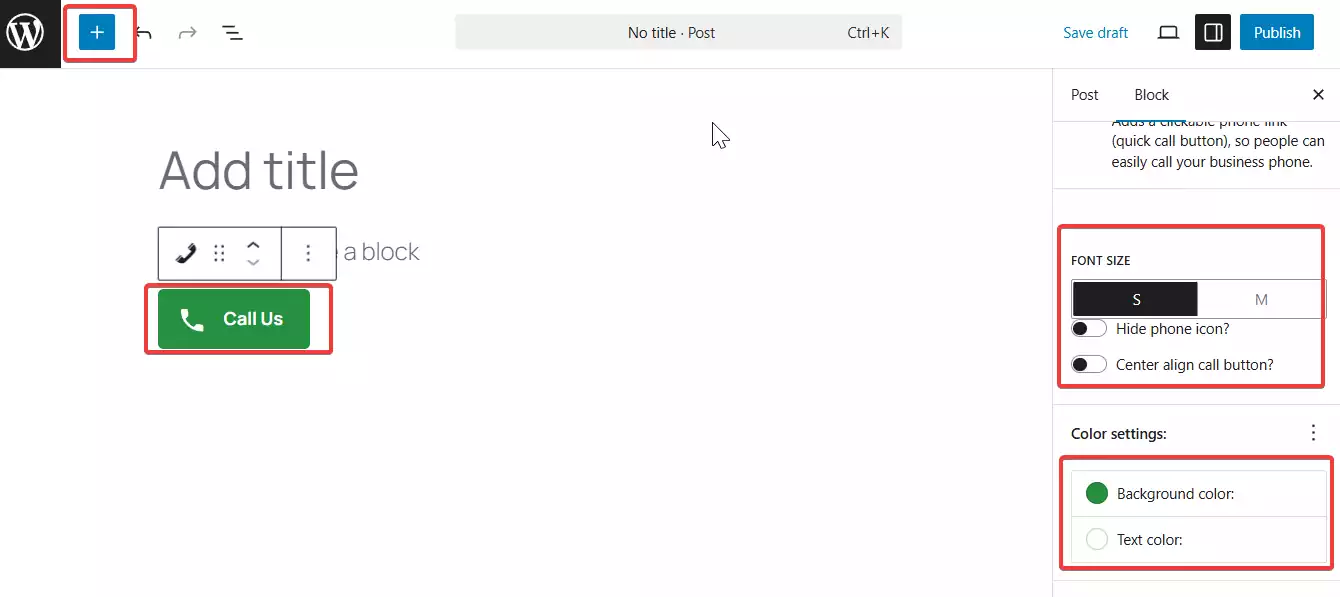
The phone call button block in WordPress has many options for customization. Among these options, one can mention personalizing the button color, button text, font size, and the possibility of showing or hiding the phone icon. In the image above, the options related to customization are shown for you, and you can choose any color and font according to your personal taste. For the customization options to be shown to you, you must click on the gear icon which is on the left after adding the block.
After the button is added to your site page, it allows your site users to click on the phone number you specified in the WP call button settings page and easily establish a call with you.
Adding the Call Button to Pages in the Classic Editor
If you are using the old WordPress editor, therefore to prepare the shortcode you must use the Static Call Button generator. For this, easily go to the Dashboard > Settings > WP Call Button section and select the Static Call Button option from the top menu.
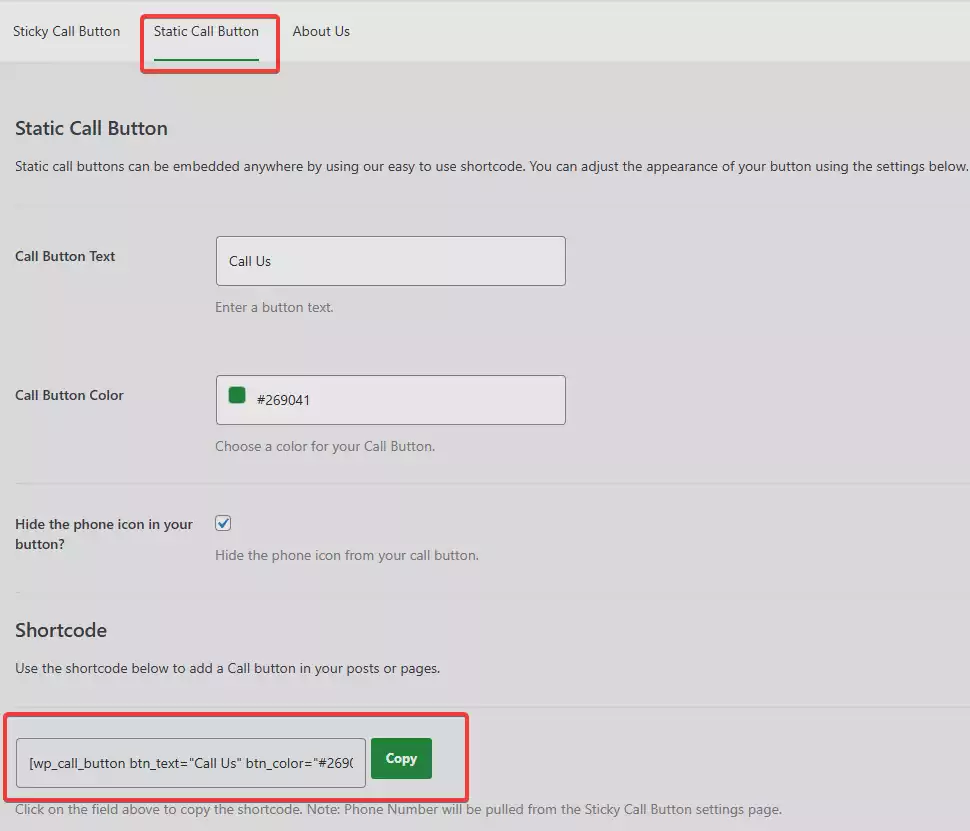
On this page, you have the possibility to customize the text, color, and call button and specify whether you want the phone icon to be shown or be hidden. After you have entered your intended changes on this page, easily copy the shortcode from the bottom of the page and paste it inside the post or page where you want to add it.
Adding the Phone Call Button to the Site Sidebar
In addition, the WP Call Button plugin allows you to add the phone call button to your website sidebar using the sidebar widget. To be able to add the phone call button to the sidebar, you must select Appearance > Widgets and drag the widget related to WP Call Button to the available widgets.
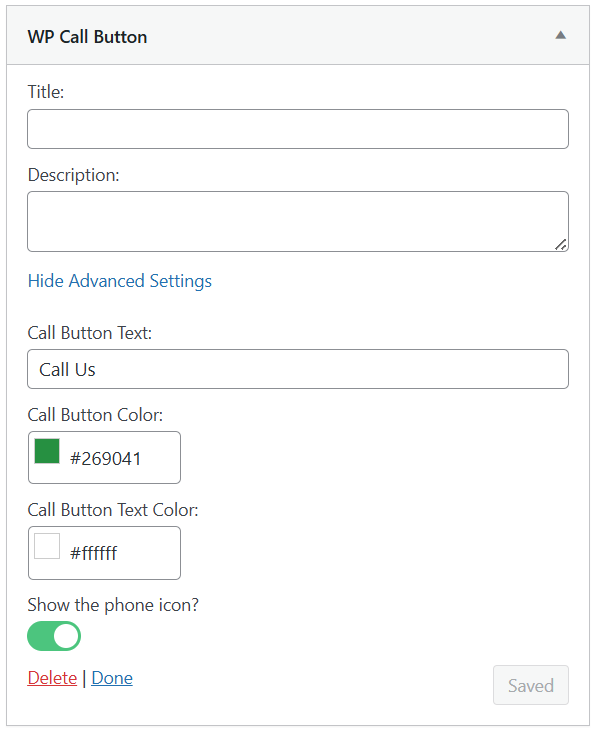
This section allows you to add the widget title and description in the respective parts; also, to access more customization options, you must click on the “Advanced Settings” section. After clicking on this section, you can observe customization options regarding the color of the call button text, call button color, and its text. After applying your intended changes, definitely click on the “Saved” option or select “Clear” to discard the changes you performed.
One of the best features of using a plugin to add a call button to WordPress is that it is 100% free and has seamless integration with Google Analytics.
Method Two: Adding the Phone Call Button to WordPress Manually
You can in this method add the phone call button and its links manually to the desired pages of your WordPress site. The method we will tell you here is actually the easiest method for adding a phone call button to WordPress.
<a href="tel:98212222222">Phone call with us</a><a href="tel:+98212222222">+98 (21) 222-2222</a>
The links provided above actually open mobile applications on laptop desktops and smartphones; also, users who use the Mac system are able to see these links in their Facetime, and Windows 10 users can also see them in Skype. Furthermore, you can add an image or icon to your site’s phone call button using HTML code. To access the mentioned items, follow the steps below.
The first thing you must do is enter Dashboard > Media > Add New and upload the image or icon you want to be displayed next to the call button link. After the image is completely uploaded, click on the “Copy URL to clipboard” option.
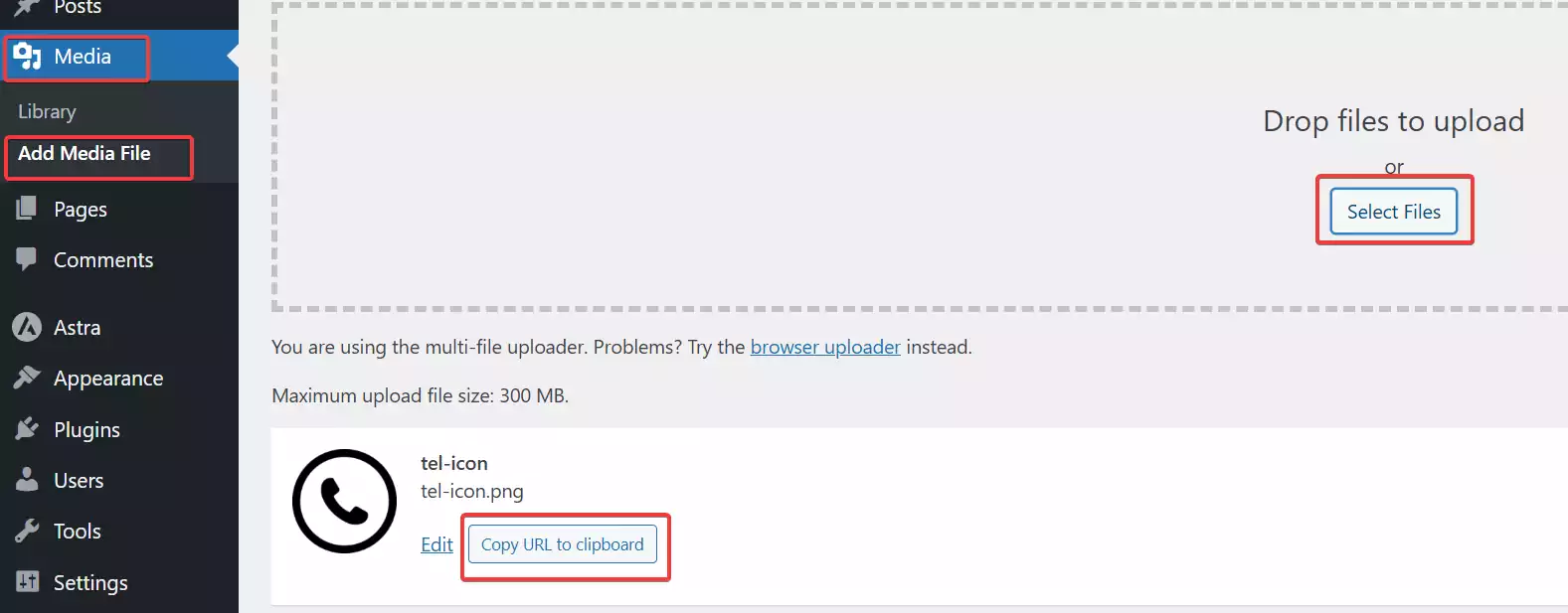
In the new page that opens for you, copy the image URL because you will need it in the next steps. You can place this code in the form of HTML code in posts or widgets or your WordPress site template:
<a href="tel:+15555551212"><img src="https://example.com/wp-content/uploads/2018/10/phoneicon2.webp" alt="Call us" /></a>
After you have done all the above items, you can refer to your site page and observe your intended image next to the phone call button. Also, you can customize this item and add your desired text before or after it and use custom CSS for its style.
Adding the Phone Call Button Link to the Site Menu
The possibility exists for WordPress users to add the phone call button to the navigation menu. For this, follow the process below.
If the phone number is written in a recognizable number format, then smartphones can automatically recognize the phone number and convert it into a link. Nevertheless, if you want to replace the number with a text or link it, you must create the link manually.
The appropriate format for writing a phone number is <Country Code> <(Area Code)> <Local Number>. For example: +1(555) 555-1212
It is true that the best format for writing a phone number is as mentioned above, but most smartphones use the following formats:
+15555551212+1.555.555.1212555-555-12121212 555 555
Writing the phone number with the appropriate format automatically converts it into a link for users. Nevertheless, if users use older phones, they might not see them.
After entering your WordPress dashboard, select Appearance > Menus. On your right, there are many options from which you must select “Custom Links”. After clicking on this option, a block opens for you where you must enter your intended phone number in the URL field, and in the next field, you must enter the text you want to be displayed for the call button and finally select “Add to Menu” so that the phone call button is added to your menu.
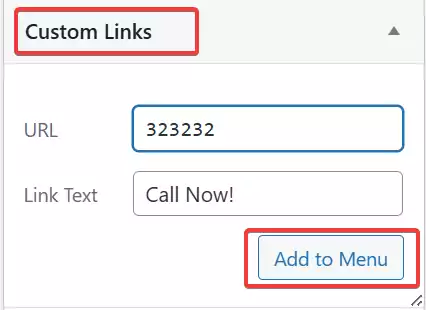
Now, if you refer to your site’s navigation menu, you can observe that the call button has been added.
Adding a Phone Call Link to the Site Codes
Writing the phone number with the appropriate format automatically converts it into a link for users. Nevertheless, if users use older phones, they might not see them.
<a href=”tel://+15555551212″>+1 (555) 555-1212</a>
<a href=”tel://15555551212″>Call Me</a>
The problem with the link above is that it is viewable by users with all smart devices and is not exclusive only to mobile phone users; of course, if a person has entered the site with a desktop and clicks on it, nothing happens in Google Chrome, but in Firefox, it will encounter an error.
<a href=”callto://15555551212″>+1 (555) 555-1212</a>
In the example above, we have used the callto: protocol. The protocol is used by Skype with the skype: protocol. With using this advantage, users with smartphones can easily call and use phone services, and users on other devices can call through Skype.
<a href=”callto://15555551212″ title=”Call Me”><img src=”/images/call-me.webp” alt=”Call Me” /></a>
As we brought above, they display the number link with an image using the Skype callto: protocol. In this case, the phone may recognize the Skype protocol, but it might not recognize the phone number. In addition, it is not possible to give users the chance of calling with a mobile phone. Also, you can create the link with a Skype username and provide live chat support or voice call.
<a href="skype:ertanosupport">Skype</a>
We hope this article has helped you in adding a phone call button to the site. Success to you. 🙂 We hope this article has helped you in adding a phone call button to your site. Success to you. 🙂
Ahura WordPress Theme
The Power to Change EverythingElementor Page Builder
The most powerful WordPress page builder with 100+ exclusive custom elements.
Incredible Performance
With Ahura’s smart modular loading technology, files load only when they are truly needed.
SEO Optimized for Google
Every line of code is carefully aligned with Google’s algorithms and best practices.

To post a comment, please register or log in first.