
 Tutorials


 Ahura
Ahura Plugins

 Blog
BlogWhat Is the wp-config.php File and How to Use It
- Tutorials
- Updated on
If you want to succeed at anything, you need to really know your stuff, right? Running an online business is no different. And hey, if you have chosen WordPress as your platform, you might as well get to know all its pieces. Today, I want to introduce you to a file that is kind of a big deal: the wp-config.php file.
This little guy is one of the most important elements of WordPress. It is basically the backbone of your site’s settings and security. So yeah, getting to know it should be a priority. In this article, I am going to help you manage your wp-config.php file like a pro and take full control of your site. Sound good? Let’s dive in.
Table of Contents
What Exactly Is the wp-config.php File?
The wp-config.php file is one of the most important files in WordPress. It holds all the really sensitive and basic information about your site, like your database name, your database username, and your database password. This file is created just for you during the WordPress installation process. And honestly, without it, WordPress will not even load. That is how important it is. This file lets you manage and optimise many sensitive parts of your site. You will find it in your site’s root directory. Here, we are talking about localhosts and shared hosting.
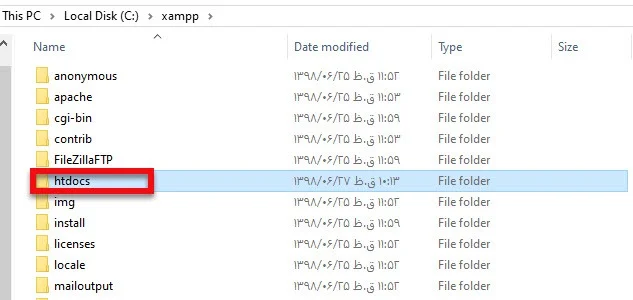
On live shared hosting, to get to this file and change it, you can use the File Manager in popular control panels like cPanel or DirectAdmin. And of course, using an FTP client like FileZilla is also a standard and safe way to do it. If you are using a localhost (like XAMPP or WampServer), just go to your WordPress installation folder, which is usually called htdocs or www, and you will see the wp-config.php file right there.
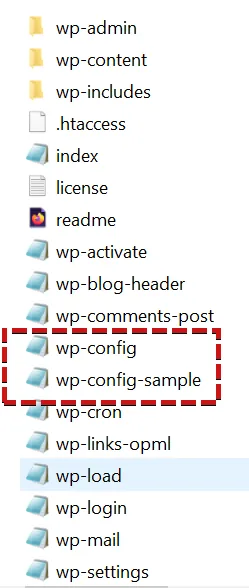
In this article, I am using wp-config-sample.php as our code source. This is actually the basic, raw version of the config file in your WordPress directory. When you first download WordPress, the main file is not there. This sample file is what turns into the main file during installation. So, they are pretty much the same thing.
Here is what the PHP code in this file looks like. Do not worry if it looks scary. I will explain everything.
php
<?php
/**
 * The base configuration for WordPress
 *
 * The wp-config.php creation script uses this file during the
 * installation. You don't have to use the web site, you can
 * copy this file to "wp-config.php" and fill in the values.
 *
 * This file contains the following configurations:
 *
 * * MySQL settings
 * * Secret keys
 * * Database table prefix
 * * ABSPATH
 *
 * @link https://developer.wordpress.org/advanced-administration/wordpress/wp-config/
 *
 * @package WordPress
 */

// ** MySQL settings - You can get this info from your web host ** //
/** The name of the database for WordPress */
define( 'DB_NAME', 'database_name_here' );

/** MySQL database username */
define( 'DB_USER', 'username_here' );

/** MySQL database password */
define( 'DB_PASSWORD', 'password_here' );

/** MySQL hostname */
define( 'DB_HOST', 'localhost' );

/** Database Charset to use in creating database tables. */
define( 'DB_CHARSET', 'utf8' );

/** The Database Collate type. Don't change this if in doubt. */
define( 'DB_COLLATE', '' );

/**#@+
 * Authentication Unique Keys and Salts.
 *
 * Change these to different unique phrases!
 * You can generate these using the {@link https://api.wordpress.org/secret-key/1.1/salt/ WordPress.org secret-key service}
 * You can change these at any point in time to invalidate all existing cookies. This will force all users to have to log in again.
 *
 * @since 2.6.0
 */
define( 'AUTH_KEY',         'put your unique phrase here' );
define( 'SECURE_AUTH_KEY',  'put your unique phrase here' );
define( 'LOGGED_IN_KEY',    'put your unique phrase here' );
define( 'NONCE_KEY',        'put your unique phrase here' );
define( 'AUTH_SALT',        'put your unique phrase here' );
define( 'SECURE_AUTH_SALT', 'put your unique phrase here' );
define( 'LOGGED_IN_SALT',   'put your unique phrase here' );
define( 'NONCE_SALT',       'put your unique phrase here' );

/**#@-*/

/**
 * WordPress Database Table prefix.
 *
 * You can have multiple installations in one database if you give each
 * a unique prefix. Only numbers, letters, and underscores please!
 */
$table_prefix = 'wp_';

/**
 * For developers: WordPress debugging mode.
 *
 * Change this to true to enable the display of notices during development.
 * It is strongly recommended that plugin and theme developers use WP_DEBUG
 * in their development environments.
 *
 * For information on other constants that can be used for debugging,
 * visit the Codex.
 *
 * @link https://developer.wordpress.org/advanced-administration/debug/debug-wordpress/
 */
define( 'WP_DEBUG', false );

/* That's all, stop editing! Happy publishing. */

/** Absolute path to the WordPress directory. */
if ( ! defined( 'ABSPATH' ) ) {
	define( 'ABSPATH', dirname( __FILE__ ) . '/' );
}

/** Sets up WordPress vars and included files. */
require_once( ABSPATH . 'wp-settings.php' );
One very important thing to remember: before you make any changes to these codes, please, please create a backup copy of this config file. I am serious. If something goes wrong, you will not face a database connection error or that scary white screen of death, and you can quickly restore your site to how it was. Trust me on this one.
MySQL Settings in the wp-config.php File
So, as I said, this file holds the vital information for connecting to your database. Things like your database name, username, password, and host address. Now, for whatever reason (maybe you are moving your site to a new host or just changing some details), you might want to update this information. In that case, you need to edit this part of the code:
php
// ** MySQL settings - You can get this info from your web host ** //

/** The name of the database for WordPress */
define( 'DB_NAME', 'database_name_here' );

/** MySQL database username */
define( 'DB_USER', 'username_here' );

/** MySQL database password */
define( 'DB_PASSWORD', 'password_here' );

/** MySQL hostname */
define( 'DB_HOST', 'localhost' );
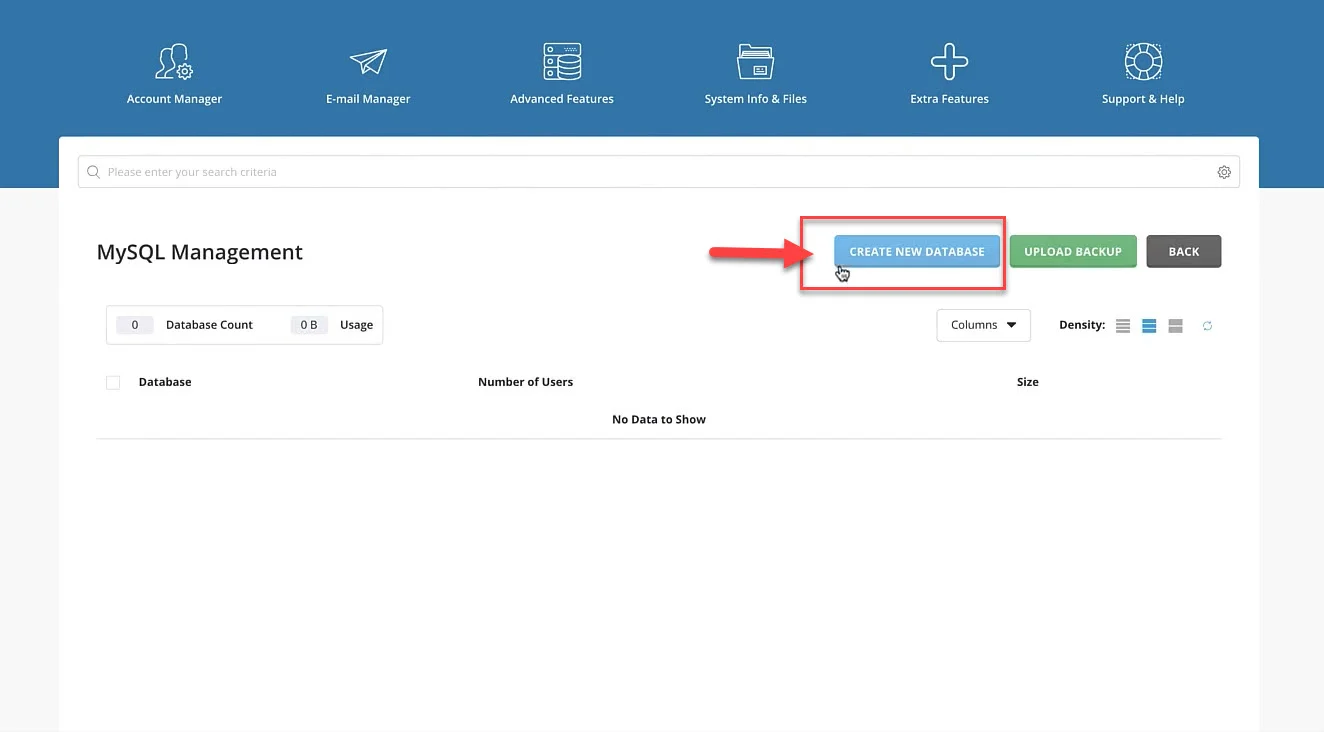
The most basic way to get this information is through your hosting control panel. Just log into your hosting panel (cPanel or DirectAdmin), go to the “MySQL Databases” section, create a new database and a new user, give the user the right permissions, and then put that newly created information into this file.
Security Keys (Authentication Keys and Salts)
Here is something cool. You can set up encryption keys and salts right inside the wp-config.php file. This section is one of those hidden but super important layers in WordPress security.
These security keys are responsible for encrypting things like user login cookies in a very advanced way. This makes it much harder for hackers to steal those cookies and break into your site. So yeah, you need some really complex text strings to protect your site.
To generate these security keys, you do not need to install any fancy plugins. WordPress has its own free, official online service for this. Just open your browser and go to this address: https://api.wordpress.org/secret-key/1.1/salt/. And here is a fun trick: every time you refresh that page, you will get a brand new, completely random, and impossible‑to‑guess set of 8 lines of code. Pretty neat, huh?
Once you copy your unique codes from that official WordPress page, you need to paste them into your config file, exactly replacing the default codes that say “put your unique phrase here”. Like this:
php
define('AUTH_KEY',         'your random code here');
define('SECURE_AUTH_KEY',  'your random code here');
define('LOGGED_IN_KEY',    'your random code here');
// and so on... 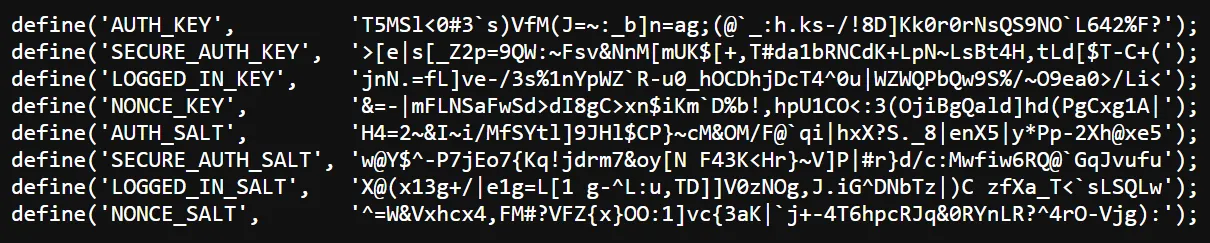
And here is a really interesting point. After you change these keys, all of your active users (including you, the admin) will be logged out of the site for security reasons. Their old cookies become invalid. This is actually a lifesaver if you think your site has been hacked. It immediately kicks out any potential intruders. Pretty clever, right?
Database Table Prefix
By default, WordPress uses wp_ as the prefix for all its database tables. Hackers know this very well. They directly target these tables in SQL Injection attacks. So, if you change this prefix, you add a nice, solid security layer to your site. Honestly, it is best to do this when you first install WordPress.
To set the prefix, look for this line in the file:
php
$table_prefix = 'wp_';
You can change that default wp_ to something more random, using a mix of letters and numbers. For example, something like this:
php
$table_prefix = 'wp_Mihan671Admin_';
Just a heads up: you can only use English letters, numbers, and the underscore (_) in this prefix. Using any other special characters will break your database. So stick to the rules.
Debugging Mode
Debugging mode is turned off by default in WordPress. But if you are designing a theme, writing a plugin, or just trying to fix some technical issues on your site, you might want to turn it on. Debug mode shows hidden PHP errors as text right on your screen. This helps developers (like you) find the root of the problem.
To turn it on, just search for this line in your wp-config.php file and change false to true:
php
define('WP_DEBUG', true); But here is a very important security warning. Having debug mode on for a live, public website is really dangerous. Hackers can see those error messages and figure out the structure of your hosting and files. So only turn it on when you are troubleshooting, and turn it back off when you are done. Got it?
Moving the wp-config.php File One Folder Back for More Security
Okay, this is one of my favourite security tricks. You can actually hide your wp-config.php file from the public hosting directory. And the best part? WordPress is so smart that you do not need to write any complex code for this. If your WordPress is installed in the main hosting folder (usually called public_html), just use your hosting file manager to move the wp-config.php file exactly one folder back. That means putting it in the root or main hosting folder, which is one level above public_html.
Here is the magic: WordPress will automatically look in that parent directory, find the config file, and load it. Your site will not encounter any errors, and you do not need to write any extra code. This makes it 100% impossible for hackers to access this file directly through a browser.
One important note, though: this automatic feature only works if WordPress is installed in the main hosting folder. If you installed WordPress in a subdomain or a subfolder, this move will not work automatically.
How to Work with wp-config.php
Alright, let’s go through some of the most useful things you can do with this file.
1. Increasing the WordPress Memory Limit (WP_MEMORY_LIMIT)
Have you ever been working with a heavy page builder like Elementor or a theme with lots of features, and suddenly you see that famous error “Fatal Error: Allowed Memory Size Exhausted”? And then your page goes white? That error means that the memory allocated to WordPress has been used up, and your server cannot handle more.
By the way, do not confuse this with the file upload size limit error. That one is different and relates to your hosting settings. This one is purely about WordPress’s processing memory.
To fix this problem and make things run smoother, you can increase the amount of memory given to WordPress. Just put this code right before the line that says /* That's all, stop editing! Happy publishing. */:
php
define( 'WP_MEMORY_LIMIT', '256M' );
You can set it to 256 megabytes or even 512 megabytes if you need to. Now you can rest easy knowing your site will not fail when running heavy processes.
2. Optimising and Disabling the Auto-Save and Post Revisions System
By default, WordPress has a feature that constantly saves backup versions of your post while you are typing. This is great if your internet cuts out. But here is the problem. After a while, your database gets filled with hundreds of old, duplicate versions of a single post. This makes your database heavy, bulky, and slow.
To prevent this mess, we have two solutions. The first one is to limit the number of revisions. For example, you can tell WordPress to keep only the last 3 versions for each post and delete the older ones:
php
define( 'WP_POST_REVISIONS', 3 );
But if you want to completely disable the revision system and at the same time increase the auto-save interval from 60 seconds to 3 minutes (180 seconds) to reduce server load, use these two lines:
php
define( 'WP_POST_REVISIONS', false );
define( 'AUTOSAVE_INTERVAL', 180 );
3. Disabling the Plugin and Theme File Editor in the Dashboard (DISALLOW_FILE_EDIT)
Here is a real danger. By default, WordPress allows administrators to edit theme and plugin files directly from the dashboard. This is really risky. If a hacker gains access to an admin account, they can easily inject malicious code through this menu. And honestly, even you might accidentally break something by mistake.
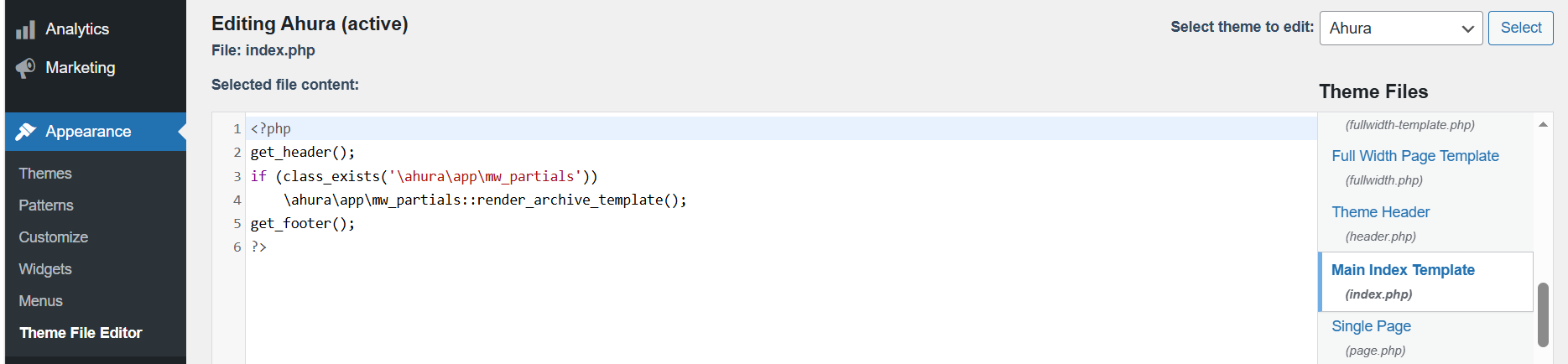
The best way to close this dangerous door is to completely hide the internal code editor menu. Just put this piece of code in your wp-config.php file, and that section will be permanently disabled:
php
define( 'DISALLOW_FILE_EDIT', true );
Now, even if someone logs into your dashboard, they cannot access your main codes. Your site’s security just went up a few notches.
4. Managing and Disabling Automatic Updates of Core, Plugins, and Themes
Automatic updates sound like a good idea, right? Well, not always. I have seen many sites completely break after an automatic update because a plugin was not compatible with the new version. To have full control and prevent sudden disasters, you can take over the update management yourself.
If you want to disable all automatic updates (including core, themes, and plugins) at once, so that you can update them manually after taking a backup, put this code:
php
define( 'AUTOMATIC_UPDATER_DISABLED', true );
But if you only want to stop automatic updates of the main WordPress core and leave the minor security updates alone, use this:
php
define( 'WP_AUTO_UPDATE_CORE', false );
5. Optimising and Automatically Emptying the WordPress Trash
When you delete a post, comment, or media file, WordPress keeps them in the trash for 30 days. That is nice, but it also makes your database bigger and bigger. You can tell WordPress to empty the trash automatically after a certain number of days. For example, every 7 days:
php
define( 'EMPTY_TRASH_DAYS', 7 );
If you set the value to 0, the trash feature is completely disabled, and files are deleted immediately and permanently.
6. Changing the Address of the wp-content Folder to Mislead Hackers
Malicious bots are always looking for the wp-content folder to find vulnerabilities. You can rename this folder to something custom, like assets, to throw them off. First, rename the folder on your hosting. Then add these two lines to your config file:
php
define( 'WP_CONTENT_DIR', dirname(__FILE__) . '/assets' );
define( 'WP_CONTENT_URL', 'https://yourdomain.com/assets' );
Just remember to replace yourdomain.com with your actual site address.
7. Forcing the WordPress Dashboard to Use the Secure SSL Protocol (FORCE_SSL_ADMIN)
To make sure your login information and other admin data are not exposed on the network, you can force WordPress to open the admin section only with HTTPS. Just add this code:
php
define( 'FORCE_SSL_ADMIN', true );
8. Disabling the Execution of PHP Codes in the Uploads Folder
Many hackers try to upload a malicious .php file to your media folder and then run it. To prevent any PHP code from running in the uploads folder, we do not have a wp-config code for this, but here is a quick solution. Create a file named .htaccess inside your wp-content/uploads folder and put this code in it:
text
<Files *.php>
deny from all
</Files>
9. Blocking External System Requests (WP_HTTP_BLOCK_EXTERNAL)
If your site is on localhost or you want to stop your site from communicating with external servers for security reasons, this code locks all outgoing HTTP requests:
php
define( 'WP_HTTP_BLOCK_EXTERNAL', true );
If you want specific sites (like WordPress itself for updates) to be allowed, add this line below it:
php
define( 'WP_ACCESSIBLE_HOSTS', 'api.wordpress.org,*.wordpress.org' );
10. Activating the Hidden Automatic Database Repair Tool (WP_ALLOW_REPAIR)
If your site encounters a database connection error or some tables get corrupted, do not panic. You do not need to go into phpMyAdmin. Just put this code in your config file:
php
define( 'WP_ALLOW_REPAIR', true );
Then open this address in your browser: yourdomain.com/wp-admin/maint/repair.php. The database repair tool will appear. Important: after you finish repairing, please remove this code or set its value to false. Leaving it enabled is not safe.
11. Locking Access to the wp-config.php File via .htaccess
Even if you have not moved the file, you can still block people from accessing it through a browser. Go to your public_html folder, open the .htaccess file, and add these lines to the end:
text
<Files wp-config.php>
order allow,deny
deny from all
</Files>
Summary
The wp-config.php file is truly the main key to controlling, securing, and optimising your WordPress site. The changes we have talked about in this article help you improve your site’s performance and block hackers without needing to install a bunch of heavy plugins. To feel safe and secure, always keep these 4 golden rules in mind:
First, backup, then change. Before adding any code to this file, save a copy of the healthy version on your computer.
Second, put your custom codes before the line that says /* That's all, stop editing! Happy publishing. */ so WordPress can process them correctly.
Third, update your security keys (Salts) at least once a year using the official WordPress link. This cuts off any suspicious access.
Fourth, if your WordPress is in the main hosting folder, move the file one folder back to completely hide it from public view.
By following these simple but super important tips, your site takes a big step towards becoming more professional and stable. I really hope this article has helped you get to know the vital wp-config.php file better. Good luck, and happy publishing.

Ahura WordPress Theme
The Power to Change EverythingElementor Page Builder
The most powerful WordPress page builder with 100+ exclusive custom elements.
Incredible Performance
With Ahura’s smart modular loading technology, files load only when they are truly needed.
SEO Optimized for Google
Every line of code is carefully aligned with Google’s algorithms and best practices.

To post a comment, please register or log in first.