
 Tutorials


 Ahura
Ahura Plugins
 Blog
BlogHow to Customize WordPress Scrollbar
- Tutorials
- Updated on
It’s probably happened to you too. You’ve spent hours working on your website design, picked your brand colors, carefully adjusted the fonts, lined up the spacing down to the millimeter… but there’s still this one small part that keeps its plain, default, not-so-attractive look: the scrollbar on the side of your site.
At first glance, the scrollbar might seem like a tiny detail. But as your website design becomes more professional, it’s exactly these details that make the difference between an average website and one that feels polished and thoughtfully built. Especially if your design is minimal or uses a specific color palette, the browser’s default scrollbar can look completely out of harmony with the rest of your design.
Table of Contents
Why Is Customizing the Scrollbar Important?
When a user enters your website, they subconsciously see all the visual elements together. If your header, buttons, background, and even icons are all designed with a clear visual identity, but the scrollbar is still that simple gray browser style, the mismatch becomes noticeable — even if the user can’t exactly explain what feels off.
Customizing the scrollbar makes the user experience feel more consistent. You can match its color to your brand color, adjust its thickness based on your design, and even define a hover state for it. The result is a website that gives off a more custom and intentional design vibe.
Do We Need a Plugin for This?
Many people think that making a change like this requires installing a plugin or diving into complicated coding. But the reality is that to create a custom scrollbar in WordPress, you only need a few lines of CSS. No plugin gets installed, no extra load is added to your site, and you definitely don’t have to enter the complicated world of programming.
In this tutorial, you’re going to learn step by step how to design your website’s scrollbar exactly according to your taste and brand identity — without using any plugin and only through the “Additional CSS” section in the WordPress Customizer.
If you’d like your website to be one of those sites where even the smallest details are carefully and professionally designed, this tutorial is exactly for you. In the following sections, we’ll simply and practically implement this feature and turn the default scrollbar into a sleek, custom version.
Prerequisites for Creating a Custom Scrollbar
Before we jump into coding and changing the look of your website’s scrollbar, it’s better to have a few simple things ready so you can follow this tutorial without any trouble. The good news is, you won’t be dealing with anything complicated or needing any special technical skills.
First of all, you need access to your WordPress dashboard. That means you should be able to log into the admin area of your site and change appearance settings. If you’ve previously changed your theme or adjusted your site’s colors, you’re probably already familiar with this section.
After logging into the dashboard, the path we’re going to use starts from the “Appearance” section. Go to “Appearance” and then click on “Customize.” Inside the Customizer page, there’s a section called “Additional CSS.” All the code we’ll use in this tutorial will go right there. You don’t need to edit any theme files, and you won’t have to touch your hosting or file manager at all.
Another thing that’s helpful to know is color codes, also known as Hex Codes. These codes usually appear as a hashtag followed by six characters, like #ffffff or #333333. We’re going to set the scrollbar colors using these codes. If you don’t know your brand’s color code, you can easily use any color picker tool and copy the value from there.
Overall, if you can log into your WordPress dashboard and paste a piece of code into the Additional CSS section, you already have everything you need for this tutorial. The rest just takes a few minutes and a bit of taste in choosing the right color.
Code for Creating a Custom Scrollbar
In this section, we’re going to place the complete and clean code for customizing the scrollbar. Just copy this code and paste it into the “Additional CSS” section inside the WordPress Customizer.
/* Scrollbar width */
::-webkit-scrollbar {
    width: 7px;
}

/* Scrollbar background */
::-webkit-scrollbar-track {
    background: #f5f5f5;
}

/* Scrollbar thumb */
::-webkit-scrollbar-thumb {
    background: #6c5ce7;
    border-radius: 10px;
}

/* Change color on hover */
::-webkit-scrollbar-thumb:hover {
    background: #333333;
}
After placing this code and clicking the “Publish” button, if any of your website pages has scrolling, you’ll immediately see the change. Now let’s quickly and simply go through what each part of this code does.
In the first line, we used ::-webkit-scrollbar. This part is responsible for setting the width of the scrollbar. With the width value, you can define how thick the scrollbar will be. Usually, a number between 6 and 8 pixels creates a more standard and minimal look.
The next section, ::-webkit-scrollbar-track, is related to the scrollbar’s background. It’s basically the track where the moving bar slides. By changing the background value, you can set the color of this area. It’s recommended to choose a color close to your website’s background so the overall look stays clean.
The ::-webkit-scrollbar-thumb section is the most important part. This is the actual moving bar that the user grabs and scrolls up and down. With the background property, you define the main color of the scrollbar. It’s better to choose a color that matches your brand identity to create a more unified visual feel.
In this same section, we also used the border-radius property. This controls how rounded the edges of the scrollbar are. The larger the number, the more rounded the edges become. If you set it to zero, the scrollbar will be completely sharp with no rounded corners.
Finally, we used the :hover state. This part defines what happens when the user moves their mouse over the scrollbar. In this case, the color changes. This simple effect makes the scrollbar feel more interactive and professional.
With just these few simple lines of code, you can completely change the appearance of your website’s scrollbar and turn it from the browser’s default style into a custom design that matches your brand.
Step-by-Step Guide to Applying the Code in WordPress
Now that you have the scrollbar code ready, it’s time to apply it to your website. Luckily, doing this in WordPress is very simple and doesn’t require editing theme files or accessing your hosting. Everything is done right from the dashboard.
In the first step, log into your WordPress dashboard. This is the same area you usually use to publish posts, manage pages, or adjust theme settings.
Log in to the website. From the top admin bar, click on the Customize option.

On the Customizer page, there’s a section called “Additional CSS.” Click on it and a code editor box will open for you. This is exactly where we’re going to place the scrollbar code.
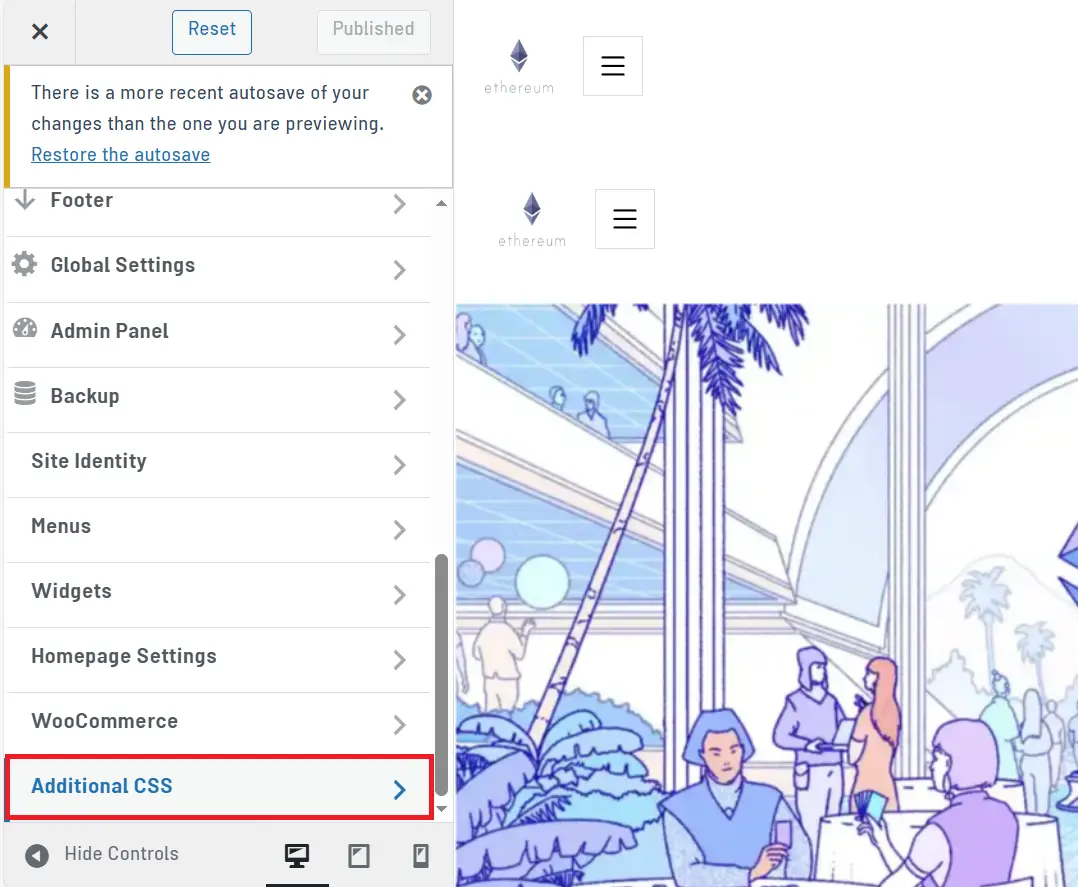
Now simply copy the code that was provided in the previous section and paste it entirely into this box. Make sure that if you already have any previous code in this section, you don’t delete it. Instead, add the new code at the end so it doesn’t interfere with your other settings.
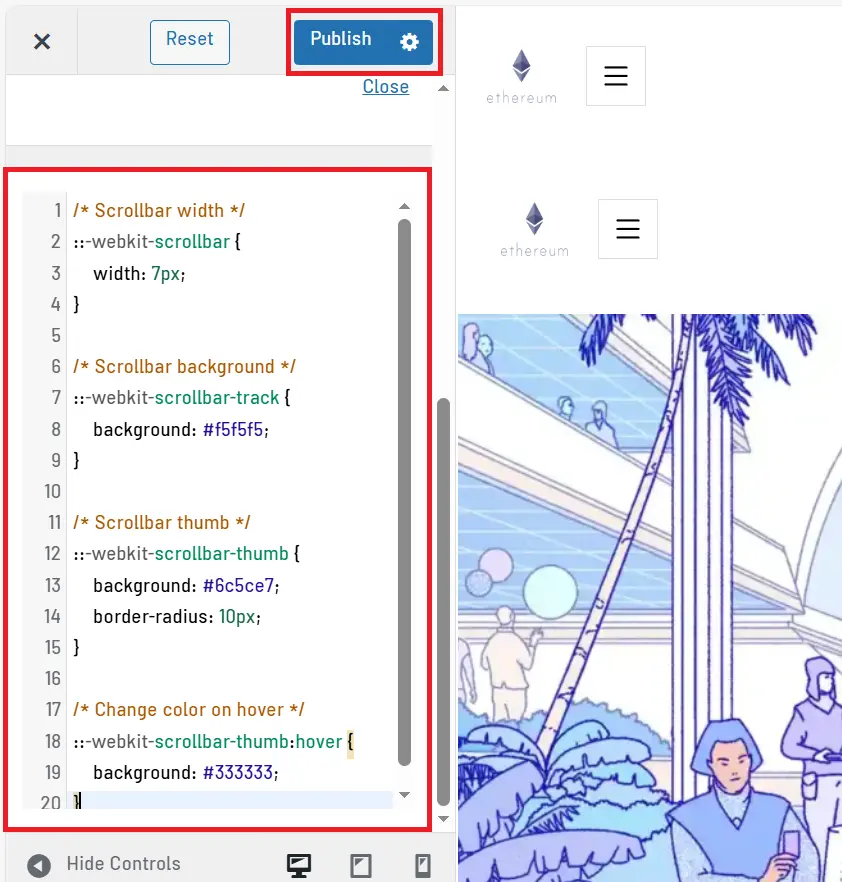
After placing the code, click the “Publish” button. Just like that, the changes will be applied to your site. If any page on your site has scrolling, you’ll immediately see the new scrollbar design. The whole process takes less than a few minutes, but the result can make your website look more professional and visually consistent.
Choosing a Professional Color for the Scrollbar
One of the most important parts of designing a scrollbar is choosing the right color. At first glance, it might look like just a thin bar on the side of the page, but this small element, if it doesn’t have the right color, can easily throw off the entire visual harmony of your site. On the other hand, if you choose it wisely, it can make your website look much more professional and cohesive.
To find attractive and ready-made color combinations, you can use the website Coolors. It’s a simple and practical tool for creating and exploring color palettes, and it’s very easy to use.
When you enter Coolors, you can click on the Explore option to see a collection of ready-made palettes. Each palette includes several colors that already work well together and have been selected by designers. If you find a combination that feels close to your website’s style, you can simply pick the color you like.
To use a color in your CSS code, you need to copy its Hex code. Hex codes usually start with a # sign and are followed by six characters made up of numbers and letters, like #6c5ce7. In Coolors, you just click on a color to see its code and copy it. Then you place that value inside the background section of your scrollbar CSS code.
An important point is that your scrollbar color should ideally match your website’s brand color. If your site already has a main color for buttons or links, using that same color or a close shade of it for the scrollbar will make your design feel more unified. It’s also recommended to choose the Track color close to your site’s background color so the scrollbar doesn’t draw too much attention.
In the end, the goal isn’t for the scrollbar to become the center of attention. The goal is for it to blend in with the overall design and give the user the feeling of a thoughtful, well-crafted website. It’s exactly this attention to detail that separates professional websites from ordinary ones.
Further Scrollbar Customization (Optional)
So far, we’ve created a clean scrollbar that matches the website. But if you’d like to take it a step further, you can apply a few small tweaks to make it look even more unique. This part is completely optional and depends on your design style. You can use these adjustments or simply stick with the clean version we created earlier.
Adding Depth with box-shadow
One way to give your scrollbar a bit more depth is by adding a shadow. By using the box-shadow property, you can apply a very subtle shadow to the thumb section so it stands out slightly from the background.
For example, inside the ::-webkit-scrollbar-thumb section, you can add this line:
box-shadow: 0 0 6px rgba(0,0,0,0.2);This makes the scrollbar feel less flat and gives it a slightly more modern touch. That said, I’d suggest not overdoing it. Very dark or very large shadows usually create a cluttered look.
Changing the Scrollbar Thickness
If you feel the scrollbar is too thin or too thick, you can simply adjust the width value. This is set inside the ::-webkit-scrollbar section.
For modern and minimal websites, a smaller width usually looks better. A value like 6 or 7 pixels often creates a nice balance between visibility and subtlety. If your website has a bold, graphic-heavy design, a slightly wider scrollbar might also make sense.
A Suggested Professional Minimal Style
If I had to suggest a standard setup that works cleanly and professionally in most projects, this combination usually delivers the best results:
- A scrollbar width between 6 to 8 pixels
- Using your brand color for the thumb
- A track color close to your background
- And a soft roundness with a border-radius around 8 to 12 pixels
This setup doesn’t attract too much attention, but it’s also not so plain that it looks like the default browser style. It sits right in that sweet spot where it completes your design without turning into the main visual element.
At the end of the day, remember that the goal of customizing the scrollbar isn’t to show off technical skills. The goal is to create a more consistent and professional user experience. If you feel that a small change makes the design look busy, then the simpler version is probably the better choice.
Browser Compatibility (Important Technical Note)
Before we consider this tutorial complete, there’s an important technical note to keep in mind. The code we used to customize the scrollbar is based on WebKit pseudo-elements. This means it works smoothly in browsers that support this structure.
Currently, this code works well in WebKit- and Blink-based browsers, such as Google Chrome, Microsoft Edge, and Safari. If most of your users are on these browsers, there’s generally nothing to worry about.
However, things are a bit different in Mozilla Firefox. Firefox does not support the ::-webkit-scrollbar structure. To customize the scrollbar in Firefox, you need to use its own properties like scrollbar-width and scrollbar-color. Even then, the level of customization is more limited, and you can’t apply all the same visual details.
From an SEO perspective, there’s no concern at all, since this change is purely visual and does not affect your content structure or page indexing. The only thing to keep in mind is user experience — meaning the scrollbar may look slightly different in some browsers.
If you want to add a Firefox-specific version as well, you can include a separate code snippet later in this tutorial or publish an additional article dedicated to styling scrollbars in Firefox and link to it. This approach makes your guide more technically complete and can also benefit your site’s SEO.
If You’re Using the Ahura Theme
If you’ve built your website using the Ahura theme, you’ve probably already noticed that one of its key strengths is how easy it is to customize and access appearance settings. Because of that, it’s natural that many users would prefer having this kind of feature directly available inside the theme settings, without needing to insert any code. To get the Ahura WordPress theme, click the button below.
For now, you can customize the scrollbar using the same method explained above through the Additional CSS section. However, it’s very likely that in future updates of the Ahura theme, this feature will be added as a built-in option inside the theme settings — so you’ll be able to adjust the color, thickness, and roundness of the scrollbar with just a few clicks, without writing even a single line of code.
This approach makes things simpler for users and also ensures that your website design remains fully integrated and managed directly within the theme itself. So if you’re using Ahura, you can currently customize the scrollbar manually using this method, and in the future, you’ll probably have access to a graphical settings option for it as well.
Conclusion
Customizing the scrollbar might seem like a small change at first, but it’s exactly these details that turn an ordinary website into a professional and well-designed one. When everything from your header to your buttons and colors has been carefully selected, it only makes sense that the scrollbar should match that same level of attention.
In this tutorial, we saw that without installing any plugin and with just a few simple lines of CSS, we can completely transform the appearance of the scrollbar. There was no need to edit theme files, and we didn’t have to deal with any complicated settings. Everything was done from inside the WordPress dashboard in just a few minutes.
We also learned that if you match the scrollbar color with your brand color, your design will look more cohesive and professional. Even a standard width and a soft border radius can give your site a more modern feel without making it look crowded.
In the end, the purpose of this change isn’t to showcase technical skills. The goal is to create a better user experience and give visitors a more professional impression. If your website’s scrollbar has been stuck in the default browser style until today, now it’s time to align this small but important detail with your overall design. Stay happy and successful. 🙂
Ahura WordPress Theme
The Power to Change EverythingElementor Page Builder
The most powerful WordPress page builder with 100+ exclusive custom elements.
Incredible Performance
With Ahura’s smart modular loading technology, files load only when they are truly needed.
SEO Optimized for Google
Every line of code is carefully aligned with Google’s algorithms and best practices.

To post a comment, please register or log in first.