
 Tutorials


 Ahura
Ahura Plugins
 Blog
BlogHow to Set DNS and Connect Your Domain to Hosting
- Tutorials
- Updated on

Hello and welcome to session six of this free WordPress website creation course. In this session, we’re going to take care of one of the most important steps in launching a website: connecting the domain and hosting that we purchased in the previous sessions.
It doesn’t matter whether your domain is a .com, .net, .org, or anything else. In every case, the domain and the hosting need to be connected so that when someone types your website address into their browser, your site actually loads.
Think of it this way: your domain is like your home address, and your hosting is the house itself. If these two aren’t connected, knowing the address won’t get anyone anywhere. We’re going to make this connection using DNS settings. Don’t worry, it’s not complicated at all. You just need to follow the steps carefully.
So let’s get started and connect your domain to your hosting.
Table of Contents
What Is DNS?
Up to this point, we’ve chosen a name for our website, which is the domain, and we’ve also rented a space to store our website files, which we call hosting. In reality, hosting is simply a computer that is always turned on and constantly connected to the internet, and it’s responsible for displaying your website to visitors.
You can imagine it like this: you choose a name for your shop and create a sign for it. That sign represents your domain. On the other hand, you rent an actual physical shop, which represents your hosting. Now you need to install that sign on the shop so people passing by know that this shop belongs to you. That’s exactly what we’re doing here: connecting the sign (the domain) to the shop (the hosting), so we can start building the website and uploading content.
To connect a domain to hosting, we use something called DNS, which stands for Domain Name System or Domain Name Server. Don’t let the name intimidate you. Simply put, DNS works like a phone book for the internet.
Whenever someone enters your website address, for example mysite.com, into their browser, DNS checks which server this domain should point to. That server is where your website is hosted.
Computers don’t understand names like google.com or mysite.com. They communicate using numerical addresses called IP addresses. DNS acts as a translator. It converts human-readable domain names into IP addresses that computers understand. So when you type google.com into your browser, DNS tells the browser which IP address it should connect to, and then your browser retrieves the website data from that server.
In this session, we’re going to tell DNS which hosting server our domain should point to. We do this by adding DNS records that are provided by our hosting company into the domain management panel.
Let’s move on to the practical part so you can see how simple this really is. You don’t need to worry about IP addresses or technical network details at all. You don’t need to search for your server IP or understand how it works behind the scenes. Those details are for network specialists, not for us.
All we need to do is copy and enter the DNS addresses exactly as the hosting company provides them. That’s it. Just follow the steps calmly, and we’ll connect the domain to the hosting together, step by step.
Setting DNS for Your Domain
To configure DNS for your domain, the first step is to log in to the website where you purchased your domain. Domain DNS settings are always managed through the domain registrar, regardless of where your hosting is located.
Once you’re on your domain provider’s website, log in to your user account. Inside the dashboard, you’ll usually find a section called something like “Domain Management” or “My Domains.” In that section, you’ll see a list of all the domains you own.
Find the domain you want to connect to your hosting and click on it to access its settings. From there, you’ll be able to edit the DNS configuration and enter the DNS records provided by your hosting company.
From this point on, everything is just following instructions and entering the correct values. In the next steps, we’ll walk through this process together so you can confidently complete the connection and move one step closer to launching your website.
Important Note
If you’ve just purchased a new domain, it may not be active immediately. In some cases, the domain status can show as “pending” or “inactive” for a short period of time. This is completely normal, as some domains need to be reviewed and approved before they become fully active.
So if you notice that DNS settings are not available yet, don’t worry. Just give it a bit of time until the domain is fully activated, then continue with the next steps.
Domain List
Once you see the list of domains in your account, look for the domain that is active and that you want to connect to your hosting. Usually, next to each domain name, there is a settings icon, often shown as a gear icon, or a button labeled something like “Manage” or “Settings.”
Click on that settings or management option to enter the domain configuration page. This is where you can change DNS settings and connect your domain to your hosting.
After entering the domain settings page, scroll down a bit until you find a section called DNS Settings or Name Servers.
Where DNS Records Are Configured
Remember when you registered your domain and I told you not to touch this section yet because we’d need it later? Well, this is exactly that moment.
In this section, we’re going to remove the current DNS or Name Server values and replace them with the ones provided by our hosting company. In simple terms, we’re telling the domain: “From now on, you should connect to these servers and load the website data from there.”
Where Do We Get the DNS Information?
Now it’s time to log in to the website where you purchased your hosting. Open the hosting provider’s website and sign in to your user account.
It doesn’t matter which hosting company you’re using. The process is the same everywhere. All you need is access to your hosting control panel so we can find the DNS or Name Server information required to connect the domain.
Once you’re logged in, go to the Services or Hosting section (the exact name may vary depending on the provider). There, you’ll see a list of hosting plans you’ve purchased.
Find the hosting plan that you want to connect your domain to and click on the Manage button. This option is usually located next to the hosting name or just below it.
Finding Your Name Servers
Inside the hosting management panel, scroll down a bit or look around until you find a section labeled Name Servers. You’ll usually see two or sometimes four addresses listed there.
These are the DNS addresses we need.
Carefully copy these Name Server addresses exactly as they appear. Make sure you don’t miss any characters, dots, or letters. Even a small typo can prevent your domain from connecting properly, which means your website won’t load.
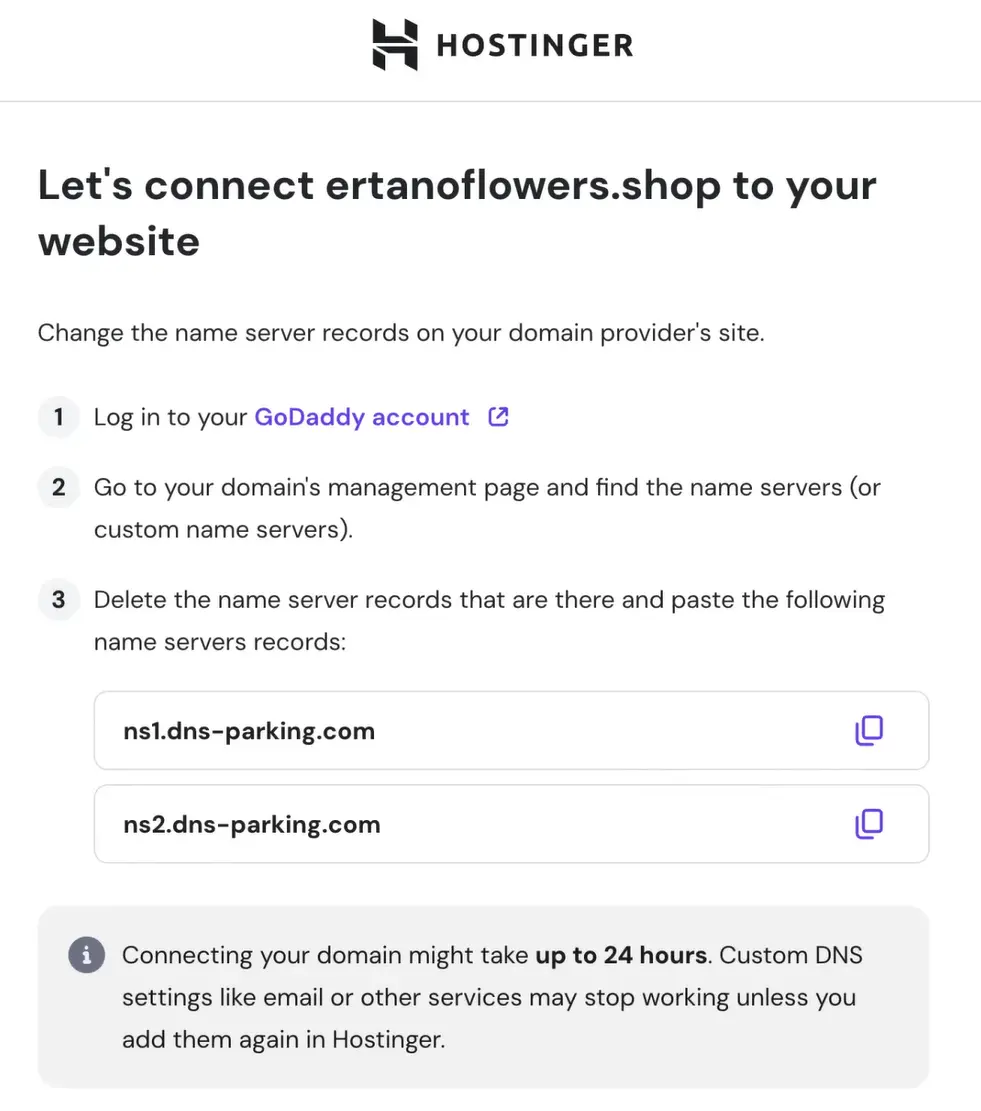
It’s a good idea to paste these addresses somewhere temporarily, like a notes app or text editor, because we’re about to go back to the domain panel and replace the existing DNS values.
Replacing DNS Records in the Domain Panel
Now that you’ve copied your hosting Name Servers, go back to the domain provider’s website, the same place where you purchased your domain.
Enter the Domain Management section again, select the domain you want to connect, and open the DNS Settings or Name Server section.
Here, remove the existing default Name Servers and replace them with the ones you copied from your hosting panel. Enter them carefully, one by one. Most of the time there are two Name Servers, but sometimes there may be four.
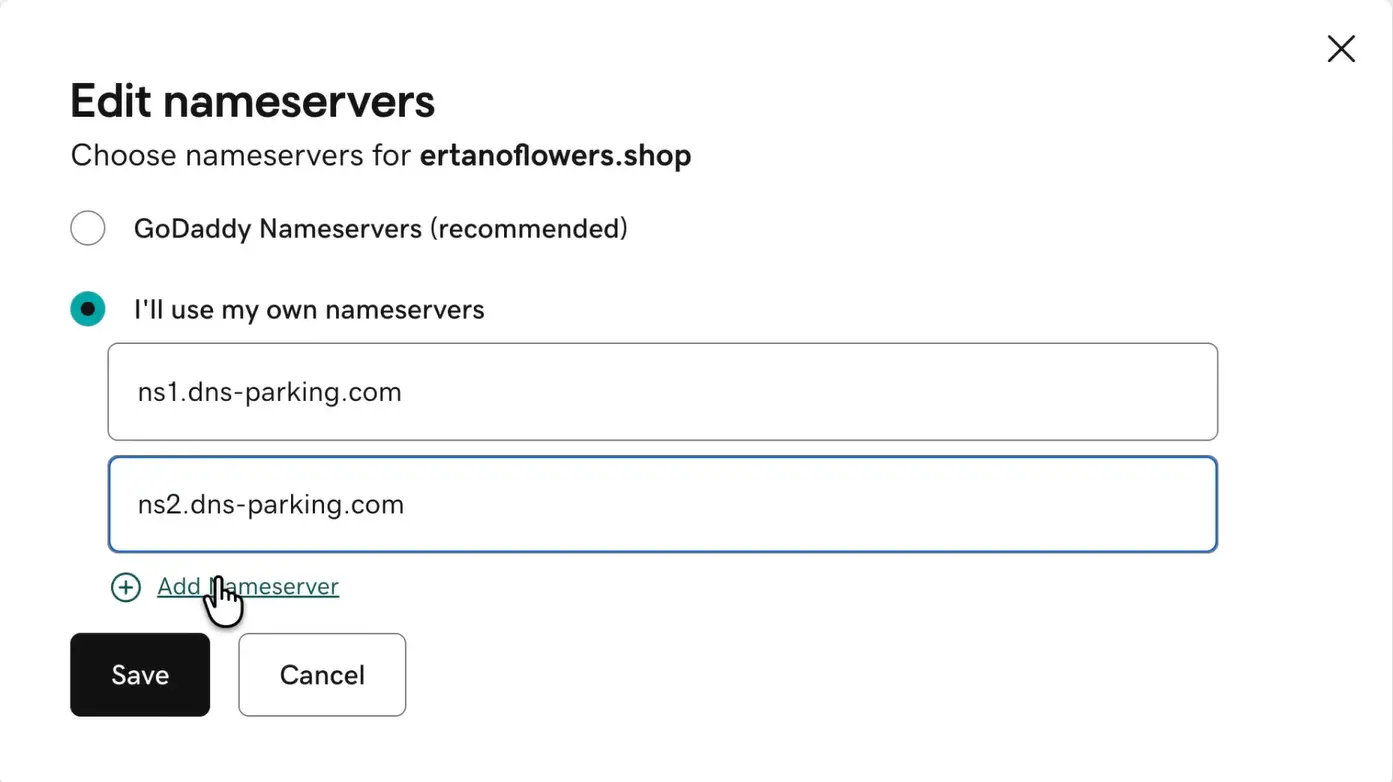
After entering them correctly, simply click on the Save Changes button.
And that’s it. Your domain is now connected to your hosting.
There is just one more important thing you should know.
Important Note
If you purchased both your domain and hosting from the same company, in most cases you don’t need to change DNS settings at all. Hosting providers usually configure the correct DNS automatically when your hosting service is activated.
In this situation, everything is already set up for you. You can simply log in to your hosting control panel and start building your website.
However, if your domain and hosting were purchased from two different providers, then you must manually update the DNS settings in the domain panel. This step is essential for connecting the domain and hosting together.
Connecting Your Domain via the Main Domain Registrar
In some cases, you might not be able to change DNS settings through the website where you originally purchased your domain. This can happen if the provider’s domain management panel is limited, temporarily unavailable, or doesn’t give you full DNS control.
If that happens, don’t worry. There’s usually another option.
Most domains can be managed directly through the main domain registrar or registry account associated with your domain. This is the central system where your domain ownership is registered and verified.
To continue, log in to the main domain management platform linked to your domain. This is often the account you created when registering the domain for the first time.
Logging Into Your Domain Account
After opening the registrar’s website, sign in using the email address or account ID you used during domain registration. If you don’t remember your password, most platforms provide an easy password recovery option so you can regain access quickly.
Once logged in, navigate to the Domains or My Domains section from the main menu.
Selecting Your Domain
In the domains section, you’ll see a list of all domains registered under your account. Find the domain you want to connect to your hosting.
Next to each domain, there is usually an option related to DNS, Name Servers, or NS settings. Click on that option to enter the DNS configuration page.
Updating Name Servers (DNS)
Inside the DNS or Name Server settings page, you’ll find fields where you can enter Name Server addresses.
This is exactly where you should paste the DNS or Name Server values provided by your hosting company.
Most of the time, there are two or four fields available. Carefully enter the DNS addresses one by one, making sure everything is typed correctly.
After entering the Name Servers, save the changes. Some registrars may ask for an additional confirmation step, such as answering a security question or confirming via email.
Once saved, your job is done.
From this point on, you just need to wait a little while for the DNS changes to fully propagate across the internet. After that, your domain will be successfully connected to your hosting, and your website will be accessible.
Connecting Your Domain via the Main Domain Registrar
In some cases, you might not be able to change DNS settings through the website where you originally purchased your domain. This can happen if the provider’s domain management panel is limited, temporarily unavailable, or doesn’t give you full DNS control.
If that happens, don’t worry. There’s usually another option.
Most domains can be managed directly through the main domain registrar or registry account associated with your domain. This is the central system where your domain ownership is registered and verified.
To continue, log in to the main domain management platform linked to your domain. This is often the account you created when registering the domain for the first time.
Logging Into Your Domain Account
After opening the registrar’s website, sign in using the email address or account ID you used during domain registration. If you don’t remember your password, most platforms provide an easy password recovery option so you can regain access quickly.
Once logged in, navigate to the Domains or My Domains section from the main menu.
Selecting Your Domain
In the domains section, you’ll see a list of all domains registered under your account. Find the domain you want to connect to your hosting.
Next to each domain, there is usually an option related to DNS, Name Servers, or NS settings. Click on that option to enter the DNS configuration page.
Updating Name Servers (DNS)
Inside the DNS or Name Server settings page, you’ll find fields where you can enter Name Server addresses.
This is exactly where you should paste the DNS or Name Server values provided by your hosting company.
Most of the time, there are two or four fields available. Carefully enter the DNS addresses one by one, making sure everything is typed correctly.
After entering the Name Servers, save the changes. Some registrars may ask for an additional confirmation step, such as answering a security question or confirming via email.
Once saved, your job is done.
From this point on, you just need to wait a little while for the DNS changes to fully propagate across the internet. After that, your domain will be successfully connected to your hosting, and your website will be accessible.
When Will the Domain Be Connected?
After you change and save your DNS settings, the domain does not always connect to the hosting immediately. This delay is completely normal and is known as DNS propagation.
DNS propagation means that the changes you made need time to spread across different servers around the world. Each server updates its records at its own pace until the entire internet recognizes that your domain should now point to your hosting server.
For international domains such as .com, .net, and similar extensions, this process is usually quite fast. In most cases, it takes between one to two hours. Sometimes it may even happen sooner, but short delays are expected and should not cause concern.
If your website does not load right away, the best thing to do is simply wait a bit and check again later.
How to Know If the Domain Is Successfully Connected
Once everything is done correctly and the connection between your domain and hosting is established, entering your website address in a browser should no longer show an error or a blank page.
Instead, you may see a simple page with text like “Index of,” a basic file list, or even a plain page with minimal content.
This is a good sign.
It means your domain is loading correctly from the hosting server, but since no website files or content have been installed yet, there is nothing meaningful to display. If you see this type of page, you can be confident that the domain connection is working properly and you are ready for the next step.
How to Technically Check the Domain Connection
If you want to be completely sure from a technical perspective that everything is set up correctly, there is a simple and reliable method.
You can visit a DNS diagnostic website such as intodns.com and enter your domain name in the search field. For example, you can test domains like example.com or any domain you are working with.
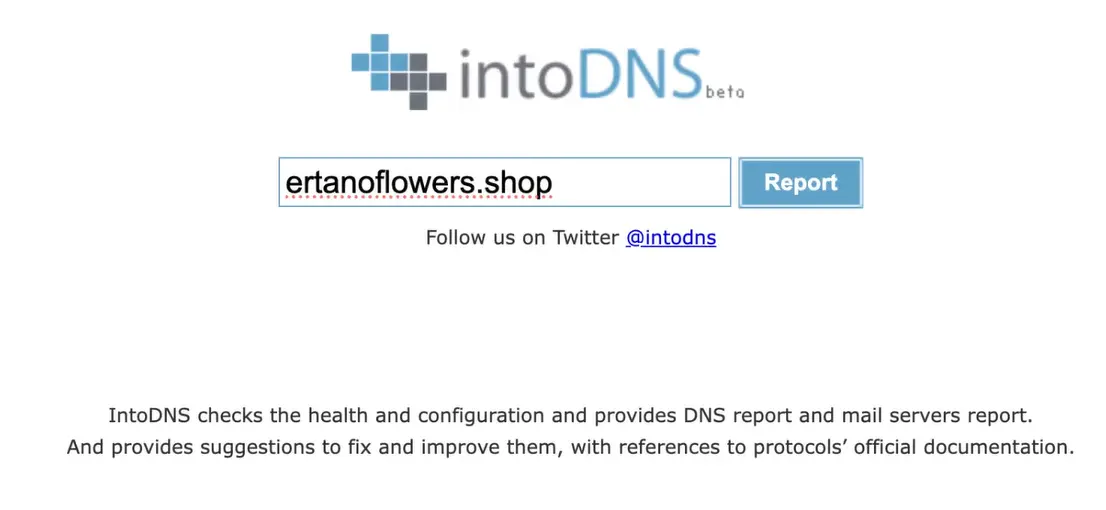
After a few seconds, the website will generate a detailed report showing the DNS and connection status of your domain.
At first glance, the report may look complex, but you don’t need to understand every technical detail. The most important thing to focus on is the status colors.
If most of the results appear in green, blue, or yellow, it means the domain is connected properly. Green and blue indicate normal and healthy settings. Yellow usually represents a minor warning that typically does not affect how your website works.
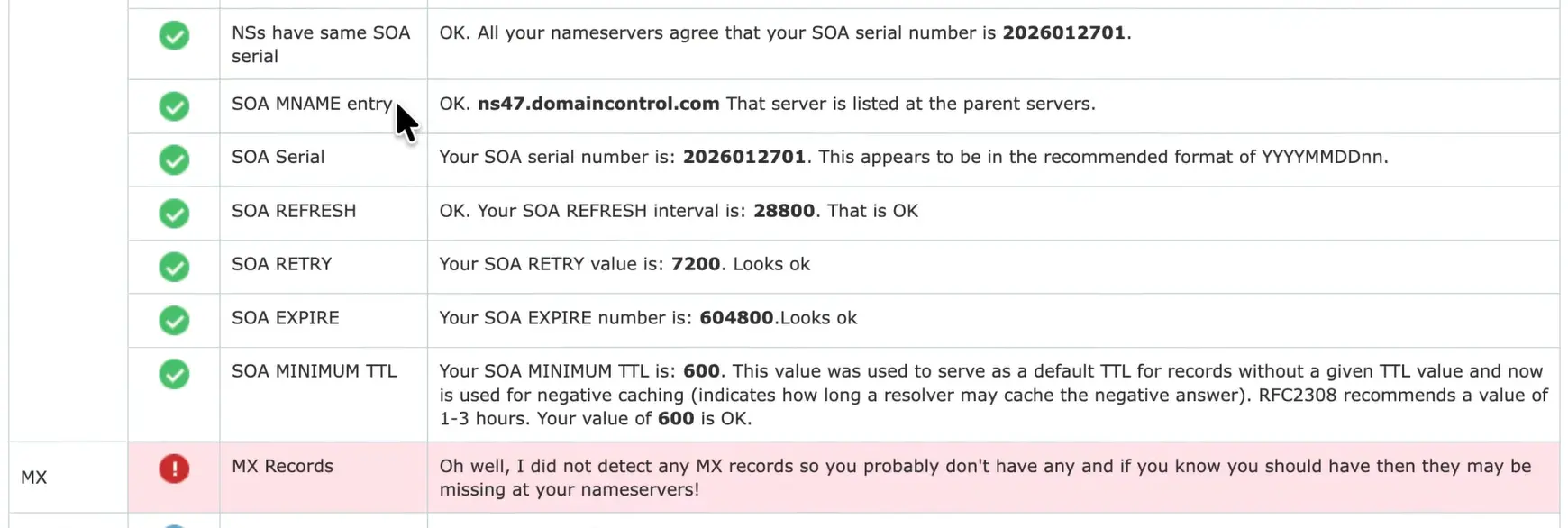
However, if you see any red indicators, it means there is an issue that should be checked. In that case, the best approach is to send the report to your hosting or domain provider’s support team so they can review it and guide you through fixing the problem.
This step gives you peace of mind that everything is technically ready before moving forward.
Final Thoughts
At this point, you have successfully completed the foundation of your online presence.
You have chosen a name for your online store or website, secured a permanent space for it through hosting, and installed the signboard so people can find it by searching its name on the internet.
Everything is now ready for the next phase.
In the upcoming step, you will start building the storefront itself. This is where you install WordPress, design the layout, add content, and shape the visual experience of your website. It’s the stage where your site begins to truly represent your brand, services, or products.
You now own a website that is available 24 hours a day, seven days a week. It can welcome visitors, provide information, sell products, offer services, and do everything you expect from a modern online platform.
In the next session, we’ll focus on creating that attractive storefront and bringing your website to life. I hope this guide has been helpful for you. If you found it useful or learned something new, feel free to share it with others so they can also learn how to build their own website without coding.
Wishing you success on your journey. Good Luck. 🙂
Ahura WordPress Theme
The Power to Change EverythingElementor Page Builder
The most powerful WordPress page builder with 100+ exclusive custom elements.
Incredible Performance
With Ahura’s smart modular loading technology, files load only when they are truly needed.
SEO Optimized for Google
Every line of code is carefully aligned with Google’s algorithms and best practices.

To post a comment, please register or log in first.