
 Tutorials


 Ahura
Ahura Plugins

 Blog
BlogWhat Is Progressive JPEG and How Can It Help Increase Website Speed?
- Tutorials
- Updated on
Chances are that right now, as you’re reading this article, there’s a question in the back of your mind: “This Progressive JPEG I keep hearing about—does it actually make a website faster, or is it just another fancy buzzword?”
Before I answer that, let me clarify something so you understand why this topic even matters. If you look at the size of a typical web page, the heaviest part isn’t the text or the code—it’s the images. According to statistics, images alone make up about one-third of a page’s total size and are practically the largest assets a browser has to download. Now when you consider that a mobile page these days can easily reach several megabytes, you start to see why anything you do to images directly affects speed—and ultimately, your site’s ranking.
Now let’s get back to that original question. A few years ago, if you asked anyone about image optimization, the first thing they’d probably mention was Progressive JPEG; it was a standard recommendation you’d find in almost every guide. But the truth is, the world of web images has changed significantly in recent years. Newer formats have arrived and shaken things up, and you can’t just prescribe a one-size-fits-all solution for every website anymore. You need to know what’s right for your own site.
In this article, I’m going to lay everything out clearly and honestly, without hype. First, we’ll explain exactly what Progressive JPEG is and how it works. Then we’ll compare it with its newer competitors—WebP and AVIF—look at its real advantages and disadvantages, and finally, I’ll give you a practical, step-by-step path so you know exactly what to do for your own website—especially if you’re a WordPress user. By the end of this article, you’ll be able to make the best decision with confidence and no second-guessing.
Table of Contents
What Is Progressive JPEG?
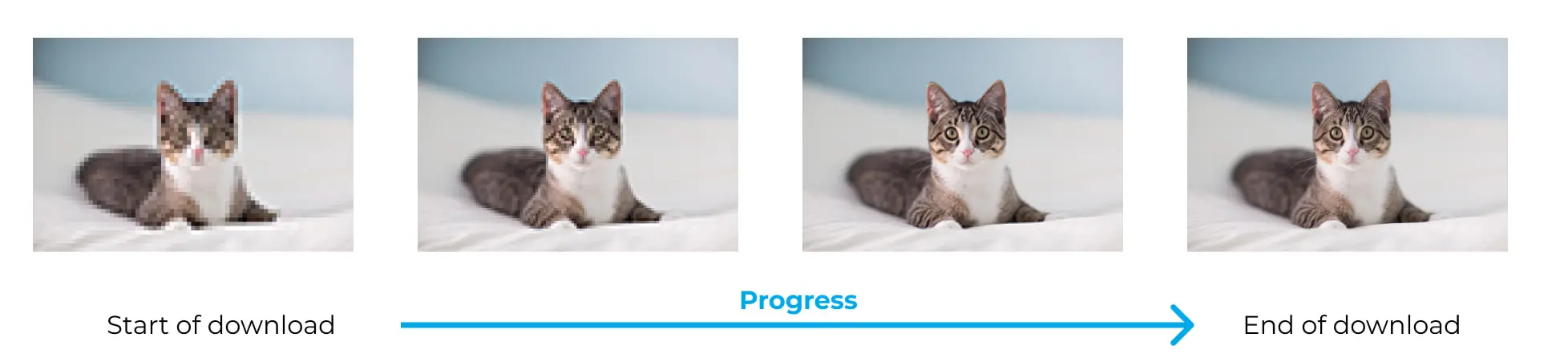
To understand what Progressive JPEG actually is, we first need to know something simple. Every JPEG image, when opened in a browser, is decoded and drawn on the screen in one or more stages; these stages are called “scans.” Interestingly, the entire difference between the two types of JPEG comes down to how these scans are arranged.
In the normal mode, known as Baseline, all the image information is arranged in a single scan from top to bottom. As soon as the browser receives the data, it starts drawing the image from the top and proceeds line by line downward.
In a Progressive JPEG, however, things work differently. Here, the image data is stored in layers. At first, the browser displays a blurry, low-detail version of the entire image, and as additional layers arrive, it gradually increases the clarity and detail until you finally see a sharp, complete picture. Simply put, you see the overall image from the very beginning, even if it’s not yet clear.
Now, here’s an important point you should know right away: this does not significantly change the file size. The image does not become lighter, nor does it download faster; it simply makes the user feel that your site has loaded faster. This subtle distinction is actually the key to understanding this entire article, and we’ll come back to it again.
And a note about its place in 2026: Progressive JPEG is still useful in specific situations (large images, slow internet connections, older browsers), but if you’re looking for real file size reduction and better speed and SEO, more modern formats like WebP (and especially AVIF) are the top priority. The best role for Progressive JPEG in today’s strategy is as a fallback format alongside these newer options, which we’ll discuss in detail later.
How Does a JPEG File Load?
Let me clarify this with a familiar example. You’ve probably experienced opening a heavy website on a slow internet connection. In that case, if the image is Baseline, you’ll see it appear like a curtain slowly dropping from top to bottom; the upper half appears while the lower half is still empty. But if the same image is Progressive, from the very beginning you’ll see a blurred version of the entire picture, which gradually becomes clearer.
Here I’ll emphasize again what I mentioned earlier, because many people misunderstand this: Progressive JPEG does not make your image download faster. The file size is roughly the same, and ultimately all the data still needs to be received. The only thing that truly changes is the perceived performance; in other words, the user feels the image is ready faster because there’s something to look at from the very first seconds, and they can wait more comfortably.
Difference Between Progressive JPEG and Baseline JPEG
You might find it interesting that many times, without realizing it, you’ve encountered both types of images on different websites—you just didn’t know their names. Let’s place their differences side by side in a simple way.
In a Baseline JPEG, which is the default and standard format, the image loads line by line from top to bottom. On a slow connection, the user first sees only the upper part of the image, while the lower part remains incomplete or blank. In contrast, a Progressive JPEG shows the entire image from the start—albeit blurred—and gradually sharpens it. This allows the user to understand what the image is about more quickly and decide more easily whether to wait.
To grasp everything at a glance, take a look at the table below:
| Feature | Baseline JPEG | Progressive JPEG |
|---|---|---|
| Loading method | Line by line, top to bottom | The whole image, blurry to sharp |
| What the user sees first | Only the top portion of the image | A rough preview of the entire image |
| File size | Baseline (reference point) | Roughly equal (sometimes 1–3% smaller for large images) |
| Small images (under ~10 KB) | Usually lighter | May become slightly larger |
| Perceived speed for the user | Average | Better |
| Browser support | Full | Full (all modern browsers) |
One thing you definitely need to keep in mind is that Progressive JPEG is not a good option for all images. For very small images like icons and logos, that layered structure creates extra overhead and may even slightly increase the file size. So the general rule is simple: keep Progressive JPEG for large, content-heavy images—not for small graphical elements.
Is Progressive JPEG Still Relevant in 2026?
Let me answer bluntly: yes—but not as much as before, and only in specific situations.
Until a few years ago, Progressive JPEG was a standard recommendation in almost every image optimization guide, and nearly everyone said you should definitely use it. But the reality is that today’s web is dramatically different from back then. Two major changes have made this format less prominent: the evolution of the protocols used to load website resources, and the significant improvement of mobile networks. Let’s look at each one separately.
The Role of HTTP/2 and HTTP/3 in Image Loading
To understand the issue, you first need to know why Progressive JPEG used to be so important. In the era of the old HTTP/1.1 protocol, browsers could only open a limited number of simultaneous connections (usually around six) per domain. That meant if your page had 20 images, they had to wait in line and load one after another. In such conditions, Progressive JPEG was genuinely useful because it at least allowed users to see a rough preview of each image early on, making the long wait less frustrating.
But with the arrival of HTTP/2, everything changed. This protocol introduced a feature called multiplexing, which allows multiple requests to be sent simultaneously over a single connection. In practice, this means that the long queue of images has largely disappeared, and images load much more in parallel and much faster. Interestingly, today HTTP/2—used by more than half of all websites—is the most widely adopted web protocol and continues to grow.
The next generation, HTTP/3, goes even further and operates over the QUIC protocol (based on UDP) instead of TCP. Its main advantage is that it solves the “Head-of-Line Blocking” problem and performs better, especially on weak networks with high packet loss. By early 2026, all major browsers such as Chrome, Firefox, Safari, and Edge natively support HTTP/3, and its adoption is steadily increasing.
The result of all this? That old scenario where images loaded slowly, one by one, is much less common today. That’s why the everyday benefit of Progressive JPEG has diminished compared to the past—but not to zero. Wherever network conditions are genuinely poor, that sense of “appearing sooner” still has value.
The Advancement of Mobile Networks and Changing Conditions
The second major change is mobile internet itself. With the expansion of 4G and 5G networks and improved speeds, many users no longer experience slow, dragging load times, and images open almost instantly for them. In this situation, the difference between Progressive and Baseline JPEG is barely noticeable.
But here’s an important point you shouldn’t overlook: not all users are in ideal conditions. A significant portion of your audience may still visit your site with weak internet, congested networks, or low speeds—especially in areas with poor infrastructure or during peak hours. It’s precisely for this group that Progressive JPEG can still make a difference and create a better experience.
So the conclusion of this section is: the importance of Progressive JPEG in 2026 depends entirely on your audience and your website’s conditions. If most of your users have high-speed internet, its impact is minimal; but if a considerable portion occasionally connects with weak connections, it remains a reasonable option.
The State of Internet in Iran and Why This Matters More for You
If your website’s primary audience is users inside Iran, this discussion becomes even more important. The reality is that internet quality in Iran varies greatly from one user to another; a significant number of users browse with fluctuating speeds, congested peak-hour networks, or unstable connections. Even users with good phones and strong service may experience slowdowns or temporary lag under certain conditions. In such an environment, that exact feeling of “being ready sooner” created by Progressive JPEG can make a noticeable difference in user experience and prevent people from leaving your site too quickly. So if your main traffic is domestic, you should take this format more seriously than a fully international website would.
Of course, don’t forget one thing: Progressive JPEG alone is not a miracle solution. The best results come when you use it alongside other measures—such as enabling Lazy Loading so images below the fold load only when needed, keeping a proper fallback for browsers, and most importantly, testing your site under slow internet conditions to see what real users actually experience. We’ll explain all of these in detail in the following sections.
Advantages of Using Progressive JPEG
Now that we understand when this format is useful, let’s review its real advantages—without exaggeration and exactly as they are.
Improved Perceived User Experience
This is the most important and primary benefit of Progressive JPEG. When the internet is slow or the user is on the move, seeing a blurry preview of the entire image is far more reassuring than seeing a half-loaded, fragmented picture. The user immediately understands what the image is about and can more comfortably decide whether to stay or leave. This psychological effect shouldn’t be underestimated; sometimes it’s exactly what determines whether a user stays or goes.
Reduced Bounce Rate
When users feel that your site loads faster and more smoothly, they’re less likely to leave quickly. This is especially important on pages with multiple large images (such as galleries, product pages, and online stores). A user who patiently waits for content to load is ultimately a better potential customer.
Full and Hassle-Free Support
The good news is that compatibility concerns simply don’t exist. All modern browsers—Chrome, Firefox, Safari, and Edge—fully support Progressive JPEG. So you don’t need to worry about it not displaying correctly for part of your audience; this format works everywhere, and that’s one of its key strengths.
But (and this “but” is very important) remember that none of these advantages mean a real reduction in file size or actual download speed. Everything comes down to perceived experience. Keep this in mind, because in the next section, when we move on to the disadvantages, that’s exactly where we’ll begin.
Drawbacks and Limitations of Progressive JPEG
Before you decide to use this format, it’s only fair to know its downsides as well. No tool is perfect, and Progressive JPEG is no exception.
It Can Backfire for Small Images
For very small images (usually under 10 KB), such as icons and logos, the layered structure creates extra overhead and may even slightly increase the file size. So blindly using Progressive for all images isn’t the right approach—you need to be selective.
It Doesn’t Reduce File Size or Create Real Speed
As we’ve mentioned several times, this format does not have a meaningful impact on file size or actual download speed. If your main goal is truly reducing image size and making the page lighter, Progressive JPEG is not what you’re looking for.
Slightly More Processing for Decoding
To display a Progressive JPEG, the browser must process multiple scans, which consumes slightly more CPU and memory compared to Baseline JPEG. On powerful devices, this is hardly noticeable, but on older or low-end phones, it can be a minor factor.
Real Impact on LCP and Core Web Vitals
Here we need to clear up one of the biggest misconceptions. Many people think that because Progressive JPEG shows something sooner, it must also improve the LCP score (Largest Contentful Paint—the time it takes for the largest element on the page to appear). But it’s not that simple.
In reality, Google usually calculates LCP based on the time when the largest image is fully loaded and rendered—not when its blurry preview first appears. For this reason, in most cases Progressive JPEG not only fails to improve the LCP score, but because of the additional scans that need to be processed, it can sometimes even make LCP slightly worse. So if your main focus is improving your Core Web Vitals score, Progressive JPEG alone is not the solution.
What truly improves LCP is actually reducing image size (using formats like WebP and AVIF), choosing the correct image dimensions, and preloading the main above-the-fold image. These are the real levers for speed and SEO—not the way an image loads progressively.
Lower Priority with the Rise of Modern Formats
With the arrival of WebP and AVIF—which genuinely reduce file size and can also simulate progressive loading—many experts believe that instead of spending time optimizing Progressive JPEG, it’s better to move directly to these newer formats. This is exactly the comparison we’ll explore in detail in the next section.
Progressive JPEG vs. WebP and AVIF: Which One Should We Choose?
In 2026, JPEG is no longer the web’s leading format. Two powerful competitors, WebP and AVIF, have entered the scene and completely changed the game. Unlike Progressive JPEG, which only created the illusion of faster loading, these two formats actually reduce file size—and that means a direct impact on your site’s real speed and SEO.
Let me briefly introduce them. WebP is a format developed by Google that typically delivers images about 25% to 35% smaller than JPEG at similar quality. Since 2020, it has been supported by all modern browsers (including Safari) and is now fully established.
AVIF, however, is the newer and more powerful generation. This format is usually about 15% to 25% smaller than WebP and up to around 50% lighter than JPEG. The big news is that support concerns are almost completely gone; by early 2026, global AVIF coverage has reached about 94%, and all major browsers support it by default. In other words, AVIF has now reached the same level of reliability that WebP achieved a few years ago.
To make the decision easier, take a look at this table:
| Metric | Progressive JPEG | WebP | AVIF |
|---|---|---|---|
| Actual file-size reduction | Nearly zero | ~25–35% smaller than JPEG | Up to ~50% smaller than JPEG |
| Impact on real speed & SEO | Negligible | Significant | Very significant |
| Transparency support | No | Yes | Yes |
| Animation support | No | Yes | Yes |
| Browser support | Full | All modern browsers | ~94% (recent browsers) |
| Best use in 2026 | Fallback format | Primary or intermediate format | Primary format |
Smart Strategy: Primary Format + Fallback Format
You might say to yourself, “Alright, then let’s drop JPEG completely and use only AVIF!” But wait—that’s not the right choice. Although AVIF is excellent, there is still a small percentage of users (for example, those using very old browsers or devices, or certain bots and social media services) who may not be able to view AVIF. If you use only AVIF, the image simply won’t be displayed for this group.
That’s why the professional and smart strategy is to use a multi-layered structure:
- AVIF as the primary format for modern browsers (the lightest option)
- WebP as the second layer for browsers that do not support AVIF
- JPEG (preferably Progressive) as the final fallback layer for the rest
This way, each user receives the best version that their browser can display, and no one is left without an image. It is precisely in this fallback layer that Progressive JPEG shows its real value; for the minority who are still on JPEG, progressive rendering creates a better viewing experience.
How Do We Implement This Multi-Layer Strategy in Practice?
Now we reach the exciting part: how do we actually implement this multi-layer strategy? The solution is a standard and simple HTML element called <picture>. Its job is to introduce multiple versions of an image to the browser, and the browser itself selects the first version it is capable of displaying. The code looks like this:
<picture>
  <source srcset="image.avif" type="image/avif">
  <source srcset="image.webp" type="image/webp">
  <img src="image.jpg" alt="Detailed description of the image" width="800" height="600" loading="lazy">
</picture>
Let me break it down line by line for you:
The browser checks the <source> elements from top to bottom. It first tries AVIF; if it supports it, it loads that and the job is done.
If it doesn’t recognize AVIF, it moves on to WebP.
And if it can’t handle either of them, it reaches the <img> tag, which loads the JPEG version (the fallback format).
An important point that many people overlook: that final <img> isn’t just a regular fallback; it’s the guardian of all the critical information. The alt attribute for SEO and accessibility, and the width and height attributes to prevent layout shifts (which affect your CLS score), must be defined on this <img>. The loading="lazy" attribute also ensures the image loads only when needed. The order of the <source> elements is very important as well: the most modern and lightweight format (AVIF) should always come first, because the browser picks the first option it recognizes.
If you want to take it a step further professionally, you can combine this structure with the srcset and sizes attributes so that appropriately sized images are served for each screen size (responsive images). But that topic deserves its own article, and for now this basic structure is completely sufficient.
How Can We Tell Which JPEG Format Our Website Is Using?
Before making any changes, you first need to know the current state of your site. There’s no point in converting images that are already Progressive. Fortunately, there are several simple ways to check. Below, I’ll walk you through them from the quickest to the more advanced methods.
Method One — Check a Specific Image via Command Line
If you’re comfortable with the terminal, the most reliable method is to use the free ImageMagick tool. Just run the following command:
identify -verbose image.jpg | grep -i interlace
If you see Interlace: None in the output, your image is Baseline. If it shows Interlace: JPEG (or Plane), then it’s Progressive—the format you’re looking for. Simple and definitive.
Method Two — Online Tools
If you’d rather not deal with the terminal, you can upload the image URL or the file itself to an online image analysis tool. These tools will display the format type and technical details for you. This method is ideal if you just want to quickly check one or two images.
Method Three — Test the Entire Site with WebPageTest
If you want to evaluate your whole site instead of just a single image, the professional tool WebPageTest is a great option. Enter your website address, run the test, and then look in the results for the images section and the “Progressive JPEGs” item. If you see a warning mark or “FAILED” there, it means your site’s images are still Baseline.
An honest note: the WebPageTest interface has changed over time, so the exact path to this option may differ from what you’ve seen in older guides. If you can’t find the exact same steps, don’t worry—just look for the relevant item in the image optimization section. Also keep in mind that this tool runs tests from servers outside Iran, so its speed results may not exactly match what your local users experience.
Methods for Converting and Optimizing Image Formats
Now we get to the practical part. Depending on how many images you have and how much you want to work manually or automatically, there are several methods available. We’ll go from the simplest to the most professional options so everyone can find what suits them best.
An important reminder before we start: As mentioned in previous sections, in 2026 the best strategy for most websites is to use WebP or AVIF as your primary format and keep Progressive JPEG only as a fallback. The good news is that many of the following methods can handle both at the same time.
Method One — Online Tools (For Small Quantities)
If you only have a few dozen images, the easiest way is to use free online tools.
For precise control over a single image, Squoosh (built by Google) is an excellent option. It supports the MozJPEG encoder (which includes a Progressive option), as well as WebP and AVIF. All processing happens directly in your browser (meaning your image is not uploaded anywhere and your privacy is preserved). Just keep one thing in mind: although Squoosh still works, it hasn’t received major updates since 2023, and it processes only one image at a time.
If you have more images and need batch processing, TinyPNG is a good choice. It supports JPEG, PNG, WebP, and AVIF formats and can reduce file size by up to about 80%. It’s also very easy to use, and you’ll get results in just a few seconds.
Method Two — Desktop Software (For More Control)
If you prefer to work offline on your own device, there are free and actively maintained programs available. Caesium Image Compressor is an excellent open-source option that works on Windows, Mac, and Linux and supports batch processing. (If you’ve heard of the old RIOT software before, Caesium can be considered its modern and updated replacement.)
Another option is using GIMP, which is free and cross-platform. Simply open your image and, when exporting (Export As) in JPEG format, check the Progressive option in the advanced settings. This method is ideal when you want full control over each individual image.
Method Three — WordPress Plugins (The Best Method for Professional Websites)
If your website has hundreds or thousands of images, manually converting each one is practically impossible and extremely time-consuming. This is where WordPress image optimization plugins become your lifesaver; you just need to configure them once, and from then on, every image you upload will be automatically optimized.
There’s also an important point to keep in mind: most good plugins in 2026 no longer focus solely on Progressive JPEG. Instead, they directly convert your images to next-generation formats like WebP and AVIF, and they also implement the <picture> structure we discussed earlier behind the scenes. In other words, they automatically apply the exact professional strategy of “modern primary format + fallback.”
Among the truly reputable and widely used plugins you can confidently rely on, these stand out:
- ShortPixel and Imagify: Two of the most popular options that convert images to WebP and AVIF, and also include an option in their advanced settings to enable Progressive JPEG. If you’re looking for an all-in-one solution, these two are safe choices.
- Smush and EWWW Image Optimizer: Two long-standing, highly installed, and reliable plugins offering complete optimization features along with Lazy Loading.
- Converter for Media and CompressX: Lightweight and modern options that focus especially on fast conversion to next-generation formats.
My suggestion is to choose one of these well-known plugins and avoid obscure plugins with very low installation numbers, because these plugins directly interact with your entire media library, and trust really matters.
My suggestion is that you definitely choose one of these well-known plugins and avoid obscure plugins with very low installation numbers; because these plugins directly interact with your entire site’s media library, and trusting them is truly important.
Setting Up the Imagify Plugin
To use Imagify, first go to Plugins → Add New from your WordPress dashboard, search for “Imagify,” then install and activate the plugin.
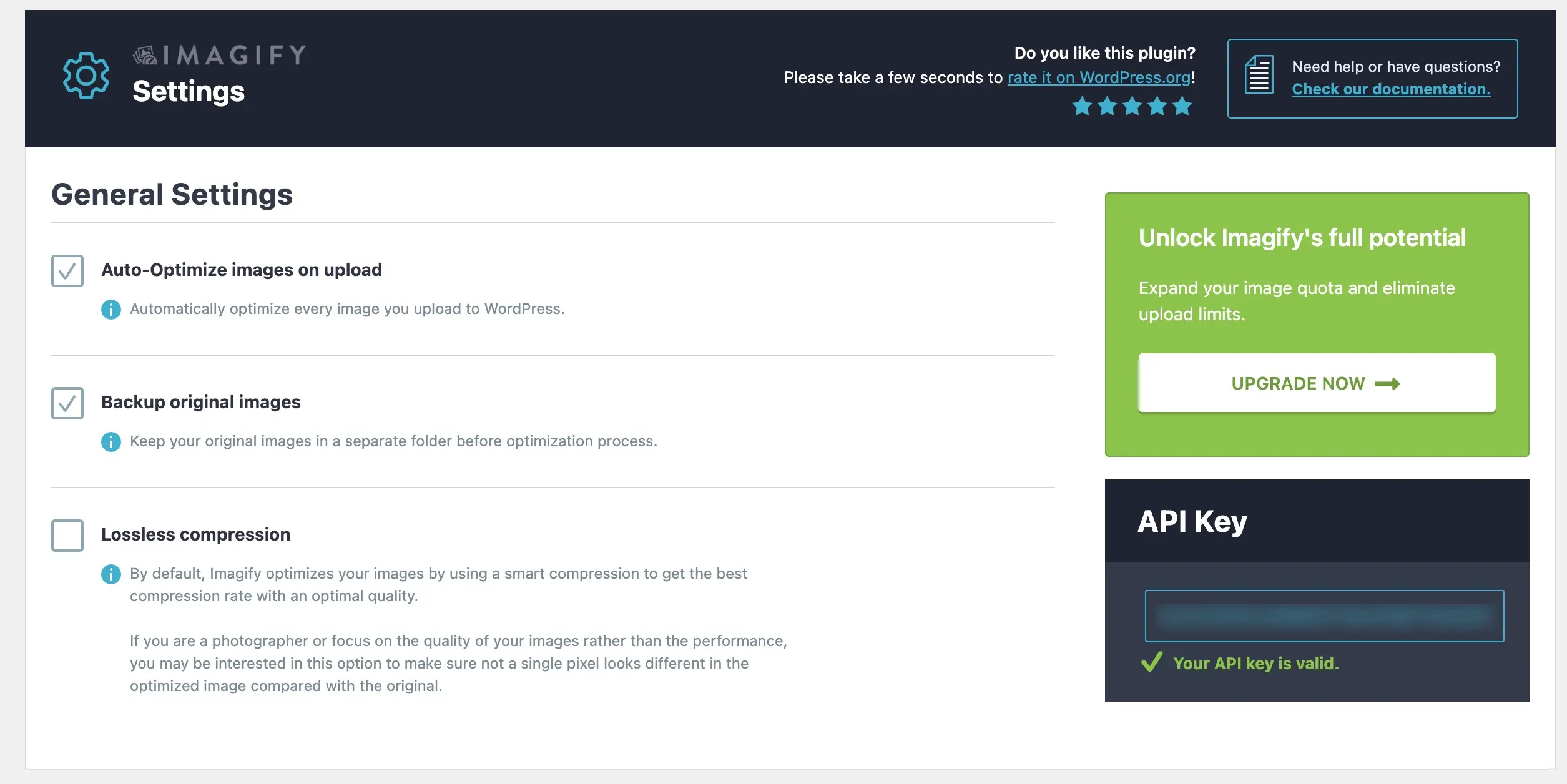
Unlike some plugins, Imagify requires a free API key to work; so after activation, click on “Create a free API key,” enter your email, and place the key that is sent to you in the plugin settings and save it. Conversion to WebP and AVIF is available even on Imagify’s free plan, so you can start using next-generation formats right away. After connecting, go to Settings → Imagify and configure a few key options: enable automatic optimization upon upload and keep backups of the original images (so you can restore everything if needed), and leave the compression mode on Smart Compression, which by default provides a good balance between quality and file size.
In the Optimization tab, select the next-generation format (WebP and/or AVIF) and enable the “Display images in Next-Gen format on the site” option; here you have two methods for displaying images: “Use Rewrite Rules,” which is recommended and does not change your site’s code, and “Use picture tags,” which is more suitable if you are using Cloudflare or a CDN.
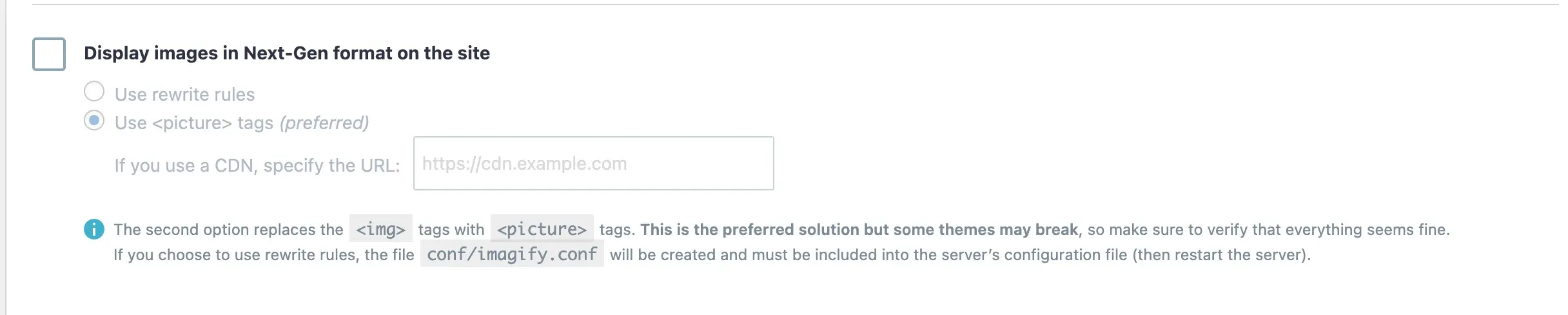
Finally, by clicking the Bulk Optimization button, allow Imagify to process your entire existing media library as well.
Then go to its settings section and set the output format to WebP or AVIF (or both).
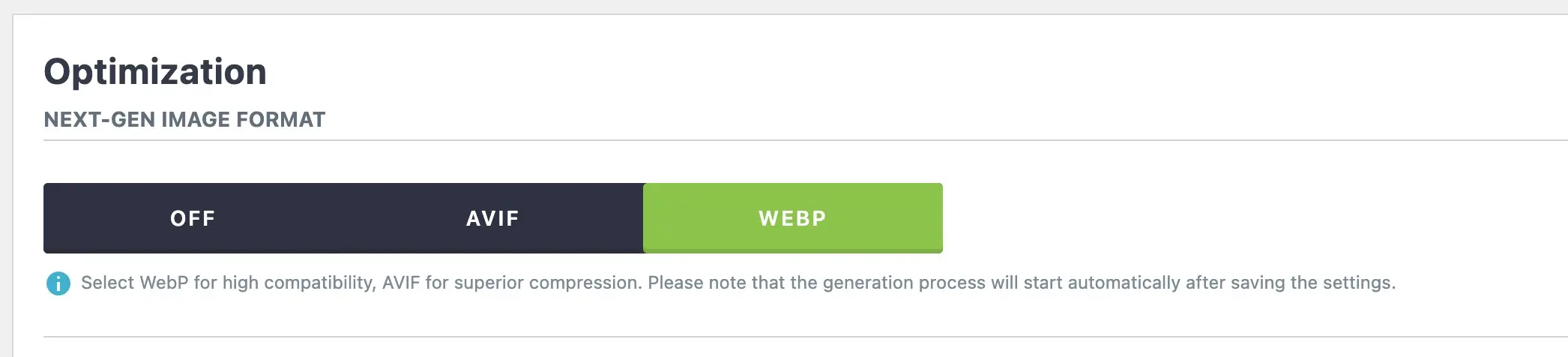
Then enable the option titled something like “Deliver next-gen images” — this is what generates the <picture> structure for your site. If you want your fallback JPEGs to be Progressive as well, go to the advanced settings (especially in ShortPixel and Imagify) and check the “Progressive JPEG” option. Finally, click the “Bulk Optimize” button so the plugin can process all your existing site images at once.
The good news is that almost all of these plugins keep a backup of your original files. That means if you’re ever unhappy with the result, you can restore everything to its original state. So you can try them out with peace of mind and not worry about breaking anything.
Method Four — CDN and Command Line (Professional Method)
Finally, if you have a high-traffic site or you’re a developer, the most professional approach is to use a CDN with image optimization capabilities. Services like Cloudflare (with the Polish feature), Bunny Optimizer, or Cloudinary can automatically and in real time serve the best format for each user — without you having to manually convert a single file. This method reduces your server load and increases image delivery speed.
For those who prefer to handle everything in an automated workflow (for example, during the site build process), command-line tools such as cwebp (for WebP), avifenc (for AVIF), ImageMagick, and the Sharp library provide the highest level of control and speed.
Replacing New Images and Managing Cache
Alright, up to this point you’ve optimized and converted your images. Now it’s time for these new versions to actually be placed on your site and shown to users. If you used a WordPress plugin, this step was done automatically and there’s practically nothing left for you to do—just skip ahead to the cache section below. But if you created the images manually (using an online tool or desktop software), you’ll need to replace them yourself, and there are two ways to do that.
The first method is through the File Manager in your hosting control panel (such as cPanel or DirectAdmin). Simply go to the public_html/wp-content/uploads/ directory and upload the new file with the exact same name as the old one, replacing it.
The second method is to use an FTP client like FileZilla. Connect to your host, navigate to the images folder, and replace the old files with the new ones.
In both methods, there’s a golden rule that can save you a lot of trouble: the new file name must be exactly the same as the old one. If the name is different, all the links in your posts and pages that point to that image will break, and the images will stop displaying.
Why Is the Old Version Still Showing After Replacement? (Fixing Cache Issues)
This is one of the most common questions. You’ve replaced the file, but when you open the site, you still see the old image! The reason is that the old version is stored in one of these cache layers, and you need to clear it:
- Your browser cache: The simplest case. Just reload the page once with a Hard Refresh (for example, Ctrl+Shift+R) or clear your browser cache.
- WordPress cache plugin: If you’re using plugins like WP Rocket, LiteSpeed Cache, or W3 Total Cache, you need to click the Clear/Purge Cache button inside the plugin settings.
- CDN cache: If you’re using a service like Cloudflare, you must purge the CDN cache separately; otherwise, the CDN will continue serving the old version to users.
After clearing these caches, the new version will be displayed to everyone. If for any reason you can’t clear the cache, an alternative solution is to slightly change the new file’s name (for example, by adding a version number) and update the links. However, this approach is more troublesome, and clearing the cache is usually the simpler solution.
Final Test and Performance Verification
We’ve reached the final stage! After all that hard work, you definitely need to make sure everything is functioning correctly and that you’ve truly achieved the desired results. I suggest three steps for this testing phase.
Check the Image Format Again
Repeat the same method mentioned in the detection section. If you’re using the command line, run the ImageMagick command on one of the new images and check whether it now shows Interlace: JPEG. If you’re testing with WebPageTest, make sure the Progressive JPEGs status has changed from “FAILED” to “PASSED.” If it still shows FAILED, it means either some images were missed or you’re still seeing an old cached version.
Measure the Overall Speed Score
Run Google PageSpeed Insights on your pages. An honest note: this tool doesn’t directly check for Progressive JPEGs. However, if you’ve also converted your images to WebP or AVIF, you should see a noticeable improvement in the image optimization section and possibly in your LCP score as well. That’s the real SEO impact we were aiming for.
Test the Real User Experience
This is the most important—and often forgotten—step. In the Chrome browser, open Developer Tools (DevTools), go to the Network tab, and set the internet speed to a slower mode (for example, Slow 4G). Now refresh the page and watch with your own eyes how Progressive images begin displaying their overall preview from the very start. This is exactly the experience your users with slower internet connections will have.
Finally, open your website on a real mobile device and compare the loading times before and after the changes.
The Best Decision for Your Website in 2026
Well, we’ve reached the end of the road, and now it’s time to wrap everything up and answer the main question: “So, what should I actually do?” The honest answer is: it depends on your website’s situation. Let’s look at a few common scenarios so you can find where you fit.
Scenario One — You Have a Modern Website
If your site runs on WordPress and you can install an optimization plugin, my clear recommendation is to go straight for WebP and AVIF. These formats provide real file size reduction and have a direct impact on your site’s speed and SEO. In this case, Progressive JPEG is only valuable as a fallback format for that small minority of browsers and shouldn’t be your main concern.
Scenario Two — You Have an Image-Heavy Website
If you run a gallery, an online store, or a site with large and heavy images—and, like many websites in Iran, a significant portion of your users sometimes visit with weak internet connections—WebP/AVIF should still be your primary formats. However, in this case, enabling Progressive JPEG as a fallback layer becomes more important and can genuinely improve the experience for those users.
Scenario Three — You Can’t Use Modern Formats
If, due to technical limitations, an outdated system, or any other reason, you can’t use WebP or AVIF, then Progressive JPEG is a completely acceptable and hassle-free alternative that at least improves the user experience.
And finally, a golden rule that applies in all three scenarios: don’t try to force all your site’s images into Progressive format. For small images like icons and logos, this not only provides no benefit but may even increase file size. Be smart and target only large, content-focused images.
5 Common Mistakes in Image Optimization You Should Avoid
Before you get started, learn these five common mistakes so you don’t fall into their trap:
5 Common Image Optimization Mistakes You Should Avoid
Before you get started, learn these five common mistakes so you don’t fall into their trap:
Blindly converting all images to Progressive
Many people think every image should be made Progressive. But for small images like icons and logos (under 10 KB), this not only provides no benefit, it can even increase the file size. Target only large, content-heavy images.
Confusing “perceived speed” with “actual speed”
Progressive JPEG does not reduce file size and does not actually download faster; it only gives users the feeling that it’s faster. If you’re looking for real file size reduction, this format is not what you want.
Expecting SEO miracles from Progressive JPEG
This format alone will not improve your LCP score or Core Web Vitals (and sometimes may even make them slightly worse). The real SEO lever is reducing file size with modern formats, not the way the image is progressively displayed.
Sticking to JPEG and ignoring WebP and AVIF
This is the biggest opportunity many people miss. In 2026, your primary format should be WebP or AVIF; these truly reduce file size, while JPEG should only play a fallback role.
Breaking links or forgetting to clear cache when replacing files
If you manually replace files and don’t name the new file exactly the same as the old one, your site links will break. And if you don’t clear the cache (browser, caching plugin, and CDN) after making changes, the old version will still be displayed.
Frequently Asked Questions
Does Progressive JPEG reduce image file size?
No, not really. The file size stays almost the same (sometimes only 1–3% smaller for large images). What changes is the perceived speed for the user, not the actual size. If you’re looking for real size reduction, you should use WebP or AVIF.
Does Progressive JPEG affect SEO and LCP score?
On its own, no. Google calculates LCP based on the time the image fully loads, not the moment the blurry preview appears. In some cases, due to processing additional scans, it can even slightly worsen LCP. What truly helps SEO is reducing file size with modern formats.
Should I use WebP or Progressive JPEG?
In 2026, the best approach is to use WebP (or AVIF) as your primary format and keep Progressive JPEG only as a fallback. They are not competitors; the best results come when they are used together.
Is AVIF safe to use in 2026?
Yes. By early 2026, global AVIF support has reached around 94%, and all major browsers support it. You just need to provide a fallback format (such as WebP or JPEG) using the structure to cover the remaining few percent.
Will converting images to a new format break my website links?
If you’re doing it manually, as long as you keep the new file name exactly the same as the old one, no links will break. If you use a WordPress plugin, this is handled automatically, so there’s nothing to worry about.
Why is the old version still displayed after changing an image?
This is almost always due to caching. Simply clear your browser cache, your WordPress cache plugin (such as WP Rocket), and, if applicable, your CDN cache (such as Cloudflare), and the new version will be shown to everyone.
Which WordPress plugin is best for this?
Well-known and widely used plugins such as ShortPixel, Imagify, Smush, and EWWW are safe options. It’s better to avoid unknown plugins with very low installation counts, since they work directly with your entire website media library.
Conclusion
At the beginning of this article, we asked a simple question: “Is it really worth spending time switching to Progressive JPEG?” Now that we’ve come this far together, we can confidently answer it. The whole story in one sentence is this: Progressive JPEG isn’t dead, but it’s no longer the hero of the story either.
If you remember just one thing from this article, let it be this: the difference between the “perception of speed” and “actual speed.” Progressive JPEG gives users the feeling that a site loads faster, but it doesn’t actually reduce file size. In contrast, modern formats like WebP and AVIF truly decrease image size—and that’s exactly where both your site’s real speed and your Google ranking improve.
So the winning path in 2026 is simple: set your primary format to WebP or AVIF, and keep Progressive JPEG alongside them only as a smart fallback. The good news is that if you’re using WordPress, a reliable plugin can handle all of this for you without requiring a single line of code.
And finally, remember that there’s no one-size-fits-all solution for every website. If a large portion of your audience visits your site using slow internet connections, that Progressive fallback layer can truly make a difference. So instead of blindly converting all your images, first understand your site and your audience, choose a method that fits your situation, implement it, and be sure to test the results under slow internet conditions to see the difference for yourself.
If you have any questions or experiences with optimizing your site’s images, we’d be happy to hear from you in the comments section. Good luck! 🙂

Ahura WordPress Theme
The Power to Change EverythingElementor Page Builder
The most powerful WordPress page builder with 100+ exclusive custom elements.
Incredible Performance
With Ahura’s smart modular loading technology, files load only when they are truly needed.
SEO Optimized for Google
Every line of code is carefully aligned with Google’s algorithms and best practices.

To post a comment, please register or log in first.