Building a WordPress website locally is the best way to develop, test, and design without needing a live server or hosting immediately. Today, I’m going to show you how to use the number one WordPress local development tool. Whether you are on a computer, a laptop, or a PC, this method works flawlessly.
Table of Contents
Why Choose Local WP over XAMPP or MAMP?
In the past, many of us used applications like XAMPP or MAMP to build localhost websites. However, these often come with frustrating errors. For instance, when you install XAMPP, you frequently need to disable your firewall and antivirus just to install WordPress or run your database server.
Local WP changes that. With this software, you don’t have those errors. You can build your WordPress website on your computer with just one click.
Step 1: Download Local WP
First, head over to localwp.com. This is where you will get the development tool.
Click the download button.
Select your platform: I am using Mac Apple Silicon, but you can also select Windows or Linux.
Note for Linux users: It’s awesome because you can install it on Ubuntu. In MAMP, we don’t have a good application for Ubuntu, but Local WP supports it perfectly.
Enter your details: Fill in your name, last name, and select whether you are an agency or a freelancer (I’m selecting freelancer).
Enter your work email and click “Get it now” to start the download.
Step 2: Installation Process
Once the file is downloaded:
Open the installation file.
On Mac: Drag the icon and move it to your Applications folder.
Open the app from your Mac launcher. (If you are on Windows, the process follows the standard Windows software installation which I can cover in another video).
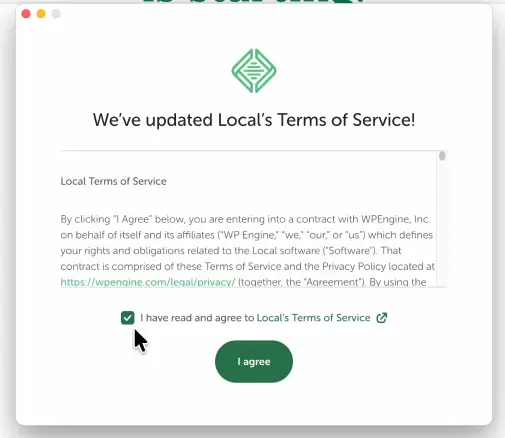
Agree to the Terms of Service.
Step 3: Setting Up Your Account
When you first launch Local, you will see a “Welcome” screen.
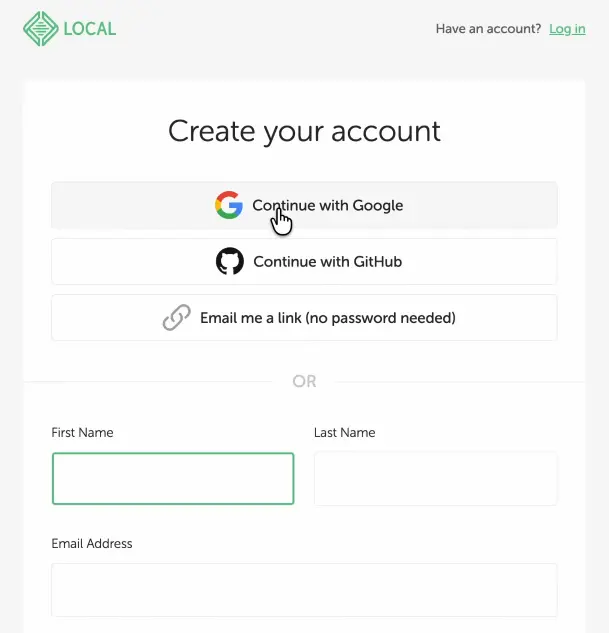
You will need to create a free account to proceed.
The easiest way is to continue with Google.
Once logged in, you can open the app. You can choose “No thanks” for error reporting and usage reporting to keep things private.
Step 4: Creating Your First Local Site
Now, let’s build the site:
Click the “Create a new site” button.
Choose “Create a new site” (not from a blueprint) and click Continue.
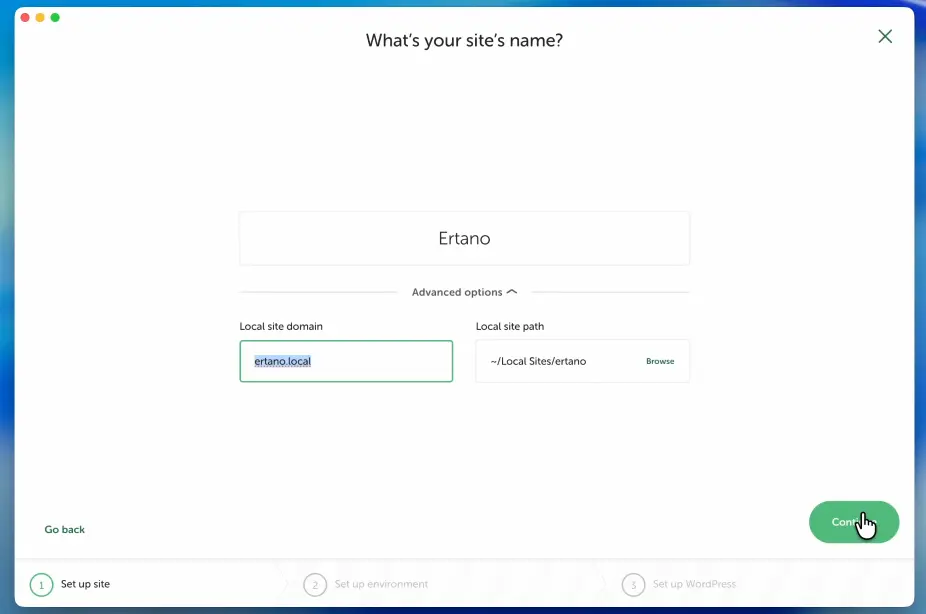
Name your site: I’m naming mine Ertano.
Advanced Options: Here you can set your domain and path. I’m changing the default ertano.local to ertano.learn.
Step 5: Choosing the Environment
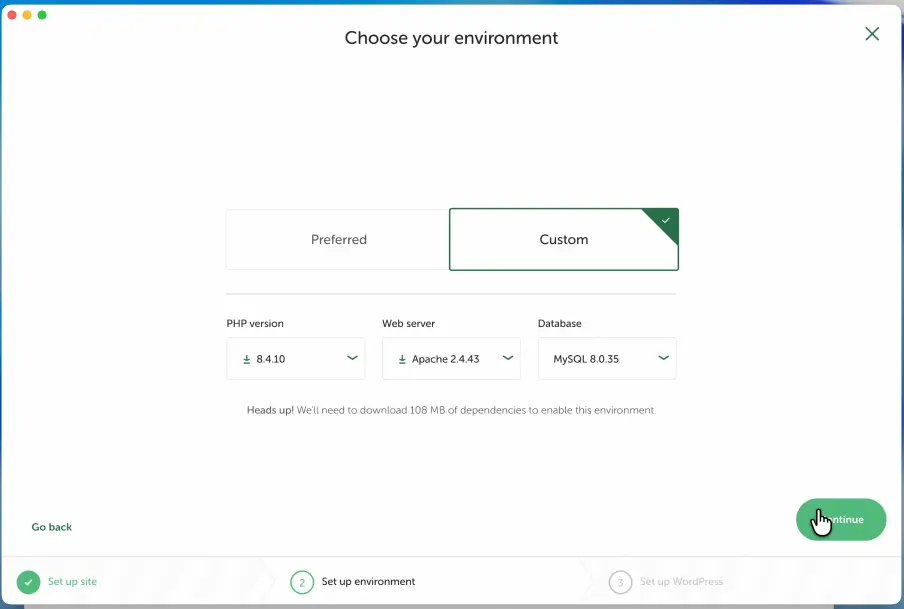
Local WP gives you great control over your server settings. I recommend choosing a Custom Environment:
PHP Version: I’m choosing the highest one, 8.4.10.
Web Server: While Nginx is great, for teaching purposes, it is better to use Apache.
Database: Select the latest version available.
Step 6: WordPress Login Details
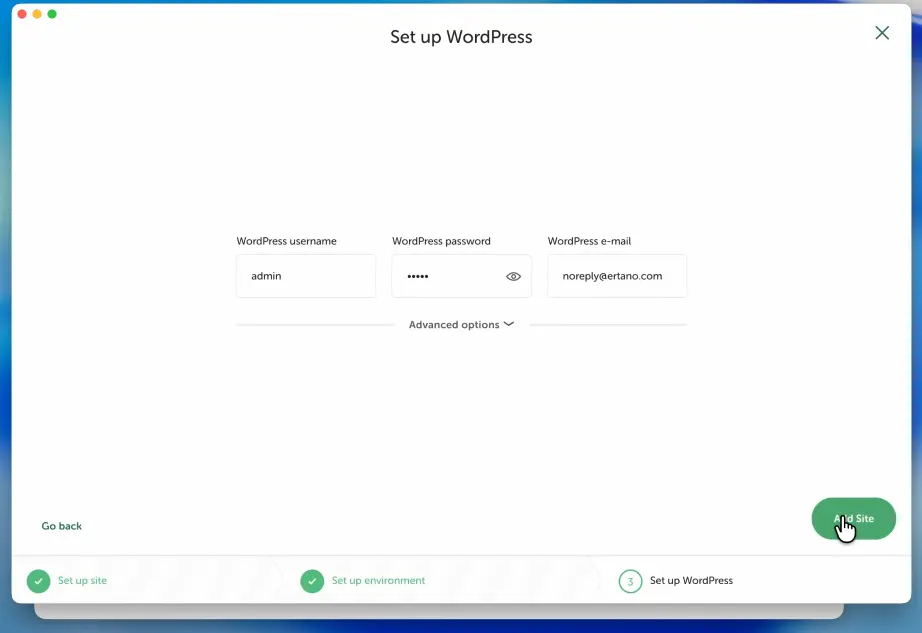
Set up your credentials:
Username: admin
Password: [Your Password]
Email:no-reply@ertano.com
Click “Add Site”.
Step 7: Finalizing the Setup
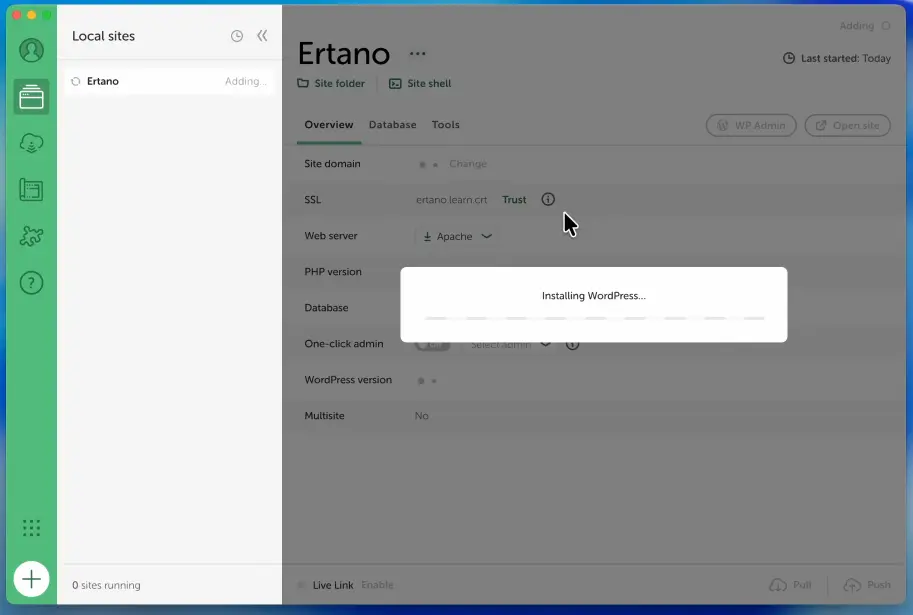
The software will now automatically:
Download WordPress.
Install PHP and the Apache web server.
Configure everything for you.
That’s the beauty of it: You don’t need to struggle with downloading WordPress manually, uploading files, or copying directories. It handles everything.
Note: You might be asked for your system password. This is because Local WP needs permission to copy files and set up site services in your user directory.
Step 8: Accessing Your Website
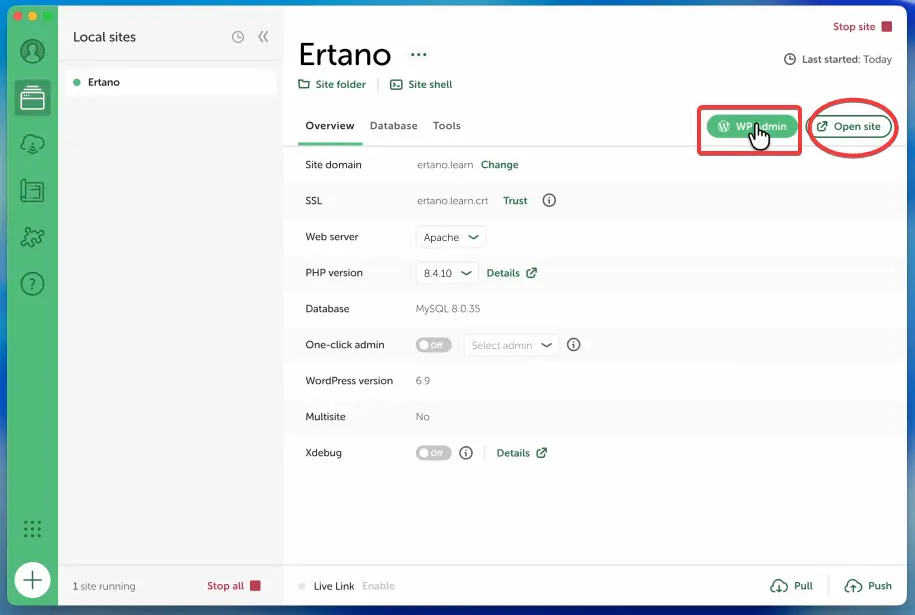
Once the installation is finished:
Click “Open Site” to view your brand-new website in the browser.
Click “WP Admin” to go to the login page.
Enter your admin username and password.
Success! You are now in your WordPress dashboard, running on your personal computer without any errors or problems.
UI Compatibility
Whether you are on Windows or macOS, the User Interface (UI) of Local WP is exactly the same. Even though I demonstrated this on a Mac, I will record another video specifically for Windows users soon.
Stay Connected
If this guide helped you, please take a second to like the video and subscribe to my YouTube channel. I am dedicated to teaching you how to build, grow, and maintain a strong website. Don’t forget to subscribe because every day I share new tips and tricks about WordPress and web development!
Editorial Staff
This content is produced by the Ertano editorial team. The quality and accuracy of the content have been reviewed and approved by Reza Rad.
Ahura WordPress Theme
The Power to Change Everything
Elementor Page Builder
The most powerful WordPress page builder with 100+ exclusive custom elements.
Incredible Performance
With Ahura’s smart modular loading technology, files load only when they are truly needed.
SEO Optimized for Google
Every line of code is carefully aligned with Google’s algorithms and best practices.

 Tutorials


 Ahura
Ahura Plugins
 Blog
Blog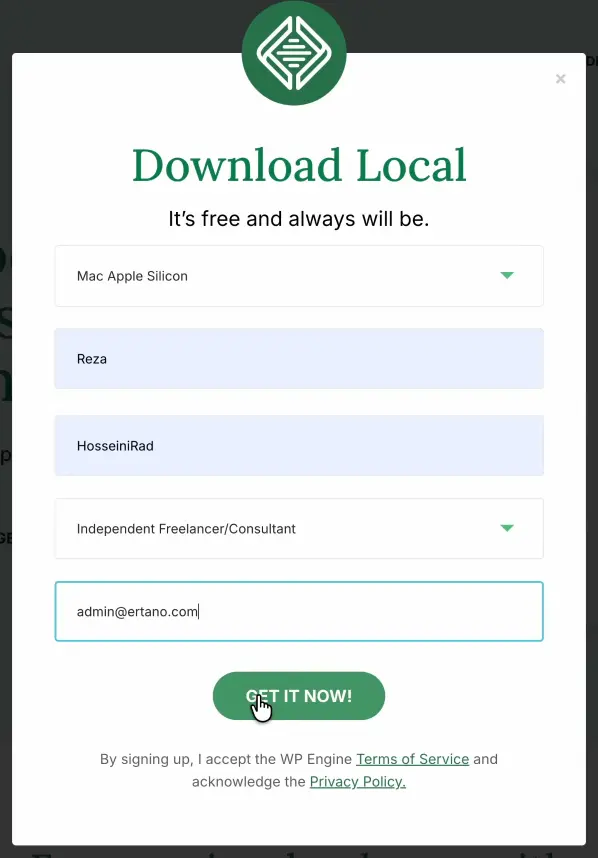

To post a comment, please register or log in first.