
 Tutorials


 Ahura
Ahura Plugins
 Blog
BlogInstall WordPress on an Android Phone (Local Web Server)
- Tutorials
- Updated on
Table of Contents
Introduction to Running a Web Server on Android
Imagine you have your own web server on your Android phone. Hi, and welcome back to another video. My name is Rad, and in this video I want to teach you how to install a WordPress web server on your Android phone. We want to have an environment to test and develop our website on our Android phone, not on macOS, not on Windows. We want to bring our phone anywhere and type our phone IP, our local IP of our Android phone, in any browser on any computer, and access our localhost web server. Let’s start. First of all, we have to go.
Downloading a Web Server App from Google Play
To Google Play, then search for web server and install a web server HTTP, Apache, PHP, SQL application. It’s free. Maybe you have to see some ads to support this developer, but you don’t need to pay anything to use this application. For example, in KS Web application you have to pay around 14 dirhams, it’s around 2 to 4 dollars, to access the application after 15 to 30 days. But for this web server, you don’t have to pay anything to use this application.

Configuring the Web Server and Document Root
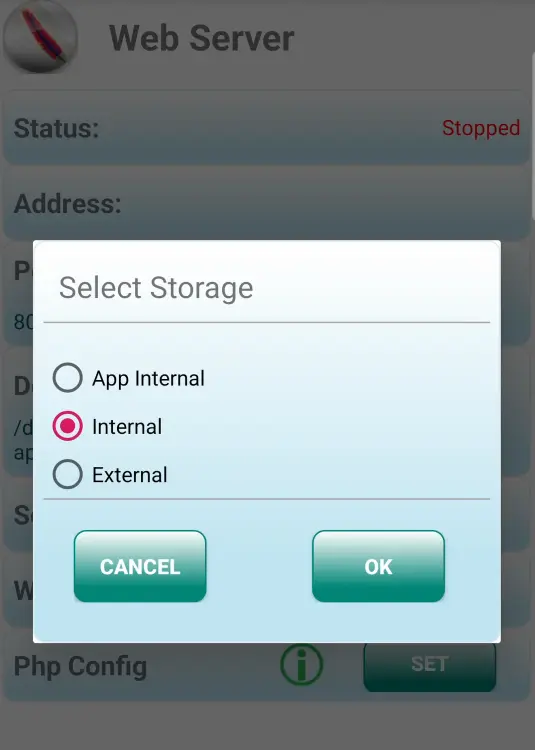
This application features: after installing this application, you have to open it and do some settings on your web server. When it opens, it’s extracting the components. Then we have to see some ads, and you have to give permission to all files on your phone. Then go back to the application. We don’t need to change anything here. Just select your document root, click Internal, and then, for example, we can select any folder, any directory on our phone. For example, Downloads, internal downloads.
Creating a Host Folder and Starting the Server
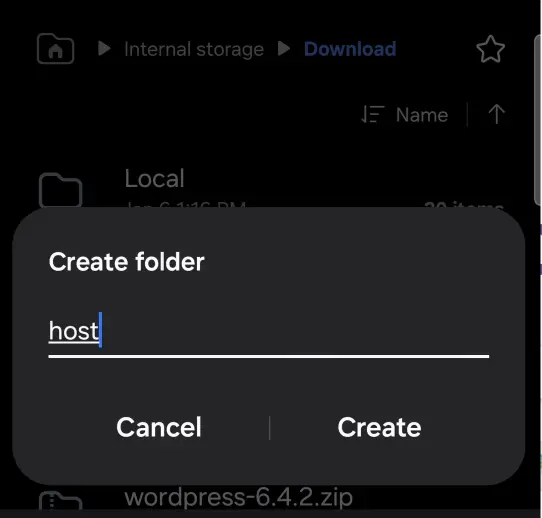
I’m going to My Files on my phone. I’m going to Internal Storage, Download folder, and create a folder here, for example, host. Then I go back to Download and select host from here, and select this document root. Now we have to start our service, so select Start. Again, we have to see some ads from the developer.

Starting MySQL and Getting the Local IP Address
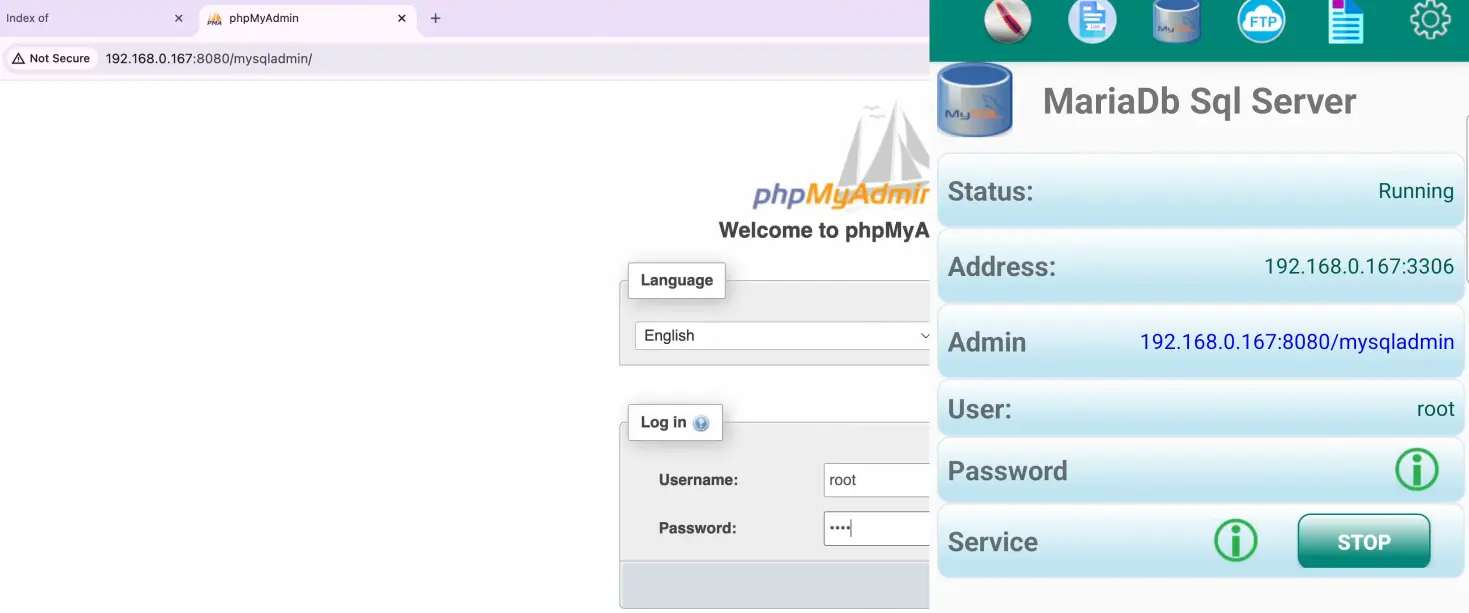
Now the service is started. We have to go to MySQL and start the MySQL service, and play ads again and again. Finally, MariaDB SQL server is running. Now I have my IP address: 192.168.0.167 with port 880. I can come here on my computer and enter this IP with the port, and now I can see index of this document root, which directory, host directory, that I selected in the previous steps. Then I can enter this IP and port, slash MySQL.
Logging in to phpMyAdmin
Admin, and with username root and password root, I can log in to phpMyAdmin system. Here I can install, create, and manage my databases.
First of all, to install WordPress on this web server, I have to download WordPress. I’m going to Google Chrome and typing wordpress.org/download to download WordPress, the latest version. Then I go to My Files, and I have WordPress here. Let me select and remove all of these files. Now it’s clear.
Extracting WordPress Files and Copying Them to the Server
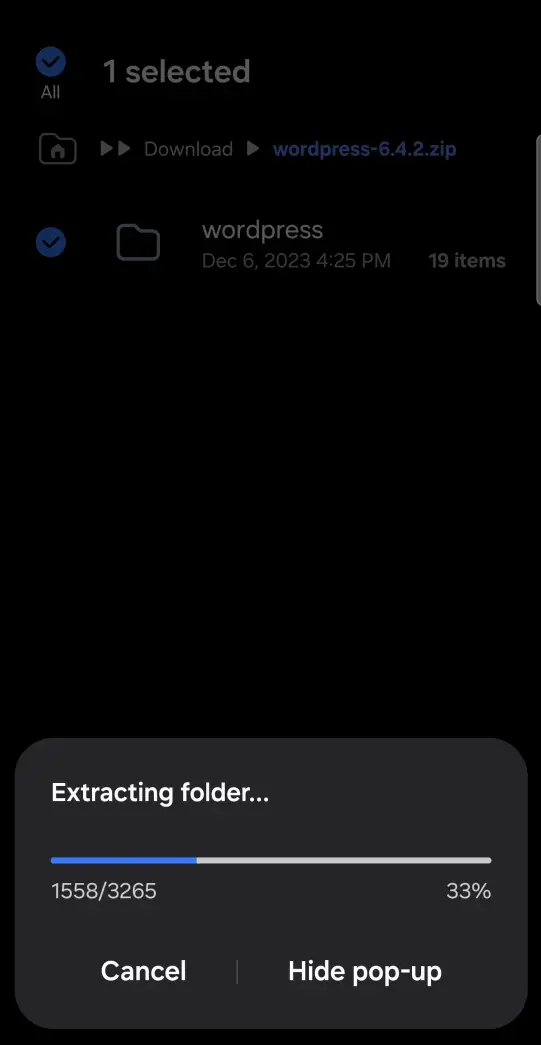
I’m opening WordPress and selecting Extract to extract WordPress in my Downloads folder. It’s extracting now. After that, I have to go to this folder, select all WordPress files, and copy all of these files to my document root, which is host in my Downloads folder. I’m selecting all files, selecting Copy, then going back to the Download folder, host directory, and pasting here. Now I can see these files by refreshing this page.
Creating a Database for WordPress
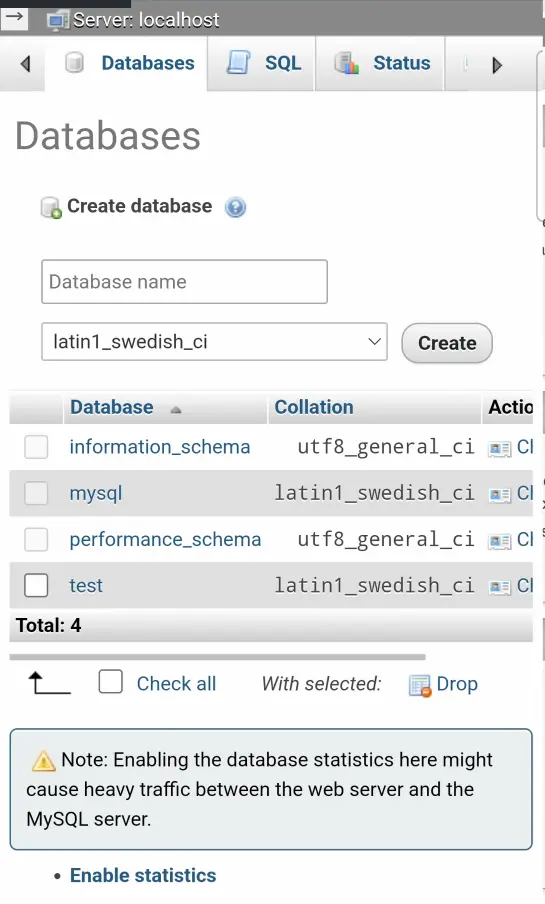
I’m waiting to complete the copying items. I can install WordPress through Google Chrome on my computer or on my phone. Let’s do it on my phone. I’m going to localhost with my port, slash MySQL admin, which is phpMyAdmin, with username root, password root, and select Go. I go to the Databases section and enter my database name, for example, erano. You can select your own database name. In the collation or charset, we have to select utf8_general_ci, and select Create.
Installing WordPress and Entering Database Details
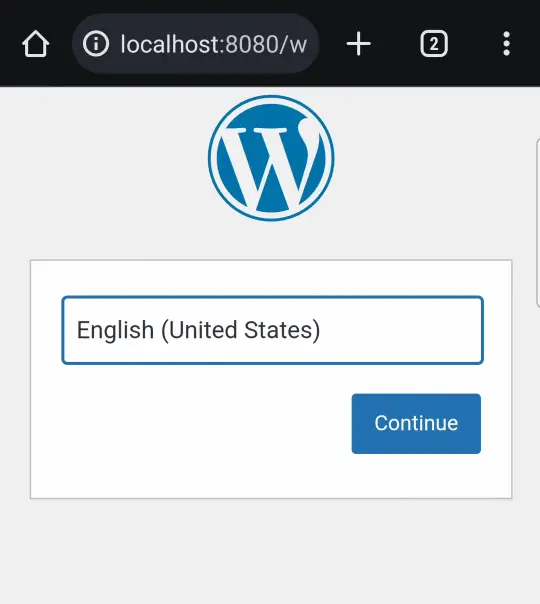
Now I have to go to localhost:88 and install WordPress. I’m selecting my language, United States English. After installation, you can go to General options in your WordPress panel and select any language you want. Continue. It says we need database information. I have the database information. My database name is ertano, my username is root, my password is root, and my database host is localhost. Click Submit, and we have an error here.
Fixing the Database Host Error and Completing Installation
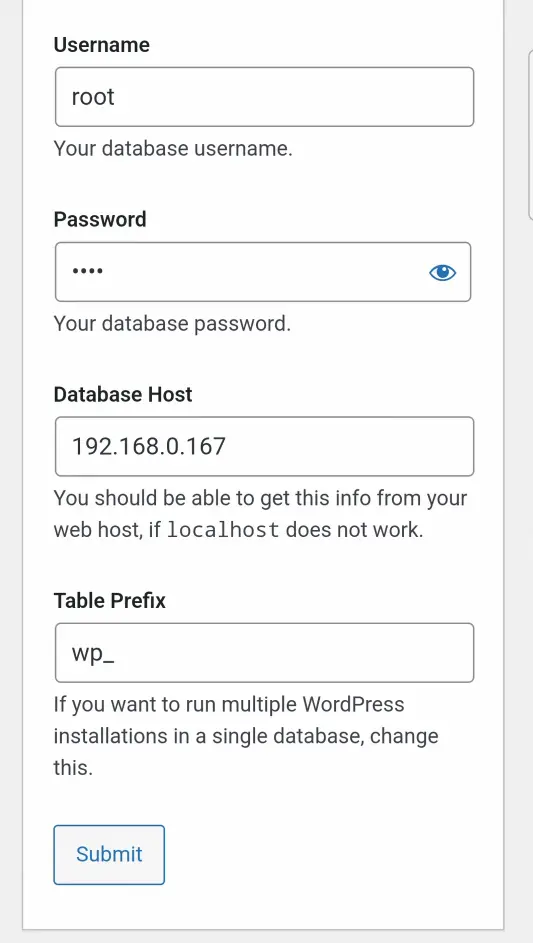
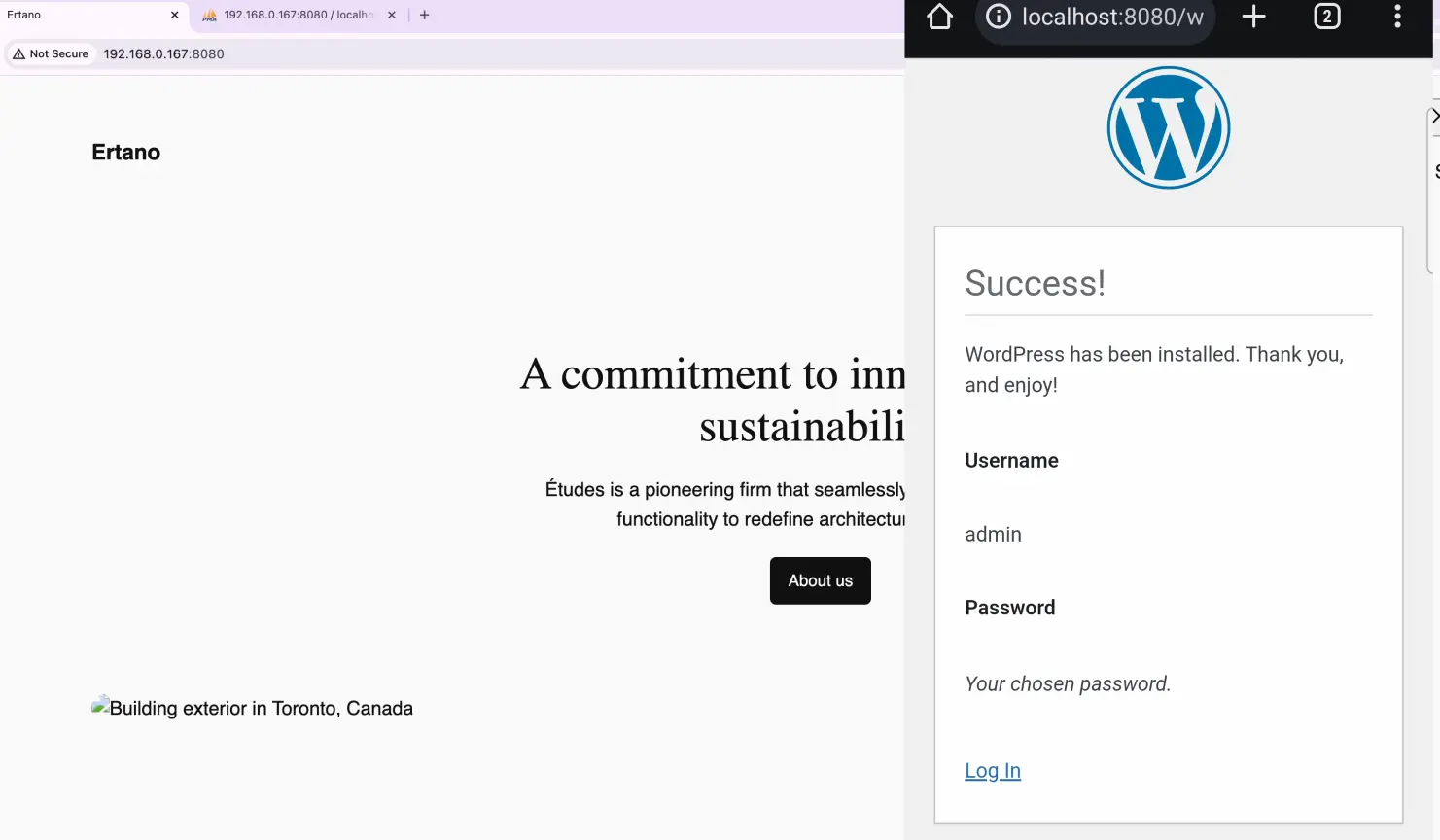
No problem, try again. For database host, I have to enter my IP address, 192.168.0.167. This is my localhost IP address. Submit, run the installation. It’s done. Now I have to complete my WordPress information, for example, website title, my username, which is admin, my password, which is almost admin. This is localhost, no problem, we can use a very weak password. Your email address, for example, hi@ertano.com, and install WordPress successfully. WordPress is installed on your mobile phone. Now we have access to it.

Accessing WordPress from Other Devices on the Same Network
WordPress is available on our mobile phone and in our browser. You just have to connect your computer and your mobile phone to the same Wi-Fi. Then you can enter your localhost IP on any system, for example, your tablet, your laptop, your MacBook, your Windows laptop, it doesn’t matter, your PC. You can enter your IP and access your localhost. That’s it. We have installed WordPress on Android system. Good luck.
Don’t forget to subscribe to our YouTube channel, like our videos, and make comments below. Thank you.
Ahura WordPress Theme
The Power to Change EverythingElementor Page Builder
The most powerful WordPress page builder with 100+ exclusive custom elements.
Incredible Performance
With Ahura’s smart modular loading technology, files load only when they are truly needed.
SEO Optimized for Google
Every line of code is carefully aligned with Google’s algorithms and best practices.

To post a comment, please register or log in first.