
 Tutorials


 Ahura
Ahura Plugins
 Blog
BlogHow to Install Custom Fonts on Your WordPress
- Tutorials
- Updated on

This is Amazon and this one is also Amazon but something is different—text styles and fonts! Hey guys, welcome to another video. Today I want to teach you how to install your custom font to your WordPress website or how to change your WordPress website’s text font family. Let’s go!
There are four ways to add your custom font to your WordPress website.
Table of Contents
Method 1: Using a WordPress Template with Built-in Font Options
this is Amazon and this one is also Amazon but something is different text styles fonts hey guys welcome to another video today I want to teach you how to install your custom font to your WordPress website or how to change your WordPress website’s texts font family let’s go there are four ways to add your custom font to your WordPress website number one you have to use a WordPress template that comes with different fonts for example here in my themes I’m using Ahura WordPress template today we are exploring the Ahura WordPress theme known for its flexibility and ease of use Ahura is designed to cater to various website types from blogs to business websites offering a user-friendly experience and responsive design and one notable feature of Ahura is its typography options user can select from a variety of pre-installed fonts or they can upload their own fonts to personalize their website this flexibility allows for complete control over your website ensuring that the visual style aligns with your brand identity with its robust features and controls Ahura helps you to create unique and effective websites you can get it on ertano.com/ahura.
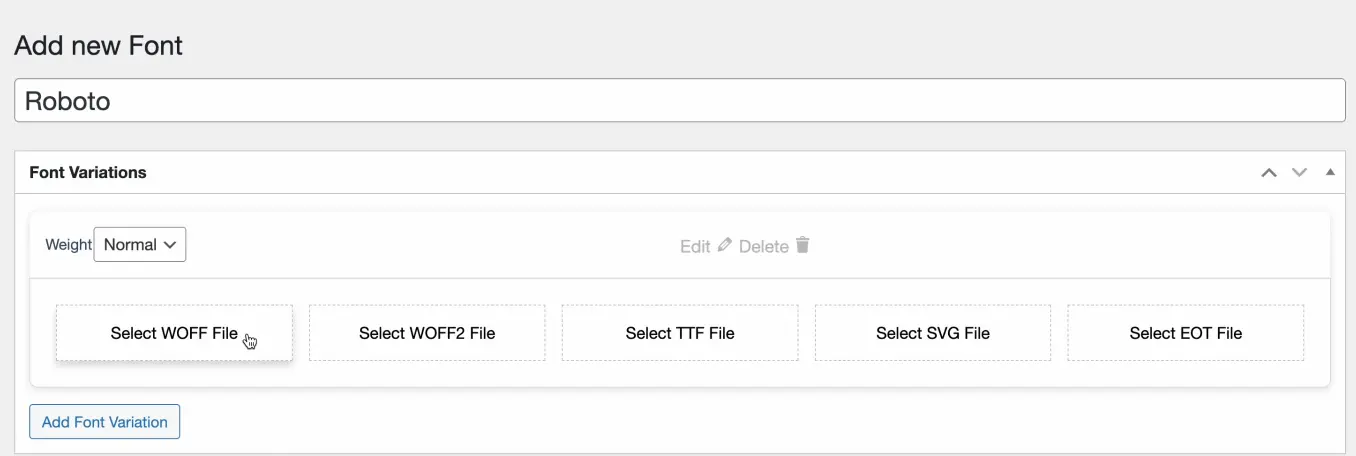
I have installed and activated Ahura WordPress template on my website so I’m going to Ahura fonts in my website’s dashboard or admin panel so you have to click on add new to add your custom font and here you can add and upload your custom fonts on your website here in title well I’m entering a name for my font for example Ertano or Roboto the font that I want to install on my website and click on add font variation
Uploading Font Formats
Here we can upload font types for font weights for example I want to use normal font weight here and I want to upload my font files here there are five five types of font file that old version and new version of different browsers are using these files to show your own custom fonts on your website so I have to upload them here but just I have a Roboto-regular .ttf file what about the other version of these files we can do it so we have to go to Google and type for ttf to for example WOFF file online and there are too many online tools that we can upload our ttf file and get our WOFF files.
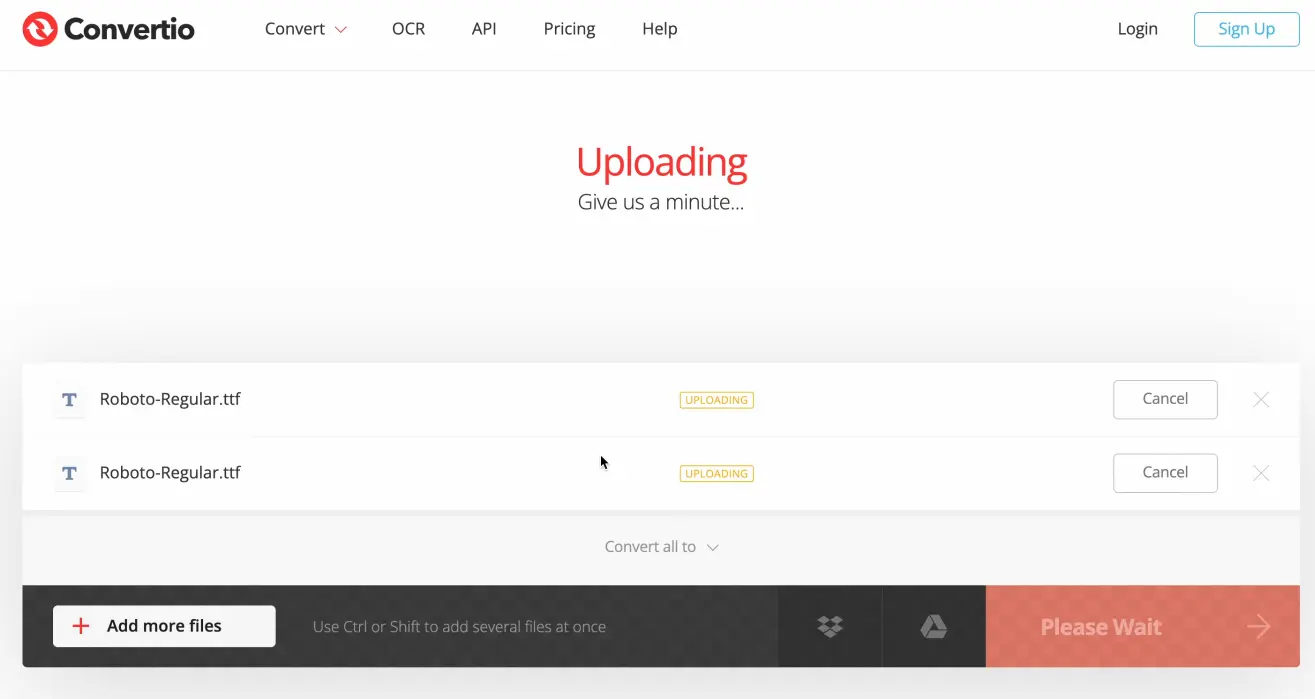
so I’m going to select my ttf file here and now I can convert it to WOFF and also I can select choose files again choose this file again and I can convert it to WOFF2 or SVG and so another one WOFF SVG ttf EOT maybe I cannot do it there is no problem I will convert these two files and download them all. so I’m going I have I have added ttf SVG and WOFF file here so I need WOFF2 and EOT file so I’m going to search for ttf to eot online and I can use for example this website to convert my ttf file to eot and click convert it’s uploading converting and then I can download it
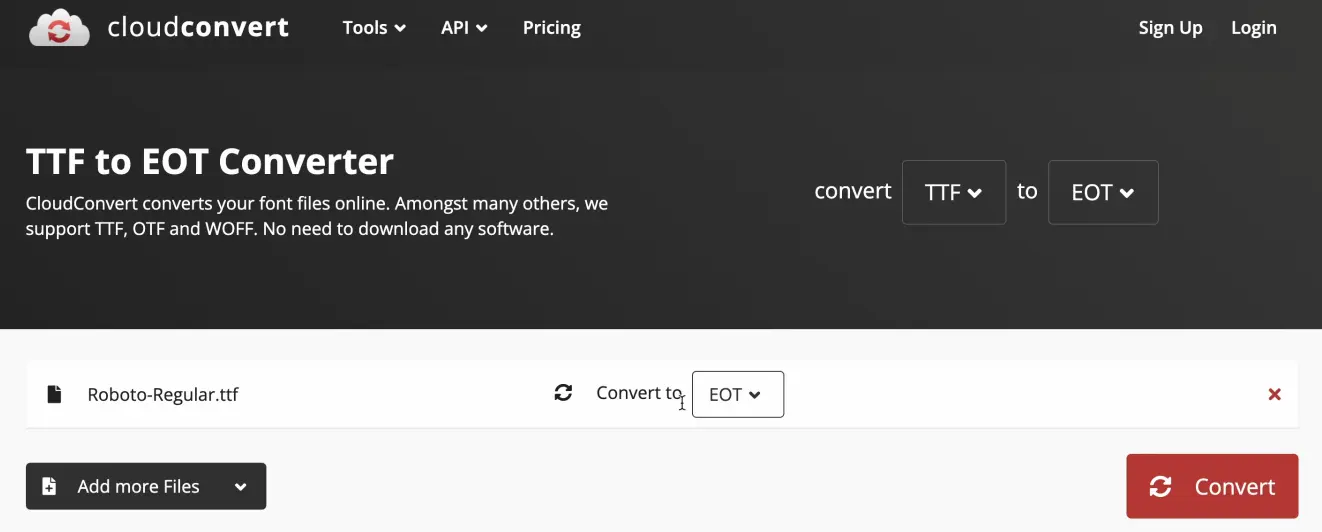
And so I’m going to ttf to woff2 online and Cloud Convert can do it also I’m selecting add more files and I want to convert it to WOFF2 and click on convert it’s going to convert my file and then I can download these files so I have five different formats of this file and I can upload them all here in my WordPress dashboard
Handling Upload Issues
I’m going to select WOFF file this one. I cannot upload this file what I have to do I can add custom upload custom format uploads in my WordPress website or maybe in theme setting I can go to go to maybe global settings allow upload font files click on publish maybe now I can upload my files here there is no way no problem I’m going to my website my website hosting panel. so I’m going to website that I bought my hosting panel from there for example my hosting company. I’m going to services this is Persian website but you have to go to your Cpanel or DirectAdmin you know.
I’m going to my Cpanel file manager and if you don’t know how to log to your Cpanel or your DirectAdmin you have to search in my website I’ve uploaded a video about install WordPress and I’ve taught you how to log to your hosting control panel. I’m going to public_html here in wp-content in my themes folder. I’m going to my theme folder .And here I can upload a new folder for example Roboto and I can go to this folder and upload all of my files here for example SVG ttf WOFF and also I can download WOFF2 and the EOT file and upload them all here so I have five formats of my fonts here in Roboto directory
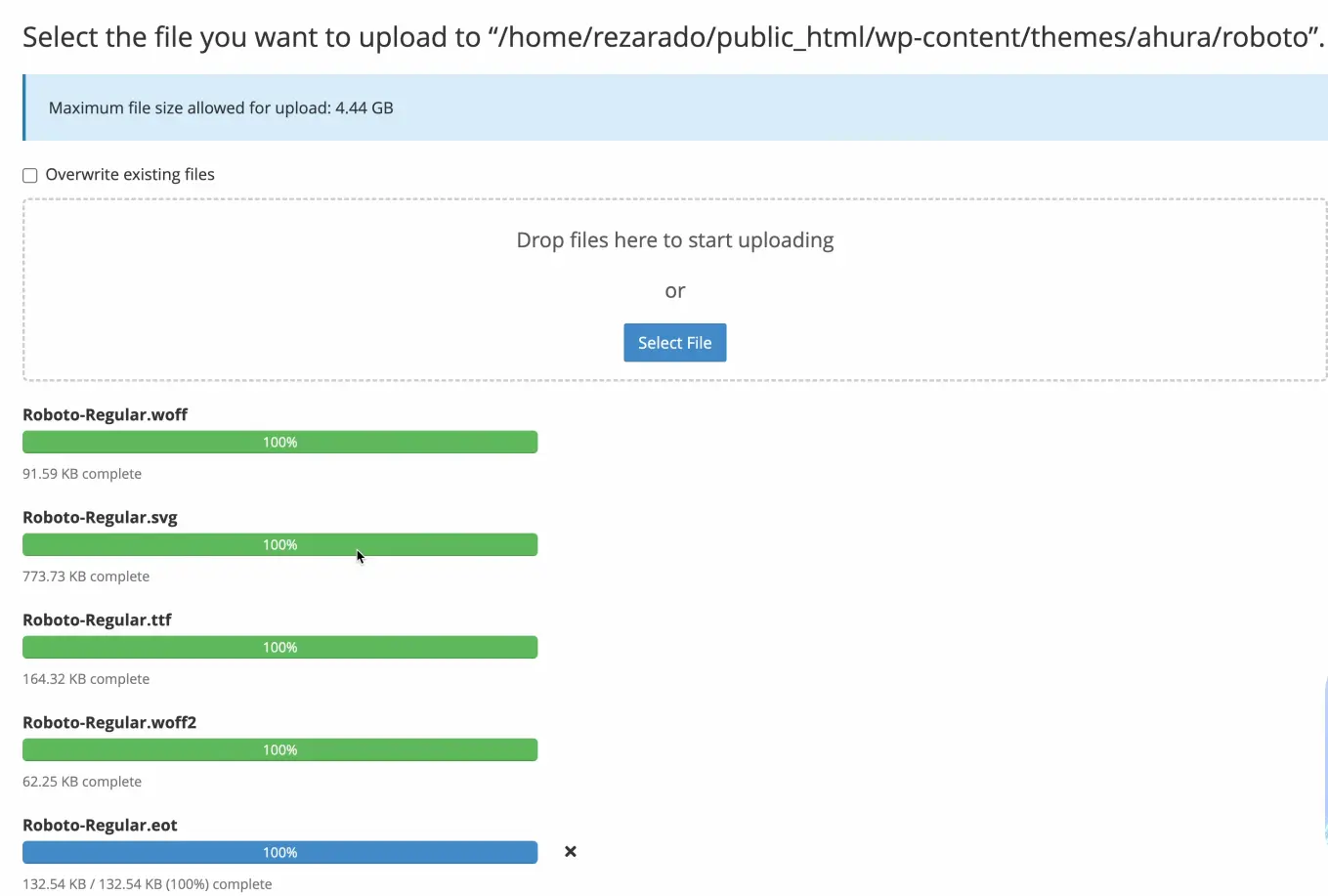
Now I have to how can I upload them here how can I upload them here okay I’m going to upload ttf file maybe it’s not about format you know no it’s not about format it’s about failed upload test. why?
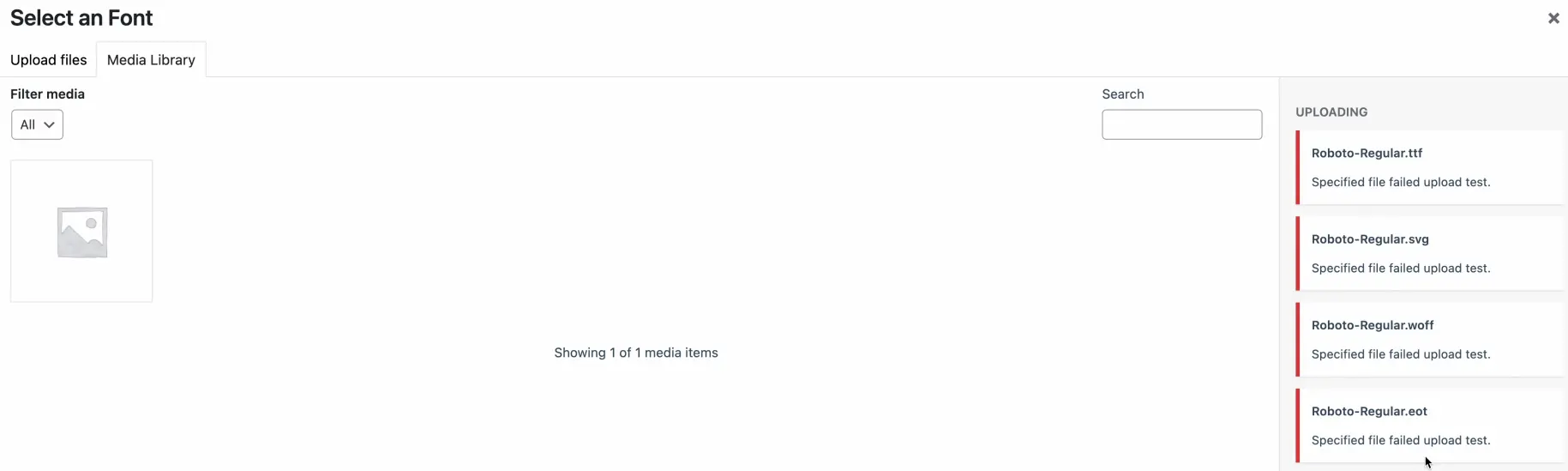
okay let’s try with another website I’m going to ertano.com/ahura/wp-admin to my demo wp-admin so here I’m going to for example one of these websites for example this website I’m going to dashboard and here I can select Ahura fonts and add new my own custom font for example Roboto add font variation and here I can upload this file yeah I can upload these files here okay WOFF WOFF2 ttf file SVG file and EOT file and I can publish these fonts now I can go to my website click on customize or if you are in your WordPress dashboard you can go to Ahura theme settings and here you can go to style typography and you can select your added custom fonts here for example Roboto and here my website is showing with my custom font

Method 2: Using Elementor Page Builder
Way number two you can use Elementor to add your own font to your website. I’m using default font it doesn’t matter what theme or what template. I’m using on my website now I have to go to my website from edit with Elementor I have to select site settings here and I can edit and customize my fonts in this panel in global fonts and typography section.
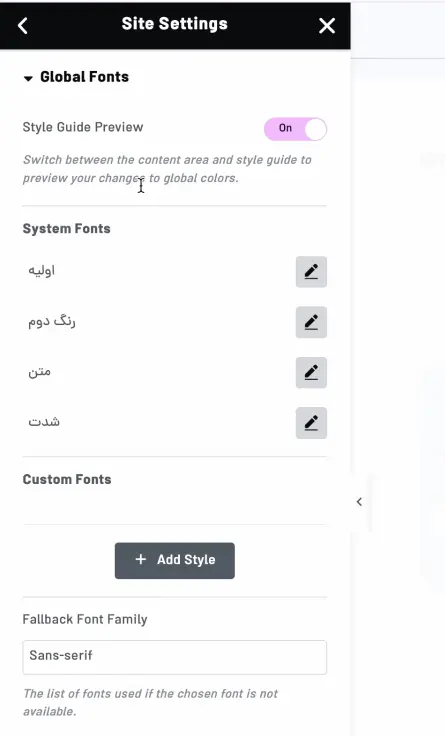
I can select see system fonts and here I have too many fonts from Google Fonts and I can install or use every font I want for example there is a Persian font there are too many fonts from Google
I can choose every font I want I can change sizes font weight font transform style and everything I want for different parts of my website site also I can select update click on update and then I can go to edit with Elementor for a specific page for example I want to apply just one font to one of my texts on my website so I’m going to edit with Elementor for my homepage and here I have a title for example this title and I can select style in typography section I can select which font I want for especially for this title for example this one and it’s selected just for this title

but for to have the best the best website speed you want I prefer you to don’t use too many fonts on your website maximum use two fonts because it’s downloading every time your users want to open this page or all of your pages on your website so if you use for example 10 fonts and every font every font have for example 300 kilobytes of size so your user has to download three megabytes something like that yeah three megabytes of file to download and see all of your texts fonts so it’s better to use one or maximum two fonts on all of your website all pages of your website so it’s better to edit your fonts from Elementor settings not from this section yeah it’s better to do it but it’s up to you
Method 3: Adding Google Fonts Directly with Code
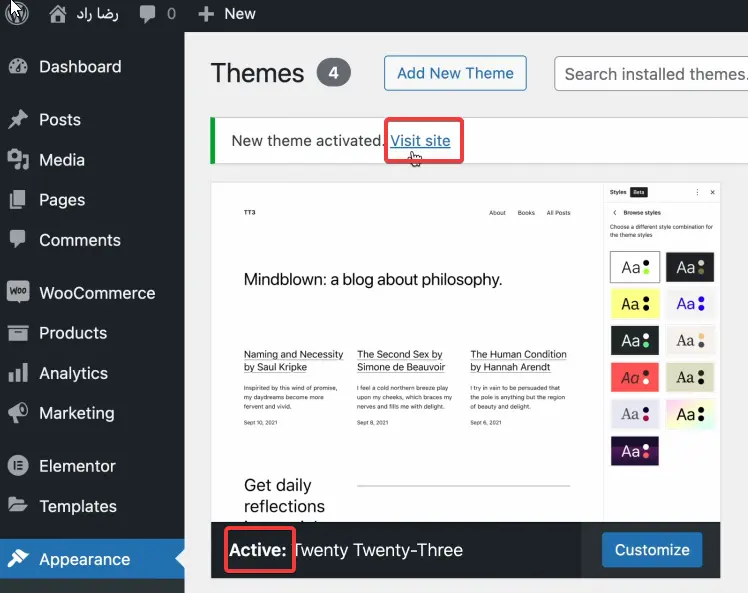
You can add your fonts from Google Fonts for example here in my website I’m not using in this website I don’t want to use any professional theme I don’t want to use Elementor I don’t want to install any plugin and I just want to add a font from Google Fonts or my own custom font I will teach you in next step in my customized theme or just maybe on a free theme for example here I have 2023 on my website and I’ve activated this font on my website.
I don’t have too many options to change my fonts on my website and I want to add it directly with codes . so I’m going to activate this template then I click on visit website and here I want to change this font to my preferred font.
so we have to go to our Cpanel file manager or our DirectAdmin file manager then we will go to wp-content and themes and here I have to select my theme folder my theme directory is 2023. So I’m going to this folder and here I have to add a new file. which file? if your language is RTL for example Persian or Arabic or Pashto or something like this you have to create rtl.css file and if you are using LTR languages for example French English something like this you have to enter ltr.css or left-to-right.css.
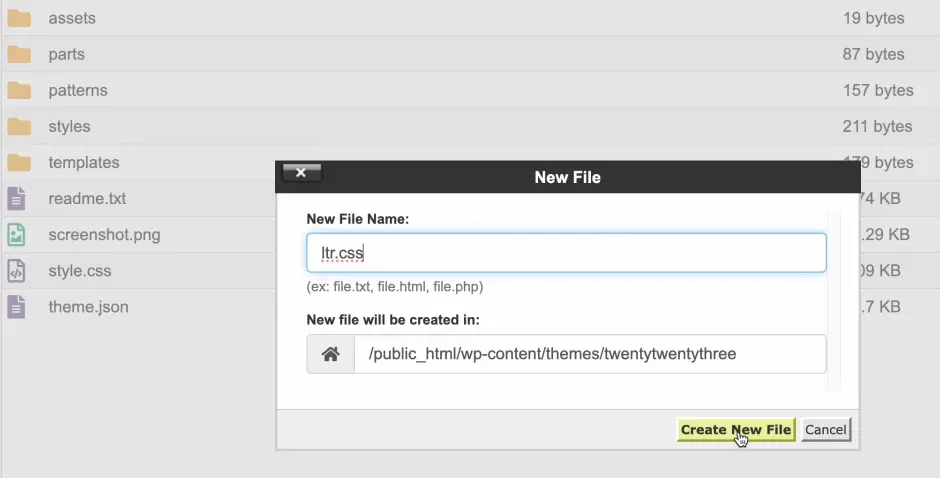
So create new file and right click and edit this file it will load automatically based on your language if you’re using English for your website this file will be loaded automatically on all of your pages so you don’t have to import or mention this file in another file WordPress will detect and load this file automatically.
Then we have to go to fonts.google.com there is a directory for fonts you will love I’m sure here you can select font that you want for example let me let me select font I want something different for example this one.

And we have to click on get font and get embed code for web link copy code first of all we have to add this part of code to our template header.php.
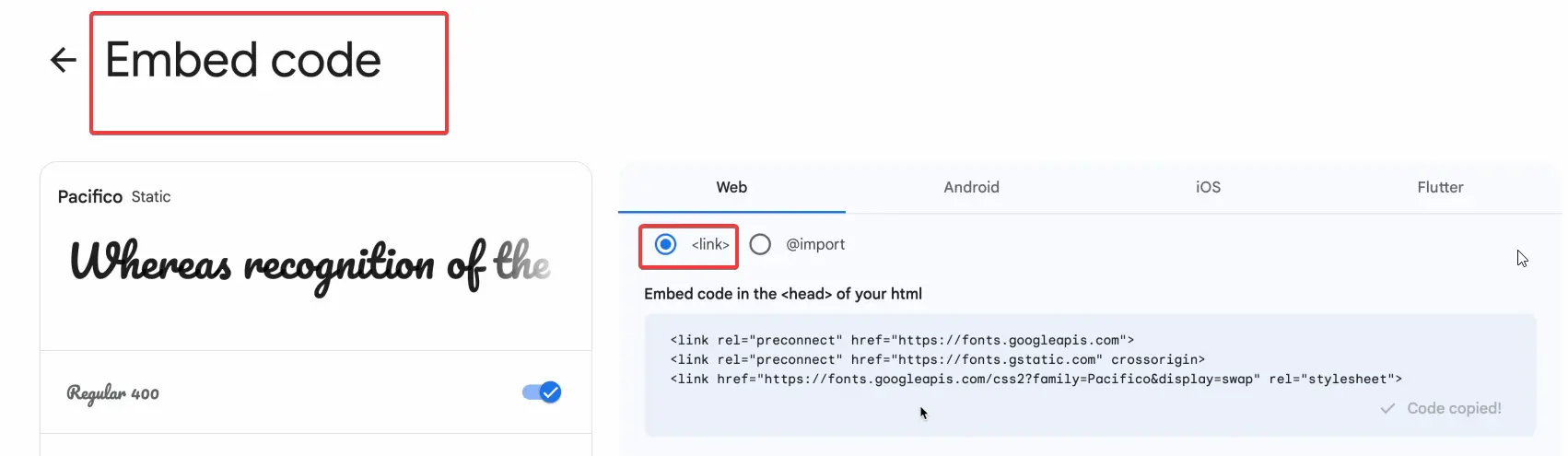
We don’t have any header.php file here so we can go to templates and here we can select header.php there is no header.php so no problem we can select on import and another we have to use another type of font import here in ltr.css.
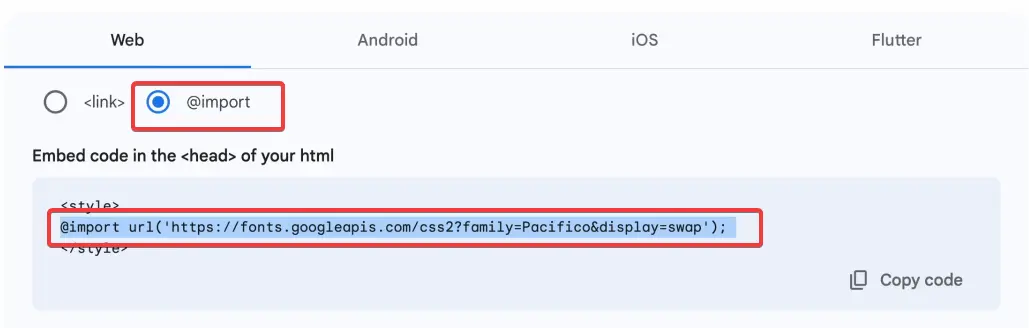
I will choose this line @import don’t need style and style closure just this line @import URL font family Pacifico
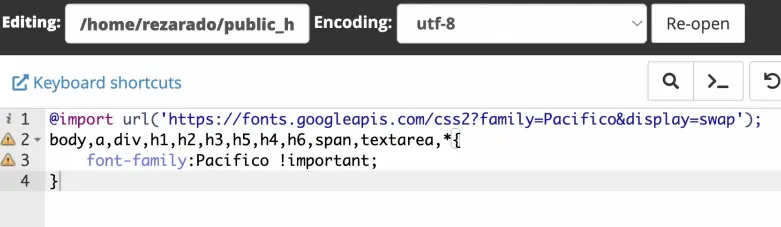
So in the next we have to for example type body comma a comma div comma H1 H2 H3 H4 H5 H6 span textarea and also we can use star to include all of them and open this CSS style so we have to enter font-family for example Pacifico something like this and then we can type !important here to make it important and then save changes.
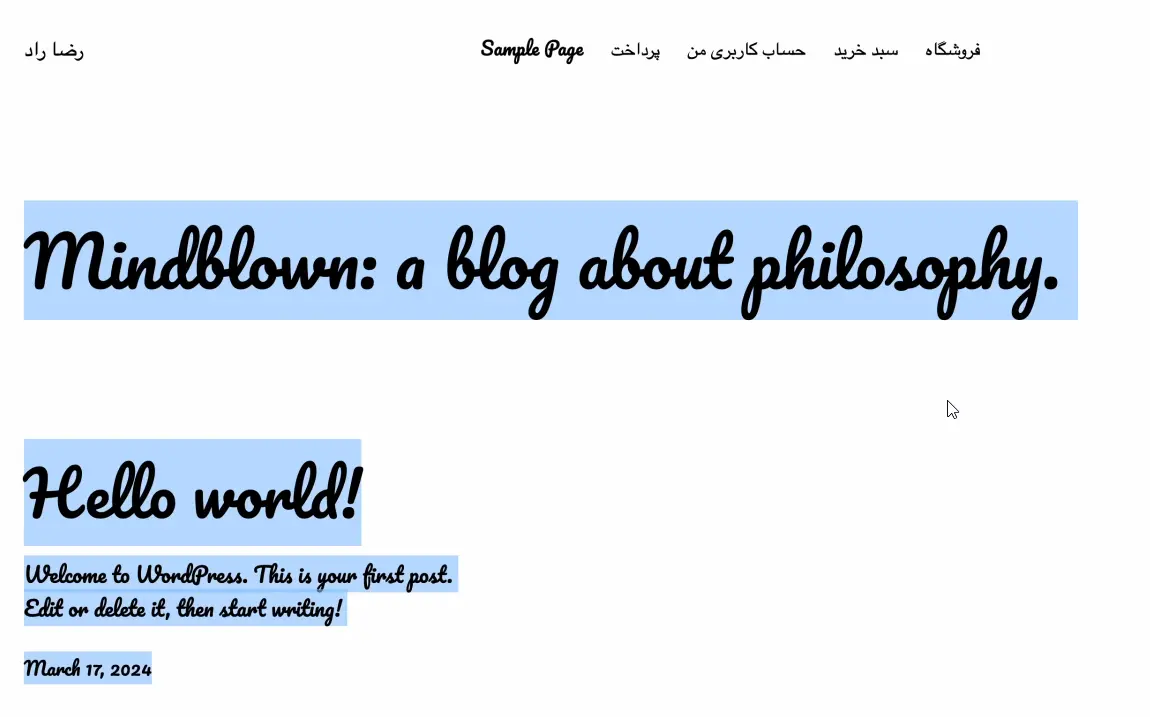
I’m going to refresh my website and here I have to I have a new font Pacifico and all of my texts on my website are showing with this font.
Method 4: Custom Uploads with Code
We can add our uploaded our our custom font files and upload them all on our website for example here I had Roboto with five different formats so I’m going to delete these codes.
first we have to upload these files on our template directory so I’m going to add a new folder for example fonts then I will select this directory I click on upload and I will upload them all here these five formats in file manager.
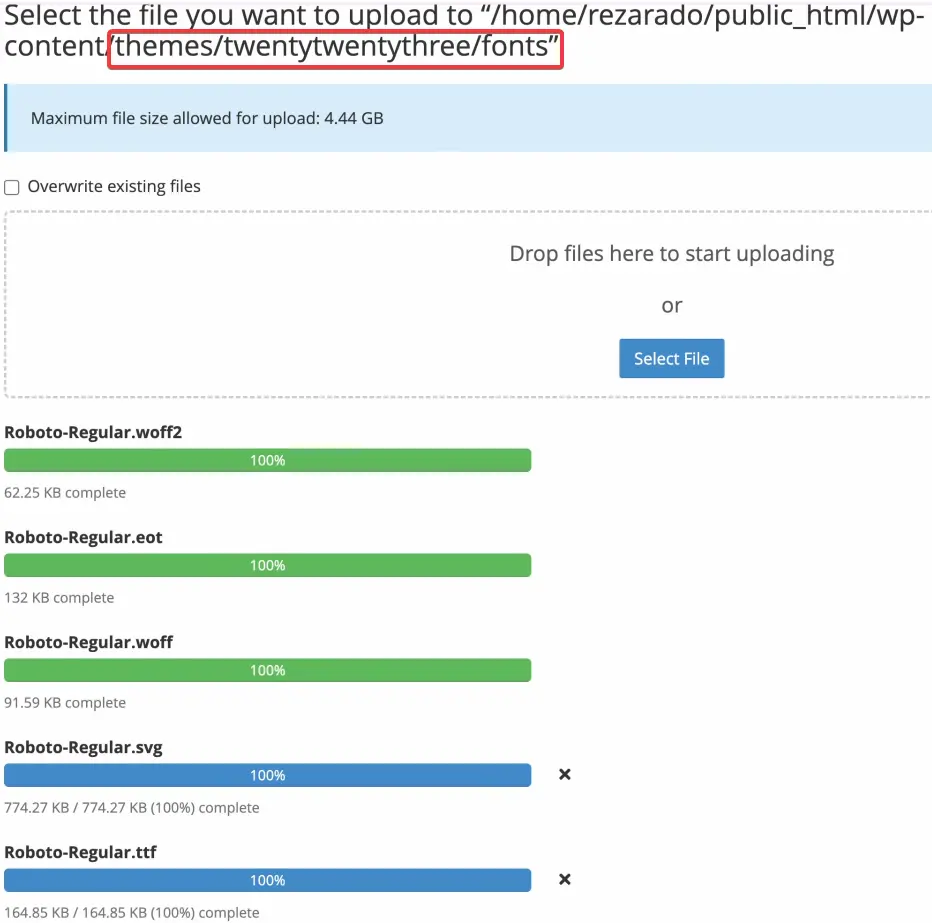
Then I’m going to reload this page to be sure about all uploaded correctly then we have to add these lines of code in our ltr.css file for example here it shows what is font-family it was Roboto Roboto font source is fonts/ what is the file name Roboto-Regular.eot and I will copy and paste it for all of these files I’m importing different formats of this font in my website there is no need to import SVG and ttf WOFF WOFF2 and EOT is enough so again body a or maybe star for all of CSS selectors font-family is Roboto and !important save change.
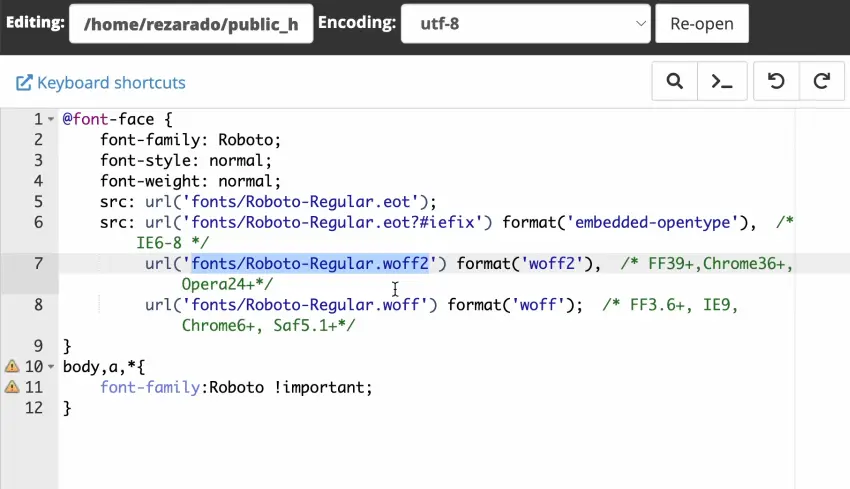
@font-face {
    font-family: 'Roboto';
    src: url('fonts/Roboto-Regular.eot');
    src: url('fonts/Roboto-Regular.eot?#iefix') format('embedded-opentype'),
         url('fonts/Roboto-Regular.woff2') format('woff2'),
         url('fonts/Roboto-Regular.woff') format('woff'),
         url('fonts/Roboto-Regular.ttf')  format('truetype'),
         url('fonts/Roboto-Regular.svg#Roboto') format('svg');
}

* {
    font-family: 'Roboto' !important;
}
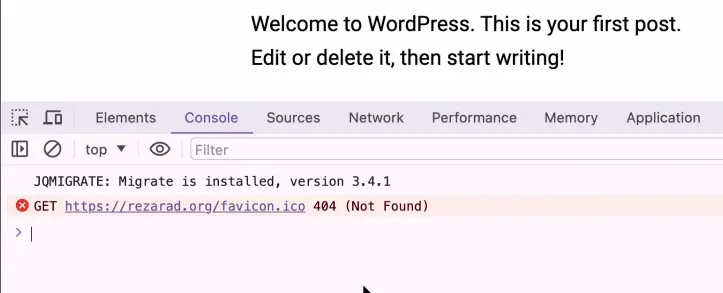
So I’m going to refresh my website I have to right click and click on inspect and here there are no errors this error is for my favicon file it’s not about my font file and if you have any error here you have to check for these files or maybe for example I’ve entered double e by mistake for this line so I will get error here you know 404 error so you have to check for these files the names and file paths these are correct exactly correct so I’m going to refresh my page and there is no error for my font files so I have added fonts my own custom fonts to my website to my own website in four different ways and that’s it you can do everything with WordPress
Thank you for watching this video don’t forget to like and subscribe us on YouTube
That’s it! You can do everything with WordPress. Thank you for watching this video. Don’t forget to like and subscribe to us on YouTube!
Ahura WordPress Theme
The Power to Change EverythingElementor Page Builder
The most powerful WordPress page builder with 100+ exclusive custom elements.
Incredible Performance
With Ahura’s smart modular loading technology, files load only when they are truly needed.
SEO Optimized for Google
Every line of code is carefully aligned with Google’s algorithms and best practices.

To post a comment, please register or log in first.