
 Tutorials


 Ahura
Ahura Plugins

 Blog
BlogGoogle Search Console Tutorial – The Comprehensive Guide to Google Search Console

If you are a website owner and intend to know exactly how Google sees your site and why some of your site’s pages get traffic while others don’t, then you better get acquainted with Google Search Console. A tool that Google itself provides to you so you can monitor your site’s status in search results, find its problems, and work step-by-step on improving your site. Many users have heard its name, some are even familiar with its environment, but they have never correctly understood the application of each section or how they can use it for their site’s growth.
In this tutorial, we are going to start from zero; from what Search Console even is and what its duty is, to how to register your site within it, how to read errors, what statistics it gives you, and exactly how each section helps you. This entire tutorial is based on the latest version of Search Console. Wherever Google has updated or changed something, it has been explained for you within this same tutorial. The goal is that when you have read this article, no part of Search Console remains ambiguous to you and you know exactly how to work with it.
Table of Contents
What is Google Search Console?
It is a tool that Google itself has provided for free to everyone so we can understand exactly how our site is seen in search results. The new version of Search Console has become much cleaner and more practical, allowing you to see which pages are getting traffic, what phrases people are searching that cause them to come to your site, and even what errors cause some pages not to index well.
In the new version, the tool’s appearance has become much simpler and everything has easier access. For example, Performance reports are now more accurate than before, and you can even see details of clicks, impressions, CTR, and average position simultaneously next to each other. On the other hand, Google has removed or merged many of the old sections to make the tool lighter so that one gets lost less among the menus. This means from the very moment of entry, you realize you are working with a modern and compact dashboard.
History
The Search Console we know now was previously named Google Webmaster Tools, and its greatest utility was for designers and technical specialists. At that time, its appearance was very dry and one had to search extensively for information to understand what was what. But after website ownership became more public and almost every small business became a site owner, Google decided to make the tool simpler and more understandable so that everyone could use it.
Gradually, new features were added, reports became better, and many complex and old sections were set aside. The result of all these changes became this same new Search Console we have now; a lighter, more understandable tool suitable even for people who do not have much technical experience. Of course, the main pillars of the tool are the same things that have been there since old times: understanding how Google reads the site, which pages have been indexed, and what flaws must be fixed.
Important Changes in the New Version
One of the most important changes noticed in the new version is this same simplification of the user interface. Reports have become more cohesive, some sections have merged, and data is displayed with much clearer descriptions. The Coverage section, which was previously confusing, has now been replaced by the Indexing report, and information is presented much cleaner and more analyzable. The Performance section also now has more granular filter possibilities, and you can understand exactly from which countries, devices, or queries you have traffic.
On the other hand, Google has placed a lot of its focus on content quality and page structure. For this reason, reports like Core Web Vitals and Page Experience have gained more importance. This means just being indexed is not enough; the page must truly give a good experience to the user to be able to rank. In the new version, these reports have become better and more accurate and clearly show which pages need speed or stability improvements.
Which Features Have Been Removed or Become Less Important?
Although the new Search Console has added more features, alongside it, several sections have either been removed or their importance has become much less than before. One of the clearest examples is AMP. Google officially announced that AMP is no longer an important criterion for appearing in search results; therefore, the AMP report was also gradually set aside and now no longer plays a specific role in SEO. Even if your site has AMP, it is important, but not as much as a few years ago.
Google’s method of working with Structured Data has also become simpler. Previously, it had a separate report for each type of markup, but now only the main reports like Products, FAQ, and Breadcrumb remain. Other items have either been removed from Search Console or their details have been reduced. This same thing has happened for sections related to Manual Actions and Mobile Usability; they still exist, but their importance and application are not like before.
In general, the new version of Search Console has placed most of its focus on helping us understand how to create better content and how to optimize our site’s pages for user experience, and instead of facing a mass of scattered tools, it provides us with an organized and practical dashboard.
Tutorial on Registering a Site in Google Search Console
When you enter Search Console for the first time, the first thing you must do is register or “verify” your site. Without this step, Google will not show any data about your site and practically won’t allow you to see how your pages behave in search results. Fortunately, this process is not very difficult; you just need to know which method is more suitable for your site and how to handle DNS Records or URL settings.
Methods of Site Registration
To start working with Search Console, you must first register your site inside it. This task is very simple; you just log into your Google account and enter your site’s address. To add a site to Search Console, Google provides you with two main methods: Domain and URL Prefix. The job of both methods is to verify site ownership, but their way of working is different, and it is very important to know which one is more suitable.
In the Domain method, the entire domain is verified; meaning all subdomains, all protocols, and all addresses come under Google’s supervision. But in the URL Prefix method, only the exact address you enter is verified, and if http, https, www, or non-www differ, they must be registered separately.
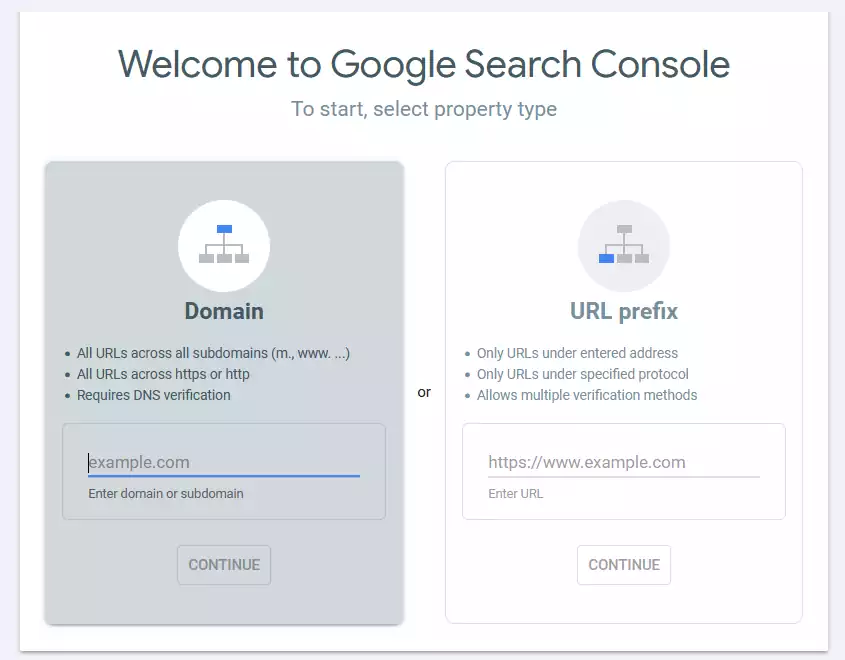
If you want to have full control over the domain, the Domain method is a better and more complete choice. If you only want to register a specific address without manipulating DNS, URL Prefix is faster and easier. However, for professional sites, it is always recommended to choose the Domain method so that no page slips through your fingers.
Domain Registration with DNS Record
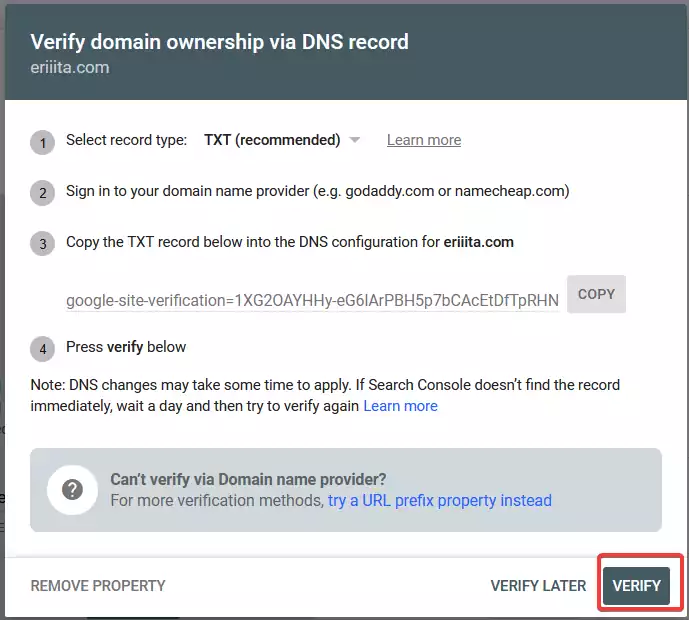
If you choose the Domain method, Google asks you to add a TXT Record inside your domain’s DNS. This record stays exactly like a piece of hidden writing inside your domain settings, which Google uses to make sure you are truly the owner of the site. Once you create the record, Google starts checking the DNS, and as soon as the changes are published, it verifies the domain.
In cPanel, this task is very simple. You enter the Zone Editor or DNS Zone section, select your domain, and click the Add Record option. Set the record type to TXT, place the record value that Google gave you into the Value field, and save. Usually, there is no need to change the TTL value; the default value is sufficient. You just need to know that DNS publication or “DNS Propagation” might take from a few minutes to an hour or two.
But there are also a series of common errors you should watch out for. For example, adding the record on the wrong domain, entering the wrong value, the existence of a similar TXT, or adding the record on the wrong DNS that is managed from somewhere other than the host. If you are using Cloudflare, you must also add the record exactly inside Cloudflare, not inside the host.
Final Verification Confirmation
After you have added the record, it is enough to go back inside Search Console and press the Verify button. If Google has found the record, it will be verified at that same moment; if not, try again a few minutes later. Usually, until the DNS is fully published, Google cannot detect your record, so a little patience always helps. After being verified, Search Console starts collecting data, though it might take a few days for the reports to become complete.
Introduction to the Main Sections of Google Search Console
Once you have registered your site and entered Search Console, the first thing you see is a relatively compact dashboard where each section is designed for a specific task. It might seem a bit confusing at first, but when you understand exactly what duty each part has, you will see that working with it is much simpler than you imagined. In this part of the article, we are not going to talk very theoretically; the goal is to review all the important sections of Search Console one by one, like everyday conversation, so you know which part is useful for what.
Insights Section
The Insights section is one of the most attractive parts of the new Search Console because, in this section, Google gives you a series of analytical and understandable summaries; things that you don’t need to analyze for hours like Performance. The goal of this section is for you to quickly understand what has happened on your site; which page has grown, which page is dropping, and in what direction user behavior toward your site content is moving. In simple language, this is like a ready-made report that Google has gathered from the heart of all the data.
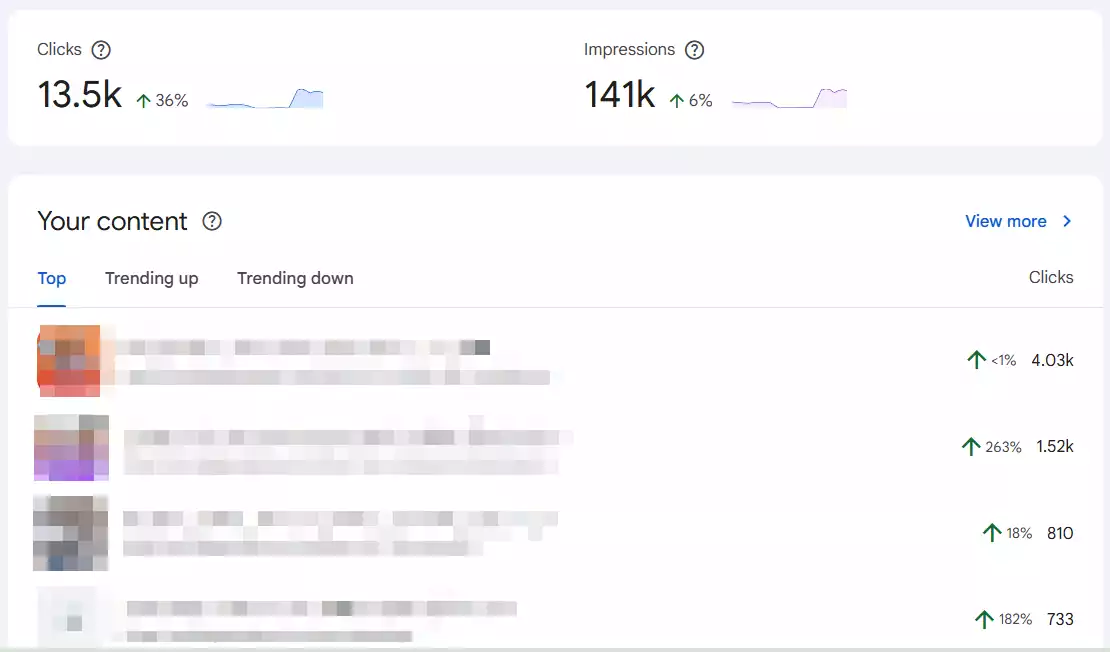
What makes the Insights section more important is that it shows exactly the things that matter for content SEO. For example, “Rising keywords”; meaning phrases that have been searched more in recent days and your site has gained a rank for them. This information is truly gold for content production because it tells you exactly what people are looking for right now and what phrases are trending. On the other hand, it also shows “Dropped keywords” so you understand which topics you need to work on again.
“Growing pages” are also another important part of Insights. Here, Google introduces pages that have had growth compared to the previous period. This growth can be due to an improved rank, an increase in clicks, or an increase in impressions. When you see a page is peaking, it means its topic is valuable, and perhaps by updating the content or adding new sections, you can bring that page up faster.
In contrast to it are “Dropped pages.” These are pages that have had a decrease in traffic or impressions compared to before. This information helps you discover the problem faster; a competitor might have improved their content, the rank might have dropped, or the page might even have technical problems. The important point is to see this decrease in time and react at that same moment.
Ultimately, the most important value of Insights is that it gives you a general and practical view. You don’t need to go look at a hundred charts to understand what is going on. This section has analyzed everything itself, and you just have to make decisions according to the data. For content production, updating old pages, finding new topics, and even analyzing the trend of user behavior, this section is truly one of the best and fastest tools that Google has provided.
Performance Section
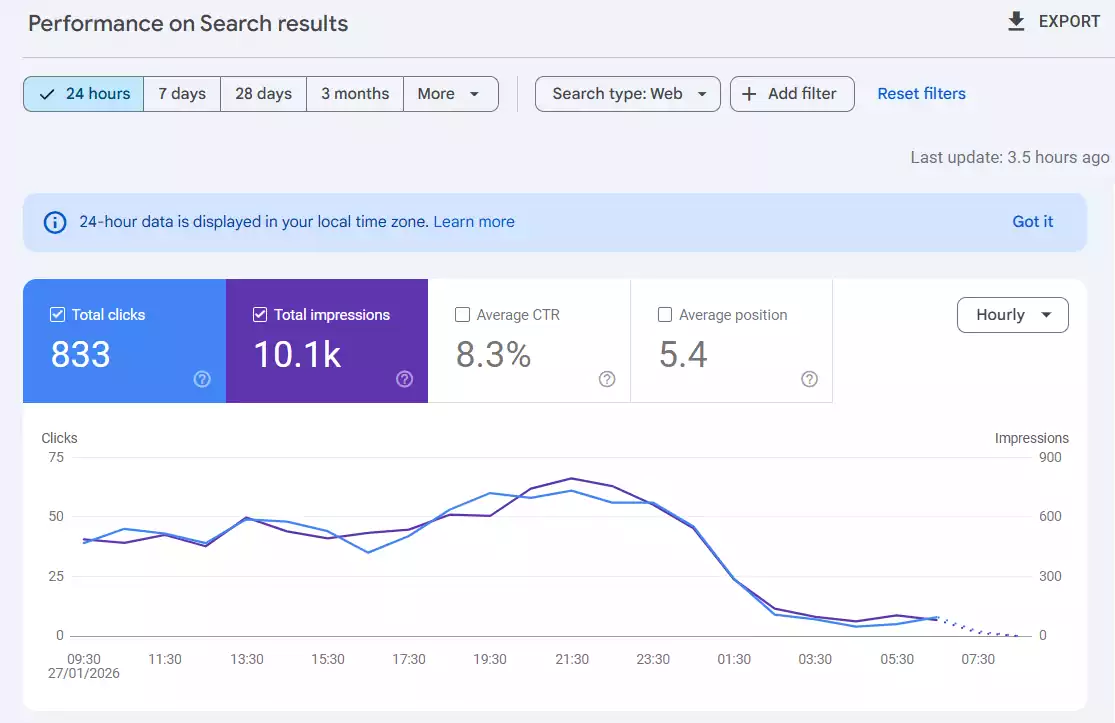
The Performance section is where everything becomes real and precise; meaning here you understand exactly how much traffic you got from Google, with what words users entered your site, what pages brought the most visits, and generally what your site’s performance looks like in search results. If you want to seriously follow only one section of Search Console, it is definitely this section, because all important SEO decisions start from here. The charts, data, and various filters make you understand much more deeply what works on your site and what doesn’t.
Performance Filters
One of the most important things you must learn is how to use filters. The first filter is the Date filter, which allows you to compare the site’s status across different days, weeks, or months. For example, if you want to see whether the changes you made this month had an impact or not, it easily comes out with a 28-day comparison. The Search Type filter is also one of those things that many people don’t take seriously, but it is important; because user behavior in Web, Image, Video, and even Shopping is different, and each has its own rankings and results.
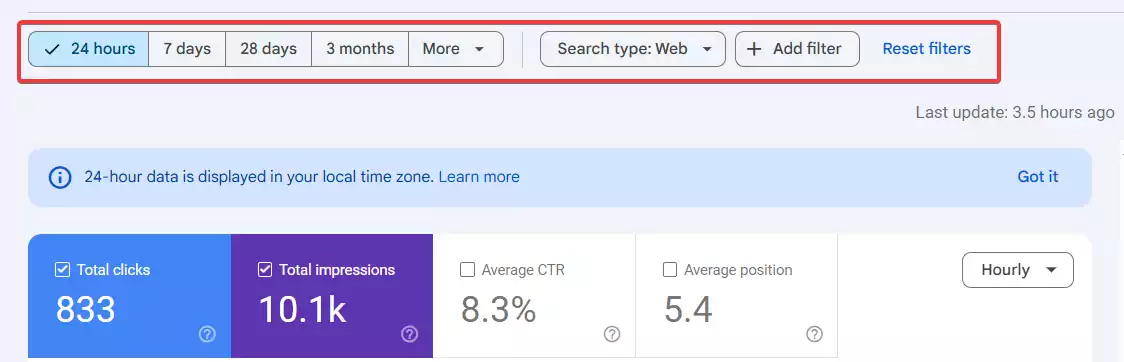
On the other hand, filters for Country, Device, Page, and Query also help you examine user behavior much more precisely. For instance, a page might work well on mobile but have lower traffic on desktop. Or you might suddenly get traffic from a specific country and want to understand the reason. With the Page and Query filters, you can see exactly which word has had more efficiency on which page.
Introduction to the Four Main Metrics
Now we come to the four golden numbers: Clicks, Impressions, CTR, and Average Position. Clicks are obvious; meaning how many people clicked on your site’s result in Google. Impressions are the number of times your page was seen in the results, even if no one clicked on it. CTR is the ratio of clicks to impressions; meaning if 100 people saw the page and 5 people clicked on it, the CTR becomes 5 percent. The last metric is Average Position, which determines what position you held overall for various queries.
Data Analysis
CTR is one of the most important metrics because it shows how attractive your result is. Sometimes your rank is good but you don’t get clicks, and this means the problem is usually with the title and meta description or the appearance of your result in Google. On the other hand, when you have high impressions, it means Google is giving your page a chance to be shown; now, if you are not getting clicks, it means you have missed a big SEO opportunity and you must work on it. Average Position is also something that many people misunderstand; this number is the average of all your rankings for all the words that users searched, not a fixed rank for a specific word.
Examining Pages and Queries
One of the most practical parts of Performance is this examination of pages and queries. By looking at the pages, you understand which content has the most Google traffic and which one has dropped. This helps you understand what type of content works for your site. On the other hand, when you examine queries, you find the best keywords that have brought you traffic and you even see phrases that are on the verge of growth.
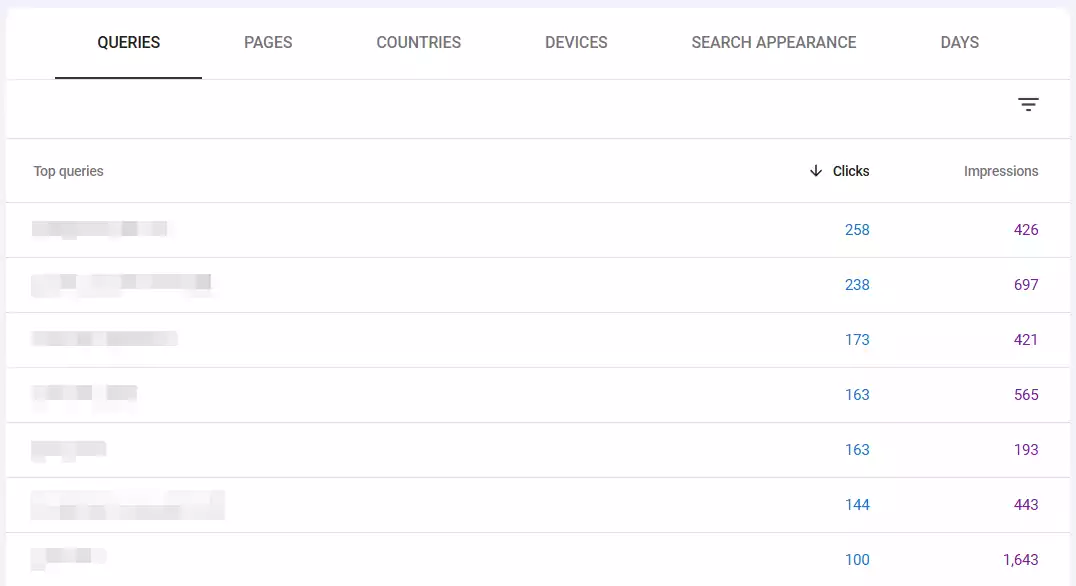
From this same data, you can discover new content production opportunities; for example, if you see a phrase has high impressions but you haven’t made a dedicated page for it yet, it means a great opportunity lies before you. Or if a page has ranked for several different words, it might be worth making its content broader and more complete. In short, Performance is the beating heart of SEO analysis, and any important decision you want to make starts right here.
URL Inspection Section
The URL Inspection section is one of the vital tools in Search Console; because here you understand exactly what status a page of your site has and how Google sees it. If you have just published a new page, made an important change to it, or doubt why it isn’t appearing well in results, the first place you should check is this section. It is enough to enter the page address so Google gives you its full details.
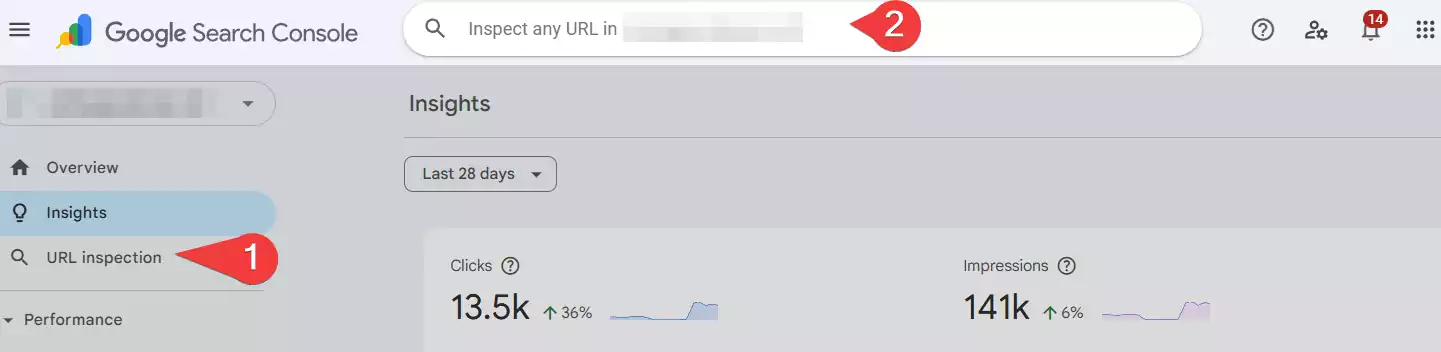
The first thing this tool shows you is whether the page is indexed at all or not. If it is not indexed, it usually specifies the reason; for example, the page might be Noindex, or Google hasn’t gone to it yet, or a problem existed in the page structure. If it is indexed, more precise information such as the last time Google crawled the page is also displayed. This section helps a lot to understand when Google last saw your content and whether it noticed your changes or not.
One of the most important things seen in URL Inspection is the crawl permission status. This means Google checks whether robots.txt has blocked access to the page, or for example, if the page has prevented indexing with a noindex tag or lack of server access. This simple information can prevent a lot of headaches and wasted time.
If a page has a problem, the Index Errors section says exactly what flaw prevented indexing. The problem might be structural, it might be a wrong redirect, or the page might be considered “Thin Content” by Google. These errors are usually presented with a full explanation, and you can almost always understand from this section what you need to do to solve the problem.
When you have fixed the problem or even when you have created a new page, you can ask Google to review the page faster using the Request Indexing option. This request does not guarantee that it will be indexed immediately, but it causes the page to enter Google’s review queue and usually increases the speed of crawling and indexing. Especially for sites that have just started activity or important pages that have just been updated, this feature is very valuable.
Pages Section
The Pages section is one of the most important parts of Search Console because it shows exactly what the index status of all your site’s pages is. This section acts like a general health report for the site and tells you how many pages are indexed, how many are not indexed, and what the reason for each problem is. If a page is not seen in Google results, the first place you should examine is this part. Many people think the problem is with content or SEO, while sometimes the page simply hasn’t been indexed at all!
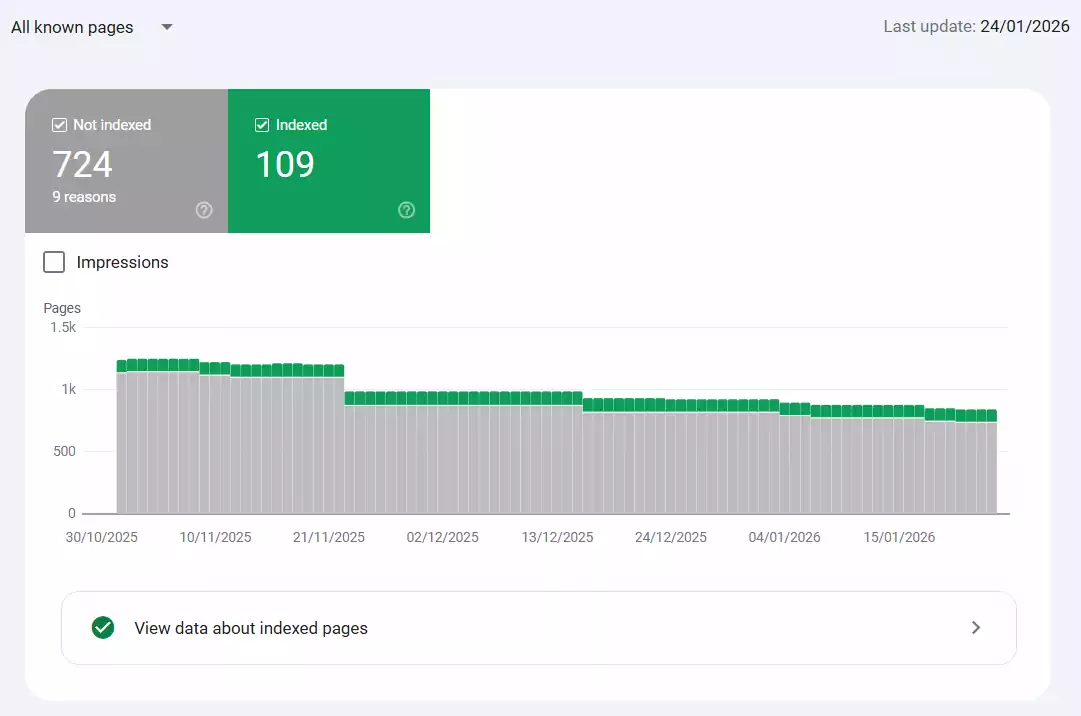
At first glance, Search Console divides pages into two large categories: Indexed pages and Not Indexed pages. Indexed pages are those that Google has reviewed and entered into the results list. Not indexed pages include links that Google has seen but for whatever reason decided not to enter into the results yet. This simple categorization is the main foundation of any site analysis and makes you understand whether a widespread problem exists or only a few specific pages have flaws.
Now let’s get to the reasons for not being indexed, which are usually displayed with details in this same Pages section. One of the most common states is the Redirect status; meaning the page has been moved and practically there is no content to index. When you give a 301 or 302, Google indexes the destination, not the previous page, so this status is completely natural and without specific problem, unless you gave the redirect by mistake.
If a page appears with a 404 error, it means Google reached an address that has no external existence. This usually happens because of old links, typos, or deleting a page without a redirect. These pages not only don’t get indexed, but if their number is high, they also lower the overall quality of the site. So you must always keep this section under supervision.
Another common reason is Duplicate or repetitive content. Google usually chooses only one from among similar pages for indexing and puts the rest in the “Not Indexed” list. This issue might be due to a problem with duplicate URLs, extra parameters, or having different versions of a page. To fix it, you must organize your URL structure or use canonicals.
And as for one of the most frequent cases: the Crawled – Currently Not Indexed status. This means Google has seen the page and crawled it, but has decided not to index it for now. Content might not be enough, page quality might be low, or a very high number of pages caused Google to prioritize others. This state is usually a sign that you should make the page better, more complete, and more valuable.
Soft 404 is also an interesting and slightly misleading error. This means Google thinks the page practically doesn’t exist, even if it returns a 200 OK. Usually, when a page has very little content, or only one sentence is written, or it has no real content but a 404 error was not declared by the server, Google shows this status. You must check to see if the page really has content or needs serious correction.
Finally, there is the Blocked by Robots.txt state, which is quite clear. This means the page was blocked by robots.txt and Google did not have permission to crawl it. Sometimes this happens to important pages and the site owner doesn’t even know! So you must always check robots.txt settings to ensure an important page hasn’t been blocked by mistake.
Sitemaps Section
A Sitemap is actually a guide file that tells Google where the important pages of your site are located and what structure they have. This file is usually made in XML format and acts like a roadmap so that Google’s crawlers can find your pages more easily. Although Google can discover site pages on its own, the existence of a sitemap causes this to be done faster and more accurately; especially when the site is large, newly established, or has a complex structure.
The importance of the sitemap stems from the fact that it helps Google not to miss any important pages. When a site is newly launched, it might not have many backlinks yet, and Google may not be able to easily find all the pages. The sitemap solves exactly this problem and tells the search engine: “these are my important pages, start from right here.” Even for old sites, the sitemap causes the process of understanding the site structure and indexing to be performed better.
If your site is WordPress-based, several common types of sitemaps exist. The first and simplest is the default WordPress sitemap, which is activated by default in newer versions. However, many people prefer to use plugins like Yoast SEO or Rank Math because the sitemaps of these plugins are more complete, have better categorization, and offer more settings. For example, you can specify which type of content should be inside the sitemap and which should not.
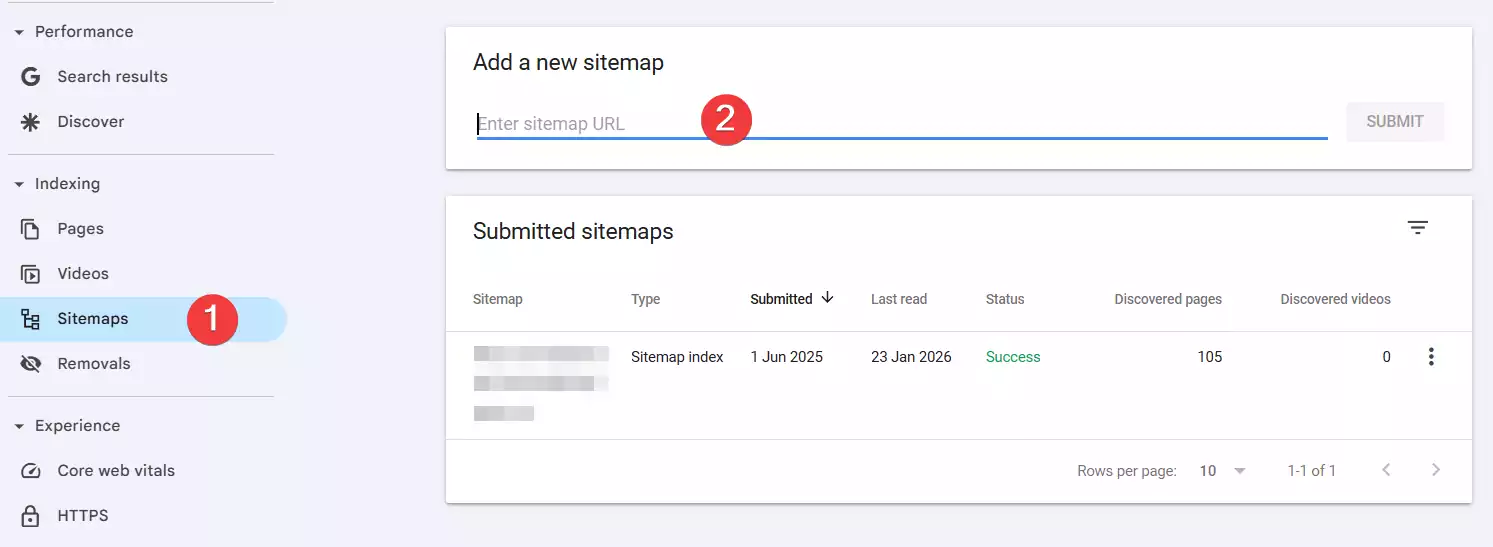
Registering a sitemap in Search Console is also a very simple task. You just need to enter the Sitemaps section, enter the sitemap address (such as sitemap.xml or sitemap_index.xml), and submit it. After registration, Google checks the status of the sitemap and shows you whether it was successful or if an error existed. Right here, you can see how many URLs were identified inside the sitemap and how many were actually indexed. If an error exists, Google usually explains where you have a problem and how you should fix it.
Removals Section
The Removals section is one of those parts that isn’t used much, but when you find a need for it, it is truly a lifesaver. This section is specifically for times when you want a page to be removed from Google results urgently and temporarily without waiting for the next crawl. For example, if a sensitive or incomplete page, or even wrong content, was mistakenly published and entered the results, the best thing to do is to quickly get help from this tool.
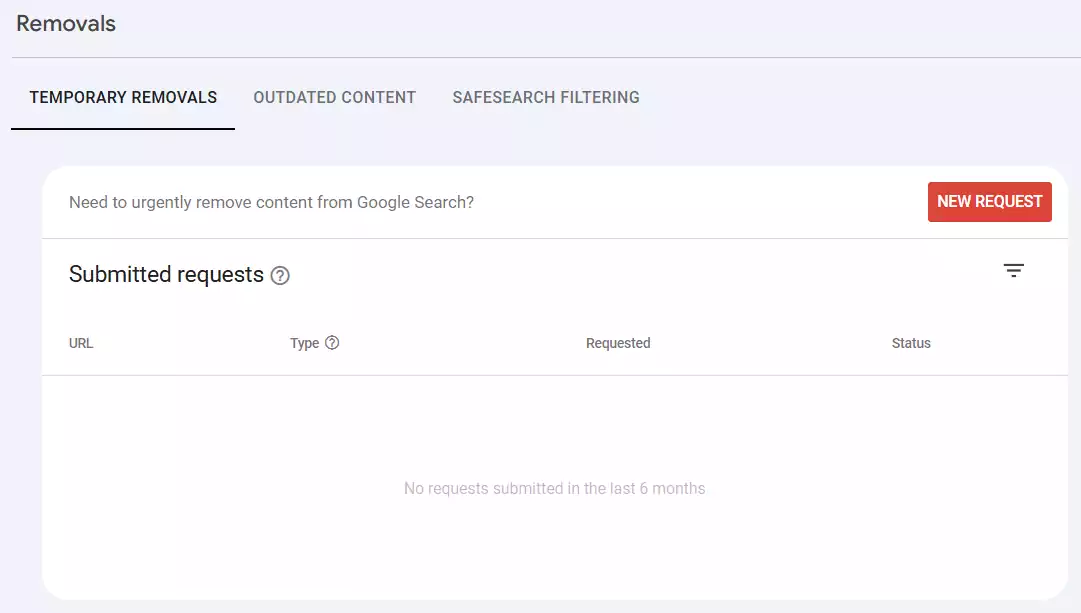
The first option you see is “Remove this URL” or temporary removal. This feature causes the intended address to disappear from Google results for about six months. Of course, it does not perform a full deletion because the page still exists on your site; it just isn’t displayed in search results. This method is excellent for crisis situations, such as when wrong information is published or a page was not yet ready but was indexed by Google.
The second option is “Clear Cached URL,” which relates to deleting the page cache. This means the content that Google has stored from the previous version of the page is cleared. Suppose you updated your page but Google is still showing the old version; with this option, you can force it to clear the cache and load the new version. This item is especially useful when the appearance of the page or the title and meta description have changed.
The use of Removals is usually recommended when your problem is urgent and sensitive. For example, a page that shouldn’t have been public was published, or an old and worthless page is bringing in a lot of wrong traffic and you want to remove it from the results quickly. But ultimately, I must remind you that temporary removal is not the final solution; if you want the page to be completely removed from results, after using this tool, you must use permanent methods like placing a noindex tag or actual deletion of the page from the site.
Core Web Vitals Section
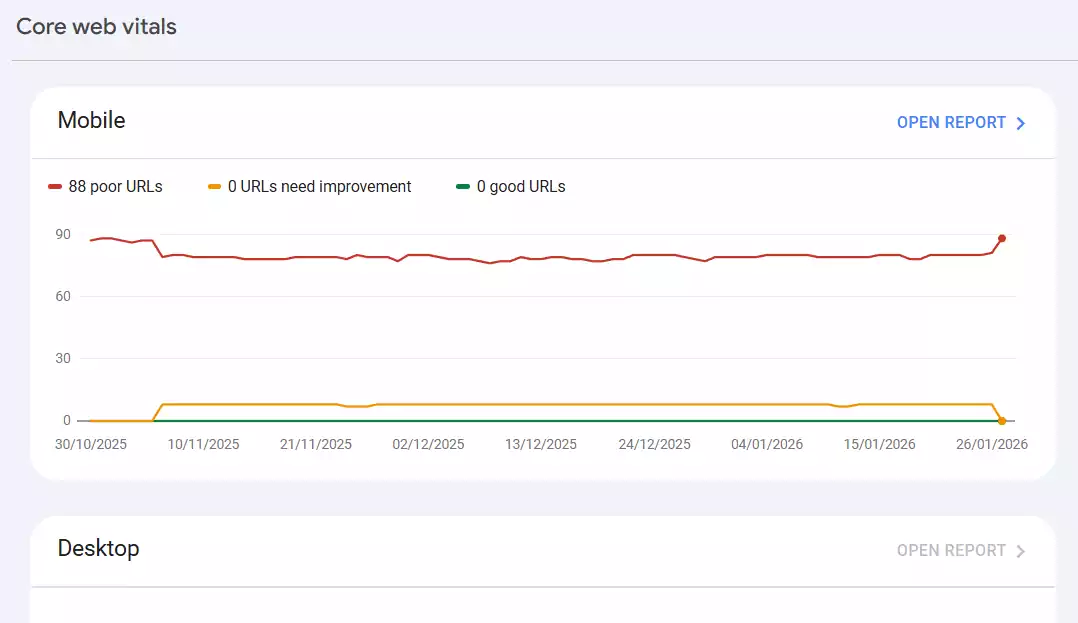
The Core Web Vitals section is exactly where Google says: “Well, let’s see how your site’s user experience actually is!” This part has three main metrics that Google uses to measure the quality of the user experience. If you previously thought site speed only meant loading time, here you will realize the story is much broader. Core Web Vitals looks at how fast the user sees the page, how stably it loads, and how much they can interact with the site without delay.
The first metric is LCP or Largest Contentful Paint. This metric shows how long it takes for the largest visible element of the page (such as an image, a large heading, or a block of content) to load. Google expects this time to be under 2.5 seconds. If it becomes more, it means the page feels slow and does not create a good experience. Usually, large images, weak servers, or heavy scripts cause LCP to go up.
The second metric is CLS or Cumulative Layout Shift, which in simple terms means “page shaking.” If the page shifts while loading, images load without size definitions, or banners appear suddenly, all of these cause an increase in CLS. Google likes this value to be almost near zero, because no one likes it when a button moves during a click and they mistakenly hit somewhere else!
The third metric is INP, which has replaced the old FID metric. INP measures how long it takes for the site to react when a user performs an action (such as clicking, typing, or touching the page). If this time is long, the user experience becomes poor even if the initial load speed was excellent. Heavy scripts and excessive processing are usually the main culprits for delays in INP.
Search Console examines these metrics separately for both mobile and desktop. Many times your desktop version might be excellent but the mobile version has a problem, because mobile has both weaker hardware and more unstable internet connections. For this reason, you must check these two sections completely separately. Also, this section categorizes pages into “Good,” “Need Improvement,” and “Poor” so you know exactly which page falls below Google’s standards.
To improve Core Web Vitals, you usually need to work on a few main items: image optimization, using a CDN, reducing unnecessary scripts, lightening the theme, improving caching, and upgrading the server. If your site speed section is weak, these metrics usually don’t have a good status either. For this reason, it’s better to get help from tools like PageSpeed and specialized speed optimization tutorials to fix every single problem. All these tutorials exist in the SiteBartar course.
HTTPS Report Section
The HTTPS Report section is a kind of security checklist through which Google makes sure whether your site is using HTTPS correctly or not. This part might not be as crowded as Performance or Coverage, but its importance is very high because if your site does not use HTTPS correctly, both user security is endangered and it might have a negative impact on your rankings. Google has emphasized for years that HTTPS is one of its ranking signals, so this section should not be underestimated at all.
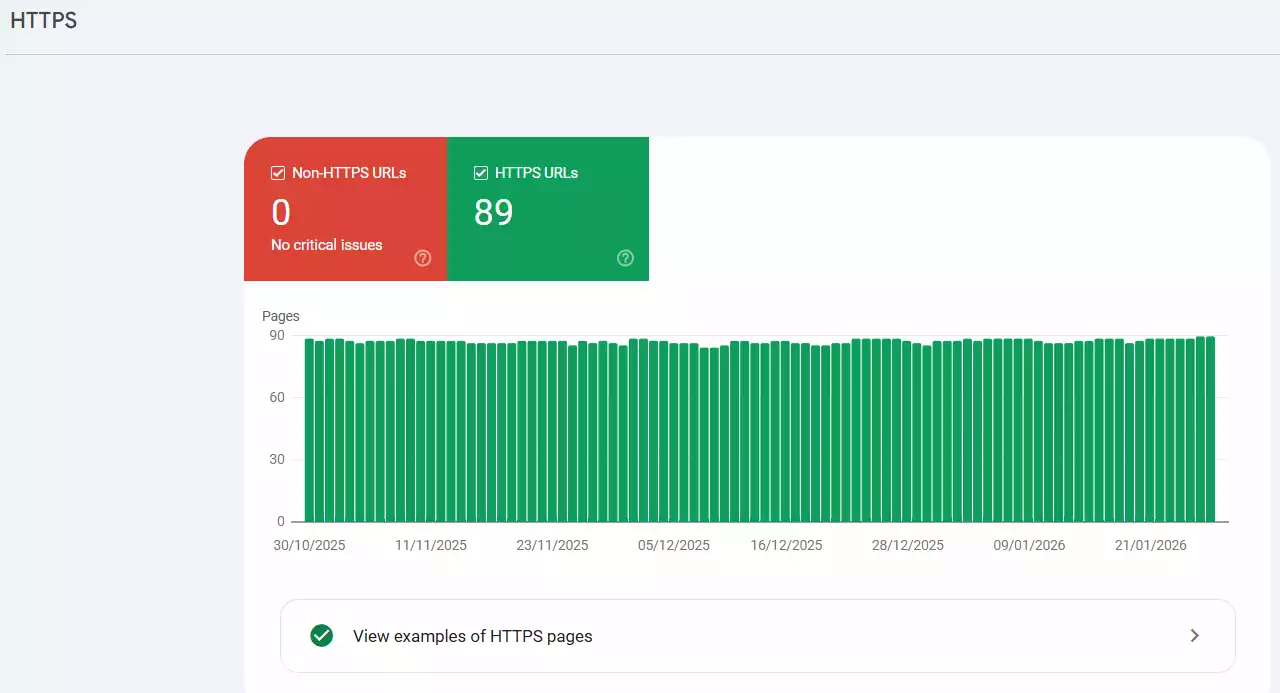
The first thing this section examines is your site’s SSL status. Meaning, does your site have a valid certificate? Is it installed correctly? Do all pages open with the https protocol? If the certificate has expired or is not set up correctly, Search Console usually shows the relevant warnings and might even detect some pages as insecure. This issue is both dangerous for the user and lowers the site’s credibility.
One of the common problems seen in the HTTPS report is the issue of Mixed Content. This happens when the page loads with https but some resources inside the page (like images, scripts, or fonts) are still called with http. This act destroys the page’s security, and browsers usually block those resources. Search Console does not list these errors directly, but if the problem is serious, it will be shown in the HTTPS report and you must solve it by changing links or using secure versions of the files.
Another common problem is the lack of a full redirect from http to https. Many times the site is actually HTTPS active, but the old version of the site is still accessible and an automatic redirect is not performed. This creates duplicate pages, reduces domain authority, and leads to a drop in SEO, because Google sees the http and https versions as two different versions. It is better to always ensure all addresses are directed to https with a 301 redirect so that no insecure version remains.
Security & Manual Actions Section
The Security & Manual Actions section is exactly where no site owner wants to see a new message! Because this part is for important reports that Google only announces when a serious problem has been found. These problems are either because of violating Google’s rules (which is called a Manual Action) or because of security issues like the site being hacked. Both sections are among those things that must be taken very seriously, because they can deal a heavy blow to rankings, Google traffic, and site credibility.
Manual Actions
A manual penalty or Manual Action occurs when a real expert from Google’s spam team concludes that your site has violated one of Google’s rules. Unlike algorithms which are automatic, this one is reviewed completely manually. Common reasons for receiving a manual penalty include unnatural link building (like buying links or excessive exchange), duplicate or low-quality content, deceptive redirects, excessive use of keywords, or even using content hiding techniques (Cloaking).
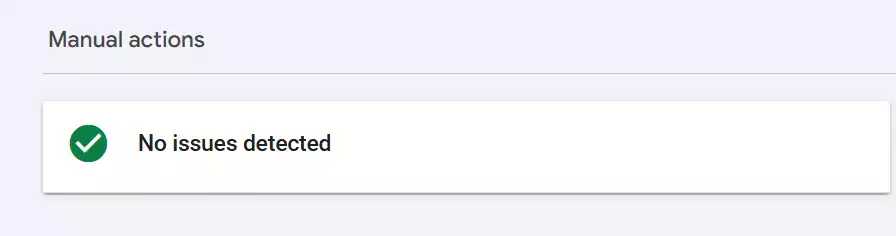
When your site gets a Manual Action, the result is usually very clear and painful: some pages or even the entire site are removed from Google results or experience a severe drop in rank. Search Console explains exactly what the problem is and what you must correct. After fixing the problem, you must submit a review request so the Google team checks your site again, and if everything is fixed, the penalty will be removed.
Security Issues
The second part, Security Issues, relates to when Google detects that the site has become dangerous from a security standpoint. This could be due to hacking, malicious script injection, the existence of phishing pages, malware, or infected files on the server. When such a problem arises, Google usually removes the page from results or shows a security warning next to the search result, and users might even face a red “This site may be dangerous” page when entering the site.
Usually, these problems occur when the site does not have enough security; such as using old plugins, weak passwords, nulled themes, or open access permissions. In this section, Search Console explains exactly which files have problems and what type of malware has been found. After a complete cleanup of the site and fixing the point of penetration, you can submit a review request so the warning is removed.
Links
The links section in Search Console is one of those parts that many people don’t visit at all, but it is truly one of the most vital sections for understanding where our site’s power and credit come from. Here it is exactly determined which sites have linked to you, how links are distributed inside your site, and which pages have been seen more than others. If you want to know “Why has my SEO grown or why is it stuck?” one of the first places you should check is this section.
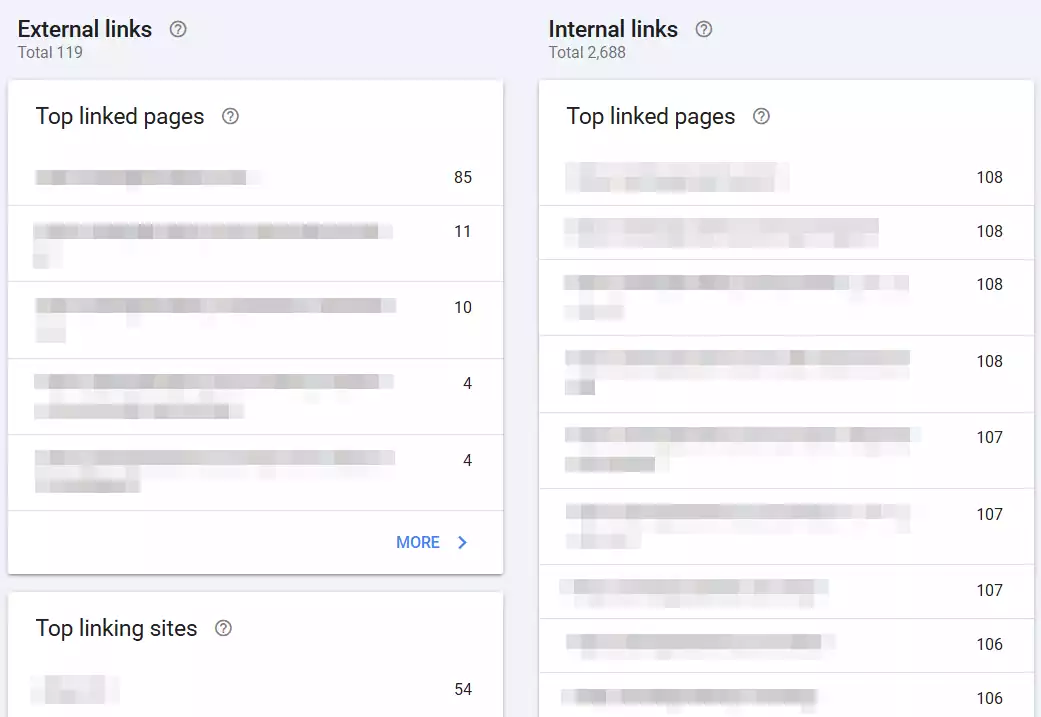
When you enter the External Links part, you are actually seeing your site’s backlinks; meaning links that have been given to you from other sites. For Google, these links are like a vote of confidence. The more reputable sites link to you, the more Google believes your content was valuable. Here you see exactly which sites linked to you, how many links they gave, and to which pages the links went. This same information helps you understand which of your content was attractive and improve your link-building planning.
Inside the Internal Links section, the story is more internal! Here you see links that you created yourself inside your site. These links are very important because they define your site structure for Google. For example, a page might be very important to you but its internal links are few and Google doesn’t understand its importance at all! In this same section, you can find these problems and set up your internal link-building structure more correctly.
The Top Linking Sites section is exactly for understanding from which sites the most links arrived and what anchor texts were used. This information shows you what the quality of your backlinks is like. For example, if you see you have a lot of weird and spammy anchor texts, you should warn yourself right there. On the other hand, if several reputable sites constantly link to you, it means you are going the right way.
In the Top Linked Pages section, you can also see which pages the links have gone to most. This is very important because usually linked pages grow faster. If there is a page that is important to you and has few links, this section shows exactly what you should do for it.
In general, link building is one of the main pillars of SEO. External links increase your credit and internal links fix your site structure. The combination of these two causes Google to crawl your site better, index it faster, and rank your important pages more easily.
Achievements
The Achievements section or “badges” is one of the newer features of Search Console that really has more of an encouraging state rather than intending to affect SEO. It’s as if Google wanted to add a game-like feel to Search Console so that when you do something correctly, you get a badge or point and your motivation increases.
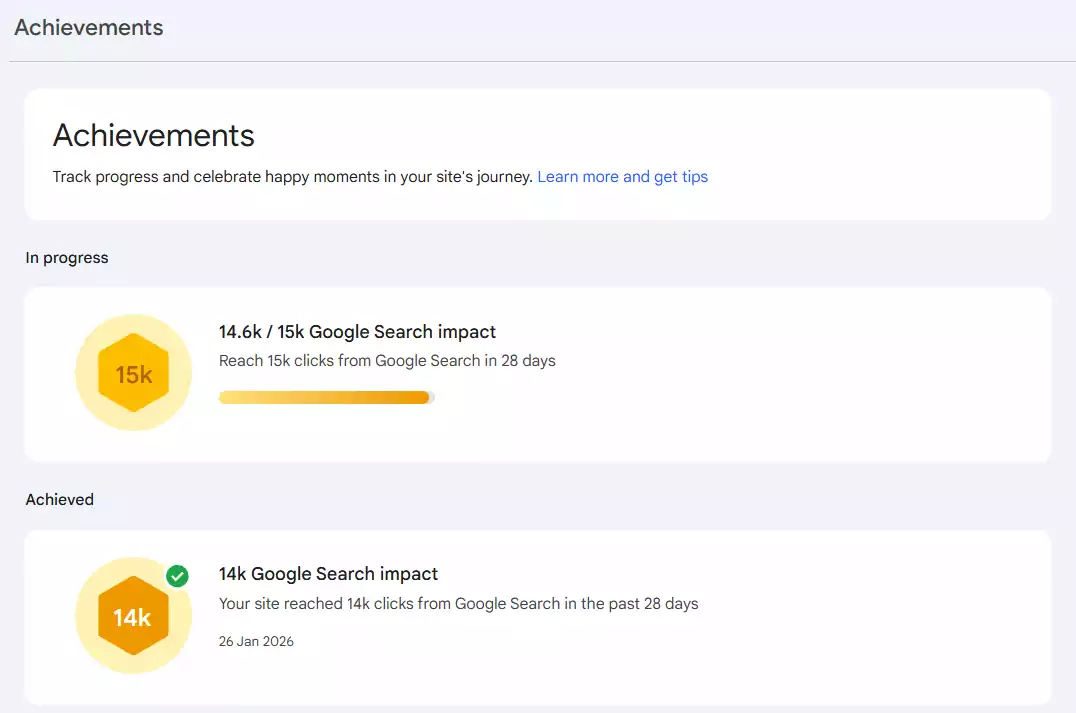
This section shows things like the first 100 clicks, the first indexed page, improvements in speed or Core Web Vitals, and achievements of this sort. But to be honest with you, these badges have no effect on the site’s ranking. Meaning, if you didn’t get a badge, nothing special happens. But if you did get one, well, it feels good and is a sort of small confirmation that “you are moving in the right direction.”
Many site managers see this section as a motivational checklist. Not that it is educational or analytical, but it conveys a sense of progress and helps one get more motivated and continue.
Settings
The Settings section is exactly where all the main and managerial settings of Search Console are gathered. Whenever you want to change someone’s access, add a new site, or see the crawl status, you must come right here. Many think this is only for the tasks at the start of the way, but the reality is that if you are following SEO seriously, this section is much more important than it seems.
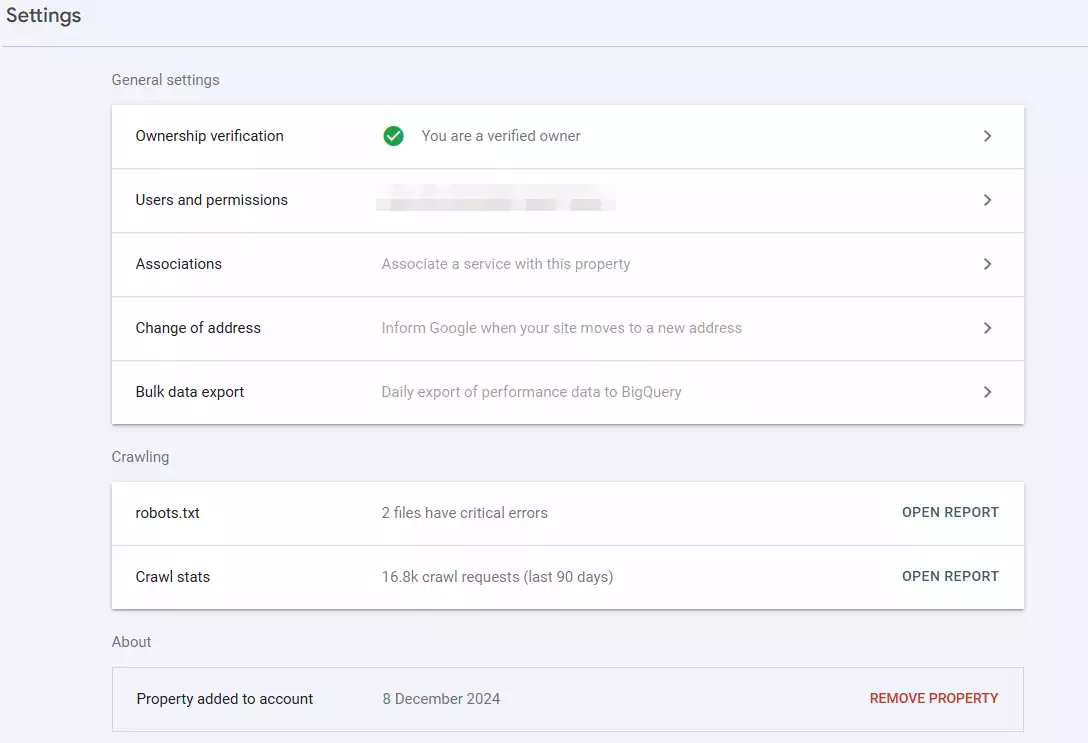
Verification
In the Verification part, you can see by which method the site was verified and which methods are active. If one day the DNS changes or your site theme changes and suddenly Search Console says “I don’t have access,” the first place you should check is here. The existence of several verification methods also makes one feel more at ease.
Users & Permissions
Here you can see who has access to Search Console. If you have a team or work with different SEO specialists, this part is exceptionally important. Because the information here is very sensitive and you must know what is in whose hands.
Associations
This section is for connecting Search Console to tools like Google Analytics, Google Ads, or YouTube. When you connect it, data becomes coordinated between services and analyses become much more precise. For example, seeing clicks alongside user behavior in Analytics is truly valuable and professional.
Change of Address
If one day you want to change your domain, this tool saves your life! Because you announce to Google that “the new address is the same as the previous site.” And this causes your rankings and credit to be preserved.
Export Data
If you want to transfer data to BigQuery or Google Sheets, this option is for that. Especially for teams looking for professional analyses, this section is exceptionally practical.
Crawl Stats
Here you see full information on the site’s crawling status. How many times Google visited you, how much data it downloaded, how slow the server was, and so on. If crawling suddenly decreases, it means something is wrong somewhere and you must investigate it quickly.
Summary
In the end, if we want to summarize very easily and informally, we must say Google Search Console is the same tool that every site owner and every SEO specialist truly needs. This tool is like a car’s dashboard; whatever happens on your site, from indexing and speed to traffic and links, eventually shows itself somewhere in Search Console. This means the better you know how to work with it, the more your control over the site will be.
All the sections we reviewed in this article (from Performance and Insights to URL Inspection, Core Web Vitals, Links, Sitemaps, Settings, and the rest) are each a piece of the SEO puzzle and together give you a much more complete view. Search Console says what Google sees, what is important to it, and what causes your site to grow or drop. This same understanding causes decisions that you might have previously guessed at to now turn into precise and reliable decisions.
Even the sections that are not very vital, like Achievements or Removals, are still useful in their own time and help make working with the tool more complete and comfortable. Overall, Search Console is a free but exceptionally powerful tool, and if you use it correctly, it can significantly advance your site’s growth path. So if SEO is important to you and you want your site to truly be seen, Search Console must always be at your side. Be happy and proud. 🙂

Ahura WordPress Theme
The Power to Change EverythingElementor Page Builder
The most powerful WordPress page builder with 100+ exclusive custom elements.
Incredible Performance
With Ahura’s smart modular loading technology, files load only when they are truly needed.
SEO Optimized for Google
Every line of code is carefully aligned with Google’s algorithms and best practices.

To post a comment, please register or log in first.