
 Tutorials


 Ahura
Ahura Plugins
 Blog
BlogWhat is Figma? The Best Software for Website Design
- Tutorials
- Updated on

If we look back about fifteen to sixteen years ago, when website design was still a simpler and smaller-scale field, usually one person handled all stages—from initial design to final implementation. The designer would create the site’s appearance, guide the user experience largely based on guesswork and personal experience, and ultimately implement everything on the web. However, in recent years, the process of web design has changed completely. Today, each part of building a website requires its own specialized skill set. As a result, design and development teams usually work together to produce a more professional output.
In this new landscape, one tool has managed to stand out more than any other: Figma. Almost all UI and UX designers use it, and for good reason. Figma has made the process of designing user interfaces simpler, more precise, and much more collaborative than ever before. Even if you don’t have enough time to design everything yourself or want to delegate part of the work to another designer, Figma provides the best platform for coordination and organized execution.
More importantly, Figma is completely web-based. This means you can start designing, save changes, receive feedback from teammates, and even use its AI capabilities to generate initial designs—all from a browser without installing heavy software. These features have made Figma the top choice for UI designers in 2025.
In the following sections of this article, we’ll explore step by step what Figma exactly is, why it has gained this position, and what role it plays in today’s web design world.
Table of Contents
what is figma?
Figma may appear at first glance to be just a UI and UX design tool, but in practice, it is much more than a simple software. The platform provides a complete, integrated space for designing, managing, and developing digital projects—a space that not only simplifies the design process but also changes how teams collaborate and how designers approach a project. The most important feature of Figma is that it works in the browser, so you can execute complex projects without installing heavy software or needing a powerful system, and continue your work from any device at any time.
One reason for Figma’s popularity is its real-time collaboration. In this tool, all team members see changes simultaneously and work on a single file, without the need to send versions back and forth or worry about coordinating outputs. This real-time flow has made managing design projects much smoother.
Moreover, Figma is not limited to web page design; it allows the creation of wireframes, prototypes, landing pages, UI kits, and even digital campaign designs. Ultimately, Figma has become a global standard in digital design, because it not only provides professional tools but also makes the design process easier, faster, and more predictable. This is why many designers believe Figma has truly transformed the world of design.
How did Figma enter the website design workflow?
Looking back, web design usually started with a few simple sketches on paper. The designer would determine where each part of the page should go and then quickly move into implementation. This method worked when projects were small, but as websites became more complex and user experience grew in importance, the need for a more precise and reliable tool emerged.
In this context, Figma gradually entered the workflow and gained an important role. Designers realized that to achieve a professional output, all design details needed to be prepared in a complete, editable, and testable environment before implementation. Figma met exactly this need. Its lightweight nature, accessibility, and real-time editing capabilities led many teams to move away from designing directly in content management systems, and instead prepare the entire design in Figma first.
This change had a significant outcome: design quality improved, errors decreased, and implementation time was noticeably reduced. A UI designer can test multiple versions of a page, a UX specialist can analyze the user flow, and a developer can see precisely what needs to be implemented without any ambiguity.
In fact, Figma became the essential bridge between initial ideas and the actual website. The old path from paper to final implementation is now completed with a professional, precise stage: UI design in Figma. This change not only standardizes the design process but also makes coordination between designers and developers much easier.
Who needs Figma?
At first glance, Figma is primarily built for UI and UX designers. However, looking at the full web or app design and development cycle, it becomes clear that many more people rely on it. The main reason is that Figma is not just a design environment; it is a shared space for thinking, planning, and coordinating among team members. Therefore, various groups use it, each with a specific reason for choosing this tool.
UI Designers
UI designers are the first and perhaps primary group of Figma users. All the tools needed to design web pages, applications, or even professional design systems are available in Figma. A designer can follow the design path from the first sketch to the final version in a single environment, and this cohesion makes the workflow more precise and faster.
UX Specialists
UX specialists also form an important group of Figma users. They use the tool to review user flows, interactions with different sections, and overall user experience. This means Figma does not just focus on visuals—it also allows user behavior analysis, even before the project reaches implementation.
Project Managers
Even though they are not designers, project managers are among the groups that make extensive use of Figma. They can monitor project progress, review changes, and provide precise feedback on different sections without needing design expertise. Figma helps project managers have a clearer picture of the product’s path and make more informed decisions.
Web and App Developers
Finally, developers also play an important role in using Figma. Previously, designers had to provide separate explanations or multiple files to communicate design details to programmers. Figma solves this problem. The Inspect feature displays precise dimensions, spacing, colors, and even parts of CSS code. Therefore, developers know exactly what to implement, minimizing the gap between design and final output.
Overall, anyone involved in building a website or app—from designers to managers and developers—benefits from Figma by working faster, more efficiently, and more organized. This extensive coordination is one reason Figma has become one of the most important digital design tools.
Why do designers use Figma?
One of the main reasons for Figma’s popularity among designers is its combination of simplicity and power. Figma is designed to be understandable for beginners while providing professional designers with a complete set of advanced tools. This balance makes it smooth, fast, and fully professional to work with.
Real-Time, Live Collaboration
In Figma Everything happens in real time. When multiple people work on a project, each team member can see others’ changes immediately. There’s no need to send multiple files or manage versions. This live collaboration speeds up discussions, reviews, and revisions, making team coordination much easier.
Integrated Design Workflow
Figma provides designers with various tools to manage all stages of a project—from initial wireframes to final design, prototype, and UX testing—in a single environment. There’s no need to switch between multiple tools, increasing focus. This integration is a key factor in Figma’s speed and high-quality output.
Easy Access and Web-Based
Another feature of Figma is that it is web-based. You can access projects, make edits, or leave feedback through a browser—even if your main system is unavailable. This flexibility is a major advantage for designers on the move or working on multiple projects.
Ultimately, a combination of speed, collaboration, easy access, and advanced features has made Figma a natural and reliable choice for many designers. It shortens the design path while significantly improving the final quality.
What is the Figma Workspace Like?
Figma’s workspace is designed to be both simple and accessible, while providing all the professional tools a designer needs. When entering a design file, the first thing you notice is the Infinite Canvas. This space is limitless—you can create and arrange as many frames, pages, or designs as needed. This freedom allows you to carry out a project according to your mindset and workflow.
Layers Panel
On the left side is the Layers Panel, where frames, elements, components, and all design parts are managed. Its structure is similar to professional graphic software but simpler and more organized. Essentially, this panel is the complete map of your project, showing and managing relationships between elements.
Properties Panel
On the right side is the Properties Panel, used for detailed control and fine-tuning of each element. When you select an element, all related settings—from dimensions and spacing to colors, typography, shadows, and effects—appear here. This method increases speed and ensures precise changes at every step.
Toolbar
At the top of the screen is the Toolbar, containing tools like selection, shape creation, pen, frame creation, and prototyping features. This small section plays an important role in making Figma more than just a design software, as it allows defining user interactions and creating testable models.
Comments Section
One practical feature of Figma is the commenting system. Team members can leave feedback or suggest changes directly on different parts of the design. This keeps all discussions, suggestions, and feedback within the file, reducing the need for external coordination tools.
Overall, Figma’s workspace combines simplicity, professional features, and team collaboration capabilities. Everyone—from designers to project managers and developers—can access and manage exactly what they need in this environment.
Different Versions of Figma: Who Are They For?
Figma offers multiple versions to suit each user’s skill level and needs. Interestingly, even the free version is fully functional for many users, providing the essential features.
Free Version (Starter)
If you’re new to UI/UX design or working on small projects, the Starter version can meet all your basic needs. In this version, you can:
- Have up to 3 active design files
- Use main design and prototyping tools
- Collaborate with your team with fewer restrictions
Run plugins and widgets
This version is ideal for students, freelancers, and anyone learning Figma.
Professional Version (Figma Professional)
If you work on larger projects or need to create many pages, frames, and components, Professional is a more logical choice. Upgrading to this plan gives you:
- Unlimited design files
- Full access to component libraries and design systems
- Ability to create libraries and share components with your team
- More precise control over team permissions
- Unlimited version history
This version is intended for small teams and designers working on long-term, professional projects.
Organization Version
For larger teams or companies where workflow and data security are critical, the Organization version is the best option. Features include:
- Advanced user management and access control
- Detailed activity reporting
- Creation of organizational design systems with full control
- Deep integration with project management tools like Jira and Slack
- Enhanced security for files and workspace
This version is suitable for organizations, large startups, and teams with multiple designers and developers.
Enterprise Version
The Enterprise version is a more advanced version of Organization, offering higher security and management features. Large companies with multiple design teams often use this plan to maintain a unified and reliable project structure. In short, Figma provides an appropriate option for every user level. From students and freelancers to large companies, everyone can use a suitable version without heavy costs and upgrade if needed.
What is Figma AI, and How Does It Speed Up Design?
Figma AI answers a long-standing question for designers: how can the path from an initial idea to a presentable design be shorter and more efficient? This new feature serves as an always-available teammate, automating time-consuming tasks and often providing inspiration. The result is that stages that used to take hours can now be completed in a very short time.
What Does Figma AI Do?
One of the first benefits you notice with Figma AI is eliminating the challenging blank-page start.
Converting a Simple Explanation Into a Basic Design
Instead of placing elements manually, you provide a short description—for example: “Create a user profile page with a header, image, and info section.” Within seconds, a preliminary design is ready. While it often requires refinement, it provides a solid starting point and accelerates mental structuring
Intelligent Design Refinement And Improvement
Intelligent Design Refinement Figma AI doesn’t just generate preliminary designs; it also performs impressive refinements. If spacing feels off or colors are inconsistent, there’s no need to adjust every element manually. With a simple command, Figma produces a better, standardized version, as if an experienced designer is sitting beside you.
Realistic Content Generation
Another feature that may seem simple but is extremely valuable is generating real content for pages. You no longer need repetitive placeholder text; Figma AI produces text suitable for the page type. It also suggests images, icons, and visual content, making designs more realistic and understandable for project managers or developers from the first version.
Accelerated Team Coordination
In team projects, Figma AI shines even more. Designers often spend hours creating initial wireframes for team alignment. Figma AI shortens this phase; early versions are ready faster, and project managers can make decisions sooner. Developers also receive clearer, more complete designs instead of rough drafts.
Shifting Designers’ Focus from “Building” to “Thinking and Decision-Making
Overall, Figma AI changes designers’ approach. Time previously spent on repetitive tasks and constructing elements can now be devoted to critical decisions, idea generation, and improving user experience. This small tool change significantly multiplies workflow speed—combining precision, speed, and ease, making next-generation design more engaging.
Figma Software Training
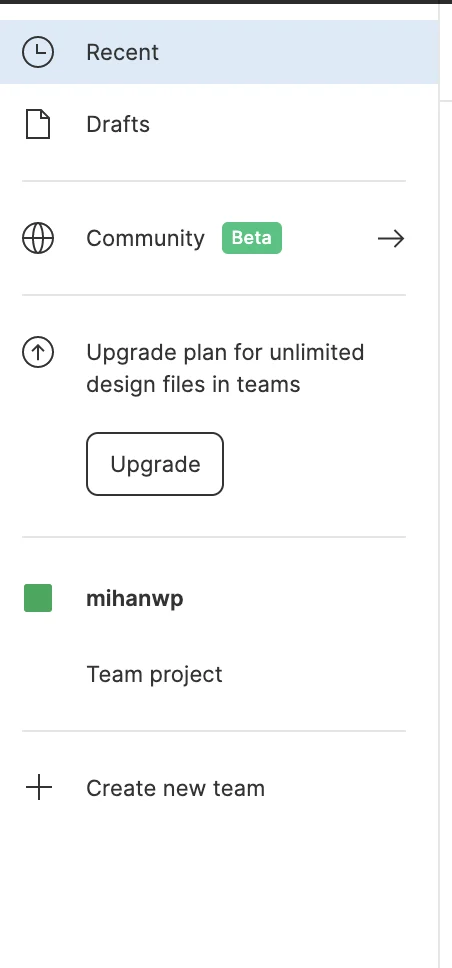
At first glance, the main Figma interface shows Search, Recent, Plugins, and Draft. In Search, you can find existing files and even active users. Recent shows files recently worked on. Plugins displays installed plugins, and Draft shows active projects in progress. To create a new team, use the option in the bottom-right corner. Forming a team with one colleague is free, but adding more members requires payment. To start a new project, click the “plus” icon in Draft or in the top-left or top-right corners. The new project is initially unnamed, and you must assign a name.
Figma Project Page and Tools
The Figma workspace is divided into sections. At the top is the Toolbar, containing menu options, main tools, Frame, Pen, Pencil, and Text tools. In the top-right corner, the user profile appears, and if part of a team, other members’ profiles show. Next to the profile is the Share option to share the project. An icon showing your created projects is also next to Share.
The right column shows settings and properties of elements within frames, while the left column is for frames and layers. To start designing, create an artboard or frame using the Frame tool in the top toolbar. Frame size can match mobile, tablet, etc. After creating the frame, assign an appropriate name.
Design Tools
in the top toolbar allow drawing various shapes within frames: rectangles, lines, arrows, circles, polygons, stars, and images. Their settings are in the right column, where you can adjust position, size, corner radius, and other attributes. Numeric values in settings follow mathematical conventions, allowing adjustments using basic operations. Some editable features include:
- Rounding rectangle corners with Corner Radius
- Creating arcs from circles
- Adding strokes
- Adjusting opacity
- Rotating and angles
Tip: Hold Shift while drawing to create perfectly proportional shapes; this also applies when rotating or adjusting angles.
Layer Usage in Figma
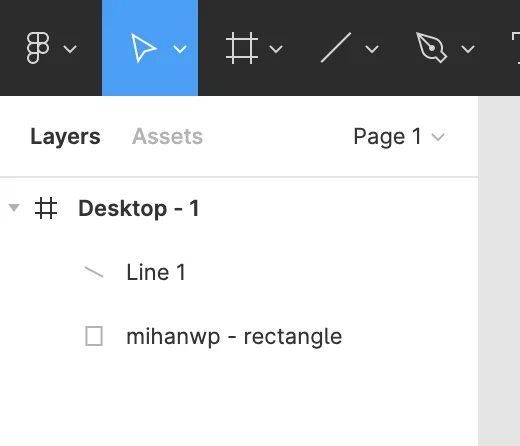
As mentioned, the left column is for layers. First, you see the frame name, followed by its layers. Layers are arranged from newest to oldest, with the newest at the top. Selecting a layer highlights it in the frame. You can reorder layers via drag-and-drop or shortcuts, and hold Shift to select multiple layers simultaneously—useful for complex projects.
Boolean Operations in Figma
Shapes drawn within frames that intersect or overlap can be edited using the Boolean tools above the frame. Options include:
Union Selection: combine shapes
Subtract: subtract one shape from another
Intersect: extract shared area
Exclude: remove intersecting area while keeping non-overlapping parts. These operations allow designing complex forms not possible with basic shapes.
Pen, Pencil, and Blend Tools
The Pen tool is a classic graphic design tool, allowing nodes and lines creation. Click-and-drag curves the line. Connecting start and endpoints forms a closed shape, whose properties can be adjusted in the right column. The Pencil tool allows freehand drawing with many nodes and smooth curves—ideal for sketches or natural lines. Blend adjusts handles for precise curves and paths.
Text Tool in Figma
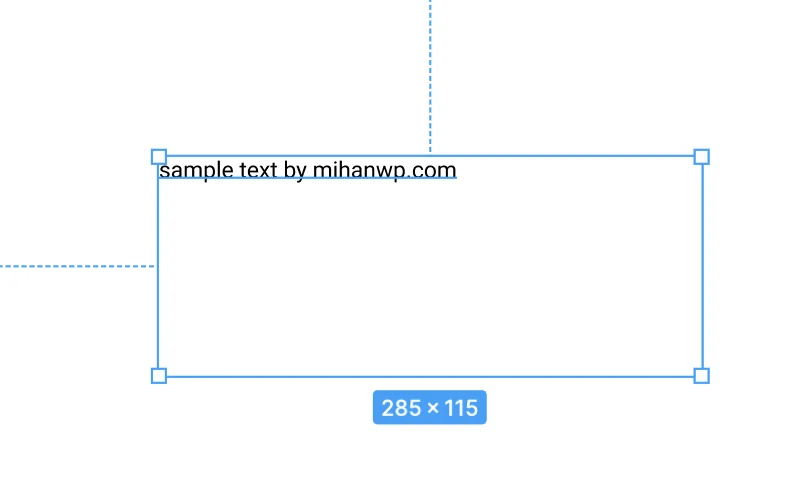
Text is essential. Clicking inside a frame with the Text tool shows settings in the right column: font type, size, weight, line height, letter spacing, and other typography properties. It is used for menus, headings, content sections, and all text elements. Note: the web version doesn’t support Persian fonts directly; use the desktop version or workarounds for Persian text.
Figma Community: Access to Thousands of Templates and Ideas
The Figma community is like a large city for designers, sharing experiences, creativity, and tools. From free templates to advanced components and complete design systems, almost anything is available here.
Helpful for Quick Project Start
For newcomers, the community provides a reliable starting point. You don’t need to build everything from scratch; a few minutes of searching can yield a suitable wireframe, dashboard, icon set, or complete template. Projects start faster and with less stress.
Added Value for Professional Designers
Even experienced designers benefit. Many professionals share useful tools, standard design systems, and specialized packages. Seeing solutions to common challenges inspires new ideas and opens new design paths.
Publishing and Participating
You can also share your templates and components. If you create a useful component, template, or instructional file, you can publish it, increasing visibility and professional engagement—something Figma encourages.
A Dynamic, Growing Space
The community is more than a template repository; it’s a dynamic environment connecting designers. New content is added daily, offering ways to make your design faster, simpler, or more standardized. Many users consider it an essential part of their Figma experience.
Can Figma Designs Be Converted to Elementor or Code?
A common question is whether Figma designs can be directly converted to Elementor or code. Technically yes, but the final output usually does not meet quality expectations.
Figma: A Precise Map, Not a Final Product
Figma is a design tool; its output is a visual plan, not a ready-made website. Turning designs into real pages usually requires a separate implementation stage. Some plugins attempt direct transfer to Elementor, but outputs are often incomplete and need adjustments. Professional designers typically use Figma as a blueprint and build pages manually in Elementor to ensure standards.
Converting to Code: Why Developers Prefer Manual Work?
Similar conditions apply to HTML/CSS conversion. Tools exist to generate code, but it usually lacks real-project quality. Developers often implement code from scratch based on the design. The Inspect panel helps by providing accurate dimensions, spacing, colors, and styles.
Figma defines the visual and standard path, while tools like Elementor or coding execute it properly. Combining both methods usually yields far better results than automatic conversion.
Comparing Figma with Older Tools Like Photoshop and Adobe XD
Until a few years ago, Photoshop and later Adobe XD were the main choices for UI designers. Figma fundamentally changed the design process and is considered a milestone in digital design.
Photoshop: Powerful but Unsuitable for UI
Photoshop wasn’t made for UI. Its main purpose is image editing, and designers had to adapt it for UI work. Lack of interactivity, complex layer management, and software heaviness made the design process slow and sometimes limiting. Despite its graphic power, it is not ideal for UI.
Adobe XD A Good Attempt but Limited:
With Adobe XD, designers made progress. Its simpler interface, page design tools, and prototyping capabilities attracted users. However, XD was offline and lacked real-time collaboration, making teamwork difficult. Its development slowed in recent years, and updates became rare.
Figma: Speed, Simplicity, and Collaboration
Figma introduced “design in the browser” with a focus on team collaboration and accessibility. Real-time multi-user editing without installing heavy software was a unique advantage. Features like components, Auto Layout, shared libraries, plugins, and community resources made the process faster and standardized.
Photoshop was powerful but not suitable for UI. Adobe XD had good features but limited collaboration and development. Figma combined speed, simplicity, advanced tools, and real-time collaboration, quickly becoming designers’ top choice worldwide.
Figma’s Role in Teamwork: Why Organizations Can’t Work Without It?
One key reason for Figma’s wide adoption is its essential role in facilitating team collaboration. Previously, files were constantly exchanged, multiple versions created, and coordination among designers, developers, and managers was challenging. Figma solves these issues.
Real-Time, Continuous Collaboration
Everything happens online in real-time. Multiple designers can work simultaneously on a page, and changes are instantly visible to all. Teams can maintain a cohesive workflow without juggling multiple files and versions—a crucial advantage for organizations.
Transparency in Project
Tracking Managers or clients can see progress live, eliminating delays and repeated messages for minor changes. This transparency reduces errors and improves output quality.
Supporting Developers
The Inspect feature is critical for developers. Accurate dimensions, spacing, colors, and styles eliminate guesswork, enabling faster implementation and minimal gaps between design and output.
Becoming a Collaboration Standard
Because of these advantages, many organizations can no longer run design projects effectively without Figma. It acts as a shared platform that brings together designers, developers, and managers in one workspace. Over time, Figma has not just become a tool—it has become the global standard for collaboration in design teams.
The Limitations of Figma: What You Should Know Before You Start
Despite its popularity and power, Figma is not without limitations. Having a realistic understanding of these constraints leads to better decisions and a smoother experience.
Dependence on a Stable Internet Connection
Figma is primarily a web-based tool. While this is often an advantage, it becomes a challenge when a stable or fast internet connection is not available. A desktop app exists, but full functionality still depends on being online. For projects that require extended offline work, this can be a real limitation.
Challenges Related to Sanctions
For users inside Iran, access to Figma often requires IP-changing tools. Although manageable, this remains an additional barrier that should be considered from the beginning of a project.
Limits of the Free Plan
Figma’s free plan is an excellent starting point and offers all core features. However, larger teams and advanced needs—such as Figma AI, professional shared libraries, and detailed administrative controls—require a paid subscription.
From Design to Real Product
Turning a Figma design into a real website—whether through hand coding or tools like Elementor—requires a separate set of skills. Figma produces design specifications, not finished products.
If full automation is your expectation, it is important to adjust those expectations early.
Making an Informed Choice
Even with these limitations, Figma remains the best option for many designers and organizations. The key is to understand both its strengths and its boundaries before fully committing to it.
Conclusion
When all features, capabilities, and real-world experience are considered together, it becomes clear why Figma has become the first choice of web designers in 2025. Figma is not just a design application—it is a complete ecosystem that supports the entire process, from early ideation to developer handoff.
Modern designers value speed, collaboration, precision, and flexibility. Figma delivers all four. Real-time teamwork, shared components, mobile testing, browser-based access, and a large, active community keep it consistently ahead of competitors. With the introduction of Figma AI, many time-consuming tasks have been reduced to seconds.
Perhaps most importantly, Figma has achieved a rare balance: it is simple enough for beginners, yet powerful enough for large professional teams. Even developers actively prefer Figma-based projects because of the accuracy and clarity of its specifications.
Other tools may exist, but the combination of speed, features, collaboration, and innovation has made Figma a true global standard in 2025. For anyone serious about web or app design, Figma is not just a good choice—it is an essential part of a professional workflow.
Ahura WordPress Theme
The Power to Change EverythingElementor Page Builder
The most powerful WordPress page builder with 100+ exclusive custom elements.
Incredible Performance
With Ahura’s smart modular loading technology, files load only when they are truly needed.
SEO Optimized for Google
Every line of code is carefully aligned with Google’s algorithms and best practices.

To post a comment, please register or log in first.