
 Tutorials


 Ahura
Ahura Plugins

 Blog
BlogElementor Container Tutorial: Everything Made Simple!
- Tutorials
- Updated on

I’ve always had a fundamental issue with Elementor, especially when I wanted to design a clean and responsive page. Back when we only worked with rows and columns, adjusting the width and layout of elements across different breakpoints—like mobile, tablet, or desktop—was a real headache.
For example, you’d fix one corner of the page, and suddenly the rest would fall apart. You’d grab one thing, and something else would let go. It truly felt like you were fighting the tool rather than designing with it. You constantly had to go back and forth, test, refresh—basically wasting a ton of time just to achieve a decent structure.
But finally, Elementor took a giant leap forward and solved many of these issues by introducing Containers. Containers have replaced the old row-and-column structure, adding a wealth of features and flexibility to design. Now, you have much better control over the layout, especially when it comes to responsiveness.
In this article, I want to talk to you in detail about this new feature: the Elementor Container. I’ll explain what a container actually is, how it differs from rows and columns, why it has made work so much easier, and how we can use it to create clean, professional, and responsive designs. If you work with Elementor or plan to start, be sure to stick with me until the end of the article because you’re going to learn a lot of useful tips.
Table of Contents
Problems with the Previous Version of Elementor
If you’ve followed my previous tutorials, you probably remember that to build a multi-column page in Elementor, you first had to create a row (or section), and then manually add the columns you wanted inside that row one by one. This process was time-consuming, and if you wanted to design a more complex structure, it became genuinely frustrating.
However, in the new version of Elementor, everything has taken on a much easier and more professional form. You no longer need to take that long and complicated path. Now, we have something called a Container. You can simply grab a container like any other element, drag it, and drop it exactly where you want. And it’s not a struggle; it’s handled with a lot of built-in intelligence! The moment you place the container, everything adjusts automatically, from the layout to the responsiveness.
In reality, a container is similar to the old columns but much more advanced, flexible, and, of course, easier to use. This new capability has made page design with Elementor not only faster but also cleaner and more precise. Long story short? It’s awesome! Now, let’s take a closer look at what exactly this container is and how we can make the best use of it.
The Key to Solving Old Problems
Before containers entered the scene, if I wanted a four-column structure in a section of the page, I had to first create a row and then place four columns inside it. Our structure always looked like this: a main row, with several columns inside where we arranged the content.
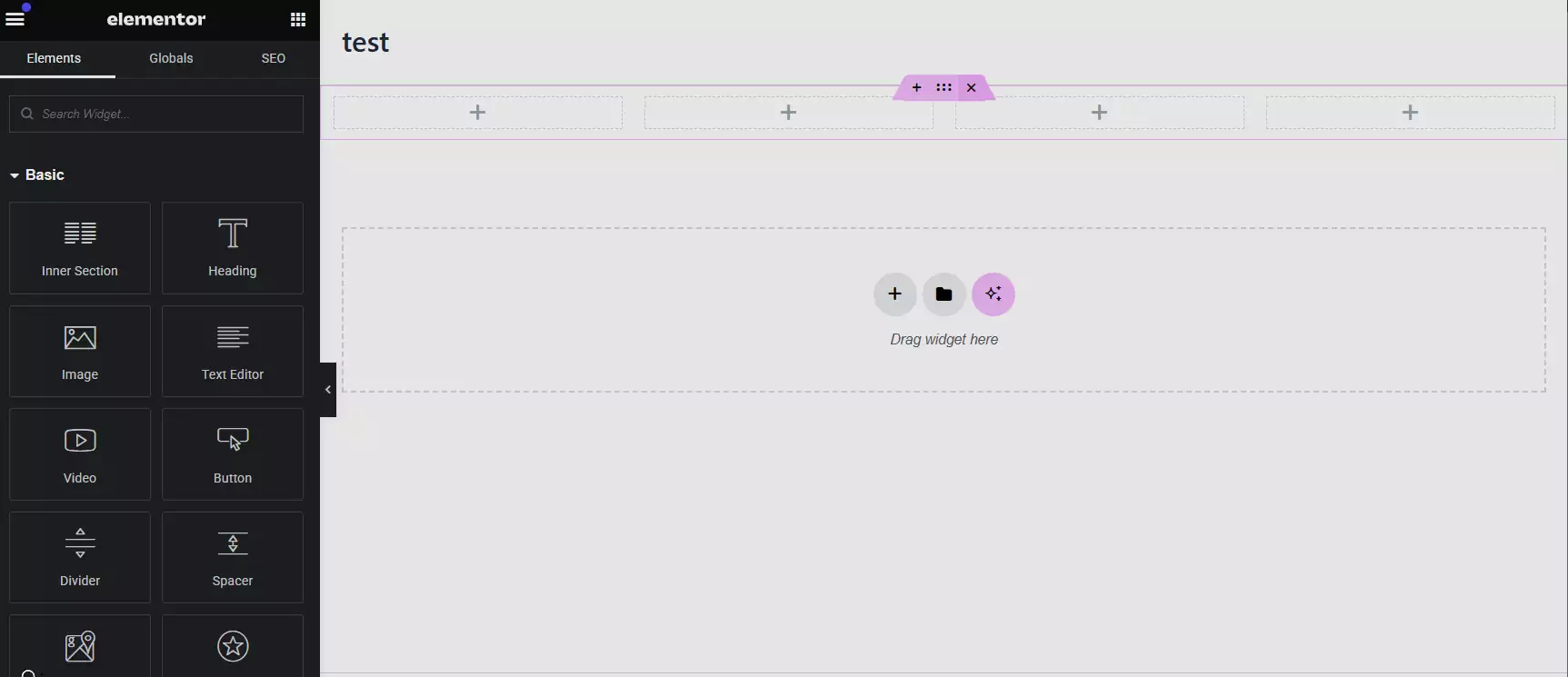
But now with containers, the story is different. If you want to implement that same four-column structure, you create one Parent Container (the overall row) and place four other containers inside it. Each of these containers can act like an individual column, but with the difference that you have much more control over them. You have far more ease in terms of alignment, responsiveness, and even nested structures.
In fact, this new system makes element design not only more logical and cleaner but also gives you much more room to maneuver. Now you can create highly complex and professional structures without feeling stuck in a rigid framework like before.
What is an Elementor Container?
Now it’s time to forget the old structure entirely and build a page from scratch with containers to see exactly how it works. When you go to the Layout section in Elementor, just grab a container and drag it onto the page. That’s it! Things like rows, columns, or even inner sections no longer exist. Everything is condensed into one thing called a Container!
Now that we’ve brought the container onto the page, let’s use a simple example. For instance, I’ll add a text element and then place a button next to it. This way, we can easily see how elements sit inside the container and what great control we have over their position and appearance. If I want to make the text a bit bolder, I can easily change its size from the text settings. The button is ready, so it doesn’t need anything specific for now.
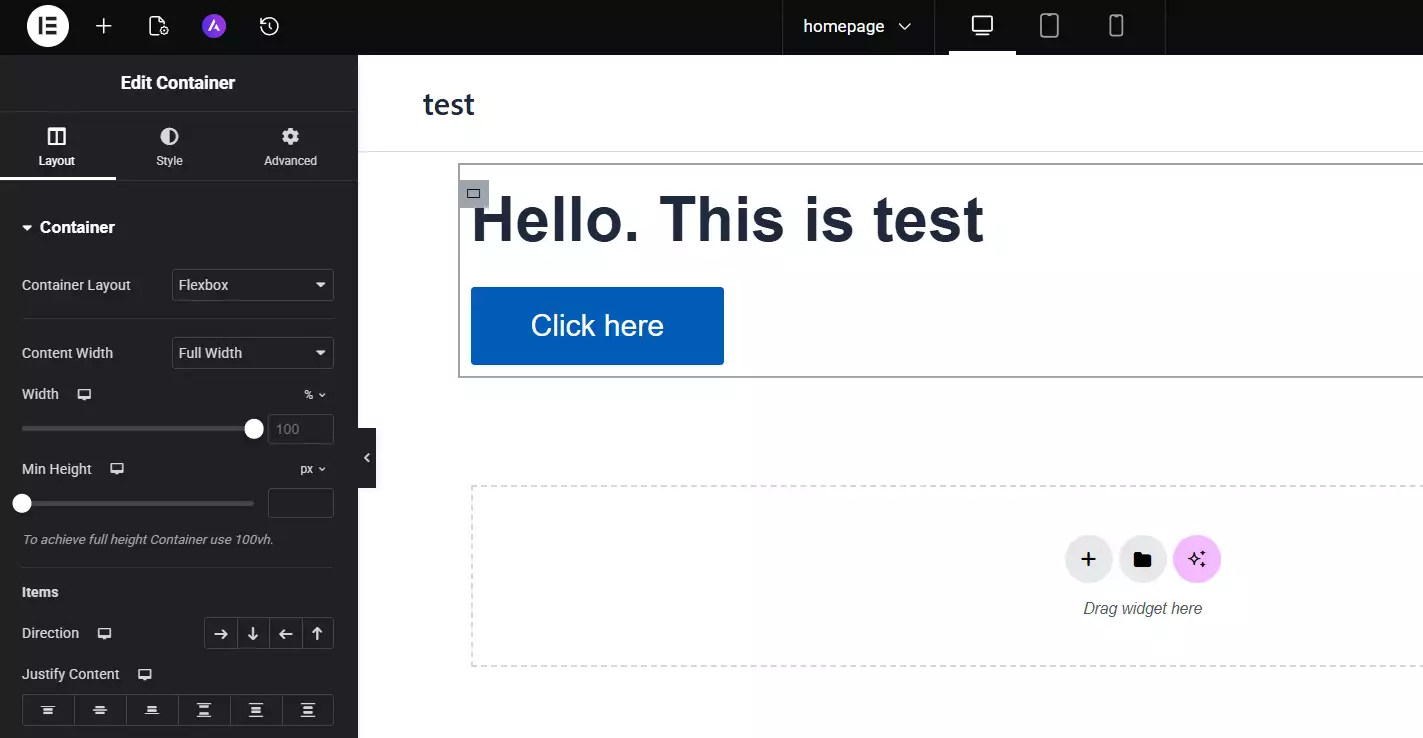
Let’s go a step further. I’ll create another container and drop it further down. It’s that simple to add a new container. Now I can take the text and button I had in the previous container, drag them, and drop them into this one. It’s very important to know that in this system, everything acts like an independent block, and your hands are completely free for moving, nesting, and custom layouts.
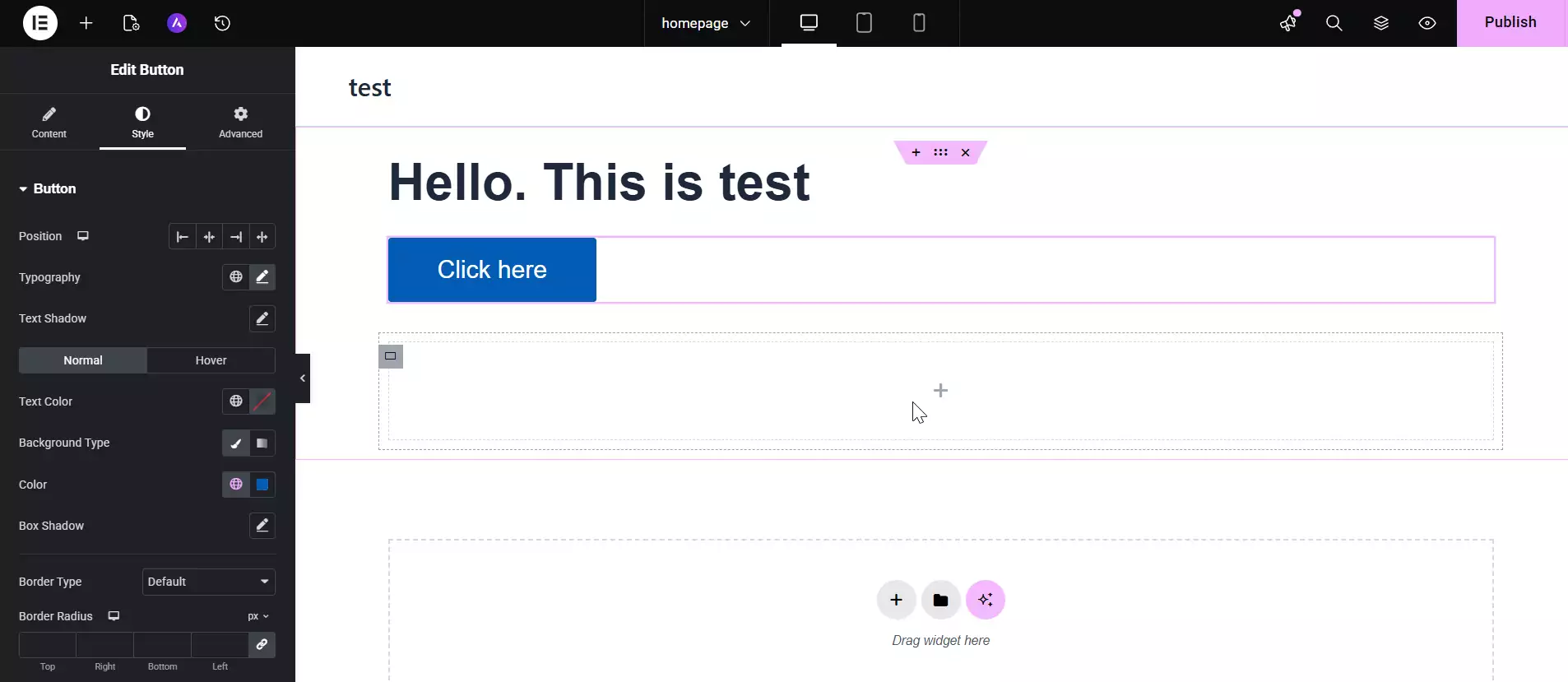
So as you can see, with just a few simple clicks and dragging elements, you can build your desired structure without getting bogged down by restrictive rows and columns. This is exactly the flexibility we were missing in Elementor before, and now it’s solved with containers.
Elementor Container Settings
Now that we’ve brought in a container and put some elements in it, let’s play around with the settings a bit more to see what’s available. For example, you can easily right-click on the container itself and select “Duplicate” to copy that container exactly. This is very useful when you want to repeat a similar structure several times on a page.
Or, if you click on it, you can very simply change the width or height of the container. These settings are exactly what we used to have separately for rows, columns, and inner sections. Now, it’s all gathered into one container. You don’t have to hunt through several elements to find them; everything is right here.
More importantly, in the Layout section, you can define the Direction (how elements are displayed). For example, you can tell the content to stack horizontally side-by-side or vertically one under the other.
Then you get to settings like “Justify Content,” which determines if the content inside the container should be at the top, center, bottom, or spaced out. There’s another option called “Align Items” that lets you specify where elements sit vertically—for example, whether they should all be in the middle of the container or snapped to the top or bottom.
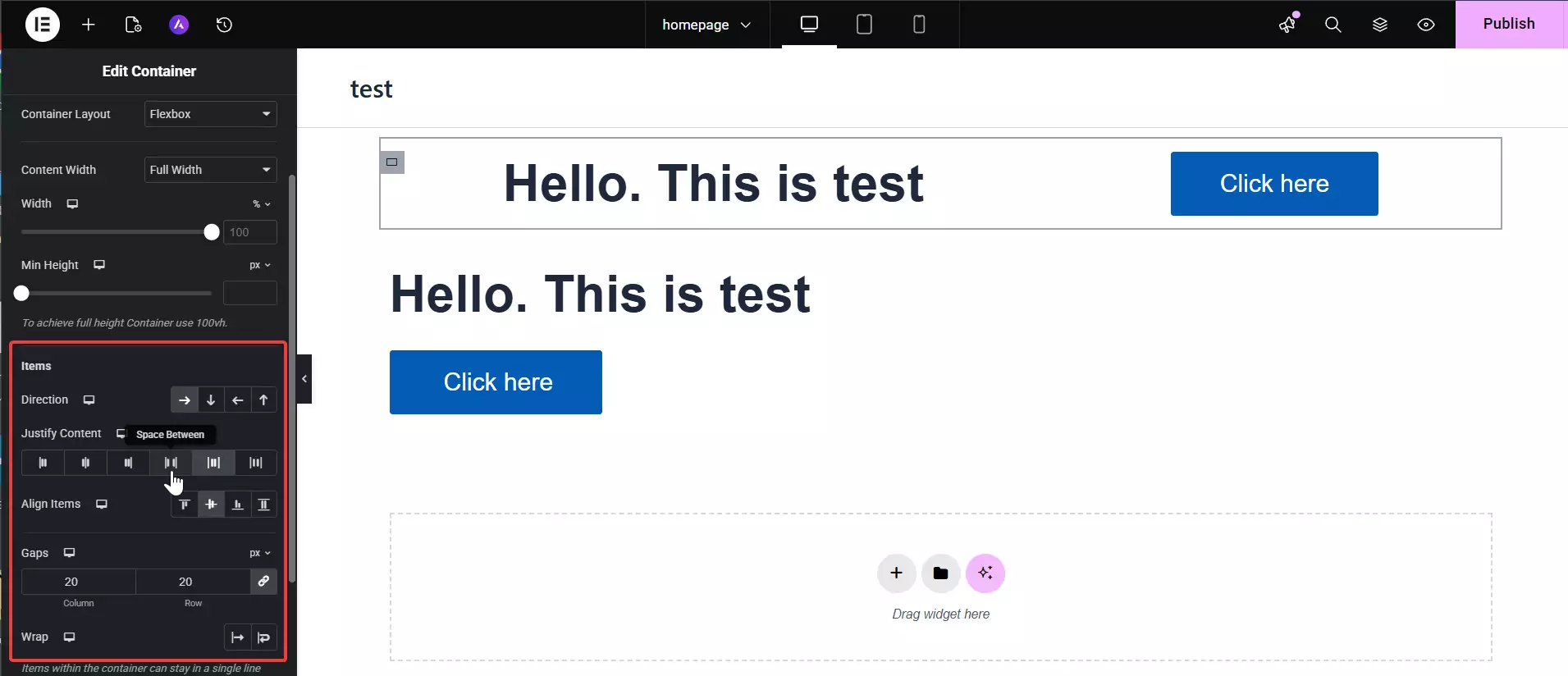
All of this really opens up your design possibilities. Instead of wrestling with several separate tools like before, you can now control everything precisely and neatly with just one container and a set of very clean settings.
Using Containers in Elementor
Now let’s get to one of the most interesting features of containers: you can place a container inside another container! Exactly what you used to have to do by combining multiple sections, inner sections, and columns is now done simply and directly with containers.
For example, with the container we have now, we can easily grab another container and drop it right into the heart of it. Then, you can drag the text we had before, a button, or any element you want, and place it inside that inner container. This means we now have a completely nested structure without complexity or limitations.
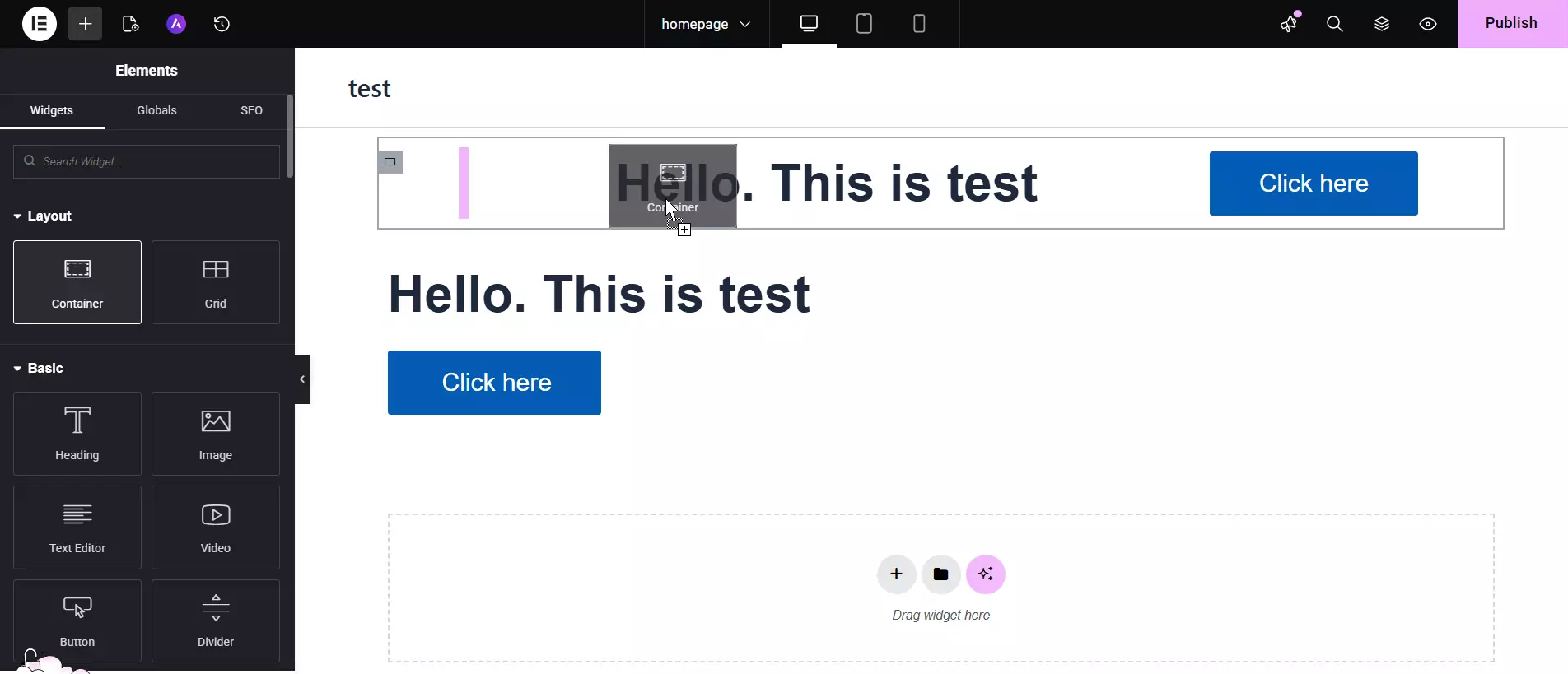
This capability allows you to build any kind of structure you have in mind exactly the way you want it. There’s no more of that old struggle with rows and columns. Working with different parts of a design in Elementor has become much, much easier thanks to containers. Everything is at your fingertips, and it feels like playing with Legos—limited only by your creativity.
So far, we’ve gotten a general overview of the container: what it is, how it works, and why it’s a real improvement over the old rows and columns. If everything is clear so far, let’s move on to the more exciting parts—professional container usage, cooler layouts, and how we can use Flexbox and responsive settings to build our pages exactly as we wish.
Tips for Using This New Feature
Alright, let’s get into how we actually work with containers. Naturally, like any new feature, there are some tricks to learn so we can use it correctly. Because of this, I’m going to delete what I built earlier and start from scratch so we can see the steps of building a container clearly.
The first way to create a container is to go to the “Add New Container” option in Elementor. When you click this, it allows you to define the structure of the container you want to build right from the start. For instance, you can choose a two-part container, one with three columns, or one where one side is larger than the other. This helps you set up the initial page structure without any hassle.
Once you choose the structure, Elementor creates a container with that composition for you. Now, all you have to do is drag elements like text, images, buttons, or anything else into each of those container sections. It’s that easy!
The great thing is that because you defined the structure from the start, you don’t need to arrange or tidy them up later. You can design your page very cleanly, easily, and quickly, knowing exactly where each section will be placed.
Style Section Settings
Another cool feature of containers is that you can click on any part and use the “Style” section to set its visual appearance. For example, you can very easily give each container a Background color. You can select a container and, from the style section, specify a specific color for it—one green, one blue, one red, however you like. This doesn’t just make the design more attractive; it makes it much easier to distinguish between different sections.
Apart from color, you can add all sorts of elements to each container. From headings and text to images, icons, buttons, lists, and anything else in Elementor. Just as you worked with columns before, you now do the same things even more easily with containers.
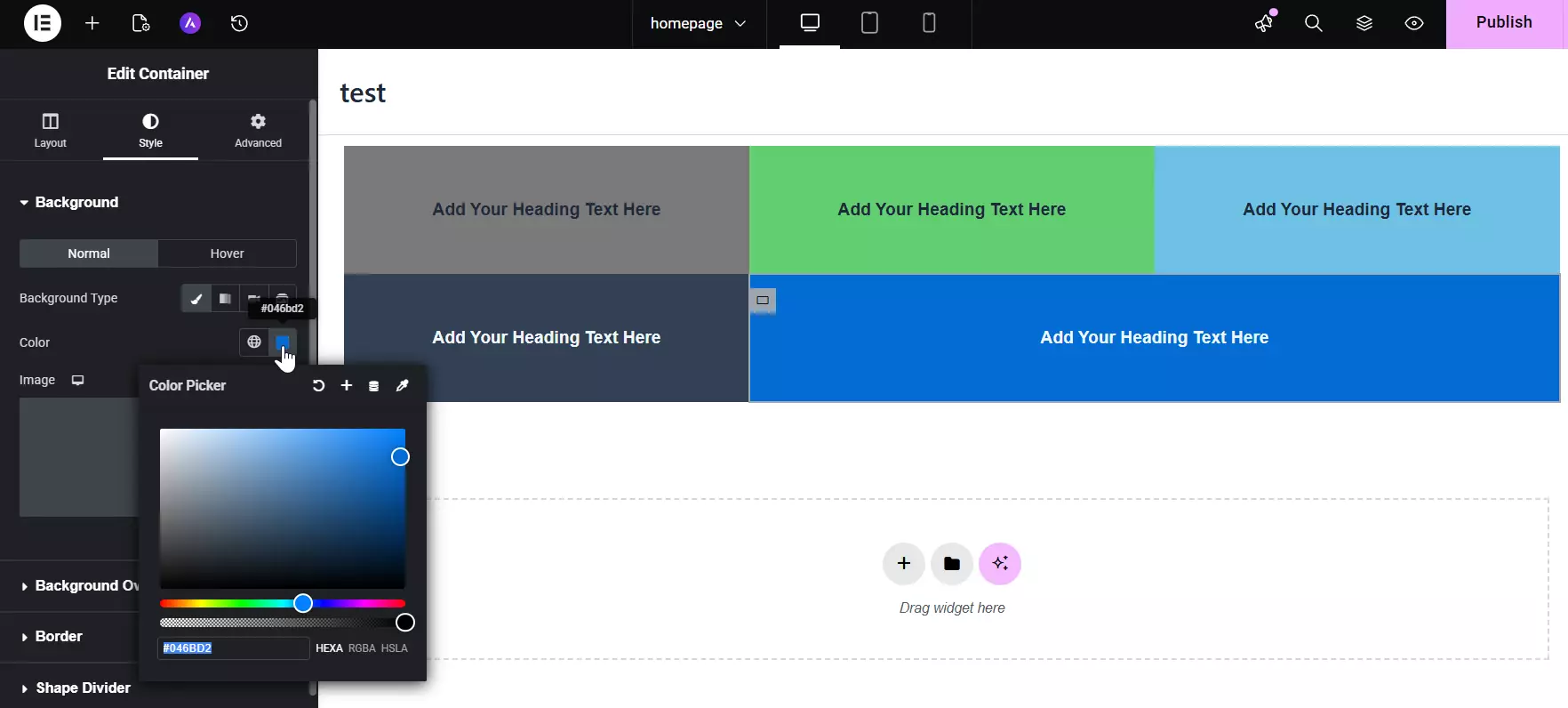
Let’s go a step further; want to change the height or width of a specific container? You can do that very easily from the Layout section. Just as you could specify how much space a section took in the old columns, you have full control here. You can even determine how the content inside the container should be aligned—center, top, or bottom.
Another very practical tip: if you’ve styled a container or an element and want that same style for others, you don’t have to set it up all over again. You can simply right-click it, select “Copy,” and then right-click the other container or element and select “Paste Style.” This way, you can copy-paste your style between different parts of the page with just a few clicks. Very simple, very fast, and very professional.
When you click on any container, a set of very important settings opens up that truly form the foundation of designing with containers. The most important is the width and height of the container, which is fully controllable. You can specify exactly how much space this container occupies and how it is positioned on the page.
Another key option is the Direction or the layout path of the items, where you can determine if the content should be arranged horizontally side-by-side or vertically one below the other. This is crucial because it defines the basis of element placement inside the container.
Now let’s look at the Alignment of content. You have full freedom on both the horizontal axis (Justify Content) and the vertical axis (Align Items). You can tell the content to be centered, go left, go right, top, bottom, or even be distributed with even spacing. These options are very straightforward and conveniently located right in the Layout settings; you don’t have to go searching for them.
On the other hand, the Gap between items is also easily adjustable. This means you can precisely define the space between different elements inside the container, both vertically and horizontally. This makes your page look much more organized and professional.
For example, for one of the containers here, I set the Justify Content to center, then copied those settings and pasted them onto another container. Very easy, without needing to repeat the settings from scratch. You can even change the height just as quickly to get exactly what you want.
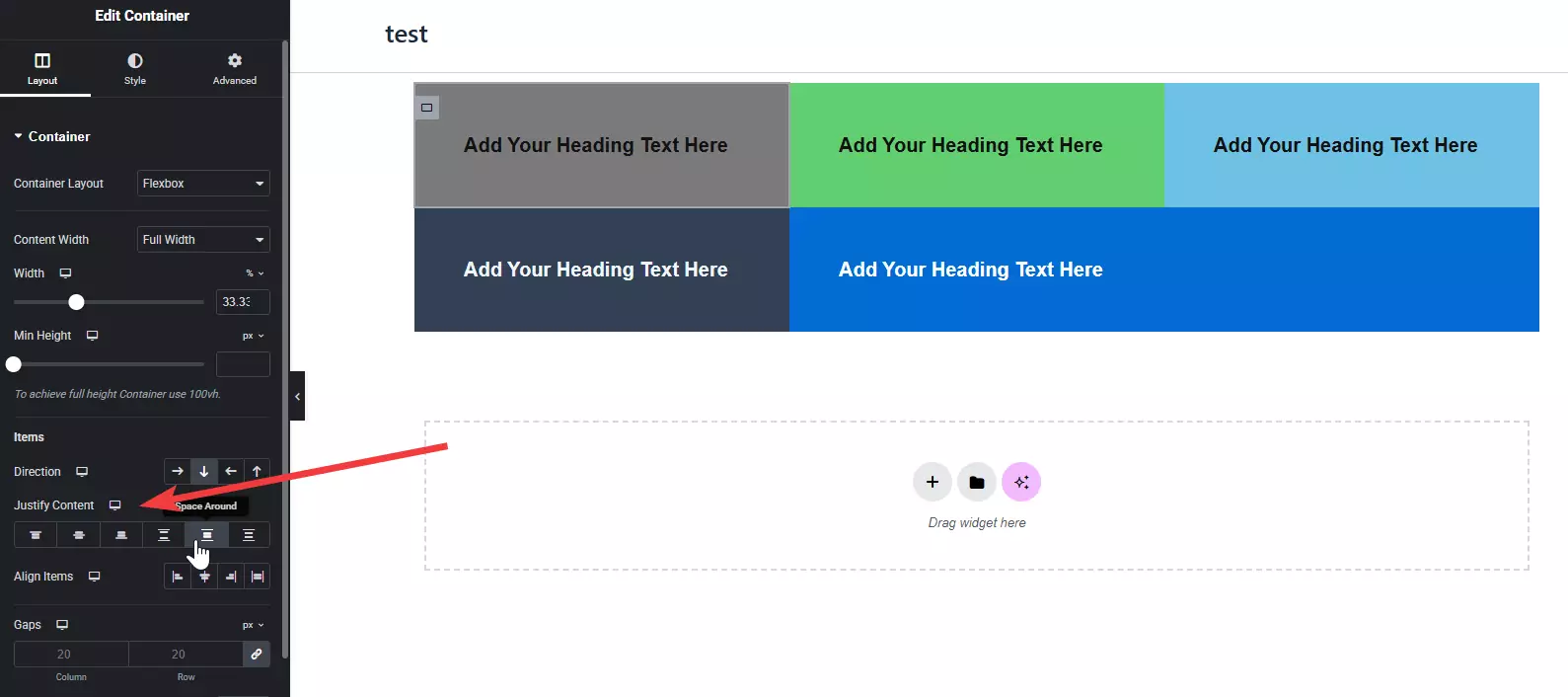
In fact, this was the first method we learned—the one where we clicked the plus button (Add New Container) and defined the initial structure. From there, you can set the foundation of the layout and then use these settings to make everything more precise and clean.
Creating Custom Structures for Containers
Now let’s move to the second method for creating a container. Sometimes the ready-made structures shown when creating a container aren’t exactly what we want. For instance, imagine I want a row that contains 5 columns. Well, that structure isn’t in those initial options, so we have to build it manually.
To do this, first, I’ll delete the previous container. Then I’ll drag a new container and drop it onto the page. Now this container is empty and ready for structuring. The first thing I do is right-click on the container and enable the Navigator or Structure. This tool really helps you see your page structure more accurately and work with it more easily, especially when you have nested containers.
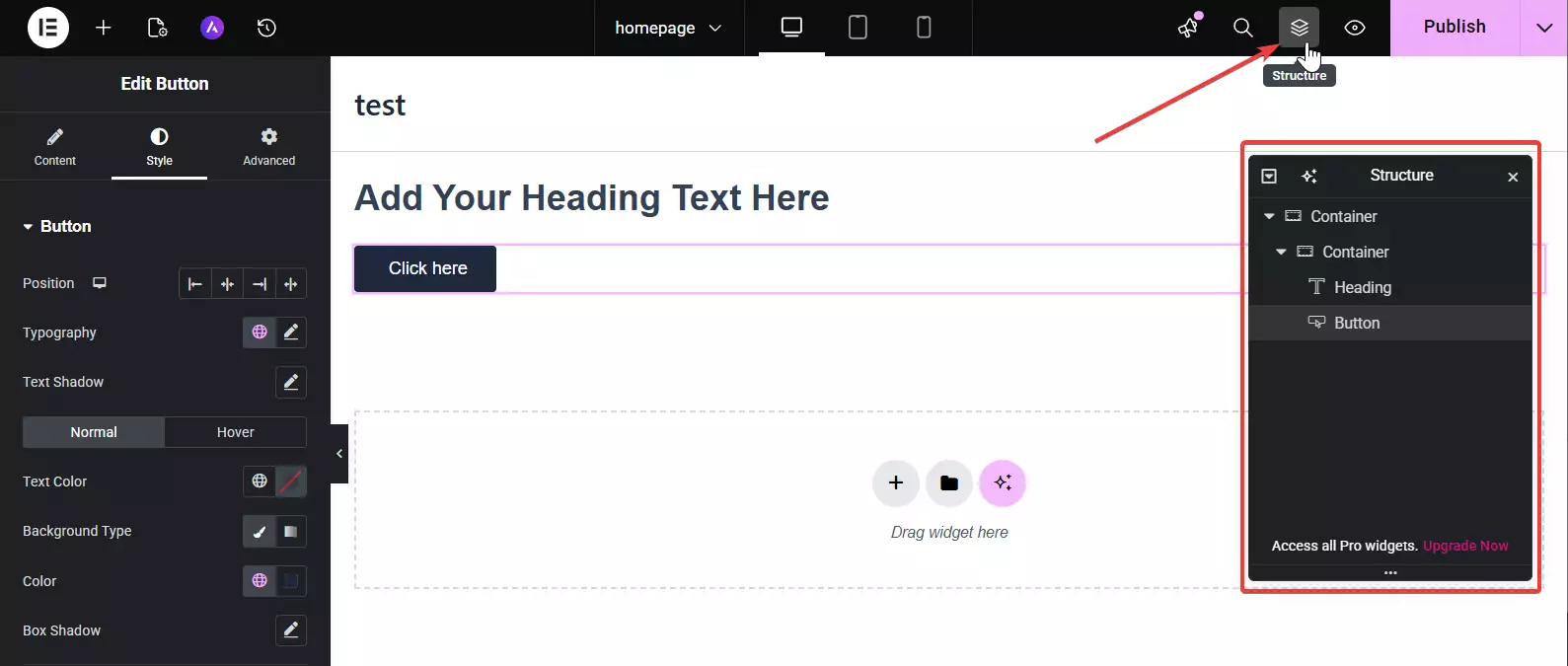
Now that I’ve selected the container, I can define its settings. For example, one of the most important options is whether this container should be Full Width or Boxed. In this example, I’ll set it to Full Width.
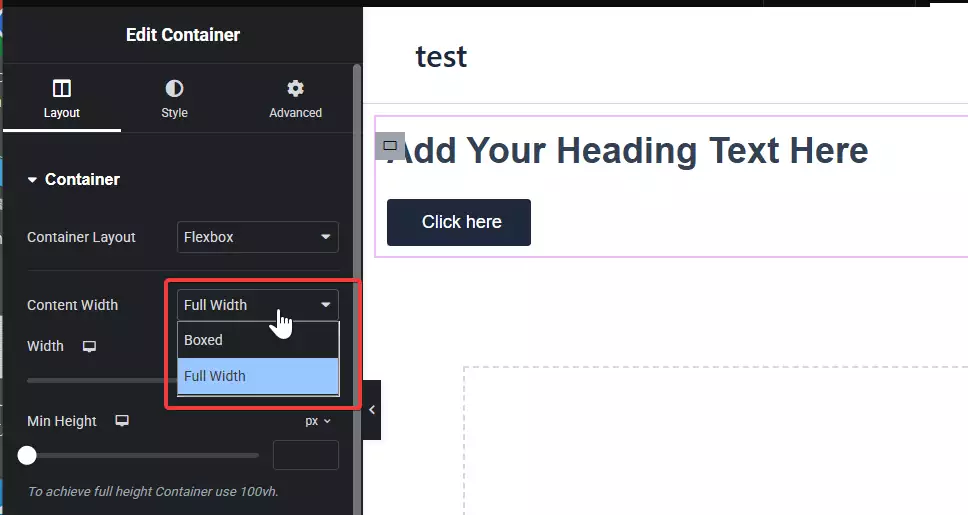
Now, what does Full Width mean? It means the container starts exactly from the right edge of the page and continues to the left edge. To make it easier to understand, I’ll give it a background color so we can see exactly how far it stretches. This way, you’ll easily understand what you mean by Full Width and how it impacts the design.
Alright, let’s continue building our custom structure. Now that we’ve built a main container in Full Width mode, we can drop other containers inside it. For example, I’ll drag a new container and drop it inside the one we just made. Now, inside this container, we can place an icon.
Imagine I’ve added an icon; I can very easily change it to anything I want—a star, a heart, or anything else that fits our design. Now let’s go back to that inner container. I’ll right-click on it and select Duplicate. I’ll repeat this a few times until I have 5 inner containers. Now we have a 5-part structure that needs to be placed side-by-side.
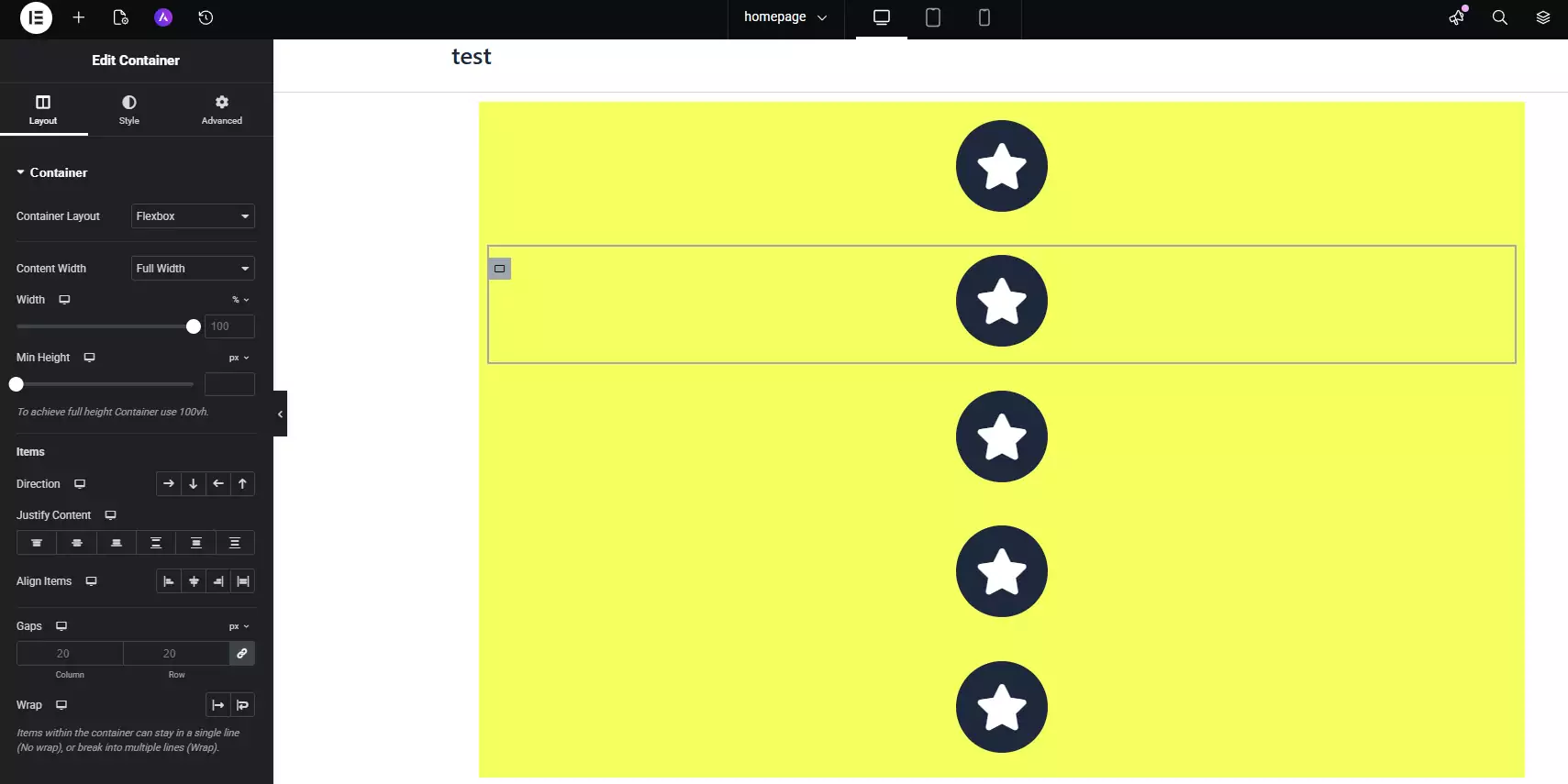
We go to the outer container—the main one acting as the row. We click on it and, in the Layout settings, set the Direction to Row (horizontal layout). With this move, those 5 inner containers we built will be placed horizontally next to each other.
It’s interesting to know that Direction doesn’t just have one mode; it has several. You can say left-to-right (the default for English), right-to-left, or even bottom-to-top or a Reverse mode. So, depending on your language, design, and needs, it is fully controllable.
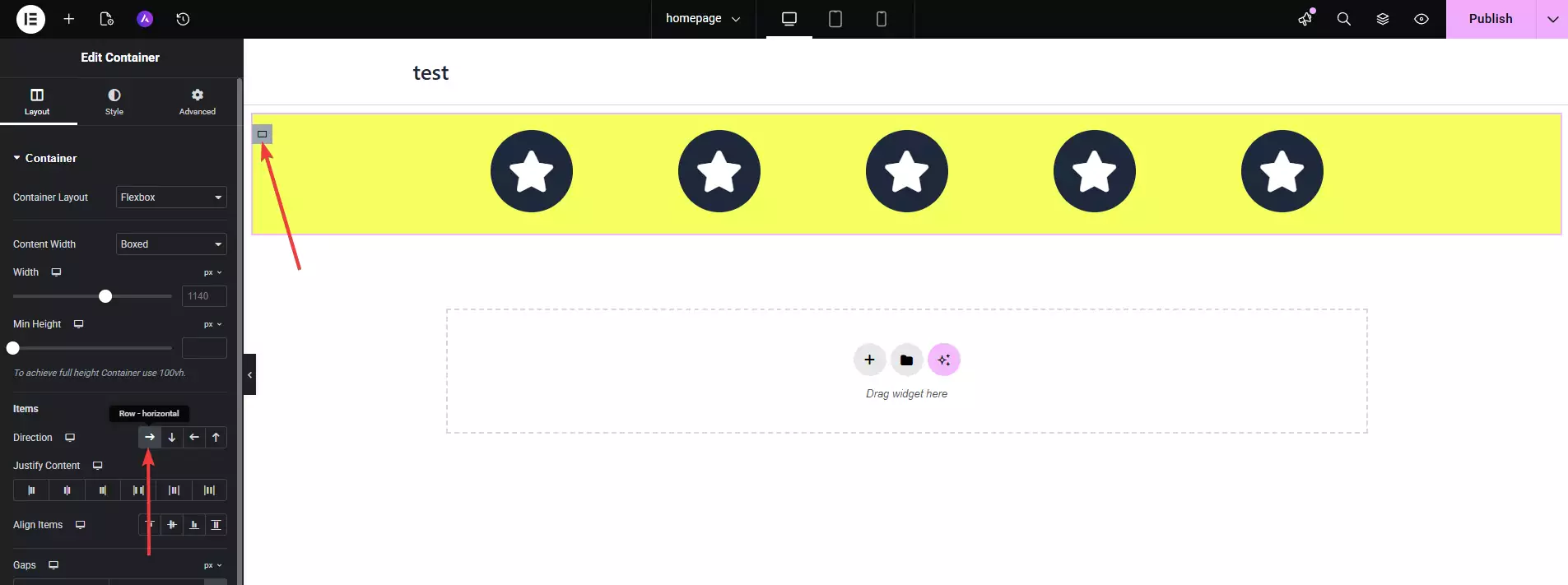
We were able to build a completely custom structure with 5 side-by-side sections without having to choose a ready-made row and column from the start. This flexibility is exactly what containers have added to our design.
Spacing Between Containers
Now that the containers are laid out next to each other, let’s talk about one of the most impactful things on the page’s appearance: the spacing between items, or the “Gap.” When you place several containers side-by-side (like the 5 we just built), you probably don’t want them all touching. You want some space between them so they can “breathe” and the design looks cleaner.
To do this, you can very easily go to the main container that holds these 5 containers. In its settings, under the Layout section, there’s an option called Gaps. You have two options here: Column Gap for horizontal spacing (between side-by-side containers) and Row Gap for vertical spacing (if your items are stacked).
You just need to increase or decrease these values to reach the exact spacing you have in mind. For example, you can set it to 10 pixels, 20 pixels, or even more, depending on your design. Aside from that, you can set Padding for each inner container individually. Padding is internal spacing—the distance of the content from the edges of its own container. For example, you can select a container and give it 20 pixels of padding on all sides. This ensures the text or icon inside doesn’t stick to the edges, creating a nice empty space around it.
Now, if you increase the top and bottom padding, for instance, you’ll see your container gains a bit more height. These kinds of details are very important in professional design because they make everything look clean, organized, and eye-catching.
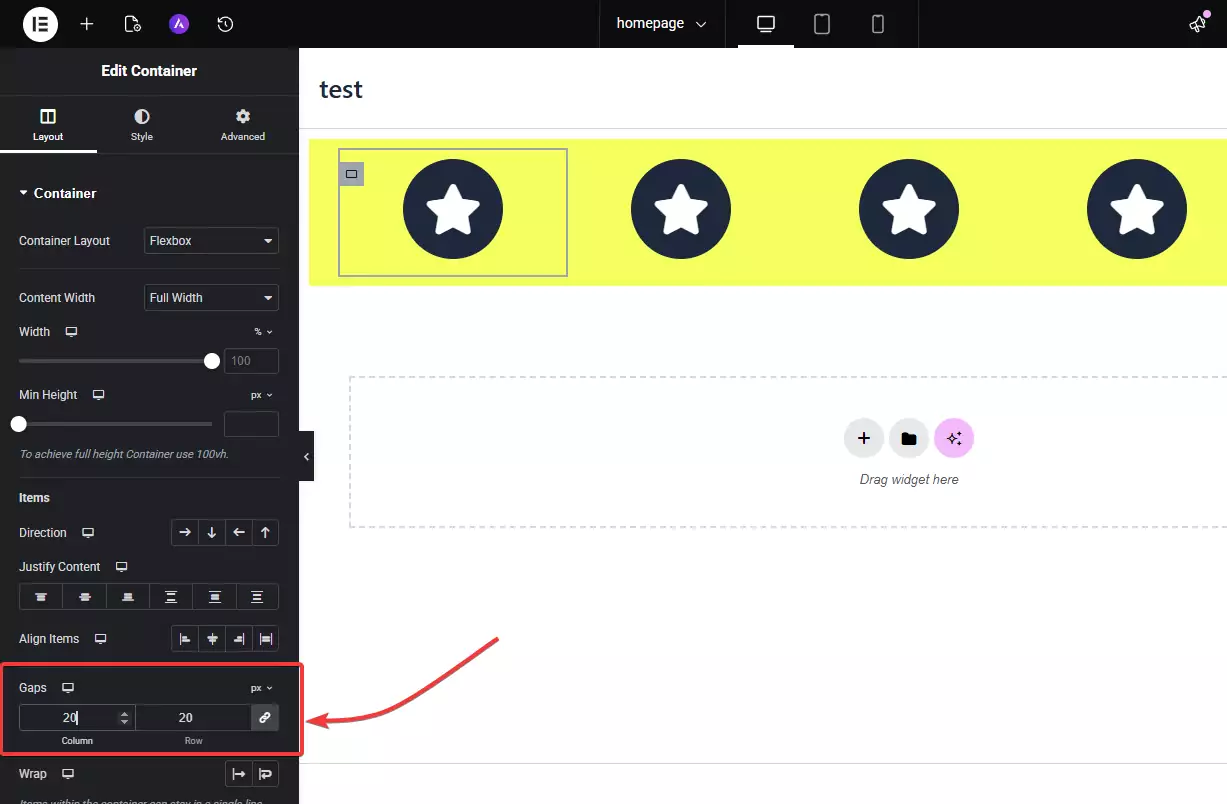
Another cool tip is that you can use a combination of Padding and Gap to achieve your desired structure perfectly. This means there is space between the containers, and they also have internal breathing room. This is exactly where the power of designing with containers shines, leaving your hands completely free.
The Paste Style Feature
Now, suppose you’ve styled one container exactly the way you want. You’ve set the background color, added padding and margin, fixed the font of the text inside, added a shadow, rounded the corners, and basically created a clean and stylish design. You don’t want to do all those settings from scratch for the other containers, right? This is where the “Paste Style” option can be your savior!
What you do is right-click on the container or element you’ve styled, then select the Copy option. Then, go to the other container or element that you want to have the same appearance, right-click, and select Paste Style.
It’s that easy. All visual settings from the first container are transferred to the new one—not just the color, but font size, shadow, padding, border, background, even hover effects, and many other things are copied.
For example, I just styled one container, then used Copy/Paste Style to apply that exact look to the other four. Very fast, very neat, and no hassle. This feature is a real lifesaver, especially when you have several similar elements that need to have a uniform appearance.
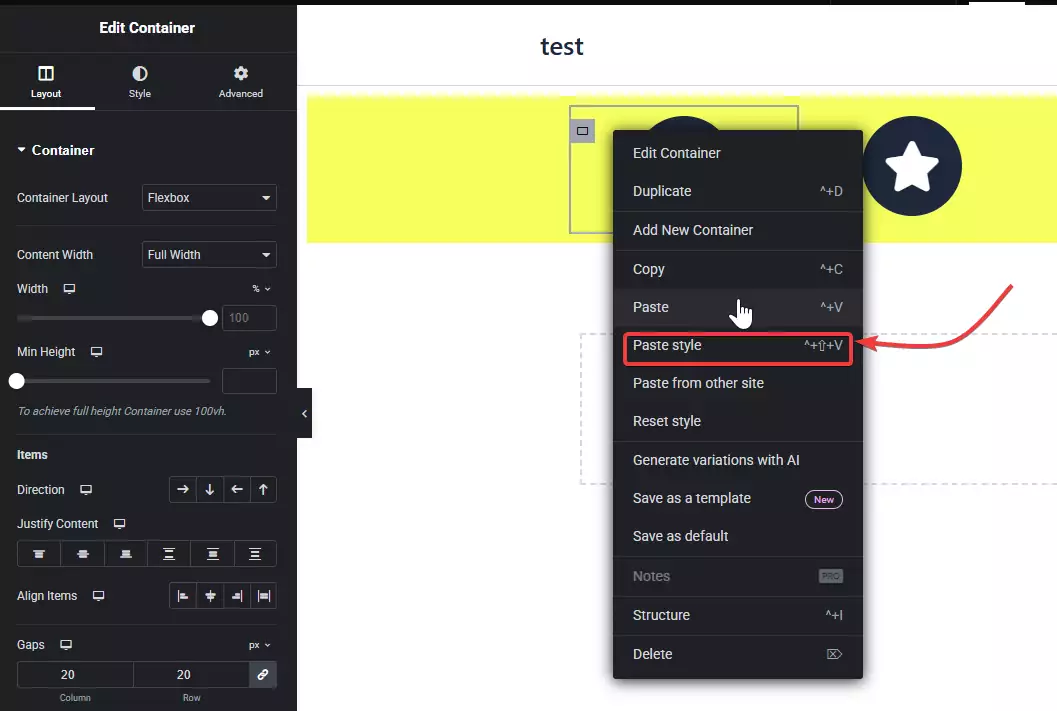
Just a small note: Paste Style only transfers the styles, not the content inside the element. So if you have a button that says “Buy,” when you copy its style, only its appearance is transferred—not its text, link, or function.
Creativity in Container Design
Now that we are familiar with the basic principles of containers, it’s time to show a little creativity and make our designs more attractive and professional. Let’s say we have a simple three-part structure and want to create a new section that matches the top part in terms of appearance and style.
To do this, first, I’ll delete two of those previous inner rows and create a three-part structure. Then I’ll add a new container to the bottom of the page. Now, if I want this new section to be the exact same color and style as the top section, I can simply Copy the previous container and Paste Style onto this new one. With this, the color, padding, shadow, and any style I had set will be applied to it, making everything look harmonious.
After that, to continue the design, I can drag a new container and drop it inside this bottom container. To create a three-part structure, I just need to right-click the inner container and Duplicate it until there are three. In each one, I can drop text, a button, or any other element I want.
To arrange these three containers, I’ll click on the Parent Container (the one they are inside) and set its direction to Horizontal. This way, the containers are placed in a row next to each other, just like the columns we used to use in rows.
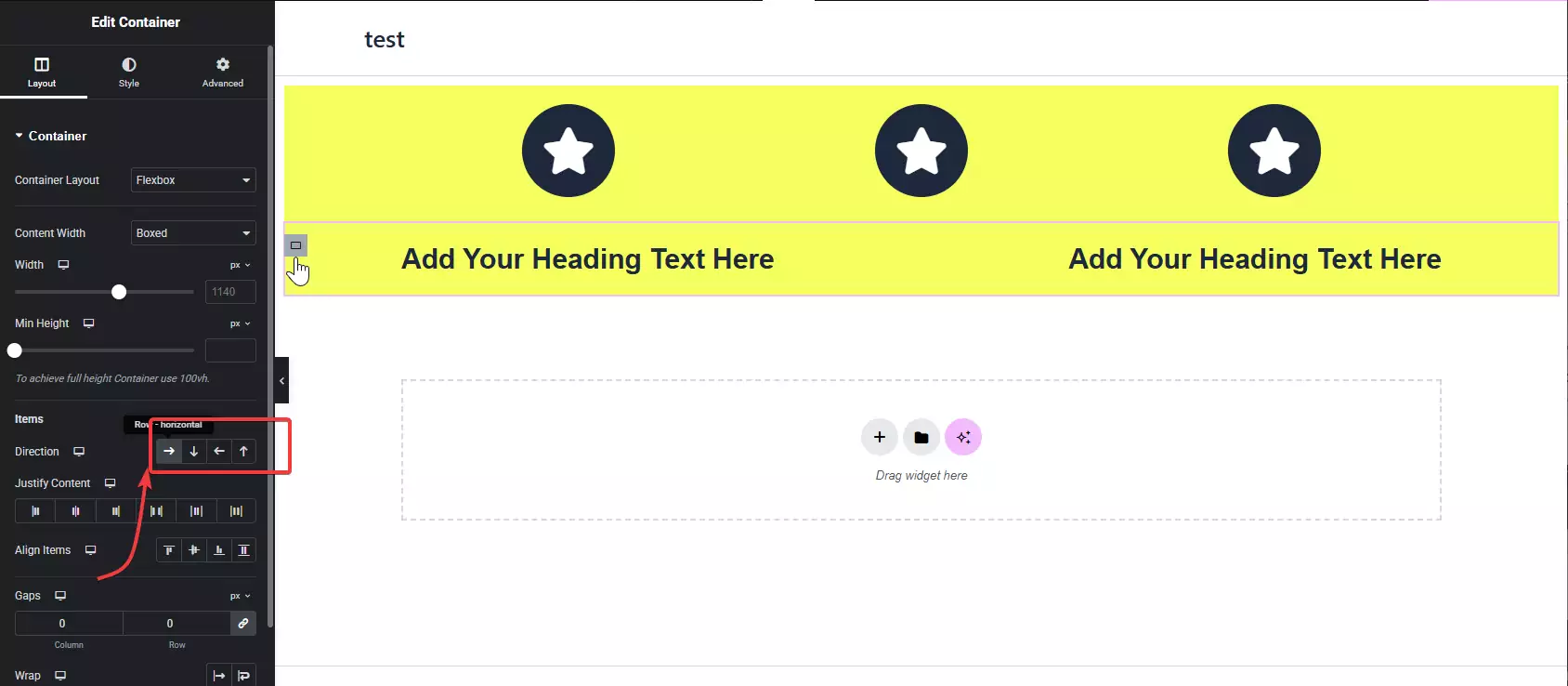
This is the main difference between using traditional rows and columns and the new containers in Elementor. Before, we added columns inside a row; but now, instead of columns, we put containers inside another container. Once this structure is built, we use the Parent Container’s direction settings to specify how they should be arranged: horizontal, vertical, reverse, and so on.
This gives us much more freedom to build any structure we have in mind exactly as we imagined it. Not just easier, but much cleaner and more controlled.
Easier Responsiveness
Now you might ask, what’s the benefit? The benefit is exactly that when you design with containers, you no longer have to spend a lot of time and energy making everything responsive one by one in the mobile version. What does that mean? It means the container handles many of the responsiveness tasks by default. By using Flexbox in the container structure, Elementor helps elements display correctly and neatly in different modes (like mobile, tablet, or desktop) in a smart way.
True, you still need to make some manual adjustments for responsiveness because the design isn’t fully automatic. But you really don’t have those strange and frustrating old headaches anymore. What was it like before? You’d go into mobile mode, shrink something, and suddenly see it changed on desktop too! Then you’d go to desktop to fix it, and mobile would fall apart again. An endless cycle of exhausting corrections!
But now with containers, Elementor acts much better and more intelligently. For example, if items are side-by-side on desktop, on mobile it understands there isn’t enough space and stacks them vertically without you needing to do complex settings. This is a giant step forward for easier and faster design.
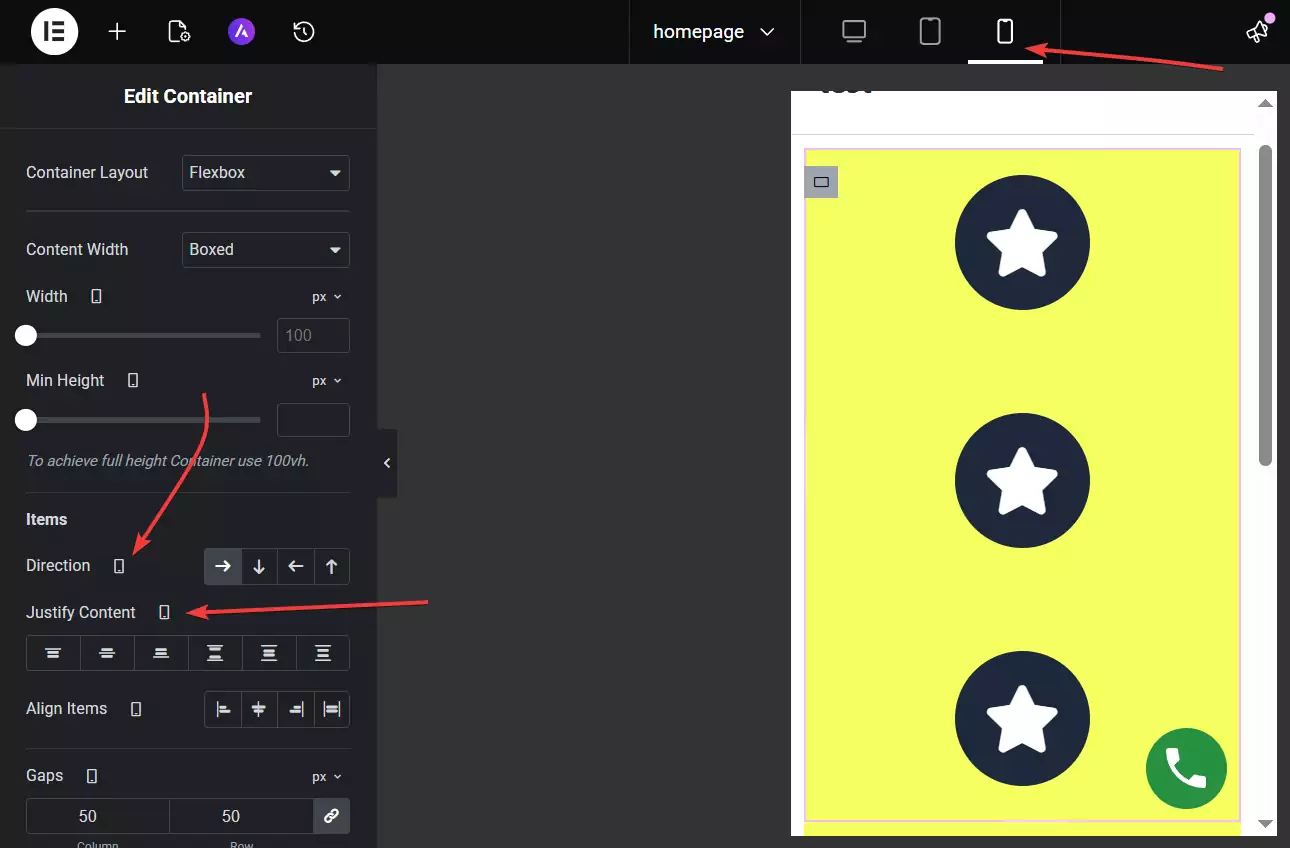
In short, designing with containers in Elementor doesn’t just give you more flexibility; it genuinely makes the responsive design experience easier, cleaner, and more predictable.
A Professional Design with Containers
If you’ve followed the tutorial carefully so far and the concepts have clicked, you’re now ready for a real and slightly more advanced example. Of course, if you feel this is enough for now, you can stop the video or tutorial and practice what you’ve learned. But if you’re still curious to know more and understand the depth of the subject, stay with me because we’re going to build a more interesting structure to really get comfortable with containers.
Alright, let’s build a nested structure. What I want to do is first add a new container to the page. Then, inside this container, I’ll add another container, and going one step further, I’ll drop another container inside that one. That’s three layers of containers one after another. It might look complex at first glance, but don’t worry, because by adding colors and text, it becomes very easy to see where each one is and what role it plays.
For example, I’ll place a text element inside each of these containers and then choose a different color for each. Maybe one red, one yellow, one white, or anything that helps distinguish them better. This simple yet effective technique results in fewer mistakes during design and helps us understand more accurately which container belongs where.
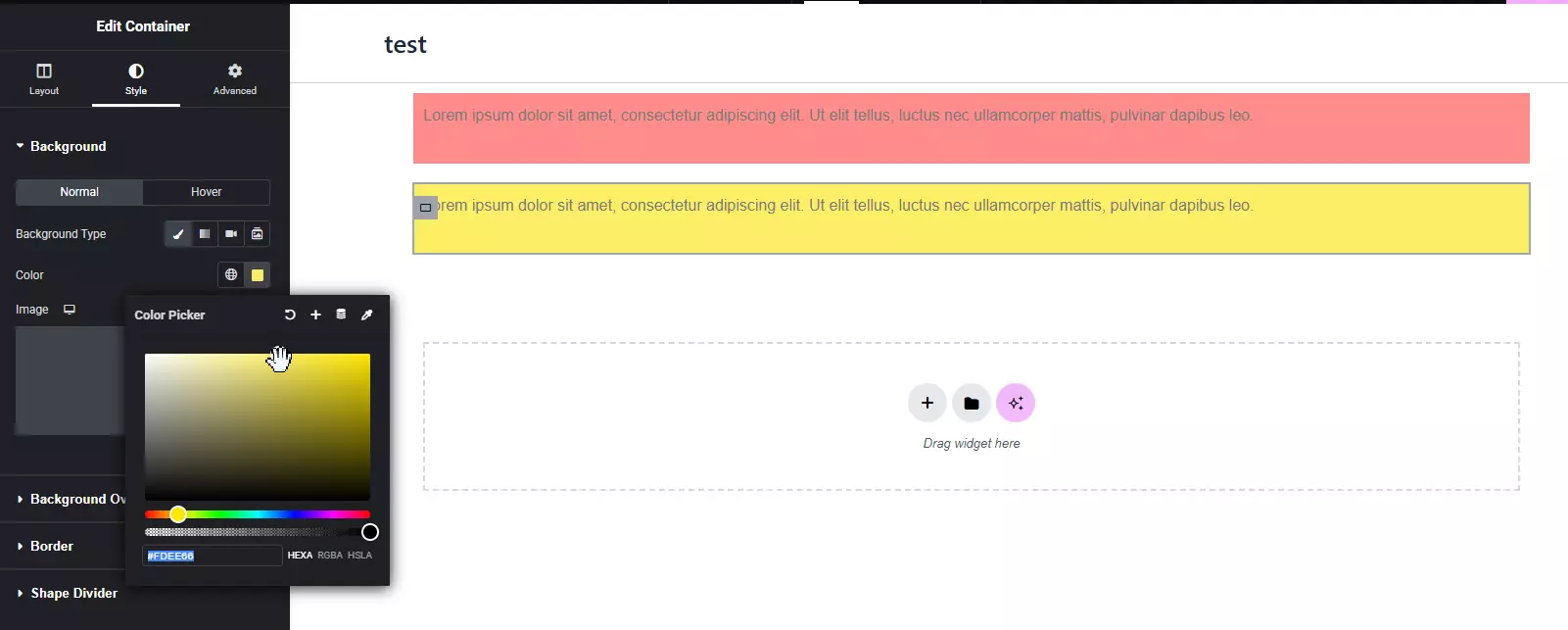
Now that we’ve built the general structure, it’s time to define the Direction of the containers. I want these two containers inside the parent container to sit next to each other (horizontally). To do this, I click on the main container and set its direction to Horizontal (Row). This makes the containers line up in a row, just like traditional columns.
Now let’s get a bit more creative. I want the left container to have more height—maybe reach the middle of the page or further. To do this, I select the left container and, in the Layout section, set the Min Height to, say, 400 pixels. This means even if the container has very little content, it will still be 400 pixels high.
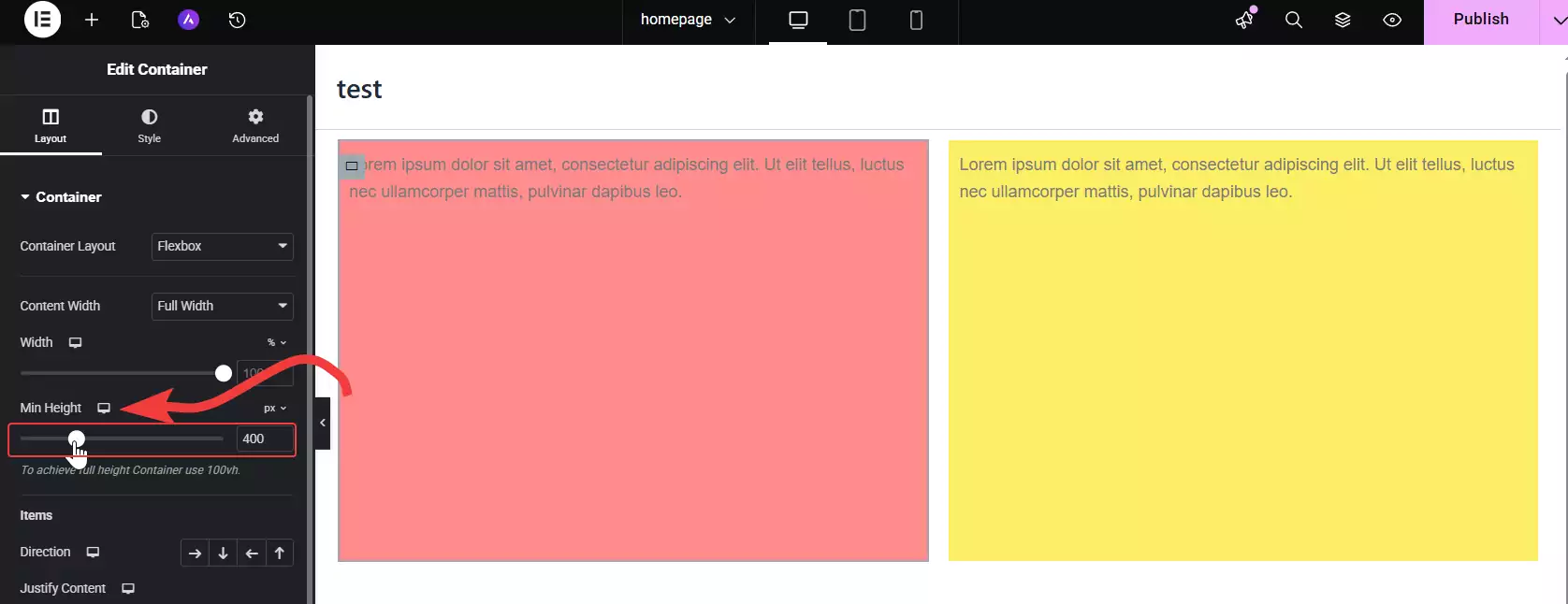
Next, I want the right container to consist of two stacked sections. Not just a simple container, but one that has two inner containers placed one under the other. To do this, instead of duplicating the right container itself (which would mess up the overall structure), we should add another container inside that right container. Then we move the text inside it. Now we duplicate that inner container so there are two stacked.
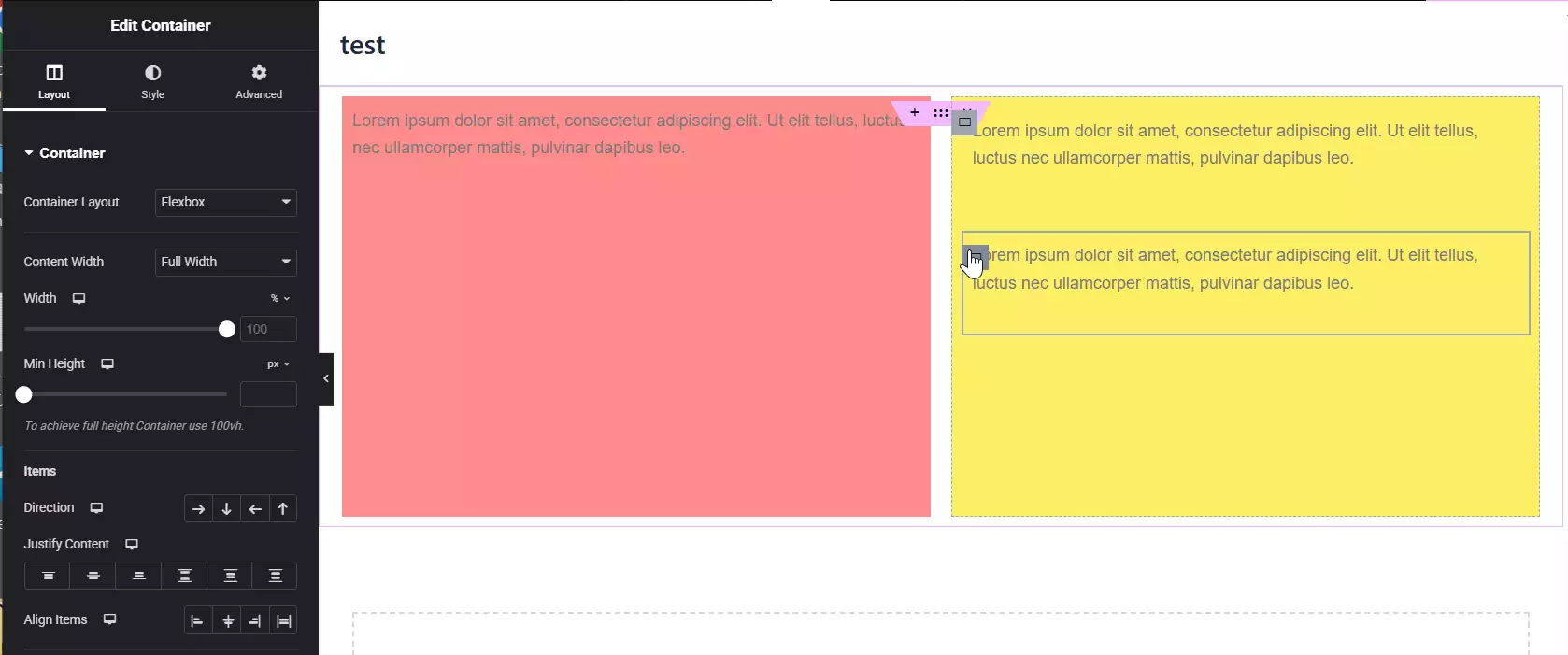
To give these two containers on the right proportional height, we might give the top one a height of 200 pixels and leave the bottom one as it is. It will automatically fix itself and look good. This way, in terms of height and overall structural order, everything turns out correctly.
Then it’s time for Alignment settings. We can specify for each section whether the content inside should be centered, at the top, or at the bottom. For example, I can say the content in every container should be perfectly centered, both horizontally and vertically. This results in a cleaner and more uniform design.
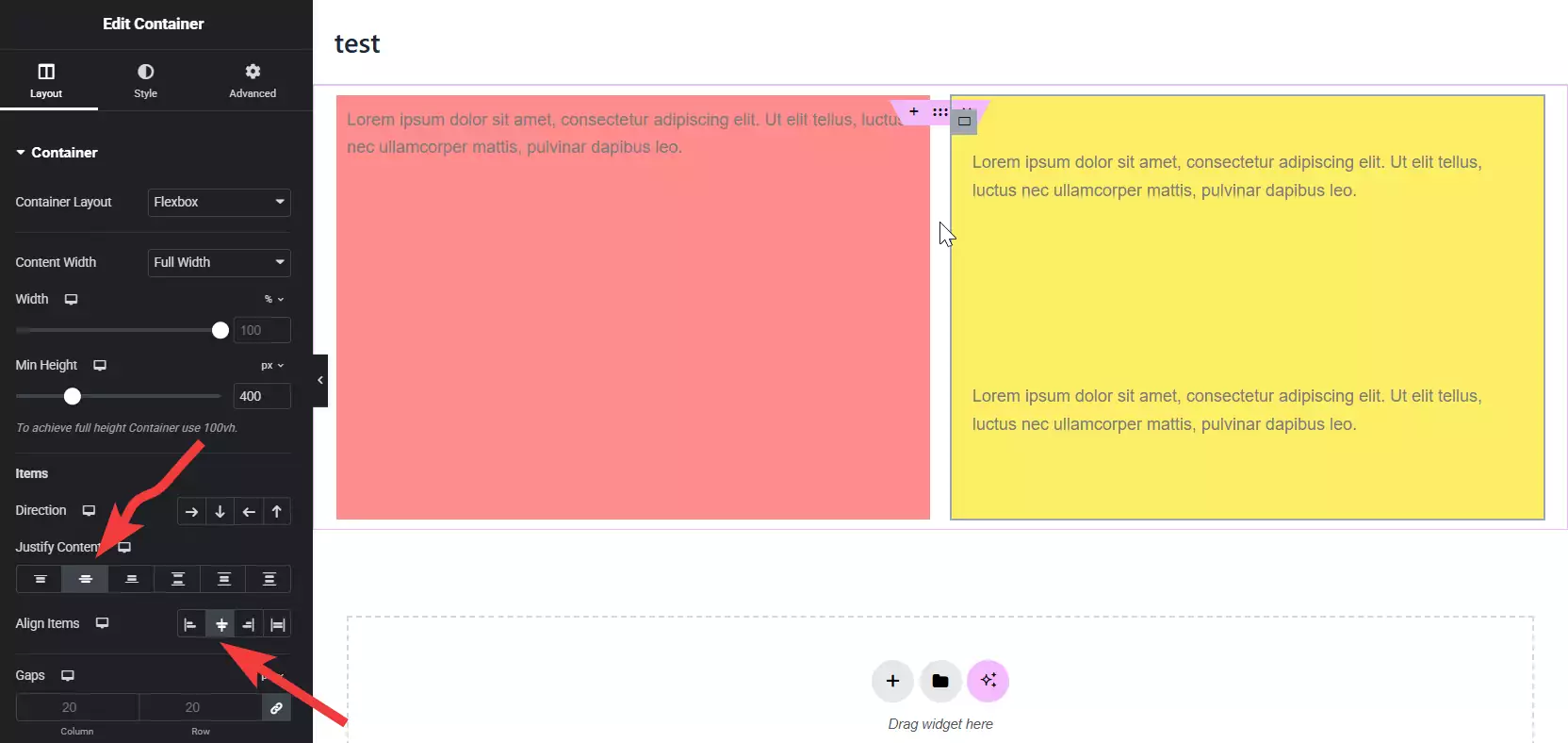
Finally, we can change the overall style of the containers. For instance, we could make the background color of the parent container white so the main page space is neutral, and then use different colors for the inner containers so they stand out from each other and are more pleasing to the eye.
This example was a complete exercise in using nested containers, setting heights, horizontal and vertical layouts, and harmonizing the appearance. This is exactly where you realize the true power of containers in Elementor: how flexible they are and how much they open up your design possibilities.
I’m giving these various examples one after another so you can see exactly how to work with this new design style in Elementor. We are gradually reaching the point where we see how much this container system differs from the previous structure and how much easier and more flexible it has become.
In this same example we built, I want to set the height of a container so it perfectly fits the column or section next to it. To do this, I go to the Layout section and increase the Min Height until those two sections are exactly the same size. This makes the final look much more organized and professional.
Now, another important point: if you see a gap between containers but you don’t want it there, you can very easily zero those gaps out. How? Click on the parent container and, in the Layout section, set the Gaps value to zero. This makes the inner containers sit next to each other with no space at all. Exactly like a single solid block.
You can do the same for that right-side container that has two inner containers. Go to its parent container, zero out the gap between items so those two containers also stick together, with no space above, below, or around them.
After that, if you still see a bit of space, it’s probably the internal spacing (Padding). You can zero that out too. Just go to the Advanced section and from there, set the Padding value to zero for all directions. Once you do this, no gap will remain, and the elements will be perfectly integrated next to each other.
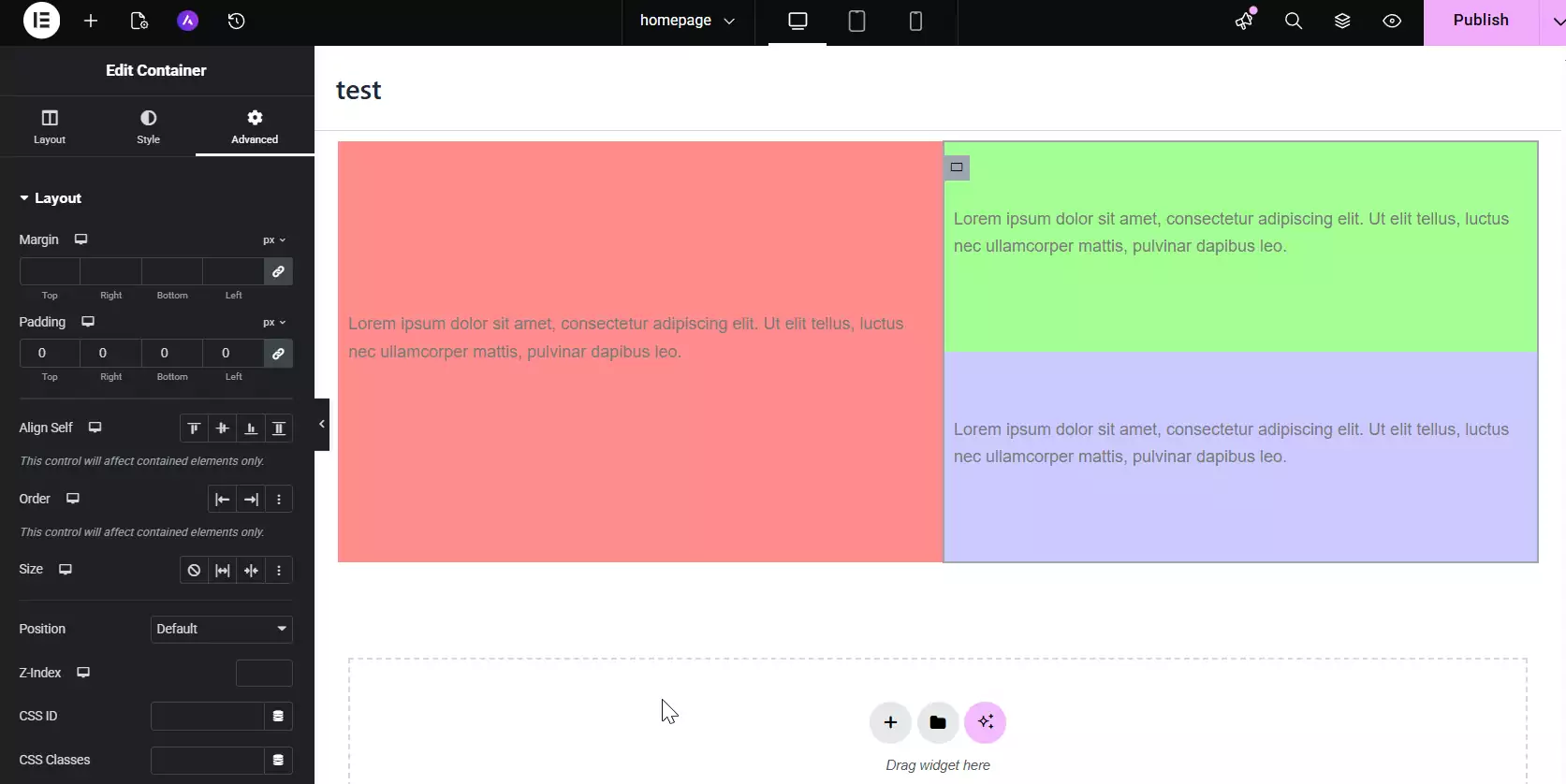
Now this structure we’ve built is a very good example: we have two columns next to each other, one of which has two other rows inside it. This means a nested structure, and at an advanced level. This is exactly what wasn’t possible with the old row-and-column structure in Elementor, or was at least very difficult and limited. There was always a ceiling or a limit where you couldn’t nest beyond a certain point, or you had to struggle with inner sections, or your structure became very heavy and confusing.
But now with the new container system, this problem is completely solved. You can create infinitely nested containers. That is, any container can have one or more other containers inside it without your design falling apart or Elementor crashing. This means complete freedom in design.
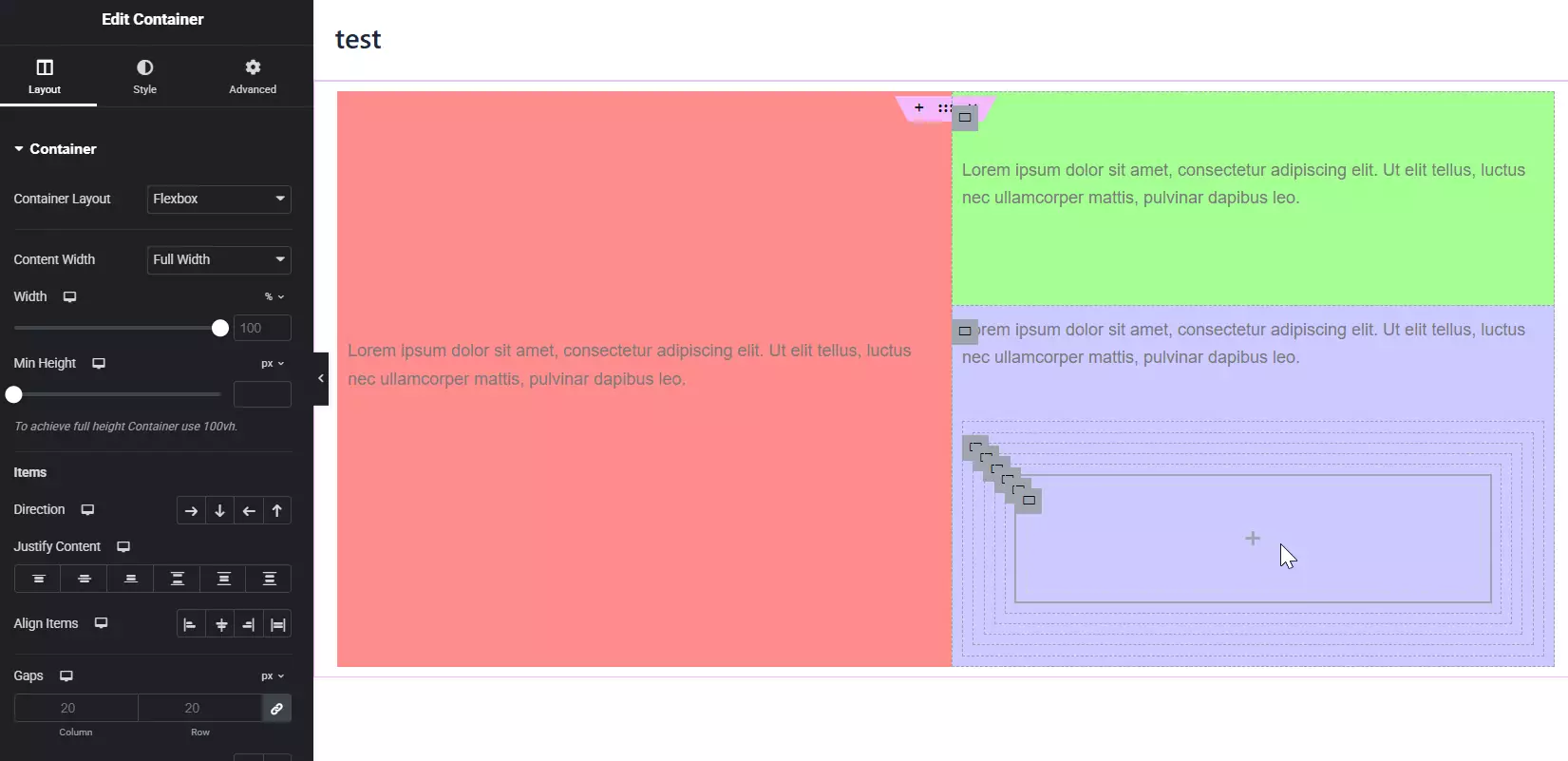
Any design you have in mind (whether simple or complex) can be implemented with containers, and nothing is standing in your way—not Elementor, nor any other structural limitation. In this tutorial, I tried to show you various styles of working with containers in Elementor through different examples: from simple to nested structures, from adjusting gaps and distances to using direction, padding, style, and even building specific and more professional modes.
Practice is the Key to Learning More
But the reality is that seeing these examples is only one side of the story; what really makes you proficient with containers is practice and practice alone. You have to roll up your sleeves many times, test things out, arrange things wrong once, fix them the next, play around with it, and try different modes until you gradually get the hang of exactly how to implement the design you have in mind with containers.
The important point is that by adding containers, Elementor has truly made design work significantly easier and more precise. Before, with the row and column structure, many things were limited. For example, you couldn’t easily build complex nested structures, or if you did, you had to deal with many inner sections and settings that were very time-consuming and problematic.
But now? Now everything is a container. Everything is more transparent, more controllable, and most importantly, more flexible. Now you can more easily than before build designs that are beautiful on desktop and precise and responsive on mobile, without a small change ruining the entire design.
So my suggestion to you is this: open your Elementor right now, create a blank page, and start playing with containers. Not for an important project, not for a client’s work—just for practice. Test, break, fix, and discover. I assure you that after a few hours of real work with containers, the old design style with rows and columns will seem outdated and cumbersome to you.
Disabling Flexbox Mode
Now let me mention another important point for those who might not have really vibed with this new container style. After all, tastes differ. Some people might prefer to continue with the old row and column structure or simply not connect with the new layout. Just like there are still plenty of people who work with the WordPress Classic Editor and don’t like Gutenberg. That’s okay! Elementor has provided a way for this too.
If you want to disable the container and return to the previous mode, you can do so very easily. First, enter the WordPress dashboard. Then go to Elementor > Settings. Now, in the Advanced tab (or “Features” in some versions), there is an option called Flexbox Container.
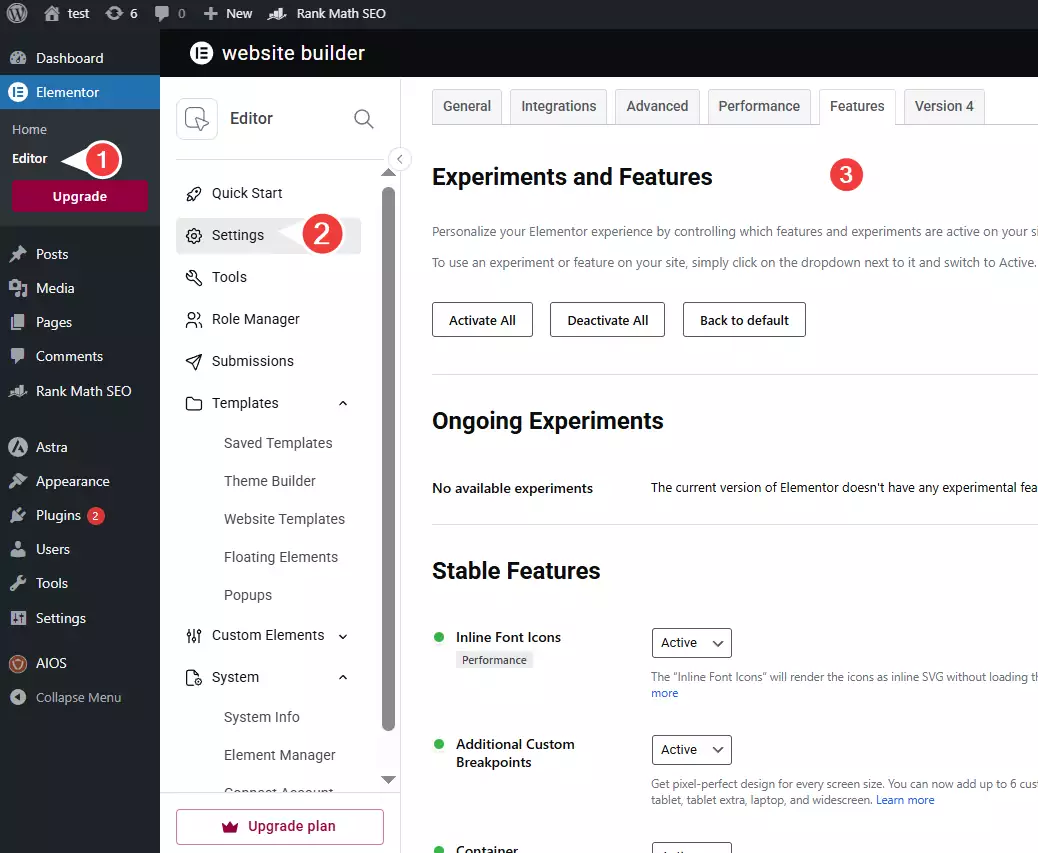
In this section, you’ll see a list of active and inactive Elementor features. Look for the option named Flexbox Container. This is the feature that enabled the container structure so we could design with this new style instead of rows and columns.
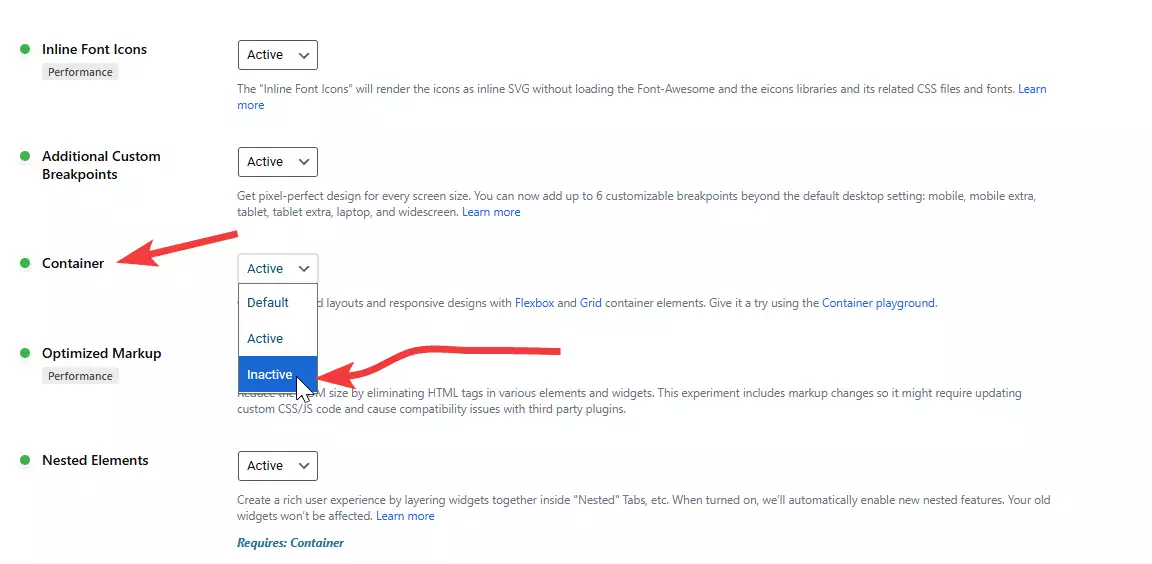
Now, if you set this option to Inactive and save the settings, upon refreshing the page, Elementor will return to its previous state, and you can work with the traditional row and column system again. This means you are never restricted. If you liked the container, great—keep it and use it. But if not, you can go back to what you’re used to. Either way, the choice is yours.
Of course, a very important note: the container system is built using Flexbox, which is a completely modern technology for CSS layouts used in professional designs worldwide today. So if you are not a beginner or want your design to reach a more professional level, I strongly suggest you continue with the container and gradually learn its tricks.
Conclusion
In the end, my suggestion is that if you aren’t familiar with the new container structure in Elementor yet or find it a bit difficult, give it a chance. While you can go back to the old row and column structure, it’s truly worth taking the time to practice with this new tool.
At Ertano, we are using containers in our designs as well. Why? Because it’s lighter, faster, and more optimized. The amount of code generated for each page (both HTML and CSS) is less. This means better loading speeds, stronger SEO, and a smoother user experience.
From a browser’s perspective, rendering the page is easier when you use containers because everything is implemented with the Flexbox structure, which is very efficient and modern. Especially in terms of responsive design, the container is a real leap forward. We used to struggle a lot to adjust the appearance for mobile, but now many things are automatic or fixed with a few simple clicks.
So instead of running away from it, I suggest you spend a day or two just practicing with it—design pages, break them, and fix them again. You’ll get the hang of it very soon and see how much faster and cleaner you can design websites.
Remember that websites previously built with the row and column system will remain as they are and won’t have any issues. But for new projects, it’s really better to move forward with containers. We at Ertano have decided to do all our designs with containers from now on because it’s more cost-effective, professional, and future-proof. Be happy and enjoy designing with Elementor!

Ahura WordPress Theme
The Power to Change EverythingElementor Page Builder
The most powerful WordPress page builder with 100+ exclusive custom elements.
Incredible Performance
With Ahura’s smart modular loading technology, files load only when they are truly needed.
SEO Optimized for Google
Every line of code is carefully aligned with Google’s algorithms and best practices.

To post a comment, please register or log in first.