
 Tutorials


 Ahura
Ahura Plugins
 Blog
BlogDisable WordPress Cron jobs to increase speed
If you’re looking for a simple yet highly effective way to skyrocket your WordPress site’s speed, today I’m going to share a trick that can truly transform your performance. In some cases, you might even see your page load times cut in half! While results vary depending on your specific setup, the improvement is usually so noticeable that it’s absolutely worth a try.
We’re going to dive into a lesser-known feature of WordPress: WP-Cron. But what exactly is it? We’ll explore how disabling this default system and taking manual control of your scheduled tasks can reduce server load and make your site feel significantly snappier.
Table of Contents
What Exactly is a Cron Job?
In WordPress, there are several tasks that need to happen in the background without the user ever noticing. For example, imagine you’ve finished a blog post and scheduled it to go live tomorrow at 2:00 PM. What system makes sure that post actually hits the “Publish” button at exactly that time? That’s where WP-Cron steps in.
WP-Cron is WordPress’s built-in scheduling system. It keeps track of tasks like sending out email notifications, running backups, checking for plugin updates, or publishing those scheduled posts.
The idea is simple: the system checks periodically to see if it’s time to perform a specific task. However, here’s the catch: these checks don’t happen automatically every 5 minutes on their own. Instead, they are triggered only when someone visits your site. When a page loads, WP-Cron wakes up and checks the “to-do” list.
This is what we call a “virtual cron job.” Unlike real cron jobs that run at the server or OS level at precise intervals, this one depends entirely on user traffic. If no one visits your site, no tasks get done. This is exactly why the default system isn’t always reliable or efficient, and why we’re going to optimize it.
Is It Only for WordPress?
WP-Cron does much more than just schedule posts. If you’re using caching plugins like WP Rocket or LiteSpeed Cache, WP-Cron handles the task of clearing old cache files to keep your hosting storage clean and your content fresh.
Many professional themes and plugins also rely on it for database optimization, auto-deleting drafts, sending out newsletters, and taking regular backups. It’s essentially the “silent brain” behind the scenes, acting like an alarm clock that makes sure everything happens when it’s supposed to.
Interestingly, this concept isn’t unique to WordPress. Almost every computing system—from enterprise servers to your own laptop—uses a “scheduler” to run tasks at specific times. WordPress simply has its own version, but as we’ll discuss, its default method can sometimes hinder your site’s performance.
How Does It Work (And What’s the Catch)?
What makes WP-Cron unique (and sometimes problematic) is its dependence on visitors. Unlike a “real” cron job on a server that runs independently, WP-Cron only fires up when there is interaction.
Imagine someone visits a page on your site. At that exact moment, in the background, WordPress starts checking if any scheduled tasks are due. This happens whether the visitor is looking at your homepage or if you are working in the admin dashboard.
This leads to two main issues:
- Low-traffic sites: If your site is quiet, important tasks (like backups or scheduled posts) might be delayed for hours or even days.
- High-traffic sites: If your site is very busy, WP-Cron might trigger way too often, causing unnecessary strain on your server and slowing down the experience for your users.
It’s a bit of an “all or nothing” situation that often leads to tasks either not running on time or running so frequently that they drain resources. That’s exactly what we’re going to fix in the next steps.
The Downside of Default WP-Cron
By now, we know that WP-Cron is the engine behind scheduled tasks. But how exactly does it slow down your site?
Think about it: WP-Cron triggers every single time a page is loaded. It doesn’t matter if a user is reading an article, browsing the homepage, or if you’re working in the admin dashboard—WordPress starts running those background tasks immediately.
Each time WP-Cron runs, it sends multiple requests to your server. It has to check: Is there an email to send? Are there updates to check? Should I clear the cache? Is a post ready to be published? This creates a heavy load on your server precisely when your visitor is waiting for the page to load.
The result? High latency, slower load times, and a poor user experience. On high-traffic sites, these requests multiply by the number of visitors, putting massive strain on your hosting resources. This is why your site might feel sluggish even if you’re using top-tier hosting.
Disabling WP-Cron in WordPress
Let’s get hands-on. The first step is to stop WordPress from running these tasks on every page load. You’ll need to access your hosting control panel (like cPanel, Plesk, or DirectAdmin).
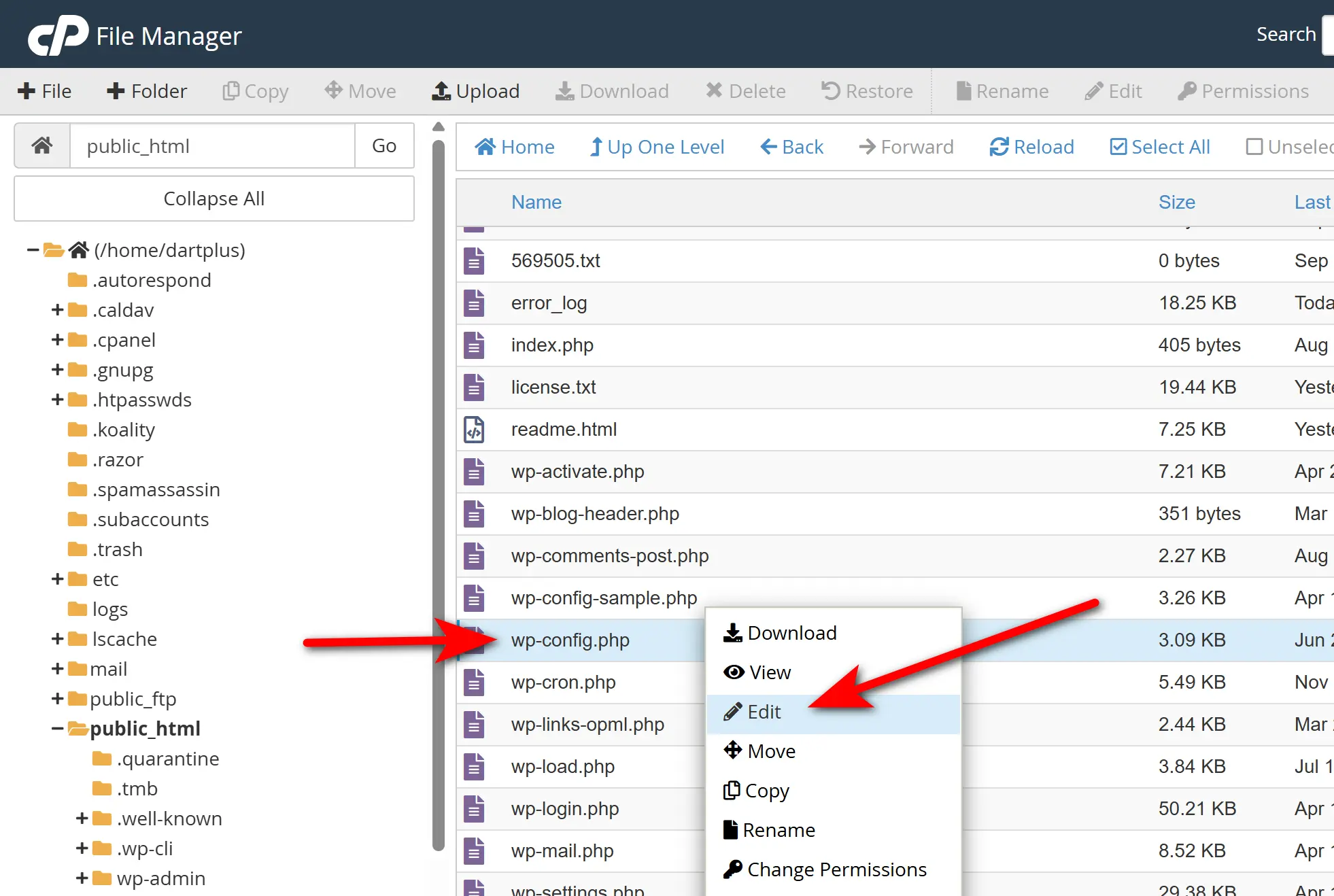
- Open your File Manager and go to the root directory where WordPress is installed.
- Locate the
wp-config.phpfile. - Right-click and select Edit.
- Add the following line of code, preferably right before the line that says /* That’s all, stop editing! Happy publishing. */:
define('DISABLE_WP_CRON', true);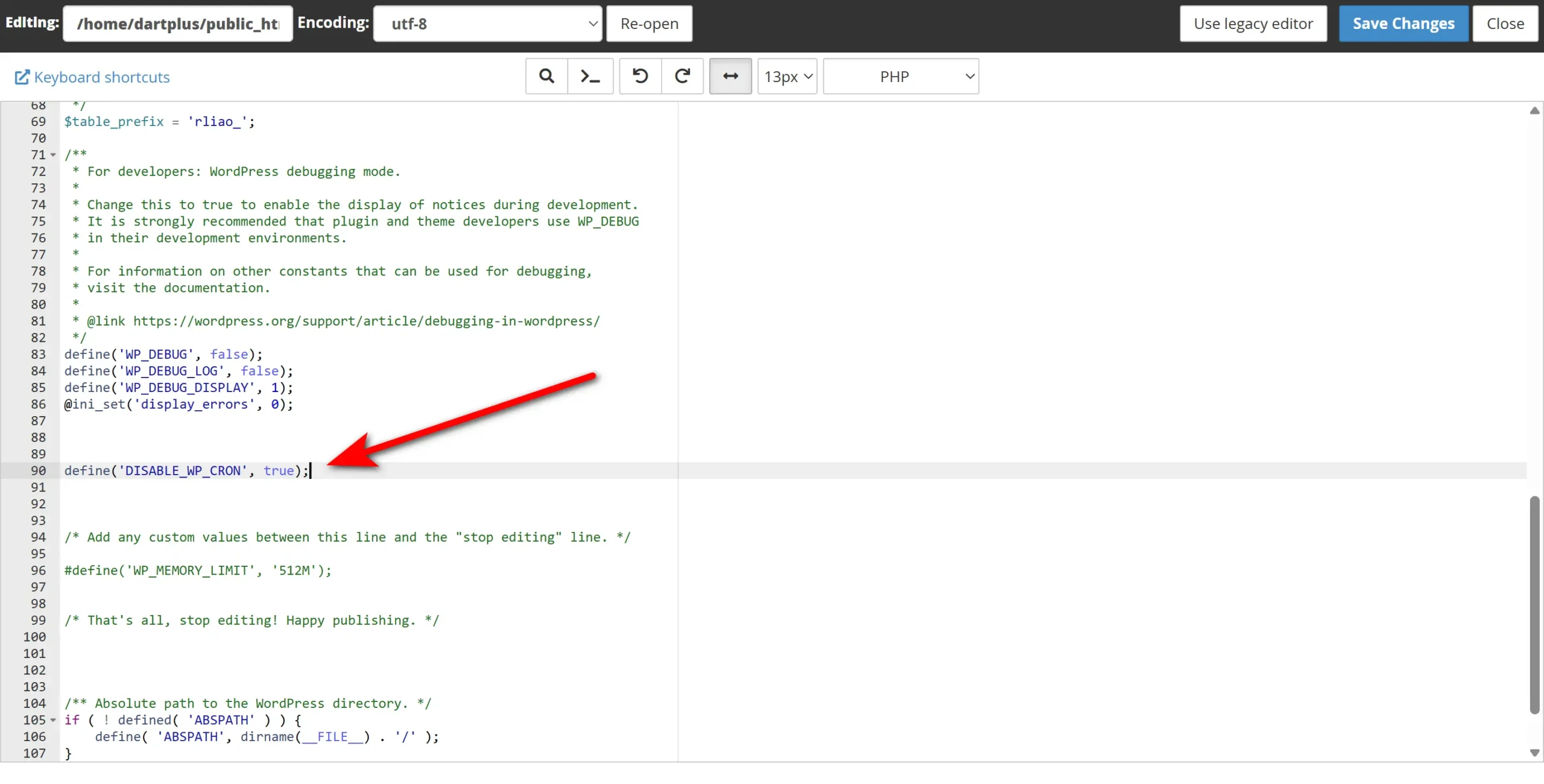
This simple line tells WordPress: “Stop running WP-Cron automatically.” Immediately, you’ll notice your server breathing easier and your pages loading much more smoothly.
Setting Up a Real Server-Side Cron Job
Now that we’ve disabled the automatic system, we need to ensure our tasks (like backups and scheduled posts) still run. We’ll do this by creating a Real Cron Job on your server. This method is professional, efficient, and independent of user traffic.
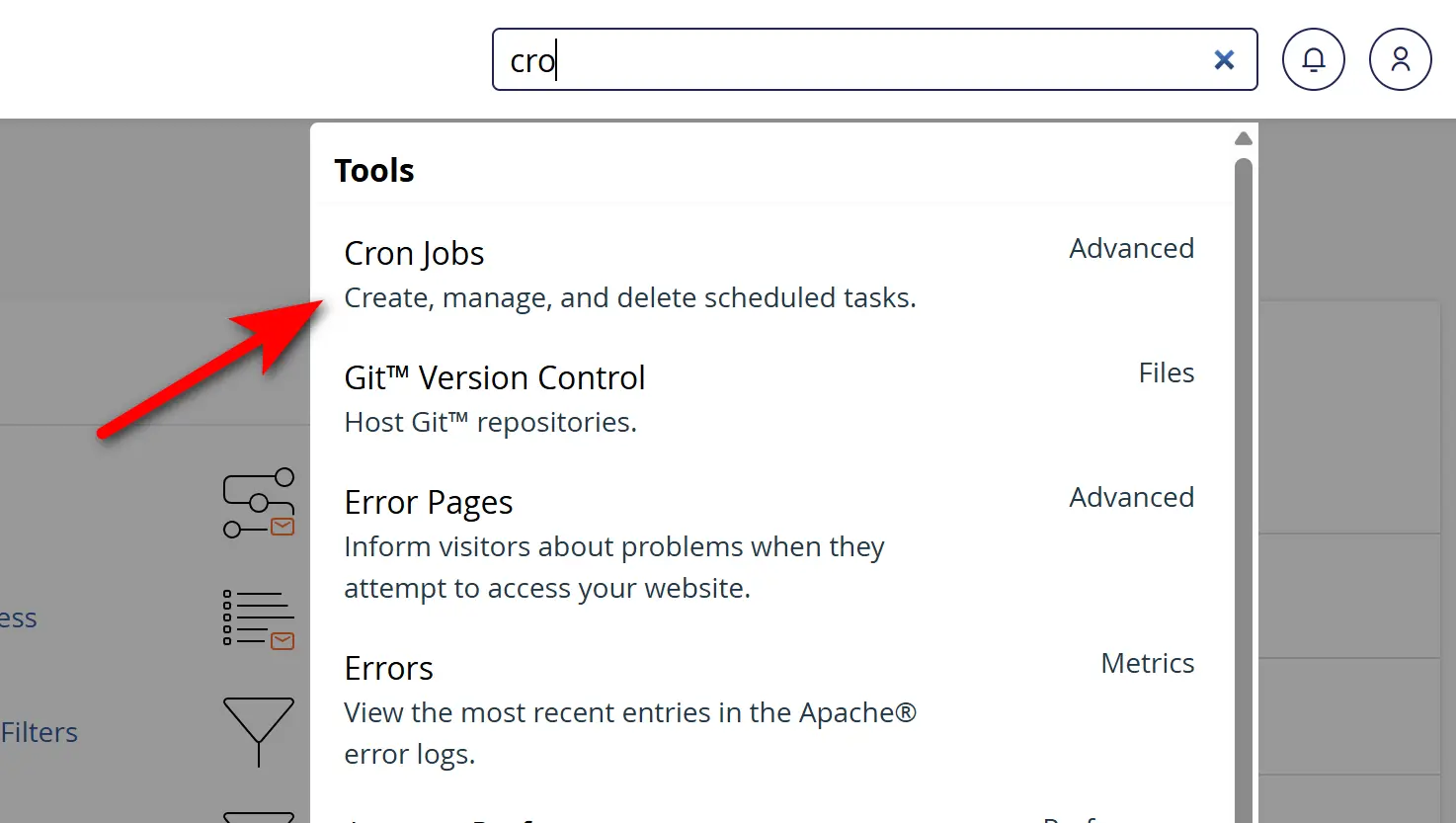
Go to your hosting dashboard and search for “Cron Jobs”. Once there, you can schedule a task to run at a specific interval. For most websites, running it every 5 minutes is the “sweet spot”—it’s frequent enough to keep things updated without overloading the server.
In the Command field, enter the following code (make sure to replace the placeholder with your actual domain):
wget -q -O - https://yourdomain.com/wp-cron.php?doing_wp_cron >/dev/null 2>&1Note: Replace
yourdomain.comwith your actual website URL.
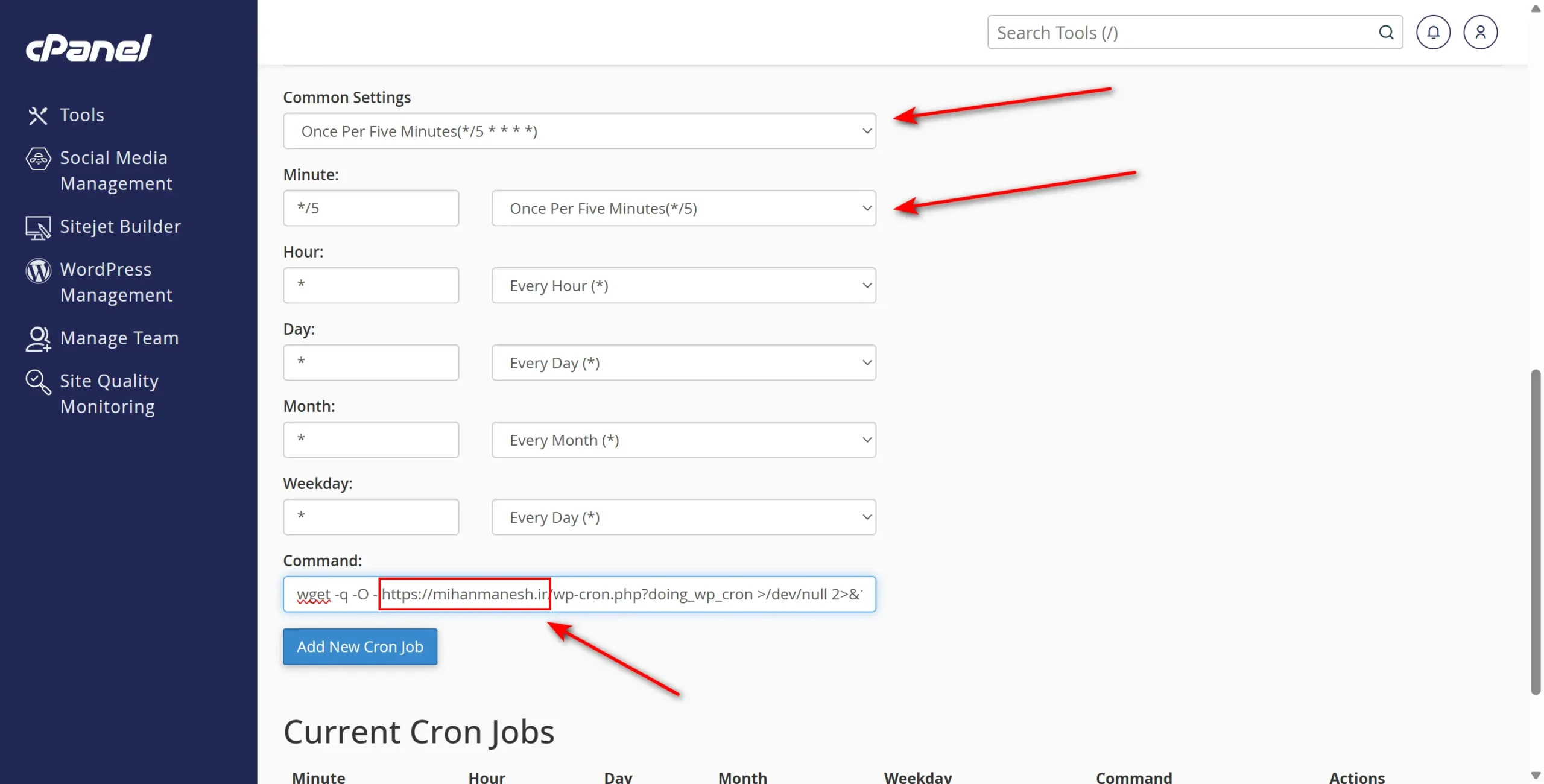
Click “Add New Cron Job”. From now on, your server will trigger the wp-cron.php file every 5 minutes automatically. Your site stays fast because no tasks are performed during the page load, yet everything remains perfectly organized in the background.
Final Thoughts
Optimizing WP-Cron is one of those professional “under-the-hood” tweaks that separates average websites from high-performance ones. By moving these tasks to a server-side schedule, you ensure that your visitors get the fastest version of your site possible, while your background tasks remain reliable.
I’ve implemented this technique on numerous projects, and the results are almost always immediate—sometimes even doubling the perceived speed of the site. It’s a serious step toward a more professional and optimized WordPress experience.
Stay tuned for more professional WordPress optimization tips here at Ertano!
Ahura WordPress Theme
The Power to Change EverythingElementor Page Builder
The most powerful WordPress page builder with 100+ exclusive custom elements.
Incredible Performance
With Ahura’s smart modular loading technology, files load only when they are truly needed.
SEO Optimized for Google
Every line of code is carefully aligned with Google’s algorithms and best practices.

To post a comment, please register or log in first.