
 Tutorials


 Ahura
Ahura Plugins

 Blog
BlogHow to Connect to Linux SSH on Different Operating Systems
- Tutorials
- Updated on

If you have been following our Linux section lately, you know we have been trying to publish more Linux tutorials. And you might be wondering, what on earth does Linux or SSH have to do with WordPress? Well, here is the thing. Your website and my website are both sitting on Linux servers. Whether you like it or not, there will probably come a day when your popular site needs to be managed on a dedicated Linux server. Unless, of course, you want to hand over your credentials to someone else or pay a small fortune every month for server management.
A professional webmaster should be able to work with hosting panels and servers when something goes wrong. In this guide, I want to walk you through the most important features and methods for connecting to Linux SSH on different operating systems. No fluff, just practical help.
Table of Contents
What Is SSH Anyway?
Before we go any further, let me quickly explain what SSH actually is. I almost forgot to mention it earlier. SSH stands for Secure Shell. It is a way to manage Linux operating systems without needing a graphical interface. You control everything using text commands. Think of it as having a direct, secure line to your server’s brain.
Depending on your operating system, you have different methods for connecting via SSH. But the logic and the overall process are pretty much the same everywhere. Let me show you how.
Connecting to SSH on Windows
If you are using Windows, you will need to download a piece of software called PuTTY. Do not worry, it is completely free and very lightweight. Once you download and install it, go ahead and launch the program.
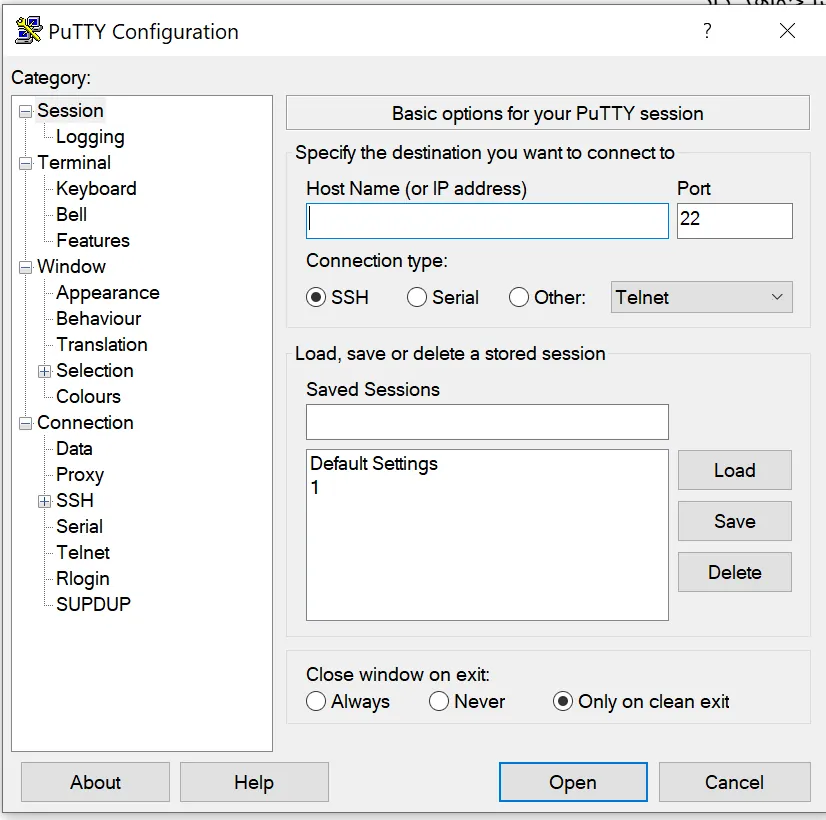
You will see a screen with several input fields. In the Host Name section, you need to enter your server’s IP address or hostname. You should get this information from your server provider. It does not matter whether you have a virtual private server or a dedicated server. As long as Linux is installed on that server, you are good to go.
For example, let us say your server IP is 192.168.1.25. You would type that into the Host Name field. Next, you need to enter the SSH port. By default, this is port 22. Unless your server administrator has changed it, you can leave it as is.
Finally, click the Open button. PuTTY will now try to establish a connection. Once you are connected, it will ask for your server password. Go ahead and type it in. And here is a friendly heads up that catches almost everyone off guard. When you type your password, absolutely nothing will appear on the screen. No dots, no stars, no letters. Just a blinking cursor. Do not panic. This is normal. I remember spending nearly three days back in 2011 trying to figure out why my password was not typing. Trust me, it is working. Just type carefully and press Enter.
And just like that, you are inside your Linux server. You might feel a little bit like a hacker at this point. That feeling is fun, but do not let it go to your head. We are not hackers. We are just Linux users now.
Connecting to SSH on Linux and Mac
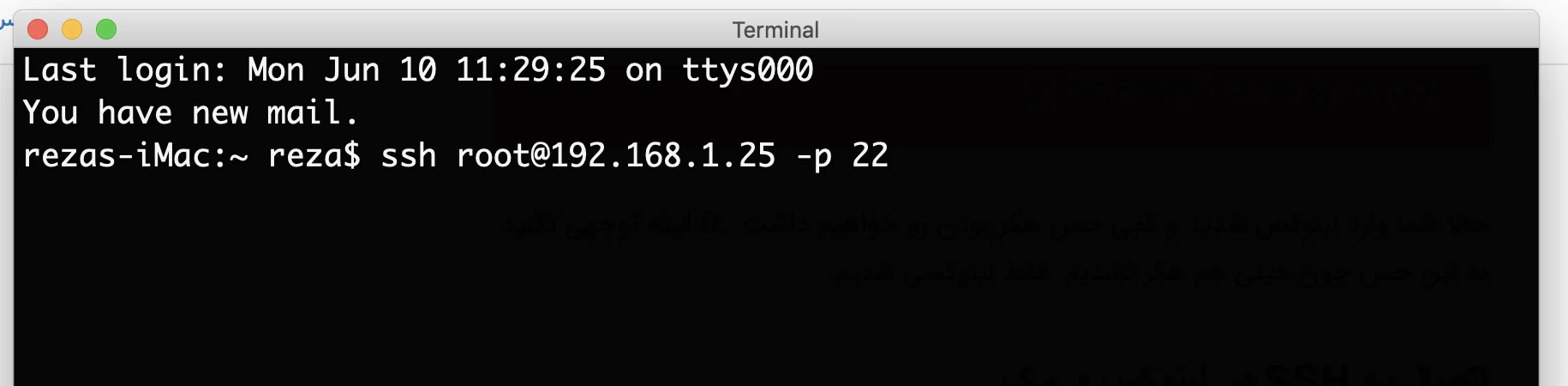
For Mac and Linux users, the process is even simpler. You do not need to download any extra software. Just open the Terminal application. You can usually find it in your Utilities folder or by searching for “Terminal” in your applications.
Once Terminal is open, you type a simple SSH command. Here is what it looks like:
bash
ssh root@192.168.1.25 -p 22
Of course, you will replace 192.168.1.25 with your actual server IP address. And if your SSH port is something other than 22, replace that number as well. Then press Enter. Terminal will ask for your password. Type it in, press Enter again, and you are connected. It really is that straightforward.
Connecting to SSH on Mobile (iPhone and Android)
Believe it or not, you can even connect to SSH from your phone. Both iPhone and Android have SSH client apps available in their respective app stores. You simply install one, enter your server IP and port, and then type your password when prompted.
That said, I strongly recommend using a computer for server management whenever possible. The screen is larger, typing is easier, and the chances of making a mistake are much lower. Mobile SSH is fine for checking something quickly in an emergency, but for real work, stick with a proper computer.
Your First Action After Login: Change the Default Port
When you first log into your Linux server, your SSH connection port is almost always set to 22 by default. Here is the problem. Every single hacker bot on the internet knows this. They are constantly scanning port 22 on millions of IP addresses, trying thousands of password combinations every second.
To protect yourself, your very first task should be to change the default SSH port to something else. Pick a random five‑digit number, like 57829 or 34217. Something that is not obvious. Once you change the port and configure your firewall, hackers will not even be able to find your SSH door, let alone try to break in. It is one of the simplest and most effective security upgrades you can make.
Fixing Disconnected Sessions in PuTTY with Keepalive
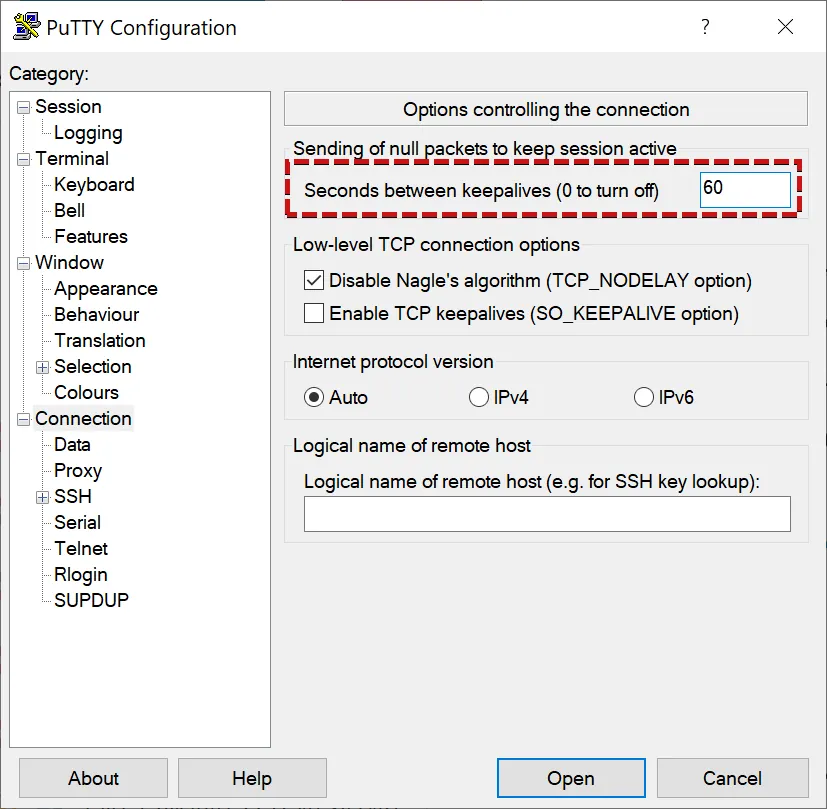
Have you ever been connected to your server via PuTTY, stepped away from your keyboard for a few minutes, and come back to find your session frozen or completely disconnected? That is incredibly annoying, right?
This happens because the server assumes you are no longer active and kills the idle connection to save resources. The good news is that you can fix this easily. Before you click the Open button in PuTTY, look at the left‑hand menu. Navigate to Connection. You will see a box labeled “Seconds between keepalives”. Change that number to 60. Now PuTTY will send a tiny, invisible signal to your server every minute, just to let it know you are still there. Your connection will stay alive for as long as you need it.
Password‑Free Authentication Using SSH Keys
Let me be honest with you. Typing long, complicated passwords every single time you connect to your server gets old really fast. Plus, passwords can be stolen, guessed, or leaked. There is a much better way.
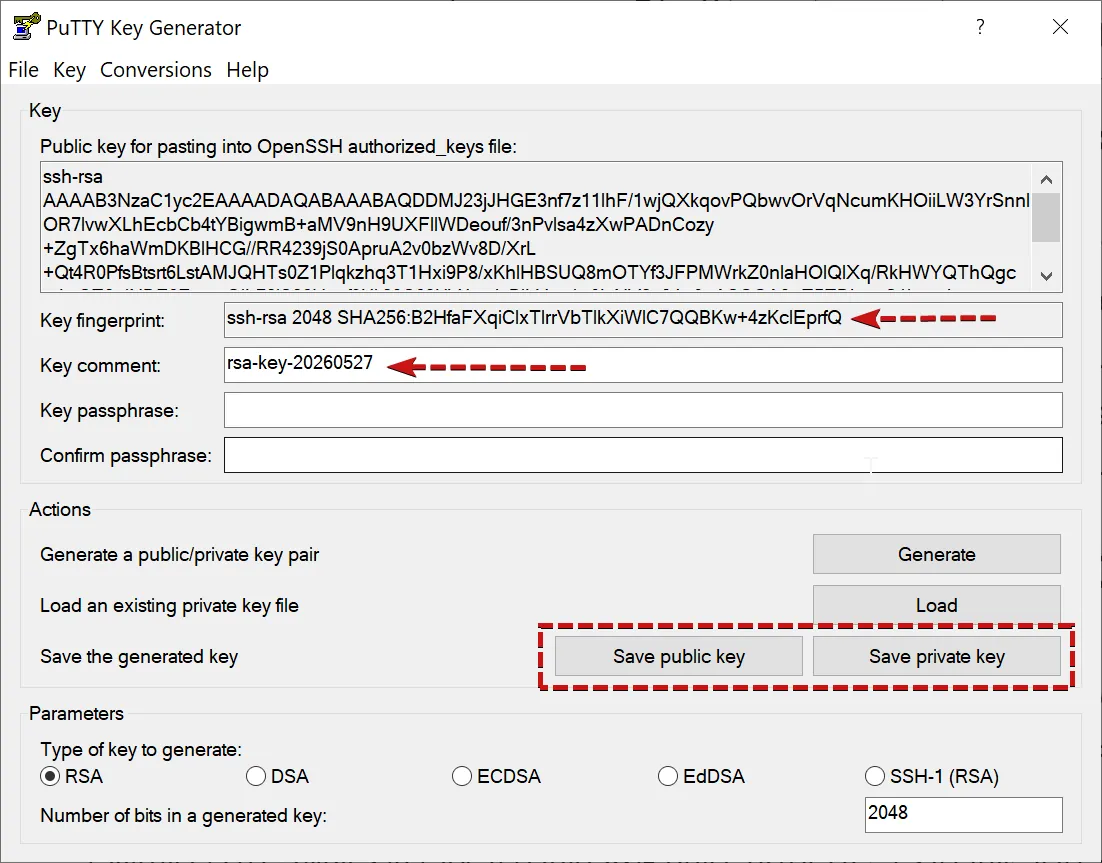
You can use something called SSH keys. This involves creating a pair of cryptographic keys: a public key and a private key. You can generate these keys using a tool like PuTTYGen on Windows or the ssh-keygen command on Mac and Linux. You place the public key on your server in a special file, and you keep the private key safely on your own computer.
Once that is set up, whenever you try to connect, your computer and your server perform a secure handshake. You never need to type a password again. You just connect, and you are in. It is faster, more convenient, and actually more secure than using a password. If you manage servers regularly, learning to use SSH keys will change your life.
Using Screen to Keep Commands Running
Imagine this scenario. You are running a long task on your server. Maybe you are updating all the system packages, or backing up a huge website that is several gigabytes in size. Then suddenly your internet connection drops. Or your laptop battery dies. Or you accidentally close the Terminal window. In a normal situation, that long‑running command would stop immediately, possibly leaving your server in an inconsistent or broken state.
This is where a wonderful tool called screen comes to the rescue. Screen creates a virtual, independent session on your server that keeps running even if you disconnect. You start a screen session, run your command, and then detach from the session. You can close your laptop, go home, and come back the next day. Your command will still be running. You can even reconnect to the same session from a different computer. It is magic, and every Linux administrator should know how to use it.
Troubleshooting the “Connection Refused” Error
Sometimes you double‑check your IP address and your port number, everything looks correct, but when you try to connect, you get a frustrating error message: “Network error: Connection refused”. This usually means one of two things.
Either your server’s firewall (something like CSF or IPTables) has blocked your IP address, often because you typed the wrong password too many times, or the SSH service on the server has stopped running for some reason. In both cases, you cannot fix it through your normal SSH connection because you are already locked out. You will need to access your server through your hosting provider’s control panel, usually through something called a VNC console or by submitting a support ticket. Once you are in, you can check the firewall logs and unblock your IP address.
How to Exit the Linux Terminal Safely
This might sound like a small thing, but it is worth mentioning. Many beginners, after finishing their work on the server, simply close the Terminal window or PuTTY by clicking the red X button. That is like hanging up the phone without saying goodbye.
Sometimes, doing that can leave background processes or user sessions still running on the server, unnecessarily consuming memory. The proper, professional way to end your session is to type either exit or logout at the command line and then press Enter. This tells the server to cleanly close your session, free up any resources you were using, and then terminate the connection. It takes less than a second and it is the right way to do things.
Navigating Like a Pro in the SSH Environment
When you first log into that black terminal screen, it can feel a little intimidating. You might feel like you are trapped in a dark room with no idea what is around you. But learning just a few simple Linux commands will make you feel right at home.
The first command you should learn is pwd, which stands for “print working directory”. It tells you exactly which folder you are currently sitting in on the server. The next command is ls, which lists all the files and folders inside your current location. It is like opening a folder on your Windows or Mac desktop. To move into a specific folder, you use the cd command followed by the folder name. For example, cd public_html would take you into the public_html folder. And if you ever want to go back one step to the parent folder, just type cd ... Learning these four commands alone will remove that initial fear and let you start exploring your server with confidence.
Keyboard Shortcuts That Will Speed Up Your Work
Typing long commands over and over again gets tedious. Fortunately, the Linux terminal has some wonderful keyboard shortcuts that will make you much faster.
If you start running a command and then change your mind, or if a process seems stuck, press Ctrl + C. That will cancel the command immediately. If your screen has become cluttered with dozens of lines of output and you want a clean, fresh screen, press Ctrl + L. The screen will clear instantly. And here is my personal favourite. When you are typing a long filename or folder name, just type the first few letters and then press the Tab key. Linux will automatically complete the rest of the name for you. This saves time and prevents typos. Use it constantly.
How to Download and Extract Large WordPress Files Directly with SSH
Uploading large files through your browser can be painfully slow. But when you are on an SSH connection, your server has a very fast internet connection. You can use that to your advantage.
First, use cd to navigate to the folder where you want the file to be saved. Then use the wget command followed by the download link. For example, if you wanted to download the latest version of WordPress, you would type:
bash
wget https://wordpress.org/latest.zip
Press Enter, and the file will download directly to your server at blazing speed. Once the download is complete, you can unzip it with the unzip command:
bash
unzip latest.zip
In just a few seconds, you will have a fully extracted WordPress folder ready to use. No uploading through a slow browser interface. No waiting forever.
How to Check If Your Server’s CPU or RAM Is Under Pressure
Is your WordPress site running slowly and you cannot figure out why? Maybe a plugin or a process is eating up all your server resources. SSH gives you a way to see exactly what is happening.
After connecting to SSH, type the command htop and press Enter. This opens a beautiful, colourful, real‑time dashboard showing you everything about your server’s health. At the top of the screen, you will see live graphs of your CPU usage for each core and a bar showing how much of your RAM is being used. In the main part of the screen, you will see a list of every running process, sorted by how much CPU or memory it is consuming.
If you spot a process that is out of control, maybe something like mysql or php-fpm using an absurd percentage of your resources, you can stop it immediately. Just highlight the process, press F9 on your keyboard, and choose the Kill option. Your server will breathe a sigh of relief.
What to Do If You Lose Access After Changing the SSH Port
Changing your SSH port is a great security move. But if you forget to update your firewall settings at the same time, you might lock yourself out completely. Do not panic. There is a way back in.
Instead of using PuTTY or your normal SSH client, log into your hosting provider’s customer control panel. Look for the section that manages your virtual server. There should be something called a VNC console or an out‑of‑band management console. This gives you direct access to your server’s command line without needing SSH at all. It works even if your network settings are completely broken.
Once you are logged in through the VNC console, you can temporarily disable the firewall with a command like sudo ufw disable or sudo systemctl stop firewalld, depending on your Linux distribution. Then you can go back, fix your firewall rules properly, and reconnect through your new SSH port.
How to Fix WordPress File Permissions with SSH
Have you ever tried to upload an image to your WordPress site and gotten an error message about not having permission? Or tried to update a plugin and been asked for FTP credentials? These are usually permission problems. And you can solve them in two simple steps using SSH.
First, navigate to your main WordPress folder using cd. Then run this command to set the correct permissions for all folders and files:
bash
find . -type d -exec chmod 755 {} \; && find . -type f -exec chmod 644 {} \; This sets folders to 755 and files to 644, which is the standard, secure permission setup for WordPress. Next, you need to make sure the web server owns the files. Run this command:
bash
sudo chown -R www-data:www-data .
If your hosting environment uses a different username, replace www-data with that username. After these two commands, your permission errors should disappear completely.
Final Thoughts
Learning how to connect to Linux SSH is one of those skills that separates a casual website owner from a professional webmaster. With just a few simple steps, you can dramatically increase your server’s security by changing the default port or setting up SSH keys. You can fix common errors yourself without waiting for support. And you can take control of your hosting environment in a way that is simply not possible through a graphical control panel alone.
I encourage you to practice these commands and tricks on a test server a few times until the fear of that black terminal screen completely goes away. Once it does, you will wonder how you ever managed without it. You will be managing your popular WordPress site like a white‑hat hacker, and doing it with confidence. Happy server managing, and stay secure.

Ahura WordPress Theme
The Power to Change EverythingElementor Page Builder
The most powerful WordPress page builder with 100+ exclusive custom elements.
Incredible Performance
With Ahura’s smart modular loading technology, files load only when they are truly needed.
SEO Optimized for Google
Every line of code is carefully aligned with Google’s algorithms and best practices.

To post a comment, please register or log in first.