
 Tutorials


 Ahura
Ahura Plugins

 Blog
BlogChanging the WordPress Admin Email via the Dashboard or Hosting Panel
- Tutorials
- Updated on
If you’re like a lot of webmasters and typed in a rushed or personal email when you first set up your WordPress site, chances are you eventually started thinking, “I really should have a proper, dedicated email for the site.” Something like info@domain.com or admin@domain.com. The problem is, plenty of people don’t know how to actually change that default WordPress admin email.
Most folks head straight to the WordPress dashboard and assume one simple tweak in the settings will sort everything out. But then they realize — nope, their user account email is still the old one! And sometimes it gets trickier: you’ve forgotten your password, the email you entered during installation was wrong, or the confirmation email for the new address just never shows up. That’s the moment you get frustrated and head to Google to search: how to change WordPress admin email.
The good news is that this task isn’t nearly as complicated as it looks. You just need to know where to start. Here, I’ll walk you through — simply and step by step — how to change your WordPress admin email both from inside the dashboard and, if you don’t have access to WordPress, directly through your hosting database. On top of that, I’ll cover the common problems that might crop up along the way, so you can rest easy.
Table of Contents
Why Change Your WordPress Admin Email?
A lot of people think the email they entered when they first installed WordPress should stay that way forever, and there’s never any need to change it. But the reality is that your WordPress admin email is one of the most important parts of your site — because all your notices, notifications, password recovery, and even some important communications happen through that very email. Now imagine you entered a personal email, or even a wrong one, during installation! Every time you want to recover your password or confirm sensitive settings, you’ll run into trouble.
On top of that, once a site gets more serious, it’s often better to use a dedicated email with your domain extension instead of a personal one. For example, instead of your personal email, you’d have something like admin@yourdomain.com. This looks more professional and also has a big impact when it comes to branding and user trust.
There’s one more reason: security. Many hackers go after common, widely used emails first. When your admin email is something other than those obvious, off-the-shelf addresses, the chances of someone easily gaining access to it drop.
So changing your WordPress admin email isn’t just a small tweak — it’s an important step toward being more professional, more secure, and managing your site more easily.
Methods for Changing the WordPress Admin Email
Now that we understand why we should change the WordPress admin email, let’s get to the heart of the matter. There are usually just two ways to do this: one is changing it from within the WordPress dashboard itself, and the other is changing it directly through your hosting and phpMyAdmin.
The first method is good for when you have full access to the dashboard and can log in easily. Lots of people use this method because it’s simpler and gets done in a few clicks. But things aren’t always quite that easy. Sometimes you’ve forgotten your password or entered a wrong email and can no longer receive the email-change confirmation. That’s where the second method comes to the rescue: changing the admin email from inside your hosting database.
Changing the WordPress Admin Email via the WordPress Dashboard
When you have access to the dashboard, this is the best and simplest method for changing the admin email. But keep in mind that WordPress doesn’t change the email by updating just one spot. You have to change both the site’s main email and the admin user account’s email. So there are two steps:
Changing the Email From WordPress General Settings
The first step is to log into the dashboard. From the side menu, go to “Settings” and then “General.”
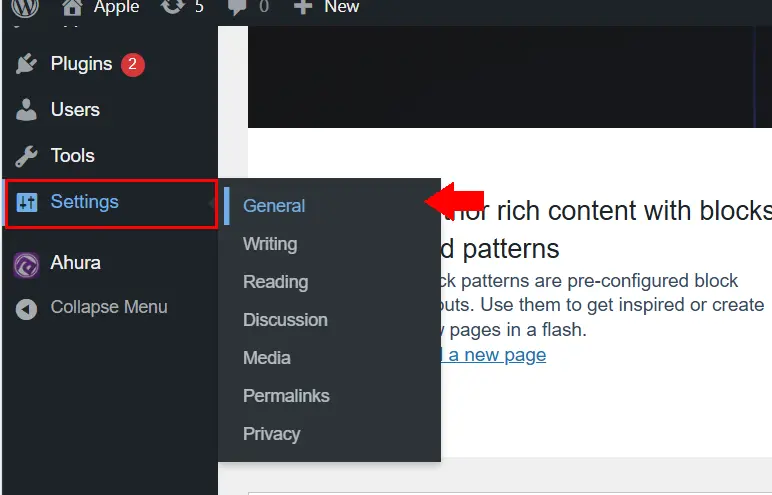
On this page there’s a section called “Email Address.” This is the site’s main email, which WordPress uses to send system notifications.

For example, when a plugin gets updated, or a message comes from WordPress, all of it is sent to this email. Now all you need to do is type your new email into that field and save the changes.
After saving, WordPress sends a confirmation email to your new address. You must go to that email and confirm it for the change to take effect. If you don’t confirm, the previous email stays active. A problem usually comes up here: sometimes the confirmation email arrives late or doesn’t arrive at all. I’ll cover the solution to this problem further down.
Changing the Email From the Admin User Profile
The second step is to also change the email on your own profile (that is, the site’s admin user). To do this, go to “Users” and then “All Users.”
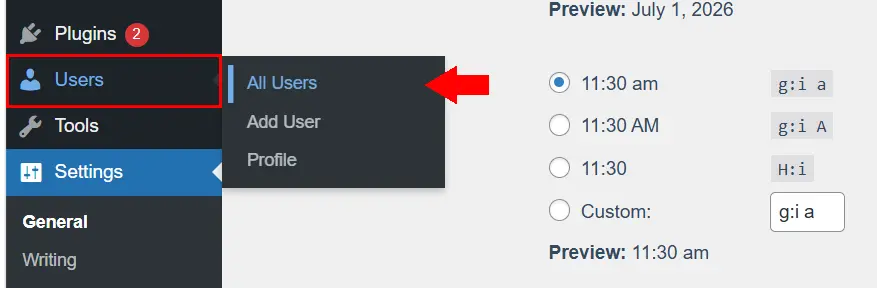
In this list, click on the user who has the admin role (usually your own name).

Now the profile edit page opens. There’s a field there called “Email (required)” as well. Enter the new email right there and save. This address is used for logging into the panel and recovering your password.
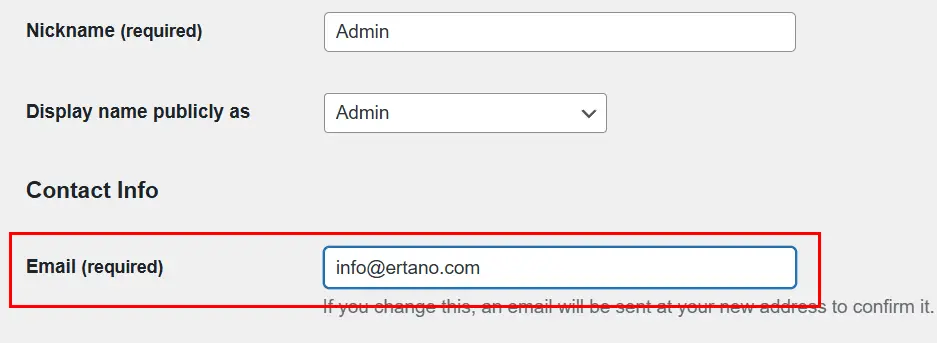
Here too, just like the previous section, WordPress sends a confirmation email. So be sure to check and confirm it.
Important note: Many people make the mistake of changing only one of these two. In reality, both need to be changed together so you don’t run into problems later with sending notifications or recovering your password.
Changing the WordPress Admin Email via phpMyAdmin
Sometimes things go in a direction where you no longer have access to the WordPress dashboard. Maybe you’ve forgotten your password, the previous email was entered incorrectly, or the mail server just isn’t working and no confirmation email ever reaches you. This is where you need to go straight to your site’s database — the place where all of WordPress’s information is stored. Don’t worry! It’s not complicated. Using phpMyAdmin, you can change the admin email very easily.
Accessing phpMyAdmin From cPanel or DirectAdmin
The first step is to log into your hosting. Most hosts have one of two types of panel: cPanel or DirectAdmin. After logging into your host, look for an option called phpMyAdmin. You’ll usually find it under the Database or Databases section. Click on it to enter the phpMyAdmin environment.
If you’re running a local host (for example, you installed the site on your personal computer), the path to access phpMyAdmin is usually something like this:
localhost/phpmyadminFinding Your WordPress Site’s Database
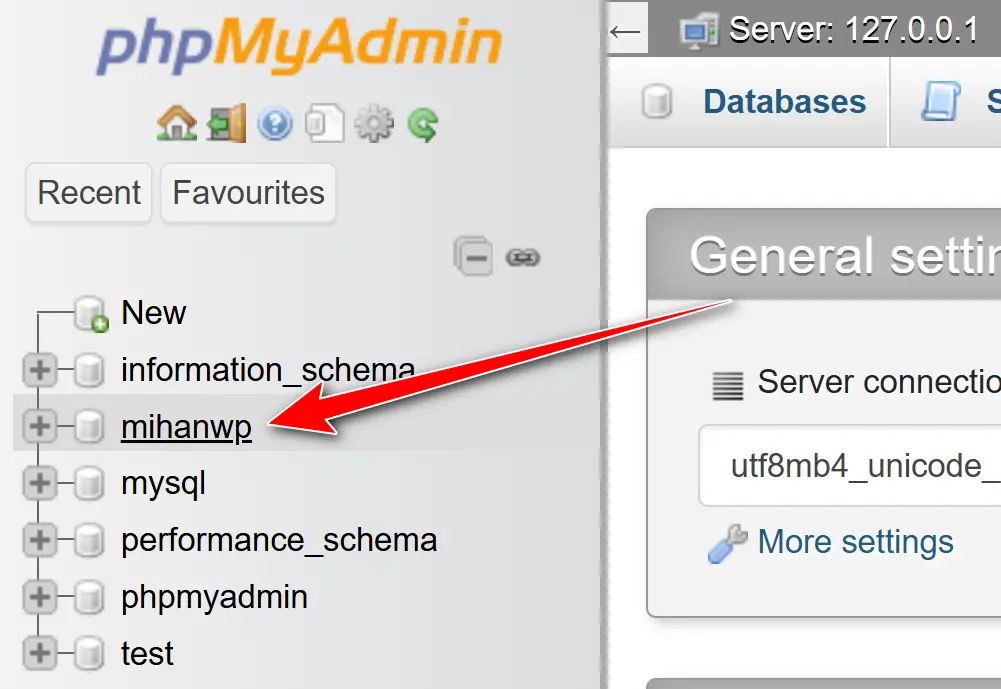
Now, in phpMyAdmin, you’ll see the list of all databases on the left. You might have several databases and not know which one belongs to the site. To find out, go to your host, open the File Manager, and locate the wp-config.php file inside the main WordPress folder. Open this file. In the first few lines, you’ll see something like this:
define('DB_NAME', 'your_database_name');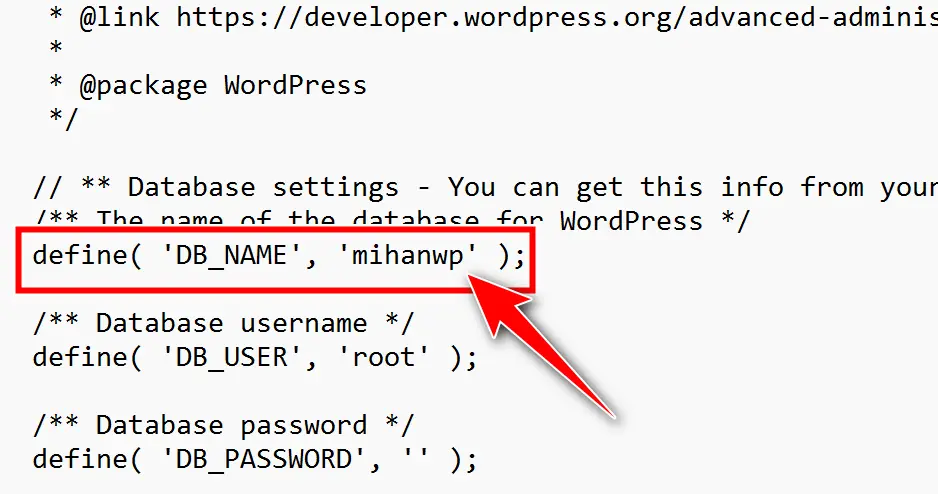
That name is your WordPress site’s database. Go back to phpMyAdmin and select that database.
Changing the Email in the wp_users Table
Now it’s time to change the admin user’s email. After selecting the database, a list of tables appears. Look for a table with a name like wp_users (though if you changed the prefix during installation, the name might be a little different).
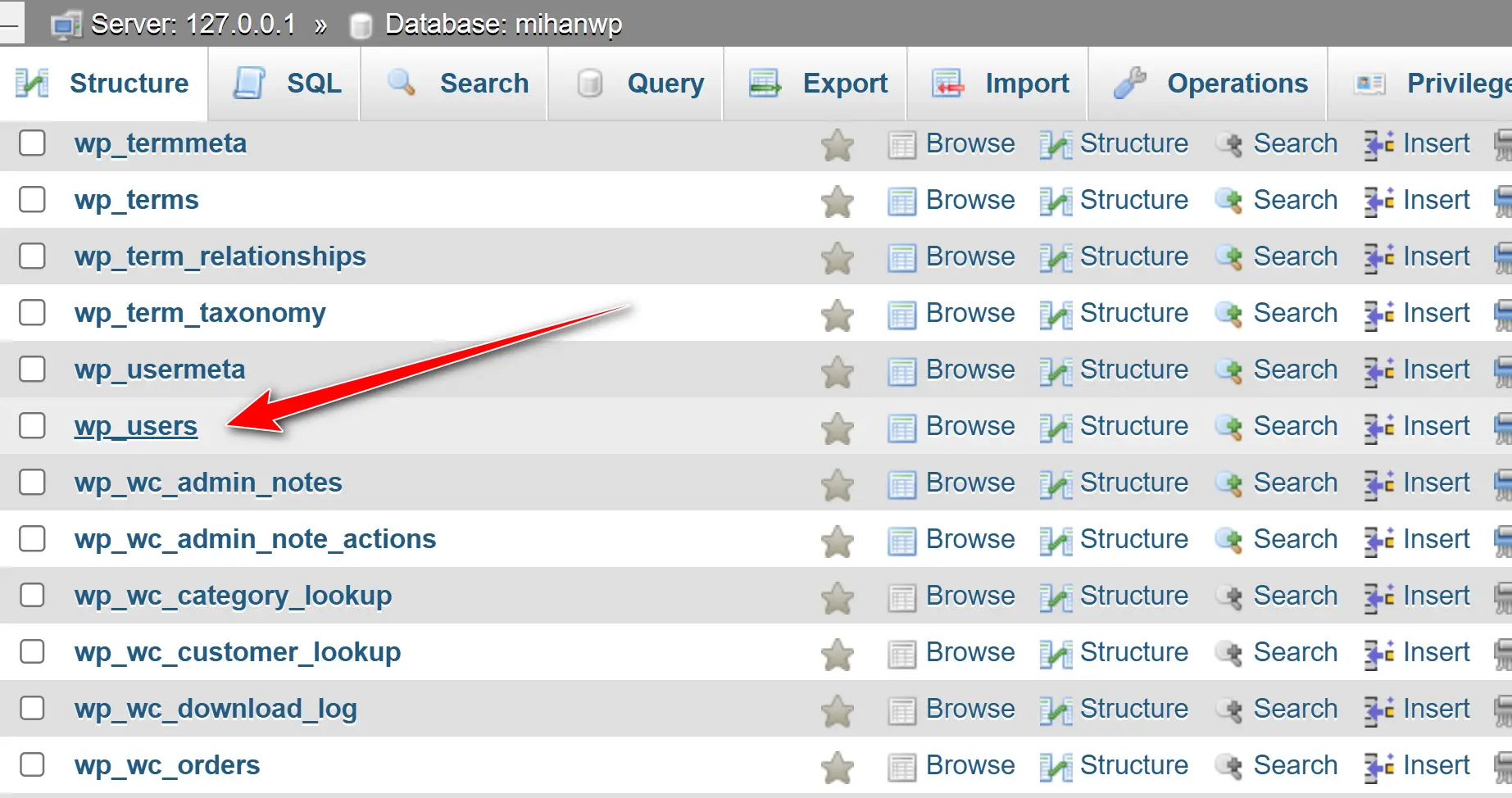
Click on this table. Now you’ll see the user records. Usually the user with the admin role is named admin or whatever username you chose during installation. Next to that user, click the Edit option.
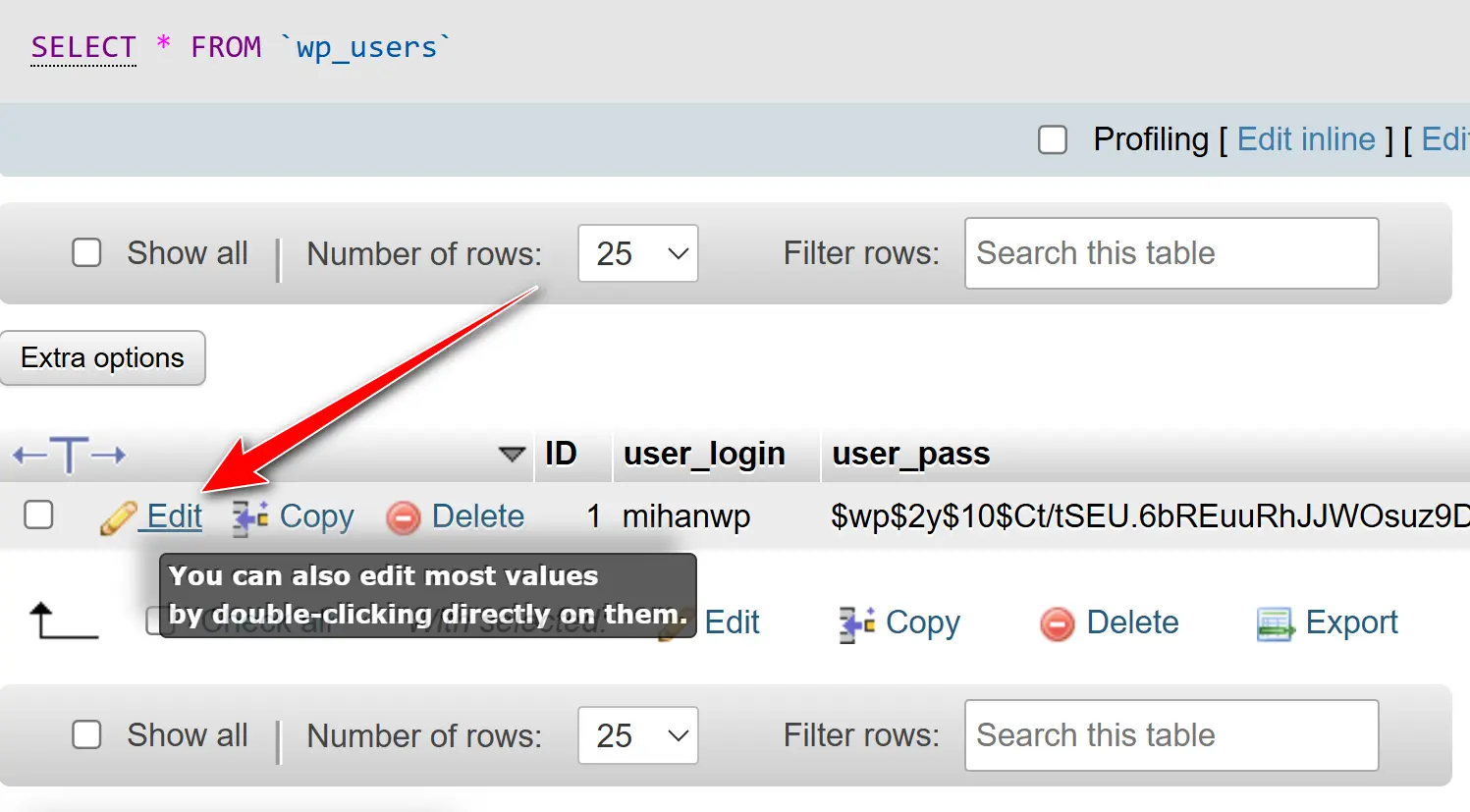
Here there’s a field called user_email. Just enter your new email here and save the changes. Done! Your site’s admin email has been changed.
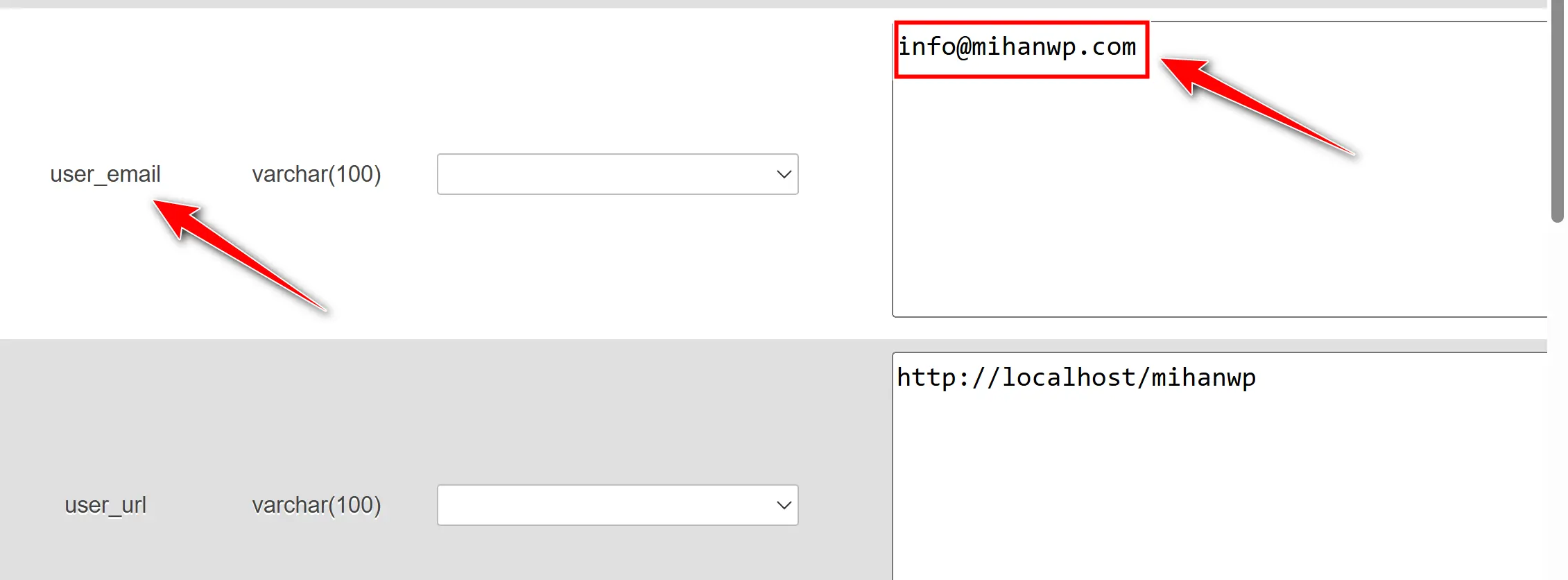
Changing the Site’s Main Email in the wp_options Table
There’s one more place you need to change: the wp_options table.
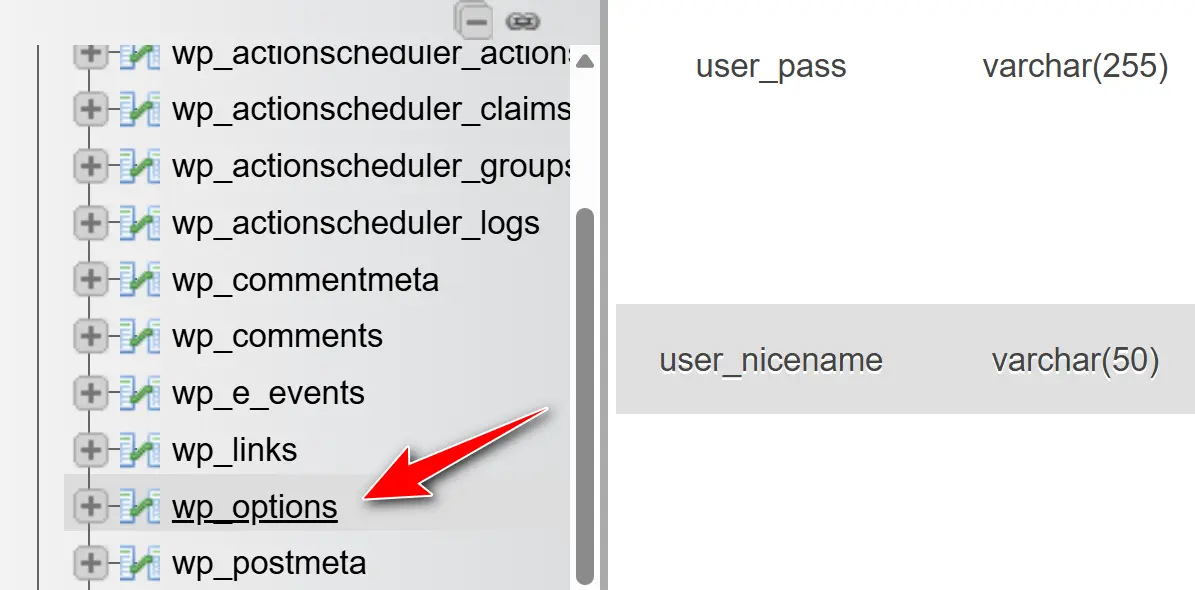
Click on this table and look for an option called admin_email. This is the site’s main email that WordPress uses to send notifications.
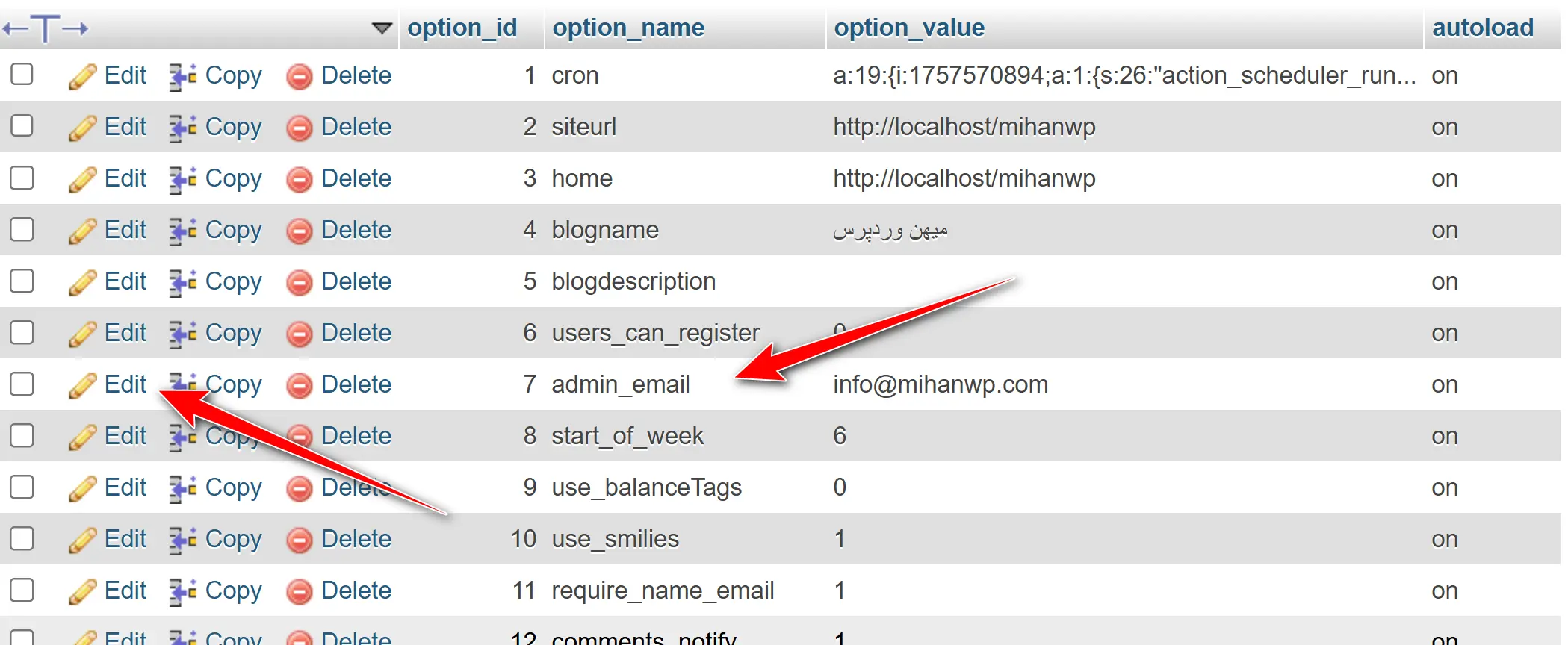
Click Edit again, enter the new email, and save the changes.
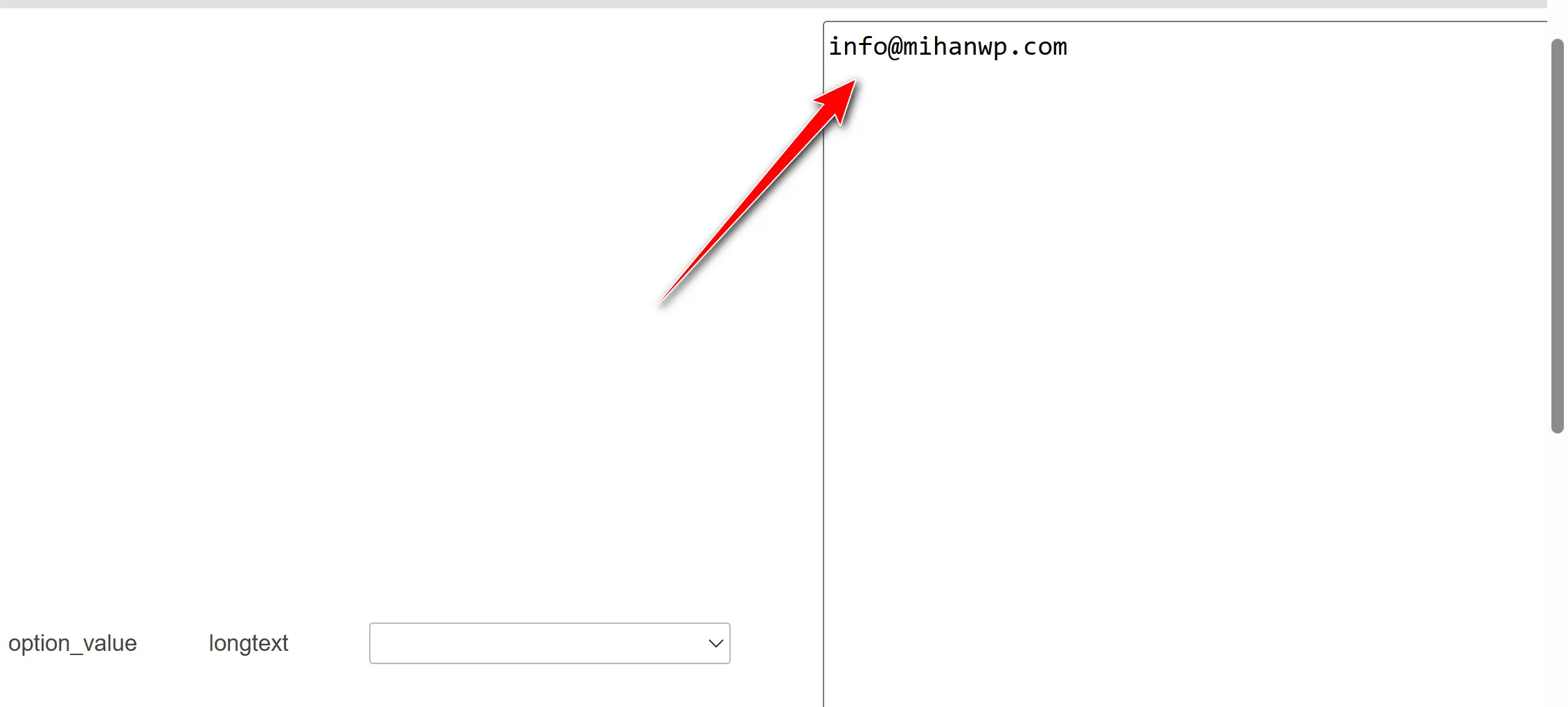
From this point on, both the admin user’s profile email and the site’s main email have been changed. That means you can easily log in, recover your password, or receive system emails at your new address.
Common Problems When Changing the WordPress Admin Email
A lot of the time, when we want to change the WordPress admin email, things don’t go exactly like the tutorial. The job might appear to be done correctly, but in the end we run into a few annoying problems. Let me walk you through some of these common headaches, so that if they come your way, you’ll know how to fix them.
The Confirmation Email Isn’t Sent
This is one of the most common problems. After you change the email, WordPress shows a message saying: “A confirmation email has been sent to the new address.” But when you open your inbox, there’s nothing there!
This usually happens because the hosting server isn’t properly configured to send email, or the message ended up in the Spam folder instead of the Inbox.
To fix this, first check your Spam folder or any promotions folder. If no email arrived, it’s better to use a plugin like WP Mail SMTP. This plugin helps your emails get sent through reliable services (like Gmail or Mailgun). Finally, if none of that works, you can forget about the confirmation and change the email directly from phpMyAdmin.
Forgetting Your Password Alongside a Wrong Email
Here’s another scenario: you entered the wrong email when installing WordPress, and now you’ve also forgotten your password. Naturally, when you click the “Lost your password?” option, the recovery email never reaches you.
The solution is to go straight to the database. In phpMyAdmin, you can both change the email and, if needed, set a new password for the account. For the new password, just edit the admin user’s user_pass field and save the new value using the MD5 algorithm.
The Email Change Doesn’t Take Effect
Sometimes things get even stranger. You enter the new email, save it, even confirm it — but when you go back to the settings, the old email is still sitting right there.
This problem is usually caused by browser cache or WordPress caching plugins. First, clear the cache. If that doesn’t fix it, check that both emails have actually been changed (both in the wp_options table and in wp_users). If the change still hasn’t taken effect, a plugin — or even your theme — is probably blocking the email from saving. The best approach is to deactivate your plugins one by one until you find the culprit.
The issues I’ve mentioned are the ones that come up most often. Knowing just these points, you’ll be able to easily solve almost any problem that comes your way after changing the email.
Security Tips After Changing Your WordPress Admin Email
When you change your WordPress admin email, you’re actually tinkering with one of the most sensitive parts of your site. Many people relax after doing this and stop thinking about it altogether, but the truth is that you now need to observe a few more points — both to make sure the change was done correctly and to keep your site’s security from being compromised.
Why Is a Dedicated Domain Email Better?
The biggest mistake is setting your admin address to a plain Gmail or Yahoo account. It might be convenient at first, but once your site gets more serious, you’ll definitely run into problems. For instance, imagine you have an online store and a customer sees that your site’s admin email is a personal address like myname@gmail.com. Doesn’t look very professional, does it?
The right approach is to create an official email with your own domain extension. For example, admin@yourdomain.com or support@yourdomain.com. This way you come across as more professional and you also have more security, because this email is tied directly to your domain and you have full control over it.
Don’t Forget Two-Factor Authentication
The next point that a lot of people overlook is two-step login. It doesn’t matter whether you use Gmail or a dedicated email — you should absolutely have Two-Factor Authentication enabled on your email. Because even if your password is leaked, no one can get into the account without the second code.
For Gmail, you can turn this option on very easily from the security settings. And if you have a domain email, your hosting company or email provider usually gives you a feature like this. Enabling it takes less than 5 minutes, but it can save you a world of trouble.
Check Your Other Admins
Sometimes you’re not the only one with admin access. There might be two or three other people who are admins too. If one of them still logs in with an old or insecure email, all your effort goes to waste — because they can use their own email to change the password or log in whenever they want.
So after changing your own email, be sure to review every admin’s email. Make sure everyone is using valid, secure addresses.
Where Should You Keep Your Passwords?
Another very important piece of advice: don’t just save your new password on a piece of paper or in your phone. The best thing is to use password manager software. Apps like Bitwarden or 1Password are far more secure than putting your password in your phone’s notes app.
Test It — Don’t Just Trust It
The last point is testing. After changing the email, log out of the site once and log back in. It’s even a good idea to click the “Lost your password?” option once and see whether the recovery email arrives at your new address. This simple test lets you make sure everything works correctly and that you won’t run into trouble in the middle of your work down the road.
So changing your admin email isn’t just a small tweak in WordPress. If you take these security tips seriously, you can rest assured that your site is both more professional and more resilient against potential threats.
Conclusion
So, up to this point we’ve seen step by step that changing your WordPress admin email isn’t difficult at all — as long as you know exactly where to start. We learned both the simple method through the dashboard and the more professional, slightly more technical method through phpMyAdmin in your hosting. On top of that, we looked at common problems like the confirmation email not arriving or forgetting your password alongside a wrong email, and we covered their solutions too.
But the heart of the matter is that changing your email isn’t just about looks or convenience. This directly affects your site’s security and your users’ trust. When you have an official, secure email, recovering your password and maintaining access become easier for you, and users take your site more seriously too.
My final piece of advice is to test everything the moment you change the email. Log out of your account once, log back in, and even send a password recovery request to make sure everything works correctly. And don’t forget to use a dedicated domain email and enable two-factor authentication. These little, seemingly simple steps go a long way in the long run and can prevent a whole lot of problems.
So if you haven’t changed your WordPress admin email yet, today’s the day. Trust me — you’ll be thanking yourself for it later. Wishing you all the best. 🙂

Ahura WordPress Theme
The Power to Change EverythingElementor Page Builder
The most powerful WordPress page builder with 100+ exclusive custom elements.
Incredible Performance
With Ahura’s smart modular loading technology, files load only when they are truly needed.
SEO Optimized for Google
Every line of code is carefully aligned with Google’s algorithms and best practices.
To post a comment, please register or log in first.