
 Tutorials


 Ahura
Ahura Plugins
 Blog
BlogWhat Is an Access Log and What Is It Used For? A Complete Guide to Server Access Logs
- WordPress Security Tutorials
- Updated on

It usually happens at the worst possible time. You’re half asleep, maybe checking your phone one last time before going back to bed, and out of habit you open your website. The page doesn’t load. You refresh. Nothing. Your heart rate instantly goes up.
At that moment, your mind doesn’t think logically. It jumps straight to the worst conclusions. “Is the server down?” “Did something break?” “Did someone hack my site?”
Sleep is officially over. You try again from another browser. You switch from Wi-Fi to mobile data. Still nothing. The site that was working perfectly fine a few hours ago is now completely unreachable, and you have no idea why. There’s no error message you can understand, no warning email, no clear explanation. Just a silent failure.
This is the point where panic quietly turns into anxiety. If you run a business, you start calculating losses. If it’s a personal project, you feel that sinking frustration of something you worked hard on suddenly slipping out of your control. You wonder how long the site has been down, who noticed it, and whether this is going to turn into a much bigger problem by morning.
Most people in this situation have the same question, even if they don’t say it out loud: “Did someone do this on purpose?”
Maybe it was a random server issue. Maybe it was a misconfiguration. Or maybe, somewhere in the middle of the night, someone — or something — started sending requests to your server that it couldn’t handle. The problem is that at 3 AM, you don’t have answers. You only have assumptions.
What makes this moment especially stressful is the lack of visibility. You know something went wrong, but you don’t know when it started, what triggered it, or whether it’s already over. You’re standing in the dark, trying to understand what just happened, without any clear evidence in front of you.
And this exact feeling — confusion mixed with fear and uncertainty — is something almost every website owner experiences at least once. Whether you manage a small blog or a high-traffic platform, that sudden outage in the middle of the night has a way of making everything feel fragile.
The real question isn’t just why the website is down.
It’s whether there’s a way to look back, retrace what happened, and replace panic with certainty.
Table of Contents
How Do You Know What Really Happened?
Once the initial panic fades, a different kind of stress takes over. The website might still be down, or maybe it’s back online, but the uncertainty remains. You’re no longer just worried about the outage itself — you’re worried about the cause.
Was it just a temporary technical issue? Or was it something more serious?
This is the moment when uncomfortable questions start to surface. You think about security, about all the stories you’ve heard of websites being attacked in the middle of the night. You wonder if someone deliberately tried to break in, overwhelm the server, or exploit a weak point you didn’t even know existed. The thought lingers, even if you don’t have any proof.
At the same time, there’s another frustration quietly building up. Even if something did go wrong, how would you know? There was no face, no warning, no clear sign pointing to a specific action. Just a website that stopped responding and then, maybe, came back as if nothing had happened. Without evidence, everything feels like guesswork.
You might start blaming yourself. Maybe a recent update caused the problem. Maybe a plugin misbehaved. Or maybe it wasn’t your fault at all, and someone from the outside triggered it. The hardest part is that all of these explanations sound equally possible when you don’t have real data to confirm or deny any of them.
And then there’s the biggest question of all: if this was an attack, who was behind it?
Was it a random bot scanning the internet?
Was it an automated script running from a server somewhere else in the world?
Or was it someone who knew exactly what they were doing?
Without a clear way to trace events backward, you’re left with assumptions instead of answers. You can fix the symptoms, restart services, or even restore a backup, but none of that explains what actually happened. The root cause remains hidden.
What every website owner really wants at this stage is not just the site back online, but clarity. A way to rewind time, see each step that led to the problem, and replace uncertainty with facts. Until you have that, the doubt stays — and the fear that it could happen again never fully goes away.
What Is an Access Log?
An access log is simply a record of who talks to your server and when. Every time someone opens a page on your website, clicks a link, or sends a request of any kind, the server quietly writes it down. One request, one line. No judgment, no interpretation — just facts.
Think of it as a detailed guest book for your website. It doesn’t care whether the visitor is a real person, a search engine, or an automated script. If a request reaches the server, it gets recorded. The log notes where the request came from, what was requested, and how the server responded.
For example, when someone visits your homepage, the server receives a request asking for that page. The access log records the visitor’s IP address, the exact time of the request, the page they asked for, and whether the server successfully delivered it or not. If the page loads normally, that’s logged. If the request fails or gets blocked, that’s logged too.
Over time, these simple entries form a complete timeline of activity on your website. Nothing dramatic, nothing technical on the surface — just a quiet, consistent record of every knock on your server’s door.
What Exactly Gets Logged?
Every line in an access log follows the same simple idea: capture the essential details of a single request. While the format may look dense at first, the information itself is very straightforward and practical.
- IP address
This shows where the request came from. It identifies the network that connected to your server, whether it belongs to a home user, a company, a data center, or a cloud service. - Timestamp (with timezone)
The exact date and time when the request reached the server, including the timezone. This is what allows you to reconstruct events accurately and understand when something started, stopped, or escalated. - Requested URL
This tells you which page, file, or resource was requested. It could be a normal page like the homepage, or something more specific, such as an admin panel or a system file. - HTTP status code
The server’s response to the request. A successful response, a blocked attempt, a missing file, or a server error are all reflected here with a simple numeric code. - User-Agent (browser / operating system)
Basic information about the client making the request. It usually indicates the browser, operating system, or type of software used to access the site.
When you put all of this together, each request becomes more than just a line of text. It turns into a clear footprint that shows who came in, what they asked for, and how your server responded. Every request leaves a footprint — whether it’s a human, a bot, or an attacker.
A Real Case: The Attack That Wasn’t Who It Seemed
A few years ago, I received a phone call that seemed completely harmless at first. The tone was friendly, almost concerned. The person on the other end told me that my website had been attacked and claimed they knew exactly who was responsible. According to them, it was a competitor — someone who had supposedly done the same thing to other websites before.
In situations like that, it’s easy to react emotionally. When someone sounds confident and offers an explanation that already makes sense in your head, you’re tempted to believe them. I thanked them for the warning and said I would look into it. At that point, I had no reason to doubt what I was told, but I also didn’t want to jump to conclusions.
Instead of confronting anyone or making assumptions, I did the only thing that felt reasonable: I went back to the server and started reviewing what had actually happened. I opened the access logs and began reading through them carefully, line by line, paying close attention to the timing, the IP addresses, and the types of requests being sent.
Very quickly, a pattern started to appear. One specific IP address stood out. It wasn’t just visiting normal pages or loading public resources. It was repeatedly requesting sensitive paths, trying different endpoints, and doing so with a frequency that clearly didn’t match normal user behavior. This wasn’t random traffic. It was deliberate.
As I continued tracing the activity, something uncomfortable became clear. The IP address responsible for the suspicious behavior was not linked to the competitor I had been warned about. In fact, it pointed back to a network associated with the very person who had called me in the first place.
That moment completely changed how I looked at these situations. The access logs didn’t rely on opinions, guesses, or personal relationships. They simply recorded what happened. Every request, every attempt, every response was there, timestamped and intact. There was no way to talk around it or shift the blame elsewhere.
What stood out most to me was how easily the truth could have been missed. Without checking the access logs, I might have believed the story I was told and accused the wrong person. The real attacker would have walked away unnoticed, confident that the distraction worked.
That experience taught me an important lesson. In security incidents, assumptions are dangerous, and secondhand information is unreliable. Access logs don’t take sides. They don’t care who you trust or who sounds convincing. They quietly preserve the facts, and when you take the time to read them, they have a way of revealing the truth — even when it’s not the truth you expect to find.
Why Do Servers Generate Access Logs?
Access logs are not created by accident, and they’re not just there for advanced administrators or security teams. Servers generate access logs because they provide visibility. Without them, a server would be operating blind, unable to explain what’s happening on the outside or how it’s responding on the inside. Over time, these logs become a reliable record that helps answer critical questions about security, stability, and performance.
Security Monitoring
One of the most important reasons servers keep access logs is security. Every attack, no matter how automated or well-hidden, starts with requests sent to the server. Access logs capture those requests as they happen.
Brute force attacks are a good example. When someone repeatedly tries to log in by guessing usernames and passwords, each attempt creates a new entry in the access log. Even if the login fails every time, the pattern is still visible. You can see the same IP address sending repeated requests within a short period, often targeting the same login endpoint again and again.
Distributed attacks, such as DDoS attempts, also leave clear traces. While a single request might look harmless, access logs reveal the bigger picture. A sudden spike in traffic, hundreds or thousands of requests hitting the server at the same time, or repeated requests for the same resource can all signal that the server is being intentionally overwhelmed.
Suspicious scanning behavior shows up in a similar way. Automated scripts often probe common paths and sensitive files, looking for weaknesses. Requests to admin panels, configuration files, or known vulnerable endpoints don’t happen by chance. When these patterns appear in access logs, they act as early warning signs that someone is testing the limits of your system.
Troubleshooting and Issue Investigation
Security isn’t the only reason access logs matter. They are equally valuable when something breaks and no one knows why. When users report that a page won’t load or a feature isn’t working, access logs help you move from vague complaints to concrete evidence.
Broken pages leave a clear trail. If a URL consistently returns errors, the access log will show it. You can see exactly which page users are trying to reach, when the error occurs, and how often it happens. This makes it much easier to identify missing files, incorrect routes, or outdated links.
User complaints also become easier to verify. Instead of guessing whether a reported issue is real or isolated, you can check the logs and confirm whether the request reached the server and how the server responded. This removes uncertainty and speeds up the debugging process.
Unexpected errors are another area where access logs prove their value. Sometimes a problem doesn’t crash the entire site but affects specific requests under certain conditions. Access logs help narrow down when the issue started and which requests triggered it, giving you a clearer path toward a fix.
Performance and Optimization
Beyond security and troubleshooting, access logs are a powerful tool for understanding how your website is actually used. They show which pages attract the most attention, which resources are requested most often, and how traffic flows through your site.
Popular pages become easy to identify when you look at access logs over time. You can see which URLs receive the highest number of requests and which content consistently draws visitors. This insight is useful for content strategy, internal linking, and prioritizing optimization efforts.
Response times are another hidden benefit. Many server configurations include information about how long it took to process each request. When certain pages consistently respond slower than others, access logs help you spot the problem areas before users start complaining about performance.
Traffic patterns also emerge naturally from log analysis. You can see peak hours, sudden spikes, and long-term growth trends. These patterns help you plan server resources, prepare for high-traffic events, and avoid performance bottlenecks before they turn into outages.
In short, access logs exist because they turn invisible server activity into something you can understand and act on. They provide a factual record that supports better security decisions, faster troubleshooting, and smarter optimization — all based on what actually happened, not assumptions.
How to Access Access Logs on Your Server
Accessing access logs doesn’t require advanced tools or a specific hosting provider. Most modern hosting environments, regardless of the company or region, offer a straightforward way to download and review these files.
In many control panels, you’ll find a section commonly labeled Raw Access Logs or something similar. This area allows you to download the original log files exactly as they are generated by the server, without any filtering or summarization. These are the same logs the server uses internally, which makes them reliable for investigation and analysis.
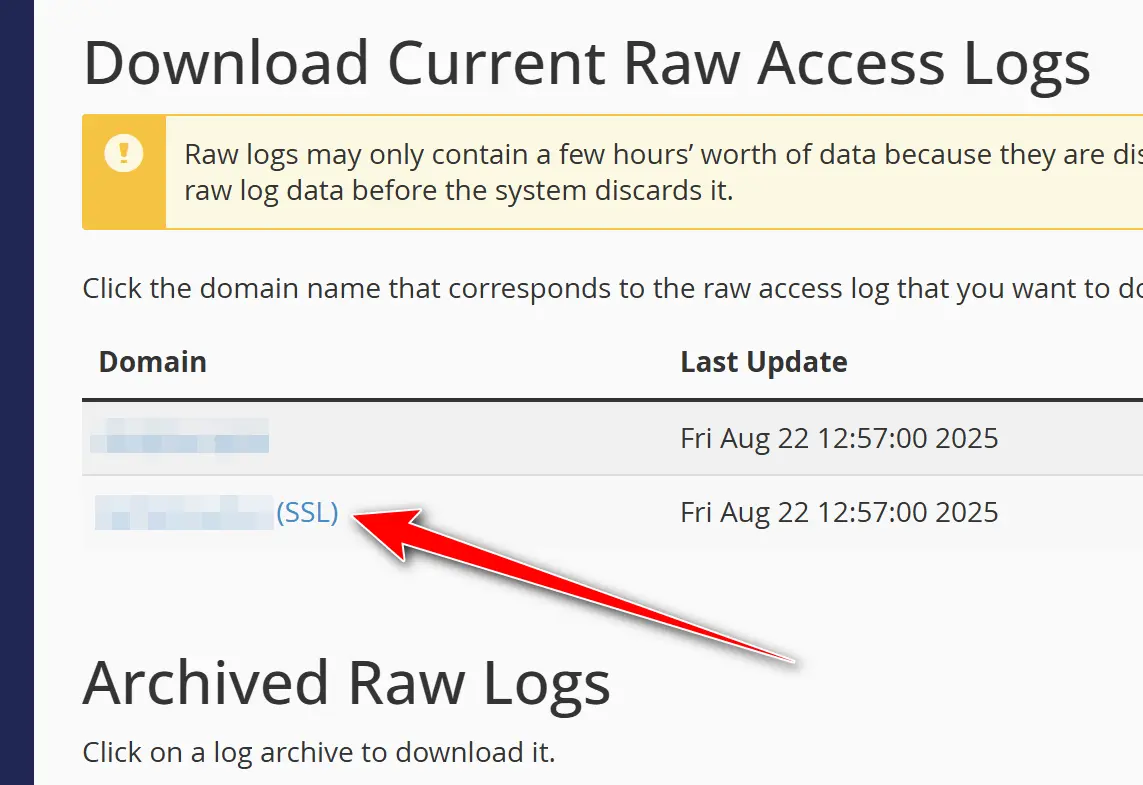
When you download an access log, it’s usually provided as a compressed file. This is simply because log files can grow very large, especially on active websites. After downloading the file, you extract it on your computer and open it with any plain text editor. There’s no special software required. A basic editor is more than enough to view the contents.
Once opened, you’ll see a long list of lines, each one representing a single request made to your server. At first glance, it may look overwhelming, but it’s important to remember that this is raw data. Nothing has been hidden or interpreted for you. What you’re seeing is a direct record of what the server received and how it responded.
The exact location or naming of access logs may vary slightly between hosting environments, but the concept remains the same everywhere. Whether your site is hosted on shared hosting, a virtual server, or a dedicated machine, access logs are typically available and accessible. If you don’t see them in your control panel, a quick request to your hosting provider or server administrator is usually enough to enable access.
The key point is that access logs are not a proprietary feature tied to a specific brand. They are a standard part of how web servers operate, and once you know where to find them, you can review them anytime you need a clear, unfiltered view of what’s happening on your server.
How to Read an Access Log Entry (Line by Line)
At first glance, an access log entry can look intimidating. A single line is often packed with numbers, symbols, and text that seem hard to decode. But once you know what to look for, each line becomes a clear and readable story of one interaction between a visitor and your server.
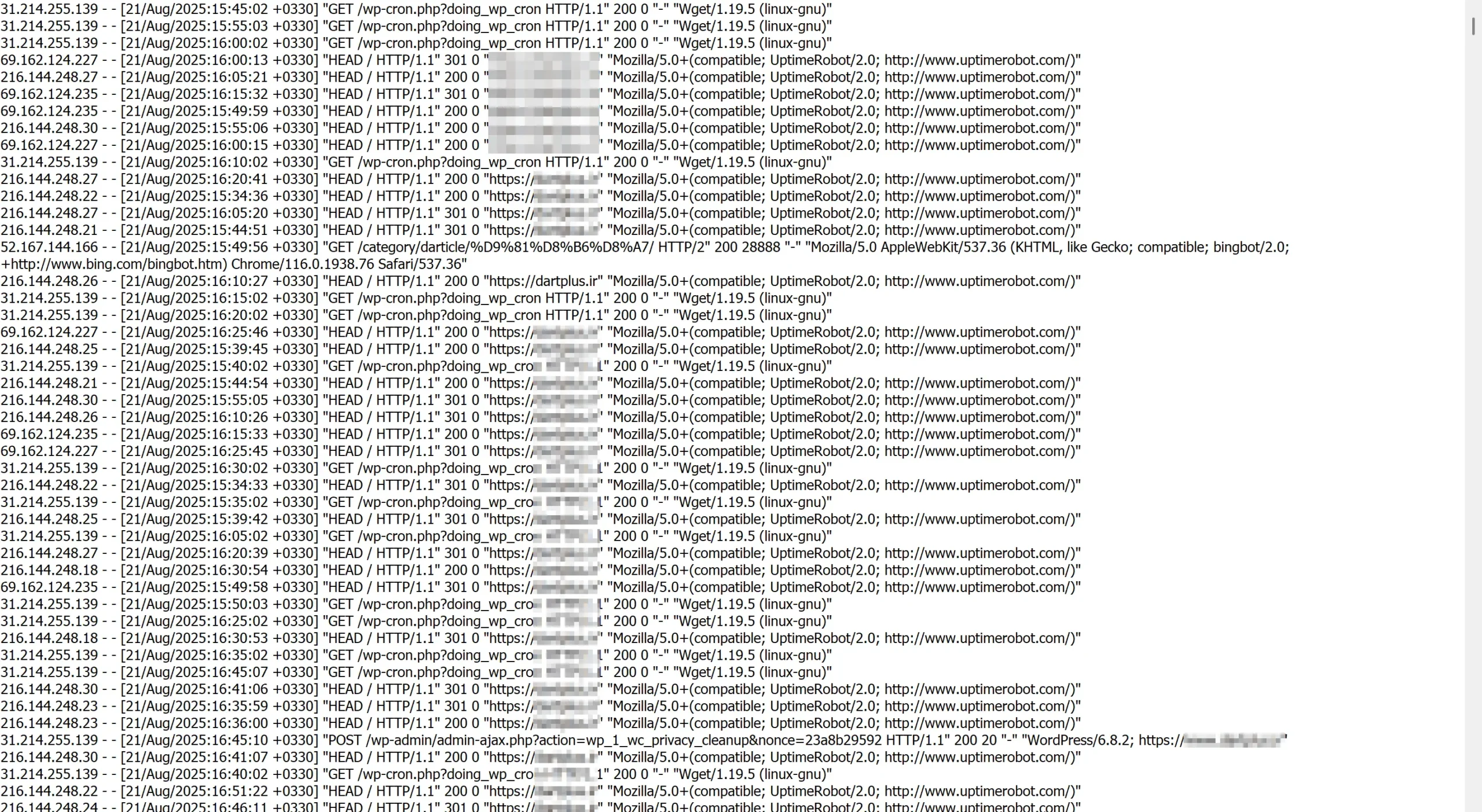
Every access log entry begins with the IP address. This is the source of the request, the network location from which someone or something tried to connect to your website. It could belong to a real user, a company network, a cloud server, or an automated bot. While it doesn’t identify a person by name, it gives you a starting point for understanding where the request originated.
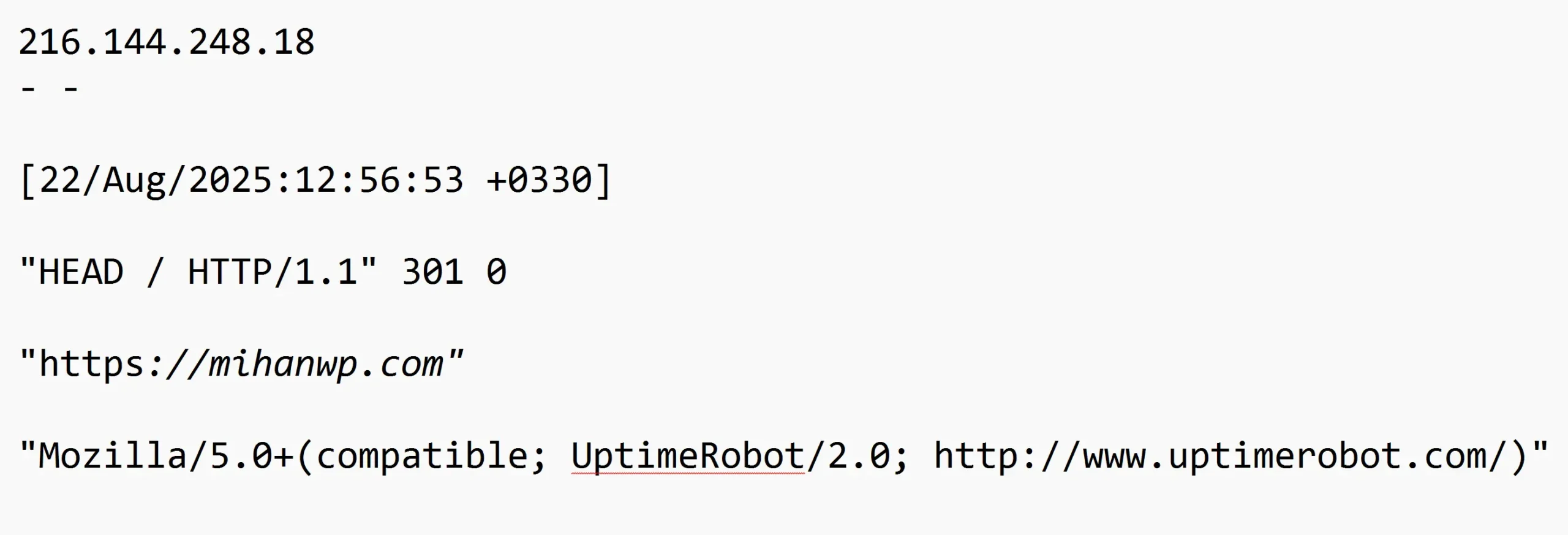
Next comes the date and time. This part is more important than many people realize. Access logs record the exact moment a request reached the server, usually including a timezone offset. That offset tells you whether the time is recorded in UTC or adjusted to a specific region. When you’re investigating an incident, especially one that happened overnight, understanding the timezone helps you accurately match log entries with real-world events.
After the timestamp, you’ll see the request path. This shows what the visitor asked the server for. It might be a normal page, like the homepage or a blog post, or it could be a specific file or endpoint. When you notice repeated requests to sensitive or unusual paths, this section often provides the first clue that something out of the ordinary is happening.
Following the request path is the status code. This small number carries a lot of meaning, because it tells you how the server responded.
A status code of 200 means the request was successful. The server found the requested resource and delivered it as expected. This is what you want to see for normal page visits.
A 403 status code means the request was blocked. The server understood what was being asked but refused to allow access. This often happens when security rules or permissions prevent someone from reaching a protected area.
A 404 status code indicates that the requested resource was not found. This could be something harmless, like a broken link, or something more suspicious, such as a bot scanning for files that don’t exist on your server.
A 500 status code signals a server-side error. The request reached the server, but something went wrong while processing it. Repeated 500 errors tied to specific requests can point to misconfigurations, code issues, or deeper server problems.
When you read an access log line from start to finish, it stops being a random string of data. It becomes a precise snapshot of a single moment: who made the request, when it happened, what they asked for, and how your server responded. Once you understand this structure, scanning through access logs becomes faster, clearer, and surprisingly informative.
How to Spot Attacks in Access Logs
Being able to identify suspicious activity in access logs is a fundamental skill for anyone responsible for a website or server. An access log is not just a technical record; it is a chronological story of every request made to your server. When you learn how to read that story, early signs of attacks become much easier to recognize.
Repeated and Abnormal Request Patterns
One of the clearest warning signs is an unusual level of repetition. If a single IP address is making the same request over and over within a short time window, this rarely matches normal human behavior. Such patterns are often associated with brute-force attempts or automated scripts trying to guess credentials. Real users do not refresh or submit the same request dozens of times per minute with perfect consistency.
Requests Targeting Sensitive Paths
Certain URLs are frequent targets, regardless of the actual technology used by the website. Repeated requests to administrative or configuration-related paths often indicate automated scanning. Attackers and bots typically test common endpoints in bulk, hoping that one of them exists and responds. Even if your site does not use these paths at all, their presence in your access logs is a strong signal of probing activity rather than legitimate traffic.
High Request Frequency from a Single IP
A large number of requests coming from one IP address in a very short period of time can point to resource abuse or early-stage denial-of-service attempts. This becomes more concerning when the requests are spread across many different URLs without any logical navigation flow. In many cases, this type of traffic is accompanied by generic or unusual User-Agent strings that do not resemble real browsers.
Human Behavior vs. Automated Behavior
Human visitors tend to follow predictable navigation patterns. They arrive on a landing page, move to one or two related pages, and then leave. Automated tools behave differently. They often jump rapidly between unrelated URLs, access non-existent files, or request pages in an order that makes no sense from a user perspective. When you see this kind of scattered and systematic behavior in your logs, automation is usually the explanation.
Why Recognizing These Signs Matters
Spotting suspicious activity early gives you time to react before real damage occurs. Whether that response is blocking an IP address, tightening security rules, or simply monitoring the situation more closely, access logs provide the evidence you need to make informed decisions. They are not meant to create fear, but to offer visibility into what is really happening behind the scenes.
Once you understand these patterns, access logs stop being boring text files and start becoming one of your most valuable security and monitoring tools.
Identifying Suspicious IP Addresses
Once a suspicious pattern stands out in your access logs, the next logical step is understanding where that traffic is coming from. An IP address on its own is just a number, but with the right context, it can reveal whether a request is likely coming from a real visitor, an automated system, or a potentially malicious source.
Turning an IP Address into Context
IP investigation is not about hunting individuals; it is about understanding infrastructure. By looking up an IP address, you can often determine whether it belongs to a residential internet provider, a known hosting company, or a large data center. This distinction matters because most real users connect from consumer ISPs, while automated attacks frequently originate from servers, cloud platforms, or anonymized networks.
Using Practical IP Lookup Tools
To investigate suspicious IP addresses, you can use tools like Toolsina.com, an international IP lookup service commonly used during real-world troubleshooting and security reviews. Tools of this type provide neutral, factual information that helps you assess risk rather than jump to conclusions.
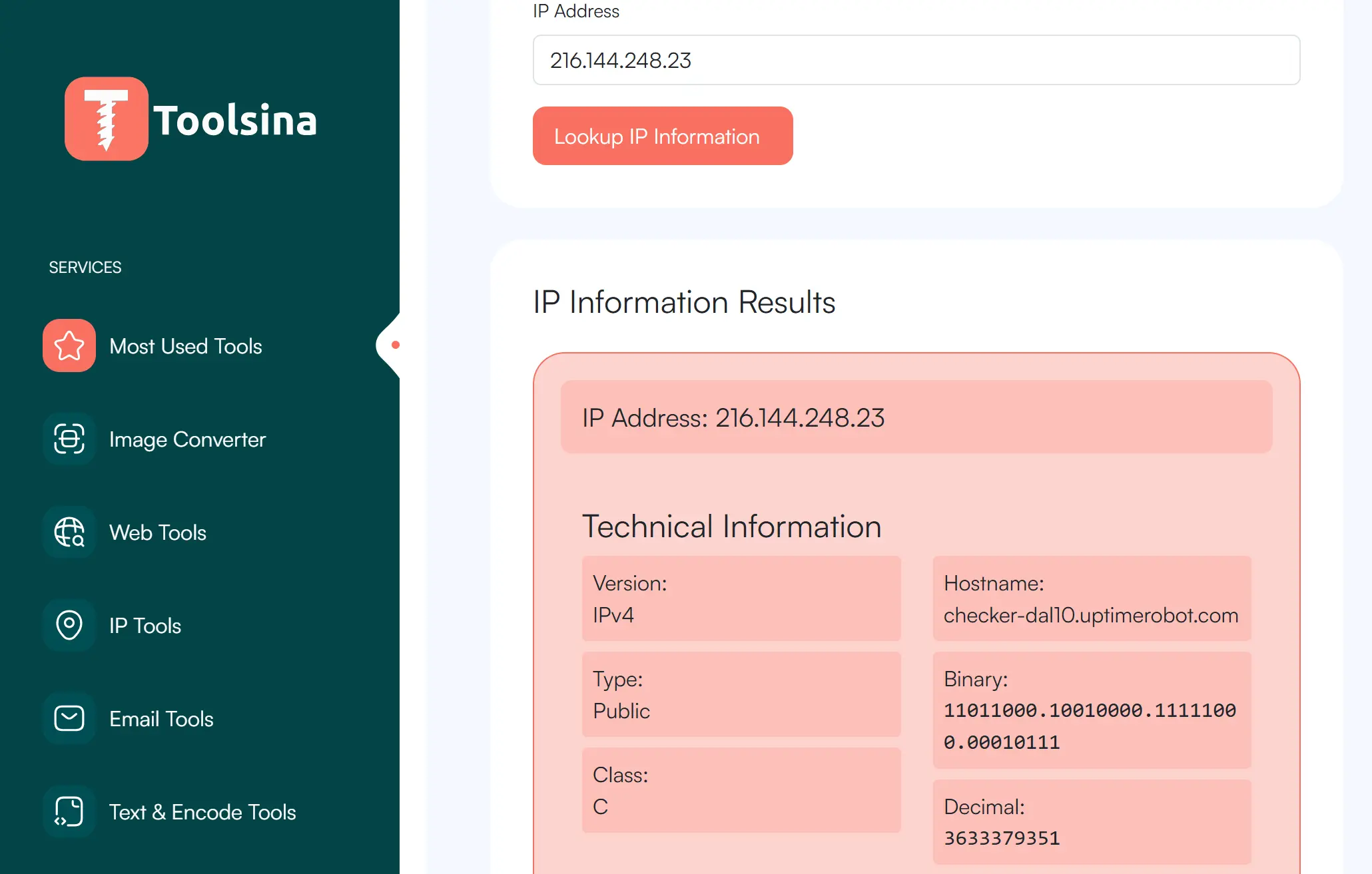
Typically, an IP lookup will show the country and city associated with the address, the internet service provider or data center behind it, and the organization that owns the network range. When you see traffic claiming to be from a normal browser but originating from a server farm or an unexpected location, that mismatch is often a useful signal.
Why This Is a Practical Step, Not Promotion
IP lookup tools are not security solutions on their own, and they are not meant to replace proper monitoring or firewalls. They are investigative aids. In real investigations, they are used to confirm suspicions raised by access logs, not to generate them. This makes them especially valuable when deciding how seriously to treat unusual traffic.
Making Better Decisions with Better Information
Understanding who owns an IP address and where it is likely coming from helps you choose the right response. Sometimes the result confirms harmless bot traffic or a legitimate service. Other times, it supports the decision to block, rate-limit, or closely monitor a source. Either way, the goal is clarity, not reaction.
When combined with access log analysis, IP investigation tools turn raw data into actionable insight, helping you respond based on evidence rather than assumptions.
What Happens After You Find the IP?
Identifying a suspicious IP address is not the end of the investigation. In many ways, it is the point where analysis turns into action. What you do next depends largely on where that traffic is coming from and who controls the network behind it.
When the IP Belongs to a Foreign Network
If the IP address resolves to a foreign country, the most effective next step is usually contacting the hosting provider or network owner responsible for that address range. Most data centers and cloud providers have clear abuse-reporting channels specifically designed for situations like this. When reaching out, the key is evidence. Providing relevant access log entries, timestamps, and a short explanation of the behavior you observed helps the provider understand that the report is legitimate and actionable.
In real-world cases, this approach is often more effective than attempting to block large IP ranges blindly. Hosting providers can investigate internally, suspend abusive accounts, or apply network-level controls that you do not have access to from your own server.
When the IP Is Domestic
When suspicious traffic originates from within the same country, the process can be faster and more direct. Domestic ISPs and data centers typically have clearer jurisdiction and quicker communication paths. Submitting a complaint with precise log evidence often leads to a quicker response, especially when the activity clearly violates acceptable use policies.
In these situations, cooperation tends to be smoother because the provider understands local regulations, and escalation paths are usually well defined. This can result in faster mitigation compared to cross-border cases.
Why Reporting Matters
Blocking an IP address on your own server may stop the immediate problem, but it does not address the root cause. Reporting abuse helps reduce repeat attacks, protects other websites, and improves overall network hygiene. It also creates a documented trail that can be useful if the activity escalates or repeats in the future.
Datacenters take abuse reports very seriously.
Knowing what to do after identifying an attacker turns access log analysis into a practical defense strategy. It shifts your role from passive observer to informed responder, using evidence rather than guesswork to protect your infrastructure.
Manual vs Automated Access Log Analysis
Once you understand how to read access logs and identify suspicious behavior, the next question is how that analysis should be done in practice. There is no single correct approach. Manual and automated log analysis serve different purposes, and understanding their strengths helps you use each one effectively.
Manual Analysis: Best for Investigation and Understanding
Manual log analysis is ideal when you are investigating a specific incident or trying to understand what actually happened. Reading raw log entries forces you to slow down and follow the sequence of events exactly as they occurred. This is where patterns become stories, and individual requests start to make sense in context.
During investigations, manual analysis allows you to notice subtle details that automated systems often ignore. Small timing differences, unusual request order, or inconsistencies between the User-Agent and the source network are easier to spot when you are directly looking at the data. This approach is especially valuable after an incident, when accuracy and interpretation matter more than speed.
Automated Analysis: Built for Scale and Continuity
Automated log analysis excels when volume increases. On busy websites, thousands or even millions of requests can be generated every day, making manual review unrealistic. Automated tools are designed to process this data continuously, flag anomalies, and surface patterns that would otherwise be hidden in sheer volume.
Automation is also well suited for ongoing monitoring. Alerts for spikes in traffic, repeated failures, or unusual request rates help you react quickly, often before users notice a problem. In this context, automation acts as an early warning system rather than a final judge.
Choosing the Right Balance
Manual and automated analysis are not competitors. They complement each other. Automated systems are effective at telling you that something unusual is happening, while manual analysis explains why it happened and how it unfolded. Relying on only one of these approaches usually creates blind spots.
In mature setups, automation handles routine monitoring at scale, and manual analysis is reserved for investigations that require judgment and context. Together, they turn access logs from raw data into a reliable source of operational insight.
Best Tools for Access Log Analysis
While understanding access logs at a conceptual level is essential, practical analysis becomes much easier with the right tools. Over time, several log analysis tools have proven themselves reliable in real production environments. Each of the following options serves a slightly different purpose, depending on scale, workflow, and technical comfort.
GoAccess
GoAccess is widely used for real-time access log analysis. It processes log files as they are generated and turns raw entries into live statistics that are easy to interpret. This makes it especially useful when you want immediate visibility into traffic spikes, error rates, or suspicious behavior as it happens.
One of its strengths is flexibility. GoAccess can be used directly from the terminal for fast, focused analysis, or it can generate an interactive web dashboard for a more visual overview. This dual approach makes it suitable for both system administrators and developers who want quick insights without complex setup.
AWStats
AWStats focuses on detailed, structured reporting over time. It is often found in shared hosting environments because it integrates well with common hosting control panels and requires minimal manual configuration. For long-term traffic analysis, usage trends, and historical comparisons, AWStats remains a dependable choice.
Its reports break down visits, referrers, user agents, and errors in a way that is easy to review periodically. While it is not designed for real-time monitoring, it excels at providing a comprehensive picture of how a site has been accessed over days, weeks, or months.
Webalizer
Webalizer is a lightweight option designed for speed and simplicity. It generates quick summaries of access logs without demanding significant system resources. This makes it useful on smaller servers or environments where you want a fast overview without deploying heavier analytics solutions.
Although its output is more basic compared to other tools, it still delivers essential insights such as traffic volume, popular pages, and error counts. For many administrators, this level of information is sufficient for routine checks.
Matching the Tool to the Task
No single tool is perfect for every situation. Real-time monitoring, historical reporting, and lightweight summaries all serve different needs. Choosing the right tool depends on whether you are responding to an incident, monitoring ongoing traffic, or reviewing long-term trends.
Used correctly, these tools reduce the friction of log analysis and allow you to focus on interpretation and decision-making rather than raw data processing.
Access Log vs Error Log (Don’t Confuse Them)
Access logs and error logs are often mentioned together, but they serve very different purposes. Confusing the two can lead to wrong conclusions during troubleshooting or security investigations. Understanding how they differ helps you ask the right questions and look in the right place.
The Core Difference
At a high level, access logs answer the question of who accessed your server and how, while error logs explain what went wrong internally. One records activity, the other records failure. Both are essential, but they tell different parts of the story.
| Access Log | Error Log |
|---|---|
| Records who accessed the server | Records what failed during processing |
| Focused on traffic and requests | Focused on errors and exceptions |
| Useful for security analysis | Useful for debugging and fixing issues |
How They Work Together
An access log shows every request that reaches your server, whether it succeeds or fails. This makes it invaluable for understanding traffic patterns, detecting suspicious behavior, and investigating potential attacks. If someone tries to access a restricted page or repeatedly requests sensitive paths, the access log is where that activity appears.
An error log, on the other hand, explains why something did not work as expected. It records server-side problems such as misconfigurations, missing files, permission issues, or application crashes. When a user reports that a page is broken or a feature suddenly stops working, the error log usually contains the technical reason.
Choosing the Right Log for the Right Question
If your goal is security monitoring or traffic analysis, the access log is your primary source. It shows intent and behavior. If your goal is fixing bugs or diagnosing server issues, the error log is the better place to start. It shows failure and root causes.
In practice, the most accurate investigations use both. An access log might show a request returning a server error, while the error log explains exactly why that request failed. Together, they provide a complete picture of what happened and how to respond.
Keeping these roles clear prevents wasted time and helps you move from symptoms to solutions with confidence.
Best Practices for Managing Access Logs
Access logs quickly grow from small text files into large datasets. Without a clear strategy, they become difficult to manage, expensive to store, and hard to analyze when you actually need them. Good log management is not about complexity; it is about consistency, structure, and readiness.
Keeping Logs Under Control with Rotation
Log rotation is the foundation of healthy log management. Instead of allowing a single log file to grow indefinitely, rotation splits logs into manageable segments based on time or size. This prevents storage issues and keeps recent data fast and easy to access. When an incident occurs, having cleanly separated logs makes investigation faster and more precise.
Rotation also reduces risk. Extremely large log files are more prone to corruption and harder to back up. By rotating logs regularly, you protect both performance and reliability.
Archiving for History and Compliance
Not all logs need to stay on your server forever, but many should not be deleted immediately either. Archiving older access logs allows you to preserve historical data without cluttering your active environment. This is especially important when investigating long-term trends, recurring attacks, or delayed reports of suspicious behavior.
Archived logs are often compressed and moved to secure storage. This keeps them available when needed, while freeing up disk space on production systems. The key is having a clear retention policy so logs are kept long enough to be useful, but not so long that they become a liability.
Automation as a Safety Net
Manual log handling does not scale well. Automation scripts ensure that rotation, cleanup, and archiving happen consistently without human intervention. This removes guesswork and prevents the common problem of discovering full disks or missing logs during a critical incident.
Automation also improves reliability. When processes run the same way every time, investigations become easier because you know exactly where to look and what to expect.
Alerts for Action, Not Noise
Access logs are most valuable when they lead to timely action. Setting up alerts based on log patterns helps you respond before problems escalate. Spikes in traffic, repeated failed requests, or sudden changes in behavior can trigger notifications that prompt immediate review.
Well-designed alerts focus on meaningful signals rather than raw volume. The goal is not to react to everything, but to be informed when something truly unusual happens.
Turning Logs into a Long-Term Asset
When managed correctly, access logs are more than technical artifacts. They become a reliable record of activity, a security reference, and a diagnostic tool you can trust under pressure. Consistent log management ensures that when you need answers, the data is already there, organized and usable.
Final Thoughts
Access logs are often treated as background noise, quietly filling up disk space while everything seems to work. In reality, they are one of the few places where the truth of what happens on a server is recorded without interpretation or opinion. Every request leaves a trace, and those traces add up to something powerful: visibility.
Good security is rarely about reacting to disasters. It is about noticing small signals early and understanding them before they turn into real problems. Access logs support this mindset. They allow you to see behavior as it unfolds, to distinguish between normal activity and something that deserves attention, and to act with confidence rather than assumptions.
Most importantly, logs do not lie. They do not guess, exaggerate, or forget. When read carefully, they show exactly what reached your server and how it was handled. That clarity is what turns access logs from simple files into a foundation for smarter, more proactive security decisions. Good Luck! 🙂
Ahura WordPress Theme
The Power to Change EverythingElementor Page Builder
The most powerful WordPress page builder with 100+ exclusive custom elements.
Incredible Performance
With Ahura’s smart modular loading technology, files load only when they are truly needed.
SEO Optimized for Google
Every line of code is carefully aligned with Google’s algorithms and best practices.

To post a comment, please register or log in first.