
 Tutorials


 Ahura
Ahura Plugins
 Blog
BlogHow to Build a Custom Payment Form & Send Customers Straight to the Checkout
- Tutorials
- Updated on

Hey there! Today, we’re going to show you how incredibly easy it is to work with the Aani Plugin (Fast Checkout for WooCommerce). Imagine having a simple form that skips all the boring steps and connects your customers directly to the payment gateway. If you’re looking to speed up your sales on social media or Instagram and make the buying process smooth as silk, you’re in the right place. Stick with us until the end!
By using the Aani Plugin, your international customerswhether they find you on Instagram, TikTok, or Facebook can bypass the clunky shopping cart and go straight to paying. This significantly simplifies the journey, providing your customers with a top-tier online shopping experience that keeps them coming back.
If you’re selling digital assets or online courses, creating these direct purchase links is a game-changer. In this guide, we’re breaking down exactly how to set this up. Let’s dive in!
Table of Contents
The Secret to Direct Checkout: Why Speed Matters
Creating a direct-to-gateway path can be done in two main ways. One involves using standard WooCommerce features and a bunch of extra add-ons. However, that route often comes with downsides like slower site speeds and technical hiccups. That’s why at Ertano, we highly recommend the Aani Plugin method for a professional setup.
Method One: The Traditional WooCommerce Hack
To create a direct payment form using standard WordPress tools, you’ll need a combination of plugins: WooCommerce itself, a reliable payment gateway, and a form builder that integrates with your store. While this works, it requires a bit of “duct-taping” things together.
Step-by-Step Setup
First, make sure WooCommerce is up and running and your digital courses or products are already added to your catalog.
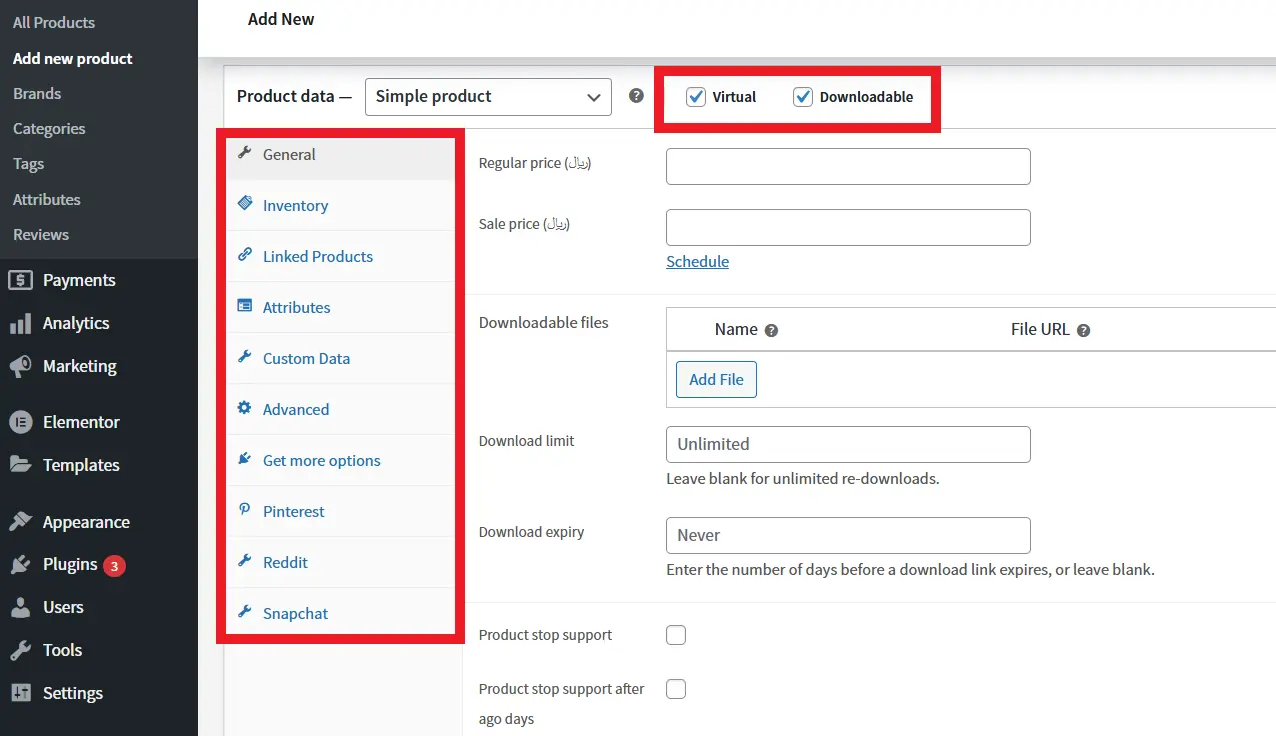
Head over to Products > Add New in your dashboard. Set up your course as a “Simple Product.” Don’t forget to check the “Virtual” and “Downloadable” boxes so your customers get their access immediately after paying.
To create a direct link, you need the Product ID. WooCommerce assigns a unique number to every item. You can find this by going to Products > All Products and hovering over your course title. The ID will pop up right there.
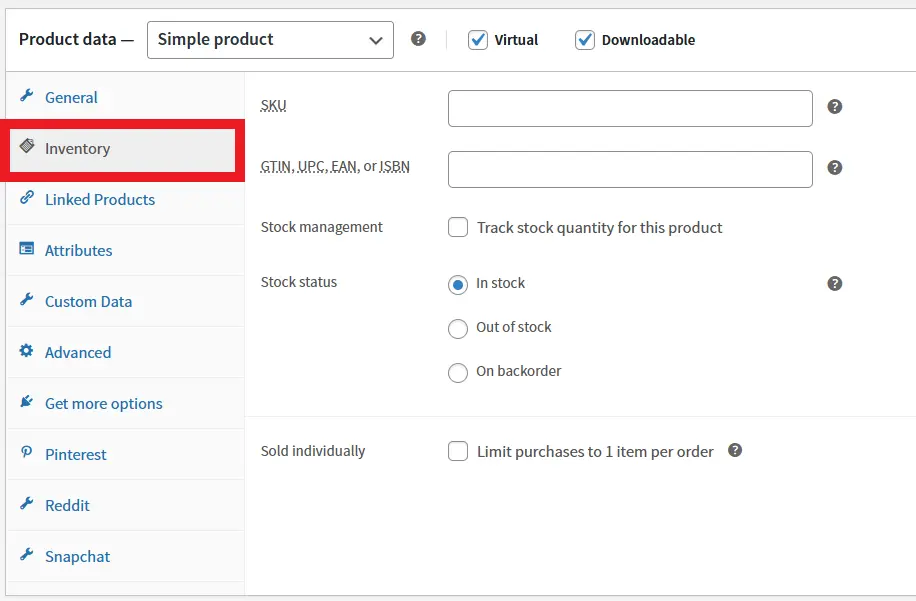
Now that you have the Product ID, you can use a custom link to add the product to the cart. The link structure looks like this:
https://yourdomain.com/?add-to-cart=PRODUCT_IDReplace PRODUCT_ID with your product’s numerical ID. For example, if your product ID is 123, your link will look like this:
https://yourdomain.com/?add-to-cart=123This link adds the product to the cart as soon as it is clicked. However, to redirect the user directly to the Checkout page immediately after adding the product, you can use the following structure:
https://yourdomain.com/checkout/?add-to-cart=PRODUCT_IDFor example, if the product ID is 123, your link would be:
https://yourdomain.com/checkout/?add-to-cart=123This link sends the user straight to the checkout page upon clicking.
Note: This manual method has several drawbacks. For instance, it can trigger various errors, such as the 404 errors we previously encountered on the cart and checkout pages. Additionally, it can negatively impact site speed.
To further optimize the purchasing process and eliminate extra steps like manual data entry, you can install plugins that auto-fill user information and redirect them directly to the payment gateway. One popular plugin for this is WooCommerce Direct Checkout, which you can download from the official WordPress repository.
To install it, go to your WordPress Dashboard, navigate to Plugins > Add New, and search for “WooCommerce Direct Checkout.”
After installation, go to the plugin settings and enable options such as “Skip Cart.” This option ensures that after adding a product to the cart, the user is redirected directly to the checkout page.
To simplify the checkout form and provide a better experience, you can use plugins like Checkout Field Editor to remove unnecessary fields, such as the shipping address for digital products.
Install the Checkout Field Editor plugin. From the WooCommerce > Checkout Form section, you can remove or customize unnecessary fields like address, city, and zip code to make the payment form easier and faster for users.
If you have multiple training courses and want to create a direct payment link for each one separately, simply change the Product ID in the link. For example:
For Course A (ID 123):
https://yourdomain.com/checkout/?add-to-cart=123For Course B (ID 456):
https://yourdomain.com/checkout/?add-to-cart=456After creating the links, you can place them in various locations on your site:
- In Call to Action (CTA) buttons on the course description page.
- In promotional emails or newsletters.
- In social media or PPC (pay-per-click) advertisements.
Method Two: The Pro Way with Aani Plugin (Ertano’s Top Pick)
At Ertano, we believe in simplicity. The Aani Plugin (Fast Checkout) is designed specifically for high-conversion sales. It allows your global customers to hit a button, enter their basic details, and jump straight to the payment page without any friction.
Go to any product and look for the “Get Shortcode” section on the left. This is where the magic happens. You can choose your preferred gateway, customize the text on your “Buy Now” button, and even add a short description to the form. Once you’re happy with the settings, just copy the generated code.
Next, head over to your Landing Page (or create a new one using Elementor). Drop a text widget anywhere you want and paste that shortcode. Boom! You now have a high-converting, professional checkout interface right on your page.
“After entering their phone number and full name, the user is redirected to the payment page. The issue here is that the user has made the purchase using a mobile number, whereas WooCommerce typically operates based on email. To resolve this, you should use the MihanPanel Pro plugin. Once installed, the user can log in via their phone number and a one-time password (OTP) to access the course they purchased.
Conclusion
Shortening the distance between “I want this” and “Paid” is the best thing you can do for your business. Whether you’re selling masterclasses, ebooks, or digital tools, a direct checkout link removes the hesitation that kills sales. By optimizing this flow, you’re not just selling more you’re respecting your customer’s time.
We hope this guide helps you take your store to the next level. Good luck, and happy selling! 🙂
Ahura WordPress Theme
The Power to Change EverythingElementor Page Builder
The most powerful WordPress page builder with 100+ exclusive custom elements.
Incredible Performance
With Ahura’s smart modular loading technology, files load only when they are truly needed.
SEO Optimized for Google
Every line of code is carefully aligned with Google’s algorithms and best practices.

To post a comment, please register or log in first.